
How to Add Facebook Feed to WordPress
Your Facebook Page probably gets news and event photos faster than the website does. Read on to add Facebook feed to WordPress with a hosted widget, so the latest Page updates land in a post, a sidebar or a landing section without copy-and-paste routines.
Three things to prepare
- Admin rights on a public Facebook Page. Profiles of individual people and closed groups are outside what the widget can read.
- An ElectricBlaze login; its starter tier is free.
- Script-saving rights in wp-admin: the Administrator role on your own install, or a paid WordPress.com plan with hosting features switched on.
Lots of installs already carry a long plugin list. Going the snippet way skips yet another entry in the updates screen and another options page, while Page posts are fetched and cached on ElectricBlaze infrastructure instead of your database.
Step 1: Connect your Page and design the feed
Deeper settings are documented in the Facebook widget settings handbook.
-

Visit the ElectricBlaze app, a.electricblaze.com, and log in (registration sits on that screen).
-

Inside Create New Widget, the Facebook Feed tile launches the builder.
-
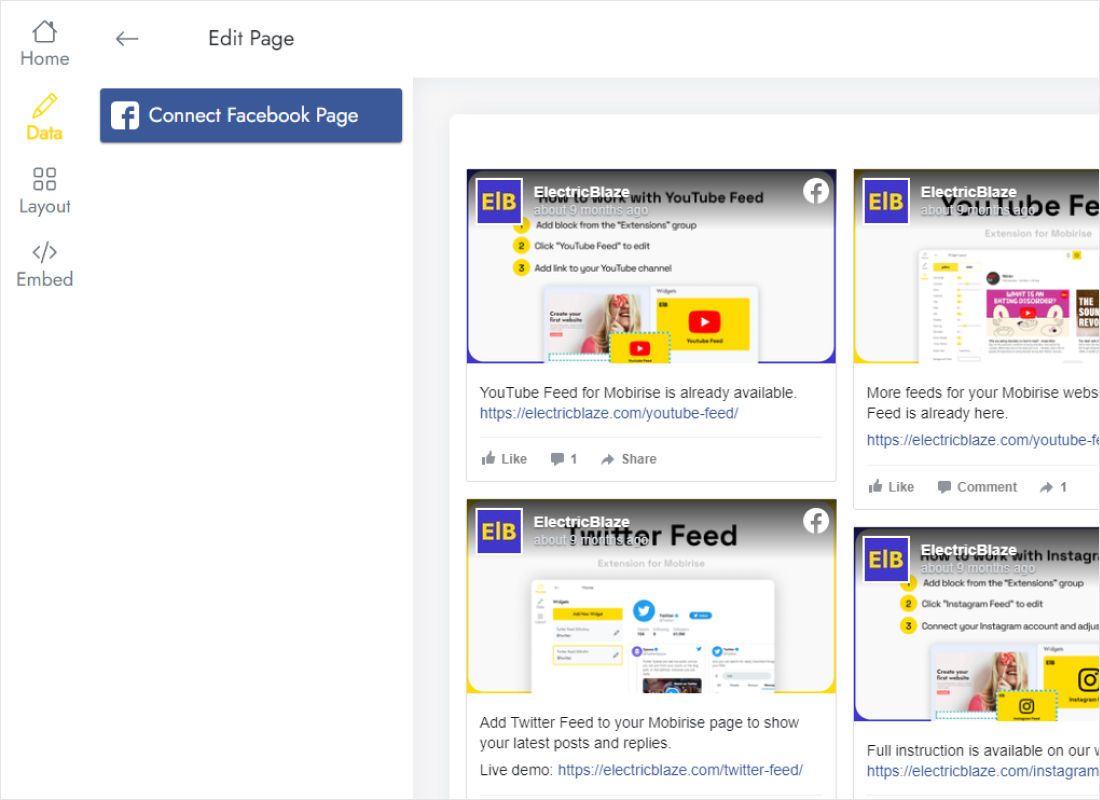
Connect Facebook Page is on the Data tab; tick the Page you manage when Facebook asks.
-
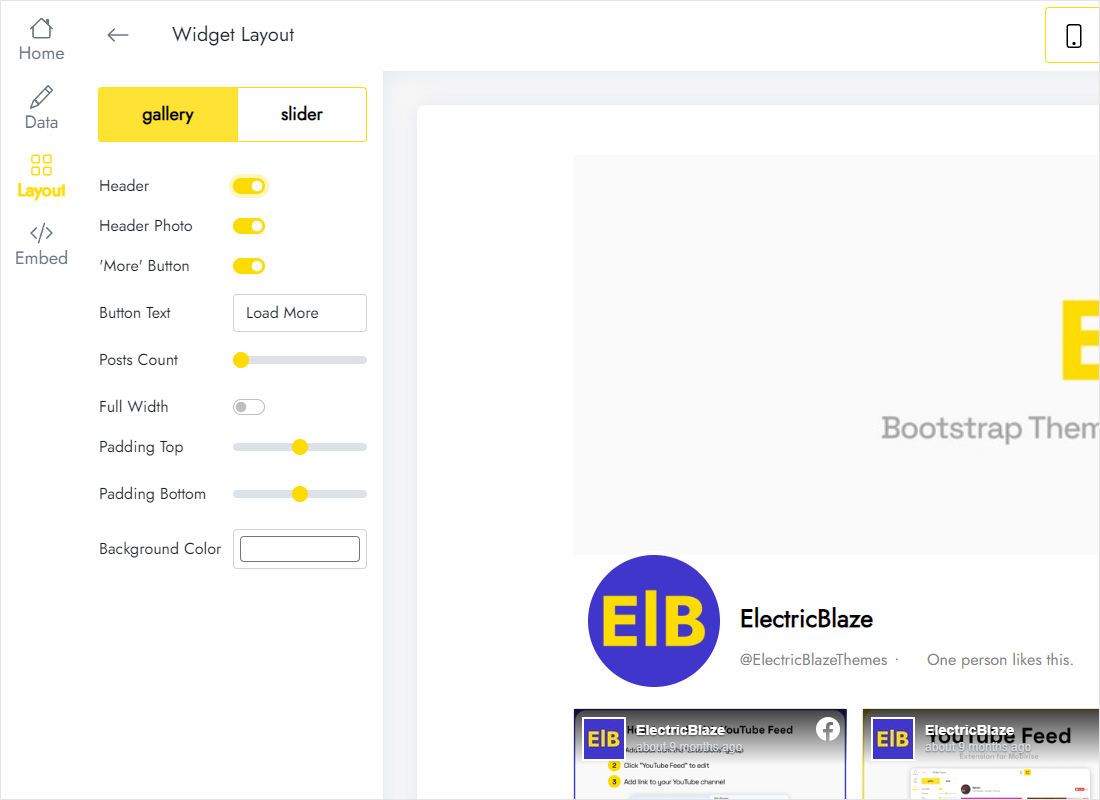
Match Layout to the destination: a single column for sidebars, three or four for wide templates.
-
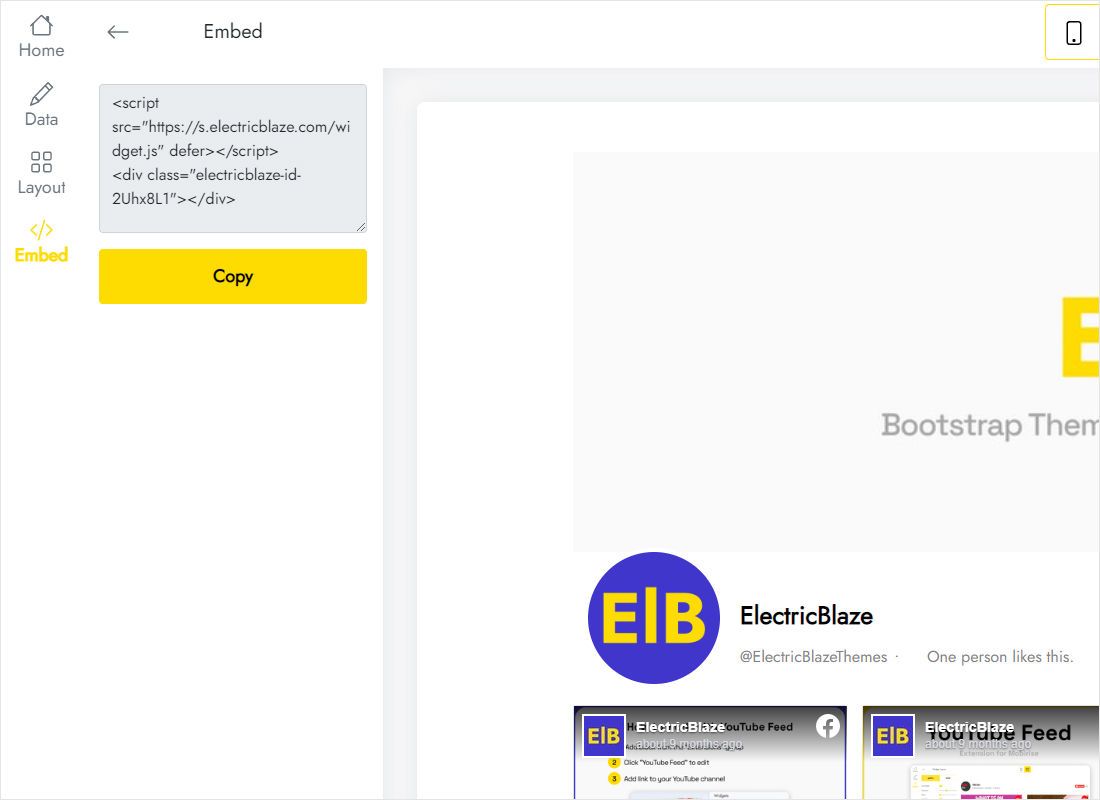
The Add to website button shows a two-line snippet; copy all of it.
Step 2: Embed Facebook feed WordPress block by block
Self-hosted installs and WordPress.com share the same Gutenberg steps.
- Choose the page that should carry Page news, perhaps About or Events, and open it for editing.
- Put the cursor at the intended spot, type
/htmland select Custom HTML. - Click Edit HTML; the dialog’s HTML pane receives both lines, and its Update button closes it.
- Narrow theme column? Wrap the block in a Group aligned wide.
- Update the page, sign out, and reload to confirm the cache hands visitors the fresh copy.
Elementor builds use the HTML element for the same code. On classic themes a sidebar can hold it too, via a Custom HTML widget.
Fitting Page posts into a theme
Facebook page feed WordPress plugin or snippet?
Both routes end with Page updates on your site. A dedicated plugin makes sense for people who want every control inside wp-admin. The snippet suits anyone who wants to embed Facebook page feed WordPress-wide and on non-WordPress sites too, since one widget, edited in one dashboard, serves every copy.
- Sidebar: one column, three rows and captions off stop the block from dwarfing the archive list.
- Homepage band: a slider layout keeps a single line of posts moving sideways.
- Phones: columns fold into one; scroll the result on an actual handset once it is live.
Page updates reach the site at the next sync: every 24 hours with Free, 60 minutes with Start.
Facebook feed on WordPress: FAQ
Can I embed Facebook feed WordPress.com free plan sites?
No. WordPress.com removes script tags on the free plan. Any paid plan works after hosting features are activated.
Why does the block disappear after I save?
Your user role cannot save scripts. An Administrator should paste the code, or on Multisite a Super Admin.
Will events or shared links appear?
The widget displays what the connected Page publishes. Discussions in private groups and personal timelines stay out.
Does the feed slow the page down?
The script tag carries the defer attribute, so it waits for the main content, and post images are served by ElectricBlaze.
More WordPress guides
General placement tips, the Facebook widget overview and other widgets for the same site:
Build your Facebook feed
Link a Page, copy two lines, and your WordPress news section runs itself. Five widgets are free.
Create a widget