
Instagram Feed Widget for Your Website
Connect your Instagram account once and show your latest posts on any page as a tidy grid or a swipeable slider. This Instagram feed widget for website owners needs no coding: style it in the editor, copy one snippet and paste it into your site.
Try the editor below. Switch layouts, change the number of columns and toggle captions: the preview on the right is exactly what your visitors will see once the snippet is on your page.
Instagram widget for website: what you get
Everything a brand, shop or creator expects from an Instagram feed widget for website pages: a profile turned into living content.
Grid or slider layout
Show posts as a clean photo grid for portfolio pages, or as a compact carousel that fits a sidebar, a footer or the space under a product description.
Captions on or off
Keep the text of each post under the photo when the story matters, or hide it for a purely visual gallery that lets the pictures speak.
New posts appear by themselves
The feed refreshes automatically: every 24 hours on the Free plan and every hour on Start. Publish on Instagram and your site catches up without any edits.
Looks right on phones
The layout adapts to the width of the block it sits in, so the gallery stays readable on a narrow mobile screen as well as on a wide desktop monitor.
Clickable posts
Visitors can open any photo and jump to the original post on Instagram to like it, leave a comment, share it or follow your profile.
One snippet, many pages
Reuse the same code on your homepage, blog and landing pages, or across several websites. Change the design once in the editor and every copy updates.
Instagram feed for website: grid, gallery or slider?
The right layout depends on where the block lives and what you want people to do after they see it.
Grid and gallery
A grid lines photos up in even rows, which is why photographers, interior designers, salons and restaurants tend to pick it. Two or three rows on a homepage work like a visual portfolio; a longer gallery fits an “Our work” or “Community” page, and boards of saved design ideas suit an inspiration section. Square thumbnails keep the rhythm tidy even when your posts mix portrait and landscape shots.
Slider
A slider takes one strip of the page and lets visitors swipe or click through recent posts. It suits landing pages and online stores where the main content has to stay above the fold, and it is the easiest option for narrow columns.
Captions and density
Turn captions on when your posts carry prices, recipes or event details. Leave them off for fashion, travel and art accounts where the picture is the message. Whatever you choose, you can switch later in the Layout tab without touching the code on your site.
Where to place the gallery
- Homepage, below the hero: a two-row grid proves the business is active before visitors scroll to your offer.
- Product and service pages: a slider of real customer photos sits naturally under the description and the price.
- About or contact page: behind-the-scenes shots put faces to the team and make the page feel personal.
- Footer: a single row of small thumbnails works on every page without competing with the main content.
Why display Instagram posts on your website

Fresh content without extra work
Most websites go quiet between redesigns, while an active Instagram account gets new photos every week. Pulling those posts onto your pages keeps the homepage lively and gives returning visitors something new to look at.
It is also social proof: real photos of products in use, happy guests or finished projects tell newcomers that the business is active.
More followers from website traffic
People who already found your site are warm leads. When they see an attractive gallery and a link to your profile, following you is a single tap away, so every visit can grow the audience you reach with future posts.
The effect works both ways: followers who click through from a post land on pages where they can book, order or subscribe, so the two channels keep feeding each other instead of competing for attention.
A lighter, more visual page
Long text pages tire readers. A strip of photos breaks up paragraphs, adds colour that matches your brand and shows what words cannot: the atmosphere of a café, the texture of a product, the result of a service.
Because the photos come from an account you already curate, the block stays on-brand without extra design work, and it quietly reminds visitors that there is more to see on your profile.
Who adds an Instagram feed to a website
Shops and brands
Show products worn and used by customers next to the catalogue, and let shoppers see new arrivals the moment you post them. User photos often persuade better than studio shots, and short clips of products in action do it in motion.
Restaurants and cafés
Keep today’s dishes, seasonal menus and event nights on the website without asking a developer to update it. Hungry visitors decide faster when they can see the plates.
Photographers and designers
Turn the account you already maintain into a self-updating portfolio section on your personal site, so recent shoots appear without re-exporting files.
Hotels and travel
Let guests preview rooms, views and local spots through the same photos that attract them on Instagram, right next to the booking form.
Salons and studios
Show before-and-after results, new styles and team photos right beside your booking button, where they help a hesitant client commit.
Bloggers and creators
Link your blog and your profile so readers become followers and followers find your articles. A sidebar slider does this quietly on every post.
How to embed Instagram feed on website
Five short steps to add an Instagram feed to website pages, from a free account to a working gallery. Usually it takes less time than making a coffee.
-

Go to a.electricblaze.com and create a free account, or sign in if you already have one. No credit card is needed.
-

Press Create New Widget and pick Instagram Feed from the list of widget types.
-
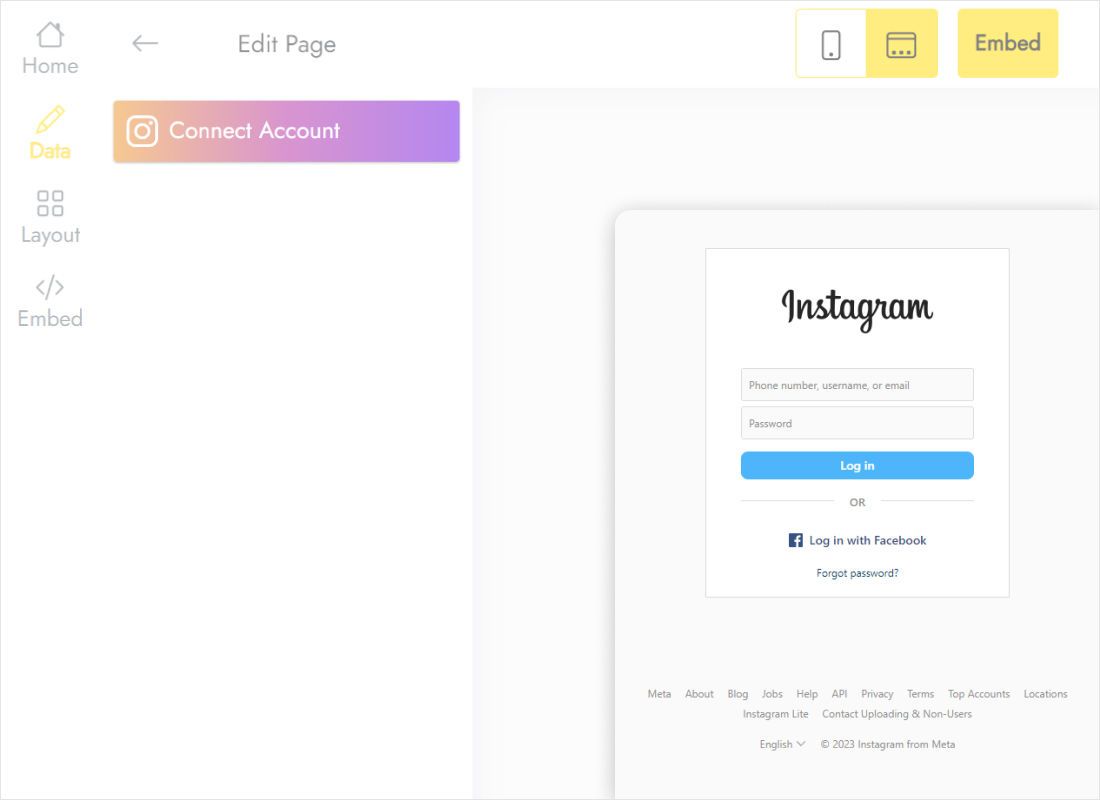
In the Data tab, link your Instagram account and approve read-only access so the widget can load your posts.
-
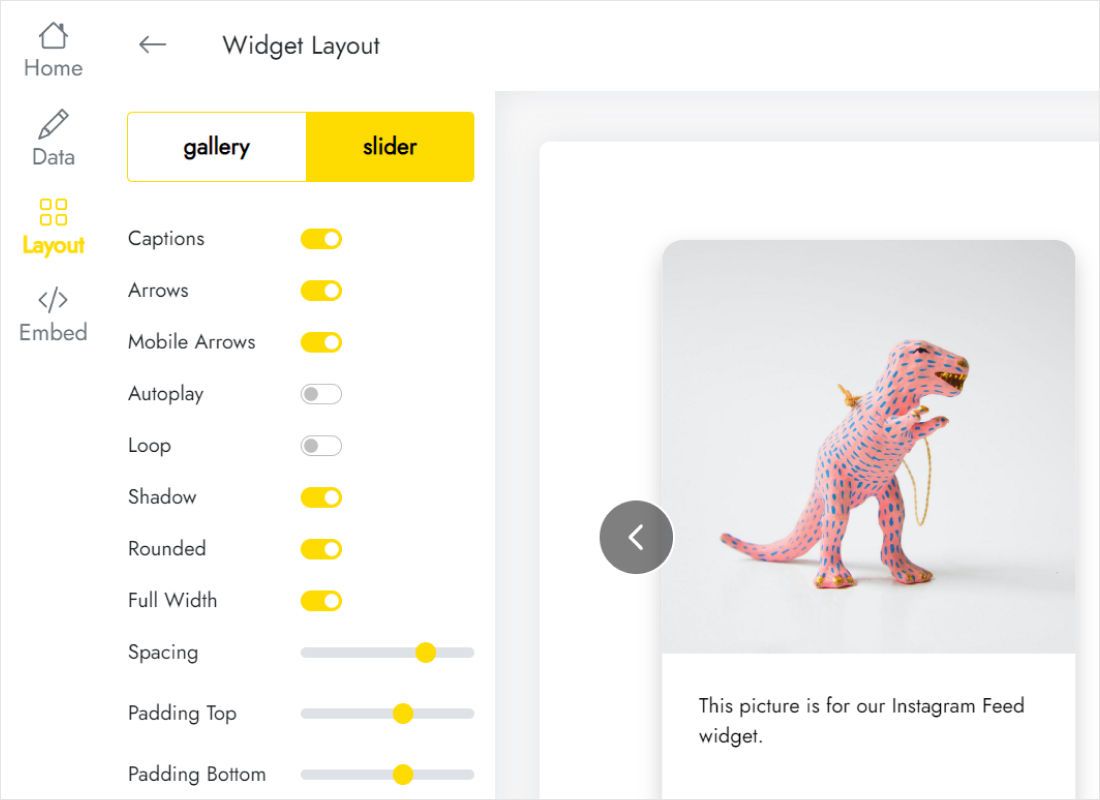
Open the Layout tab to choose grid or slider, set columns and spacing, and decide whether captions are shown.
-
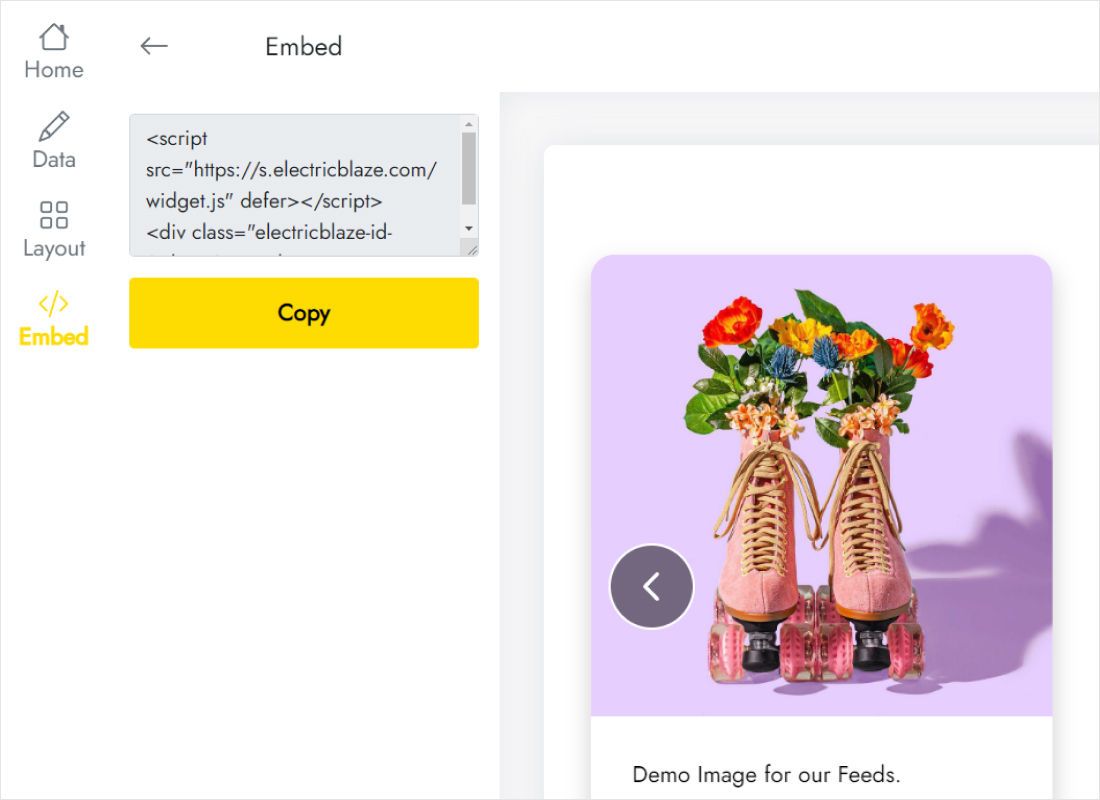
Press Add to website, copy the snippet and paste it into an HTML or code block where the gallery should appear, then publish the page.
Instructions for your website builder
Where exactly to paste the snippet differs between platforms. Pick yours:
Instagram feed embed code vs single post embeds
Instagram itself only lets you embed posts one at a time. Here is how that approach compares with a feed widget that generates a single embed code for your whole profile.
| ElectricBlaze widget | Instagram post embed | |
|---|---|---|
| What appears | Your whole profile feed | One post per snippet |
| New posts | Added automatically | Paste a new snippet every time |
| Layout | Grid or slider, captions optional | Fixed Instagram post card |
| Design | Columns, spacing and colours adjustable | No styling options |
| Code on the page | One short script for the entire gallery | A separate iframe for each post |
| Removal | Delete in the editor or remove one snippet | Find and delete every snippet |
If you only need to quote a single post in a blog article, Instagram’s own embed is enough. For a gallery that keeps itself current, a feed widget saves time. Pricing details are on the plans page.
Watch the Instagram feed widget in action
Instagram feed widget FAQ
Can you embed an Instagram feed on a website?
Yes. Instagram offers embed codes for individual posts only, so a whole feed needs a widget. Connect your account in ElectricBlaze, copy the generated snippet and paste it into your page: the latest posts will load there and refresh automatically.
Does Instagram have its own widget for websites?
Not for full feeds. The app’s “Embed” option produces one post at a time and does not update when you publish something new. Third-party widgets fill that gap by reading your recent posts through Instagram’s official connection.
Is the Instagram feed widget for website free?
You can build and publish it on the Free plan: up to 5 widgets, 1,000 views a month and unlimited websites. The paid Start plan removes the view limit and the ElectricBlaze branding and refreshes posts every hour.
Which Instagram accounts can be connected?
Instagram shares posts with outside apps for professional accounts. If you use a personal profile, switch it to a free Creator or Business account in the Instagram settings before connecting.
How often do new posts show up?
The widget checks for new posts every 24 hours on Free and every hour on Start. Deleted or archived posts disappear from the gallery after the next refresh.
Will the widget slow my site down?
The snippet loads its script asynchronously, so your text and images render first and the gallery fills in afterwards. Thumbnails are sized for the layout rather than loaded at full resolution.
Where do I paste the Instagram feed embed code?
Anywhere your site accepts custom HTML: an “Embed”, “HTML” or “Code” block in the page editor, or directly in the template. The builder-specific guides above show the exact menu for each platform.
Can I change the design after the gallery is live?
Yes. Edit layout, columns or captions in the dashboard and save. The code on your site stays the same, and visitors see the new design on their next page load.
Can I show the same Instagram feed on several pages or websites?
Yes. Paste the identical snippet wherever you need it: several pages of one site or completely different domains. All copies share one design, and the number of websites is unlimited on every plan.
What happens when a paid plan ends?
The gallery keeps working and a small link to ElectricBlaze is added below it, as on the Free plan. Renew at any time to hide the link again.
How do I remove the Instagram gallery from a page?
Delete the snippet from that page, or remove the widget in the editor to take it off every page at once. Removing a widget cannot be undone.
Other social feeds for your site
Pair your gallery with video or a quick way for visitors to message you.
Put your Instagram gallery on your site today
Start free, connect your profile and paste one snippet into your website. Your newest photos will follow automatically.
Create Instagram widget