
YouTube Widget for Website: Your Channel’s Latest Videos
Uploading a video is only half the job; the other half is getting it seen. This YouTube widget for website pages turns your channel into a slider or gallery of recent uploads that keeps itself current, so each new video reaches your site without a single manual edit. Paste the channel link, style the block, copy the code.
The editor below is fully working. Toggle Slider and Gallery, change a few parameters, and the preview shows how the video block will look once it is on your page.
What the YouTube feed widget does
A YouTube channel widget for website pages should save time rather than add a chore. These are the parts you will actually use.
Built from one channel link
Paste the address of your channel on the Data tab. There is no need to collect video IDs or copy separate embed codes for each clip.
New uploads join automatically
Publish on YouTube and the video is added at the next scheduled update: a day at most on the Free plan, an hour at most on Start.
Slider or Gallery
Present videos as a scrolling row that saves vertical space, or as rows of thumbnails that show the range of your channel at a glance.
Adjustable appearance
The Layout tab holds parameters such as the number of visible videos, spacing and colours, letting the block sit comfortably inside your existing design.
Comfortable on any screen
Thumbnails rearrange to the width available, from a wide desktop section down to a phone held upright.
One snippet, unlimited placements
Drop the same code on a homepage, course pages and a blog sidebar, or on separate websites. Any design edit you save reaches every copy.
Slider or Gallery: shaping your YouTube video gallery
Video thumbnails are big and colourful, so their arrangement changes how the whole page feels. Before you add YouTube channel to website sections, think about where the block will sit and what a visitor should do after watching.
Slider: a row of recent uploads
The Slider layout lines videos up in a single band that people scroll through sideways. It suits a homepage just below the hero, a product page that needs a few tutorials without doubling in length, and any narrow column. Visitors browse the row without scrolling away from the main offer, which keeps your call to action in view.
Gallery: a small video library
The Gallery layout shows many thumbnails at once, in rows. Use it on a dedicated “Videos”, “Tutorials” or “Watch” page, where people arrive to choose something. A YouTube gallery website section built this way works as a library that nobody has to maintain, because the channel does the publishing and the widget does the sorting.
Matching the block to your brand
Both layouts take their settings from the Layout tab. Adjust spacing, video count and colours until the thumbnails blend into your site rather than resembling a box borrowed from somewhere else. When you return later to change something, the code on the page stays exactly as it is.
Where YouTube videos on website pages work best
- Homepage: a slider of fresh uploads shows the channel is active and lets first-time visitors meet you in a minute.
- Course or service page: lessons and walkthroughs answer questions before someone decides to buy or book.
- Blog sidebar: a compact row gives readers something to do after they finish an article.
- About or press page: interviews and talks give a feel for the people behind the name, and ad-free showreels hosted on Vimeo fit there too.
Why add your videos to your site
More views, likes and comments
A video block puts your channel before visitors who arrived for something else: a price, an address, an article. Some press play, some open the video on YouTube to like it or leave a comment, and some send it to a friend with the same question.
That is engagement the channel would never have received if the videos lived only on YouTube.
Brand awareness in your own voice
Video carries tone, faces and personality far better than a paragraph of copy. Showing uploads on the site lets visitors hear how you explain things and see the team, the workshop or the stage.
When those clips reflect what the brand stands for, people remember it, and those who subscribe keep seeing you long after they close the tab.
A site that never looks abandoned
Plenty of small websites are built once and then left alone. A feed that pulls in every new upload refreshes the homepage on the same rhythm as your channel, with no extra work in the site editor.
Returning visitors notice the change, and a recent video quietly proves that you are still active.
Show instead of explain
Some things are hard to put into words: how to assemble a product, what a class feels like, how a venue looks at night. If those videos already exist on your channel, the widget places them right where the question comes up.
Visitors who get an answer on the page have less reason to leave and look for it elsewhere.
Who adds a YouTube channel feed to a website
Educators and course creators
Free lessons next to the sign-up form for a paid course let prospective students sample your teaching style before they commit.
Musicians and bands
New music videos, live clips and studio diaries appear on the band site shortly after release, right beside the tour dates.
Software and product companies
Feature walkthroughs and how-to clips on product and help pages answer common questions in a format many customers prefer to reading.
Fitness coaches and trainers
Workout videos give visitors a taste of your classes and help them decide whether to book a session or buy a programme.
Churches and public speakers
Recorded sermons, lectures and talks stay available on the website for everyone who could not attend in person.
Reviewers and hobby channels
Tech, gaming, cooking and travel creators can turn a simple personal site into a hub that always leads with the newest episode, while gamers who also broadcast can add their recent live streams and clips.
How to embed YouTube channel on website
Many creators ask how to embed my YouTube channel on my website without juggling video IDs. The process takes five steps, and your channel URL is the only input required.
-

Start at a.electricblaze.com: create a free account without entering card details, or sign back in.
-

Press Create New Widget; YouTube Feed sits in the catalogue of widget types.
-
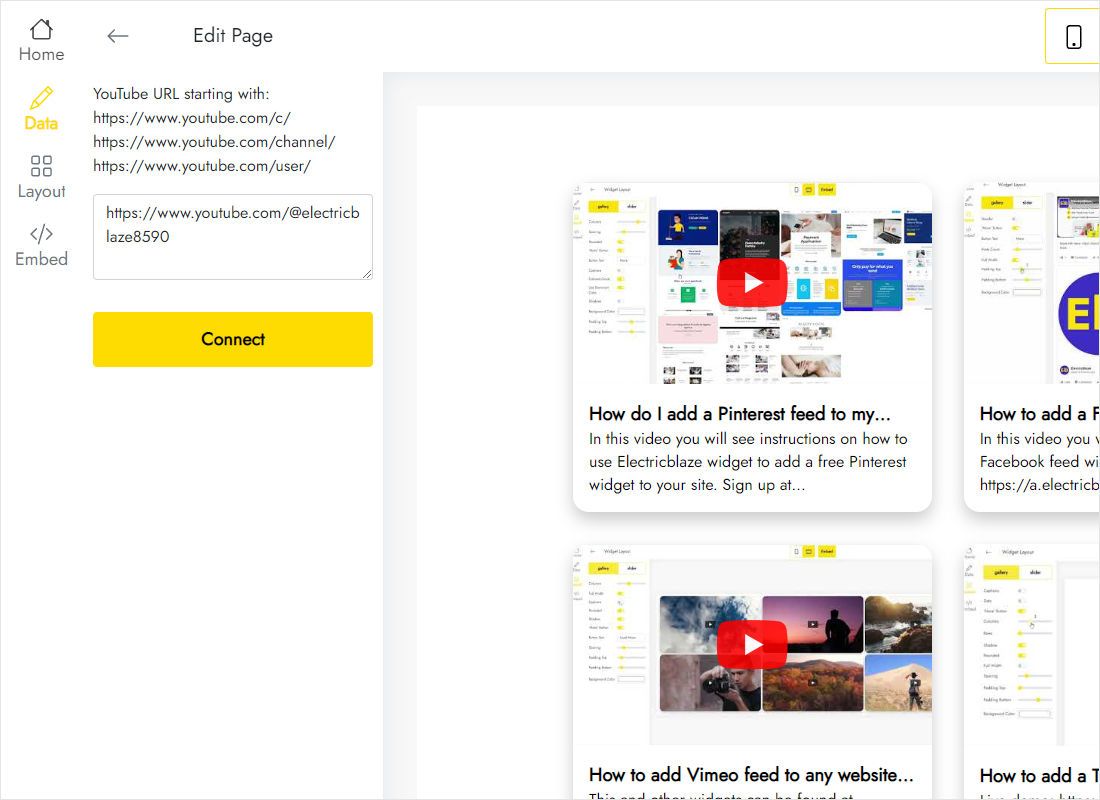
Your YouTube channel URL goes into the Data tab; press Connect. The editor accepts addresses that start with youtube.com/@, /channel/, /c/ or /user/.
-
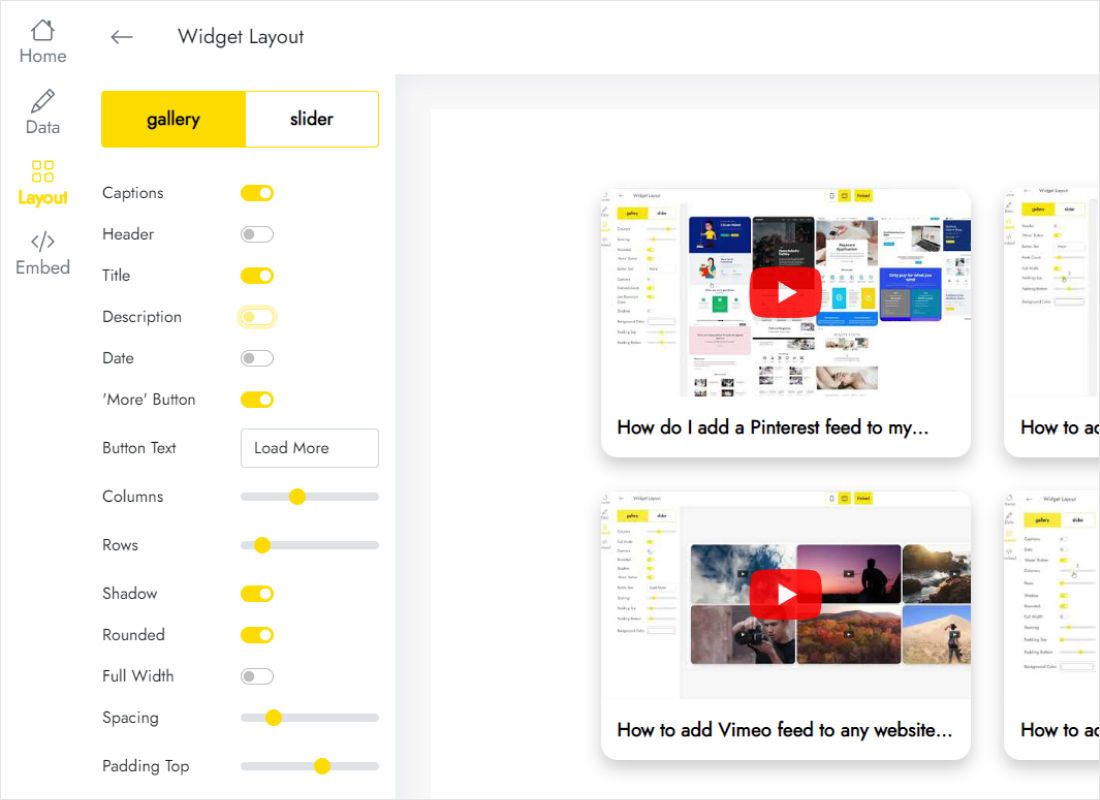
Move on to Layout, decide between Slider and Gallery, and adjust parameters while watching the preview.
-
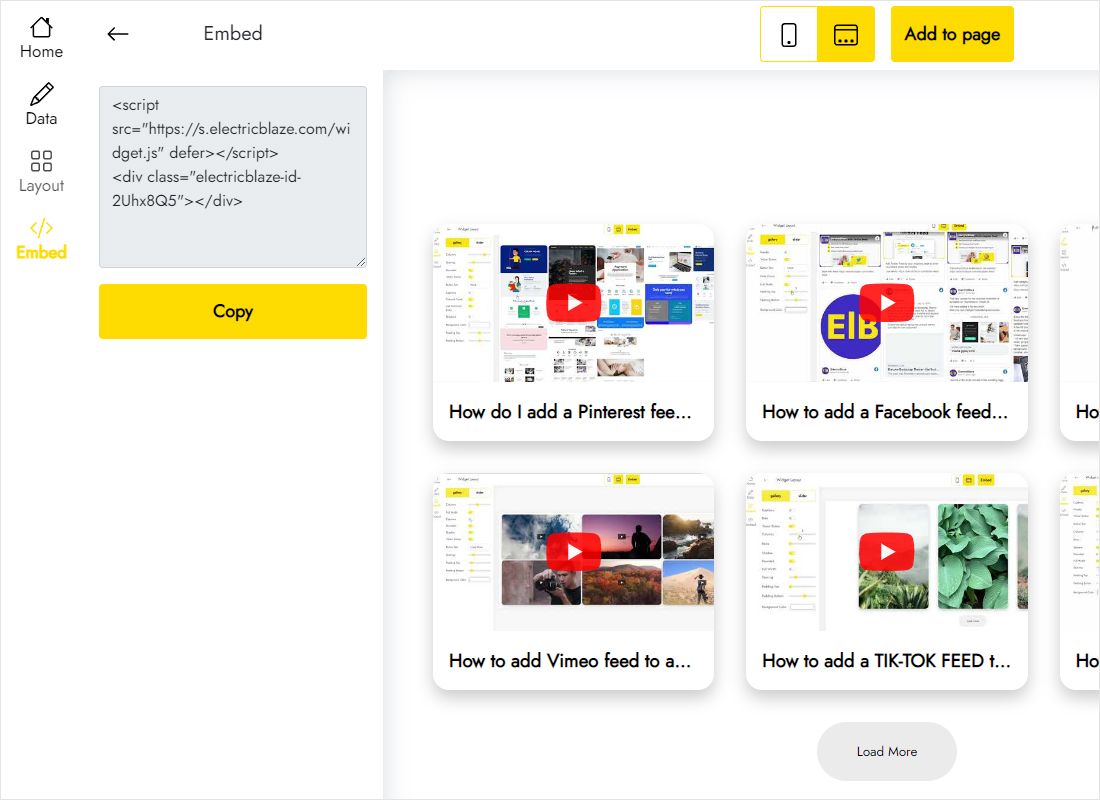
The Add to website button shows the finished snippet. Copy it into a custom code element on your page and publish.
Placing the snippet in your website builder
Illustrated instructions for specific platforms:
Channel widget vs a single video or playlist embed
YouTube’s Share menu hands out an iframe per video, and its embedded player can also play a playlist. Here is how that compares with a widget that follows the whole channel.
| ElectricBlaze YouTube Feed | YouTube iframe embed | |
|---|---|---|
| Source | Your channel link | One video ID or one playlist ID |
| New uploads | Picked up by the scheduled refresh | New code for each video; a playlist embed plays whatever the playlist contains |
| Presentation | Slider or Gallery of thumbnails | A single player; playlist items are listed inside it |
| Styling | Parameters on the Layout tab | Player options such as start time or controls, set in the embed address |
| Getting the code | Add to website button in the editor | Share, then Embed, on the video page |
| Cost | Nothing on Free; $5/month on Start, billed annually | Free |
For one fixed clip inside an article, the standard iframe is the quickest route, and for a hand-picked set a YouTube playlist player embed does the job. When you want the latest YouTube videos on website pages without touching the code again, a channel widget takes that routine off your hands. The pricing page lists what each plan includes.
Video: building a YouTube channel widget
YouTube widget questions answered
Can you embed a YouTube channel into a website?
Not with YouTube’s own tools: its Share menu produces embed code for individual videos, not for a channel as a whole. To embed YouTube channel on website pages, use a channel widget instead. Paste your channel link into ElectricBlaze, grab the snippet it generates, and the recent uploads show up wherever you put it.
Is there a YouTube widget for websites?
YouTube’s own offering is an embedded player built for single videos and playlists. A YouTube widget for website use that lists a channel’s uploads, sometimes called a YouTube plugin for website builders, comes from third-party tools like ElectricBlaze.
Can I embed YouTube videos on my website?
Yes. For one clip, open the video on YouTube, choose Share and then Embed, and paste the iframe into your page. To display YouTube video on website pages continuously, including the latest one, a channel widget does it for all uploads at once, so you never generate a new code per video.
Is it legal to embed YouTube videos on my website?
In general, YouTube’s terms of service let websites show videos through YouTube’s embedded player, as long as the uploader has not disabled embedding. The video stays hosted on YouTube, and its owner can delete it or switch embedding off at any time. Showing your own channel is the simplest case; with other people’s videos, avoid implying that they endorse you. Treat this as a general overview rather than legal advice.
Can I embed a YouTube playlist on my website?
Yes, with YouTube’s own player: its embed address accepts a playlist ID, and the player then steps through that playlist’s videos. The ElectricBlaze widget is built around a channel’s latest uploads, so for one fixed, hand-picked playlist the native playlist embed is the straightforward choice.
Is there a free YouTube channel widget?
Yes: the Free plan. It allows 5 widgets, a quota of 1,000 monthly views, unlimited sites and daily refreshes, and no card is asked for. Start, which is $5 a month on annual billing, removes the quota and the ElectricBlaze branding and refreshes hourly.
Which tab holds the YouTube channel embed code?
The Add to website button of the widget editor. That snippet is your YouTube widget for website HTML: add it to the page’s source at the spot the videos belong, or to the custom code element of a website builder.
When will a video I just uploaded appear on my site?
After the next scheduled refresh: daily on Free, hourly on Start. Nothing on the website itself needs editing.
Does one video feed work across several websites?
Yes. Reuse the snippet on any number of pages and sites. Because the design is stored with the widget, every placement looks identical.
What if I stop paying for Start?
The videos stay put. Beneath the widget a link to the ElectricBlaze service appears, and it goes away once you renew.
How can I take the YouTube widget off my site?
Deleting the snippet hides the videos on that one page. To wipe the widget from all pages together, remove it via the Data tab in the editor, bearing in mind there is no undo. Questions of any kind can go to [email protected].
Other feeds that sit well next to video
Mix longer videos with short clips, photos or live streams from other platforms.
Give your site a video section that updates itself
Create a free account, drop in the channel URL and embed a single snippet. From then on, each upload makes its own way to your site.
Create YouTube widget