
How to Add YouTube Feed to Google Sites
The Sites editor can already place a video, but only one clip per box. Here you will add YouTube feed to Google Sites so that a channel’s recent uploads line up in a slider or gallery, and learn when the built-in option remains the smarter pick.
Built-in video item or a channel feed?
If you are asking how to use Google Sites YouTube features: the Insert panel contains a YouTube item that searches for a video, or lists your uploads, and drops a single player onto the page. For one lesson recording or a welcome message that is ideal.
A channel feed answers another need. It lists recent uploads and appends each new one without help, which matters to teachers, clubs and creators who post every week; a film library hosted on Vimeo can be listed the same way.
- A channel address beginning with youtube.com/@, /channel/, /c/ or /user/.
- Edit rights on the site, plus an ElectricBlaze account (free).
Step 1: Create the channel widget
Layouts are demonstrated in the channel gallery showcase. The steps:
-

Visit a.electricblaze.com and get into the dashboard; registering is free.
-

Tap the new widget button, then the YouTube Feed tile.
-
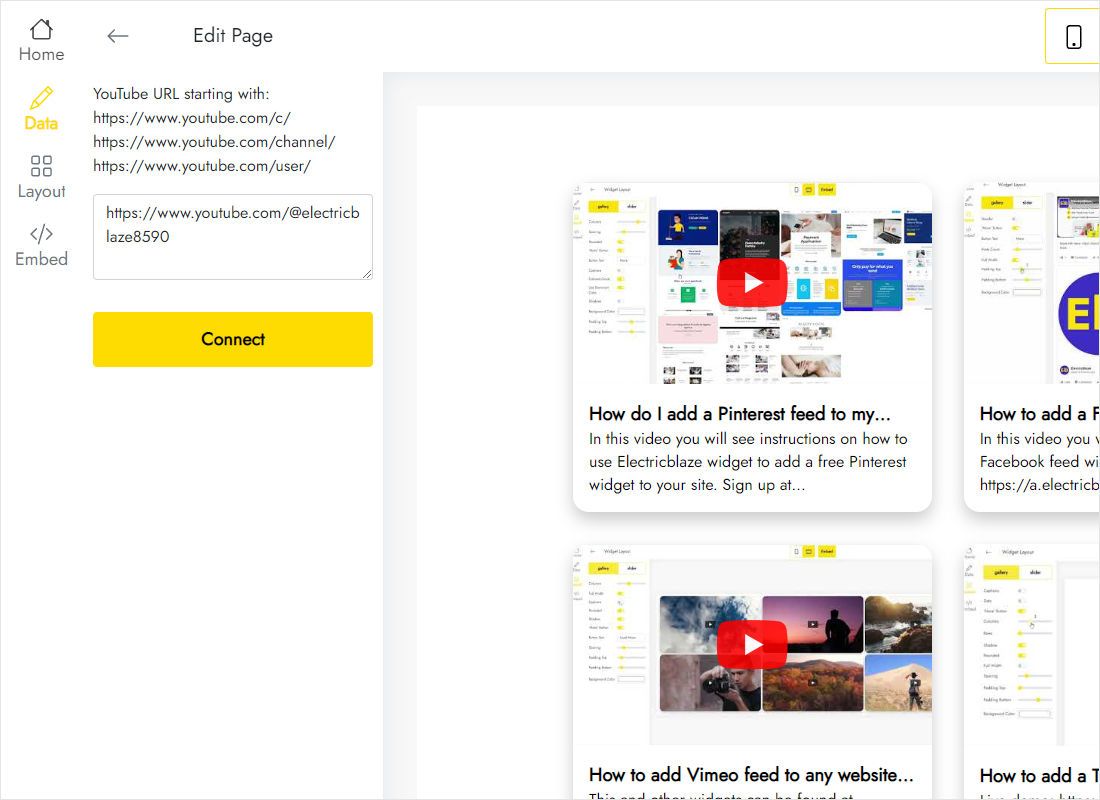
Data: paste the channel link, press Connect.
-
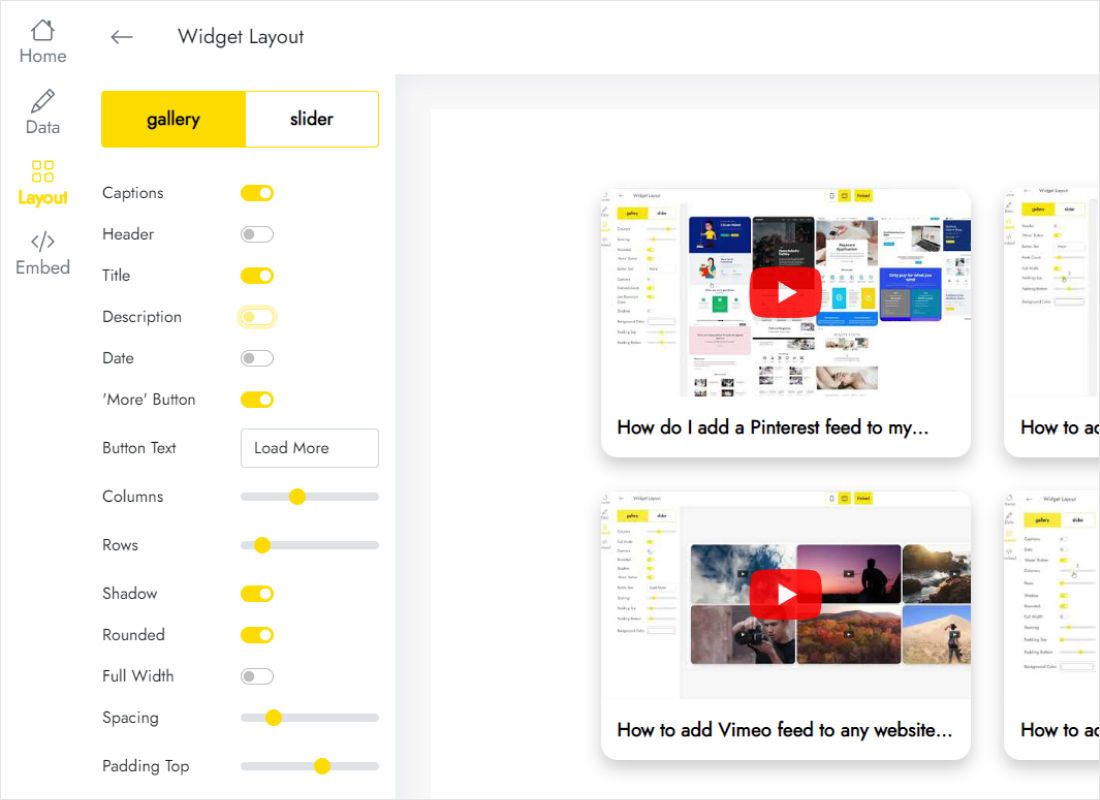
Layout: slider or gallery, plus columns, rows and spacing.
-
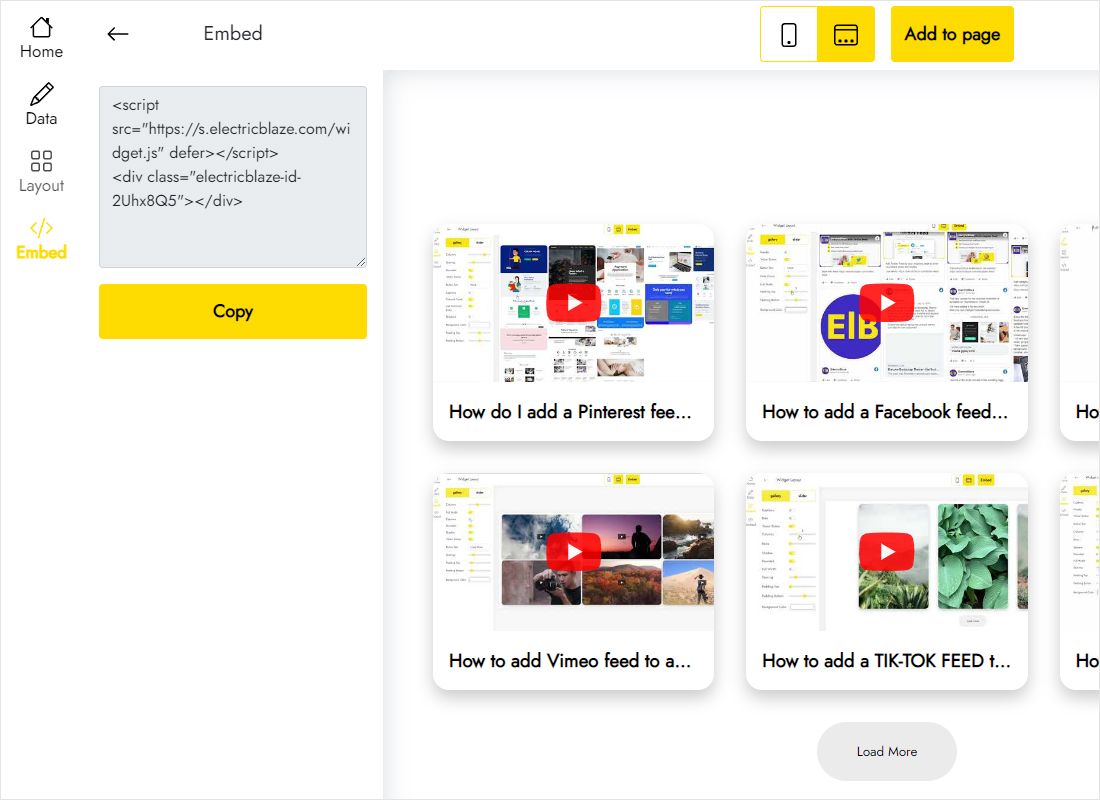
Add to website reveals the snippet; copy it.
Step 2: Paste the channel feed into your site
Back to the builder.
- Open Videos, Lessons or Home, whichever page should host the channel.
- In the Insert panel choose Embed rather than the video item, and flip to Embed code.
- Paste, press Next, confirm the covers render, then Insert.
- Drag the box wide before anything else, then set a height that fits the rows of widescreen covers.
- Publish and play one upload from the public page.
A watch link for one clip is not a channel address and will not connect on the Data tab.
Aspect ratio and placement for channel rows
Video covers are 16:9, so row height follows column width. Three columns spanning the page give shallow rows; one column in a narrow side section gives deep ones. Size the embed only after the layout is settled.
- Homepage. One-row slider of the newest uploads under the intro.
- Videos page. A two- or three-row gallery, with one featured clip above it placed through the built-in item.
- Phones. Columns collapse, so view the public page on a handset and lengthen the frame when needed.
Uploads join the feed after a daily check on Free or an hourly one on Start.
Channel videos on Sites: FAQ
Can I show a whole channel with the built-in video item?
No. That item places individual clips. A channel that stays current by itself needs a widget snippet.
Which channel link formats work?
Addresses that start with youtube.com/@, /channel/, /c/ or /user/.
Do students need an account to watch?
Public uploads play without signing in, although restrictions a school administrator or network applies to YouTube also affect the feed.
Is the channel feed free?
Within Free limits, yes: five widgets and a thousand views monthly. Start runs $5 per month billed once a year.
Continue with related guides
Other widgets for this builder, the YouTube widget overview and the general embed walkthrough:
Build your channel feed
Link the channel and every new upload shows up on your site without extra clicks.
Create a widget