
How to Add a Google Sites Music Player
Can you add music to Google Sites? Yes. A Drive audio file can be inserted, but a Spotify playlist or SoundCloud track needs embed code. Below you will set up a Google Sites music player with ElectricBlaze and learn which player mode suits a sandboxed page.
What you need for the player
- A Spotify playlist, album or track, or a SoundCloud track or set.
- Its embed link, found in the Share menu of either service.
- An editable site and a free ElectricBlaze account, which also unlocks feeds, chat and shop widgets.
Browsers do not let audio start with sound before a visitor interacts with the page. Plan for a player people press, not for background music that begins on load.
Step 1: Configure the Music Player
Options for both services are covered in the full player settings reference. The setup:
-

Log in at a.electricblaze.com or open a free account.
-

Select Music Player as the new widget type.
-
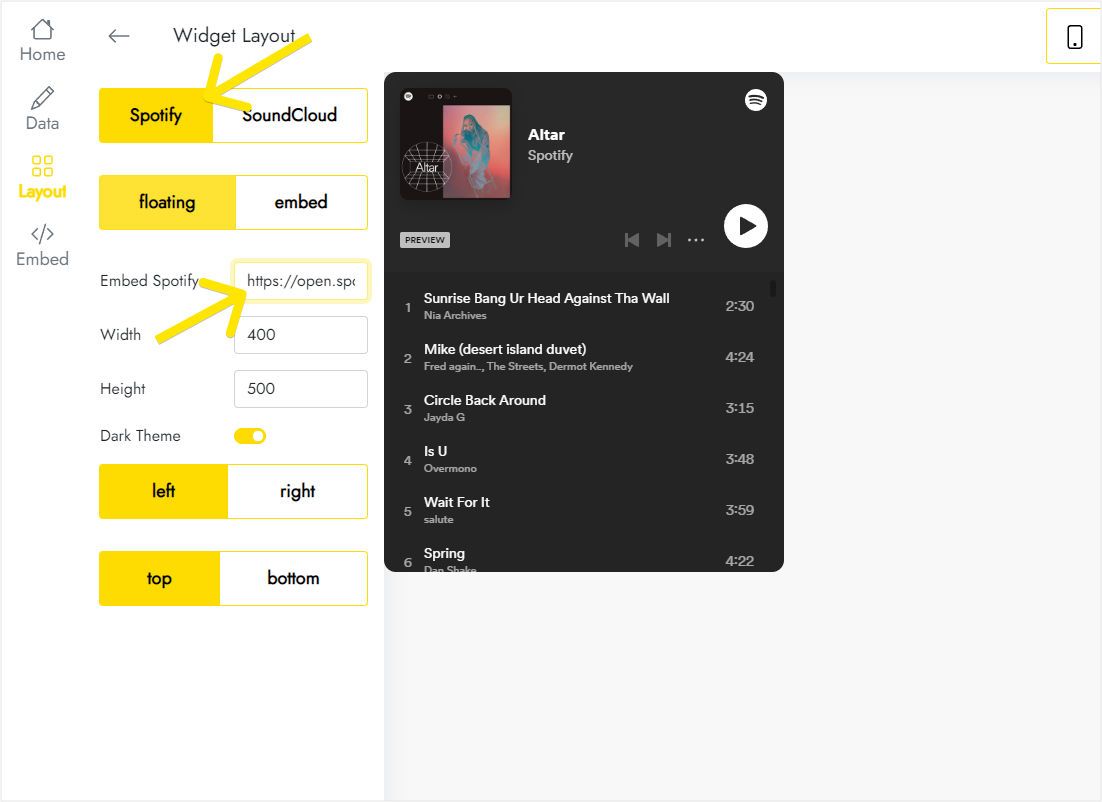
On Layout, choose Spotify or SoundCloud and paste the share link into the embed field. The screenshot shows floating mode, which is not the one to use here.
-
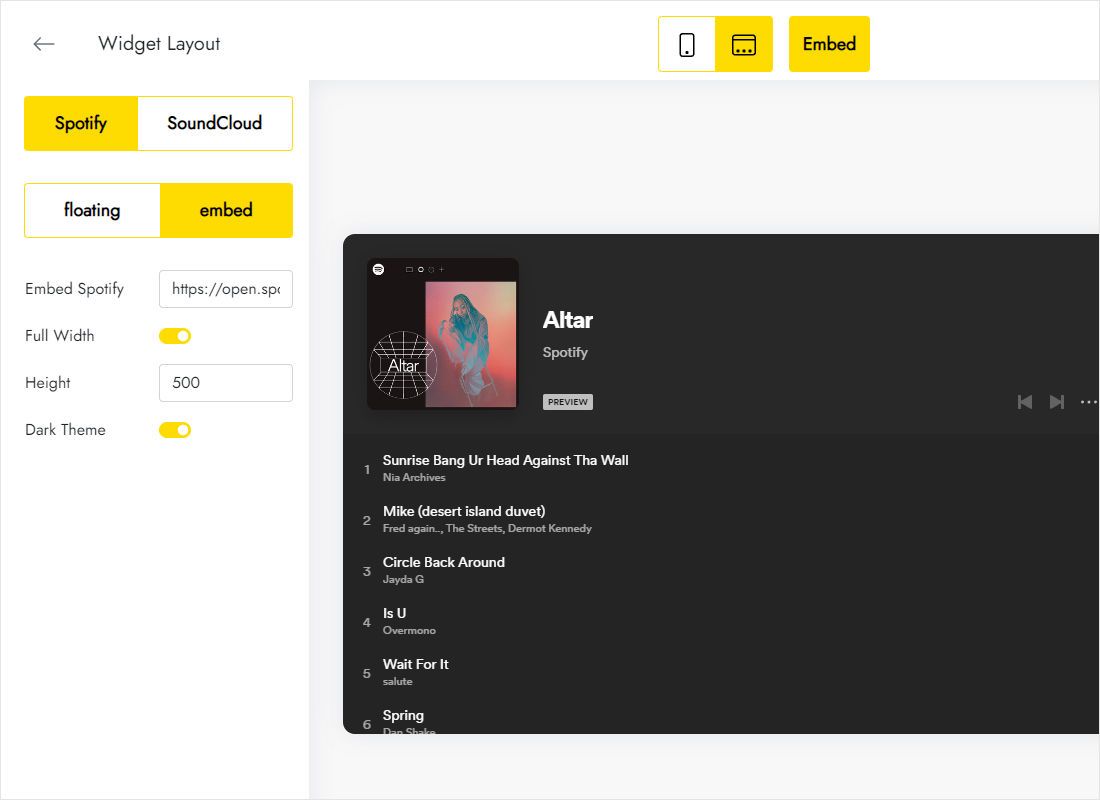
Click embed, turn on Full Width and set a height, for example the 500 pixels in the preview.
-
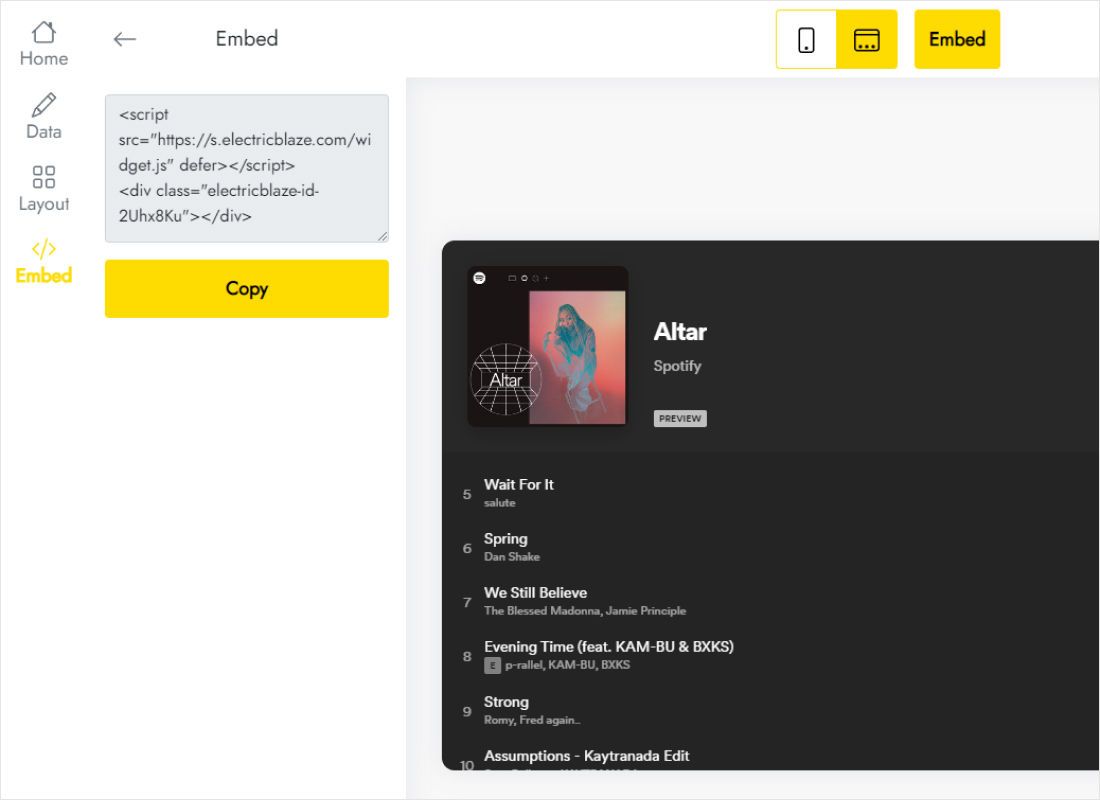
Hit Add to website to reveal the code, then copy it.
Step 2: Insert the player on your page
Open the site editor:
- Choose the page, for example Music, Listen or a class playlist page.
- Click Embed under Insert and open the Embed code tab.
- Paste, go Next, and once the player shows in the preview click Insert.
- Make the frame at least as tall as the height set in the widget so the track list is not clipped.
- Publish and press play on the live page to check the audio.
Changed the playlist? Update the source in ElectricBlaze; the published page picks it up without another Publish.
Why embed mode suits this builder
Every embed lives in its own sandboxed iframe. A floating player positions itself against the browser window, but inside a frame that window is only the embed box, so the player would hover in a small rectangle rather than the screen corner. There is no site-wide code field to work around it.
- A page of music. A full-width player with a long track list suits a dedicated page.
- On several pages. Insert the same code on each; playback stops when a visitor opens another page, because each page loads its own copy.
- School networks. Where Spotify or SoundCloud is blocked, the player will be too.
Music and audio on Sites: FAQ
How to add Spotify playlist to Google Sites?
Copy the playlist link from Spotify’s Share menu, paste it into an ElectricBlaze Music Player in embed mode, then insert the widget code with Insert → Embed → Embed code.
How to embed Spotify playlist in Google Sites without a widget?
Spotify’s own embed code can go straight into Embed code. The widget adds a dark theme switch, full-width sizing, SoundCloud support and source changes without editing the page.
How to add an audio player to Google Sites for an MP3?
Upload the file to Drive and use Insert → Drive, which shows a preview player. The Music Player widget is meant for Spotify and SoundCloud.
Can the song start on its own when the page opens?
Browsers block sound until a visitor clicks or taps, so autoplay with audio is not reliable anywhere.
Other Sites walkthroughs
Feeds for the same builder, the Music Player overview and the basic embedding guide:
Build your player
Paste a playlist, copy the code and give your page a soundtrack. Free to start.
Create a widget