
How to Add Twitter Feed to Google Sites
Quick updates, match scores and snow-day notices often go to X (Twitter) before anywhere else. Read on to add Twitter feed to Google Sites through an ElectricBlaze widget and to size the embed so short and long posts stay legible on laptops and phones.
Requirements
- The X (Twitter) handle you plan to feature.
- Editing rights on the Sites project.
- An ElectricBlaze account; opening one is free.
The builder has no X (Twitter) block, and a profile link placed into By URL will not bring up a timeline, because the network forbids its pages inside frames on other domains. A widget built from the handle is the least fiddly way to keep posts visible.
Step 1: Build the X (Twitter) widget
Feature details sit in the announcement card widget overview. Setup in brief:
-

Reach a.electricblaze.com and access your dashboard, signing up if needed.
-

Tap the button for a new widget; Twitter Feed is listed among the types.
-
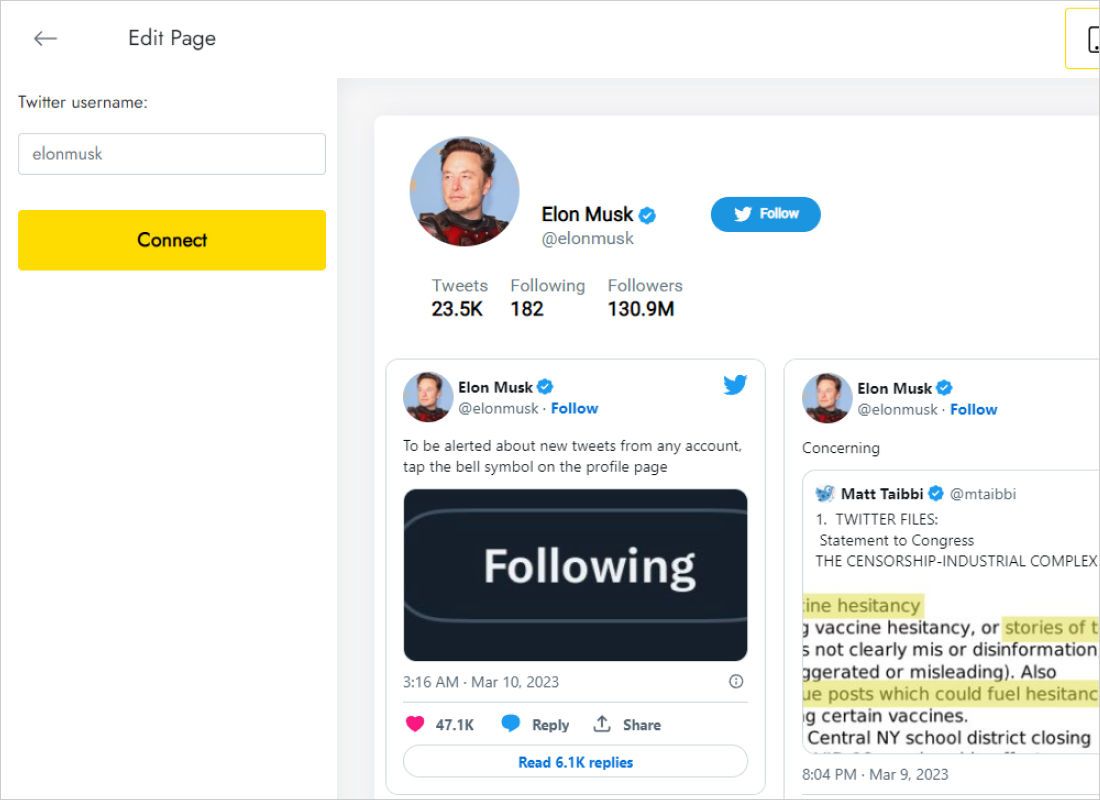
Enter the handle under Twitter username on the Data tab, then Connect.
-
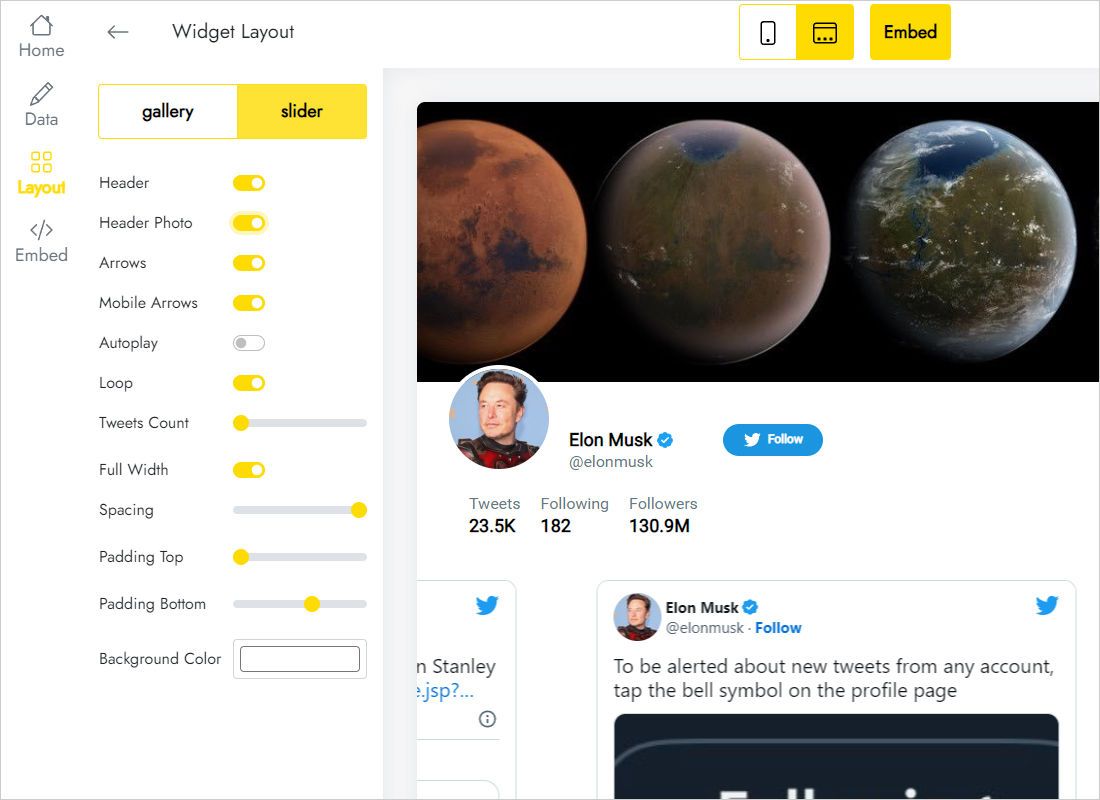
Layout: a slider suits a narrow strip, a gallery suits a news page. Leave captions on so the post text is readable.
-
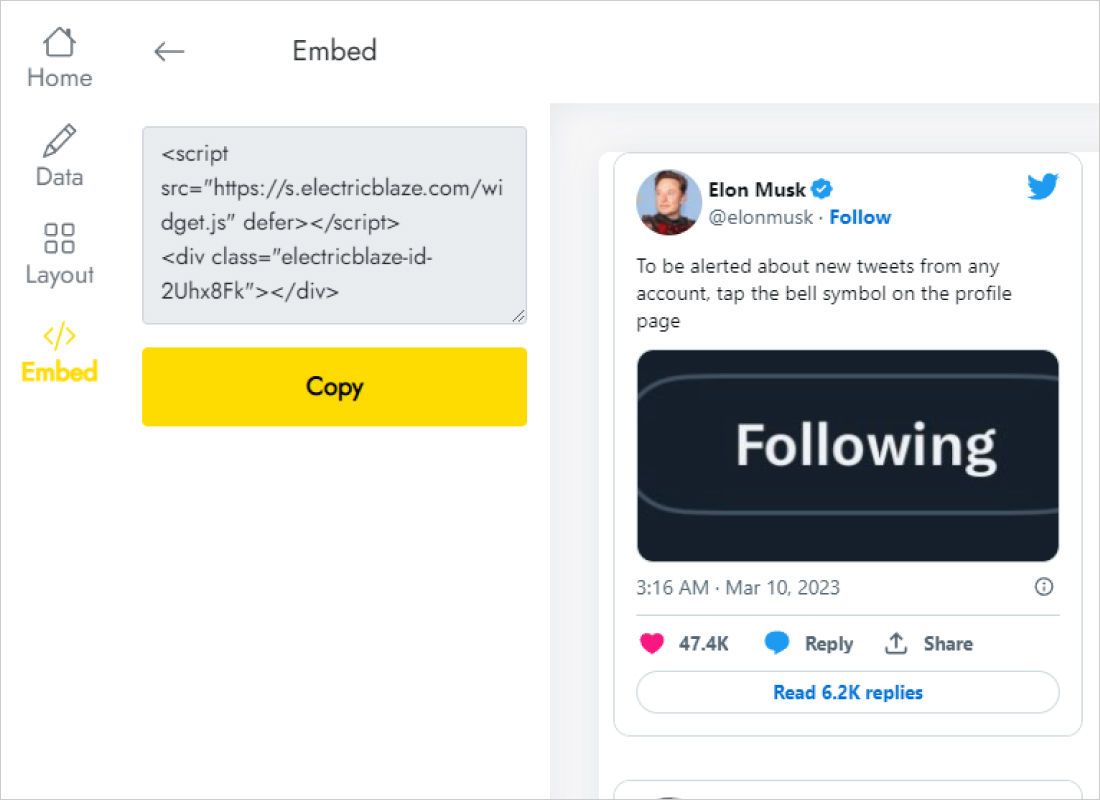
Add to website displays the finished snippet for copying.
Step 2: Insert the post feed on a page
Next, reopen your project in the builder.
- Announcements, Home or a club page: select it in the Pages panel.
- Choose Embed from the Insert list, switching to its Embed code tab.
- Drop the snippet in, go Next, wait until posts show in the preview, and Insert.
- Stretch the box so no sentence is clipped; wordy posts need more height than image-led ones.
- Publish and view the result as a visitor would.
Protected accounts keep their posts private, so nothing from them can appear in a public website feed.
Layout advice for X (Twitter) posts
A single post might be one line or a long announcement with a picture, which makes gallery rows uneven. Give the frame generous height, or pick the slider so everything stays in one horizontal band.
- Announcements column. Slider in a two-column section, with office hours or contact details in a text box beside it.
- Club or class news page. Gallery of two or three columns stretched across the page.
- Phones. Columns stack; lengthen the embed if posts begin scrolling inside it.
Your Twitter feed picks up new posts on the widget schedule: a daily check on Free, an hourly one on Start.
X (Twitter) on Sites: FAQ
Why does By URL not show my Twitter profile?
X (Twitter) blocks its pages from loading in frames on outside websites. Use widget code on the Embed code tab instead, the same route the rest of our setup guides take.
How many Twitter posts can the frame show?
As many as your rows and columns permit. Choose both in Layout, then adjust the embed height to match.
Can I put the same posts on several pages?
Yes. Paste that one snippet on each page; a single widget powers all copies.
What does the X (Twitter) widget cost?
Up to five widgets and 1,000 monthly views are free. Start, $5 monthly with annual payment, lifts the view cap and checks for posts hourly.
More walkthroughs for this builder
Pick another feed, read the Twitter widget overview or revisit the embedding basics:
Share your posts on your site
Type a handle, copy the snippet, and your latest updates reach everyone who opens the page.
Create a widget