
Twitter Feed Widget for Your Website
Bring the newest posts and replies from your X (Twitter) account onto any page of your site. Type a username, pick a slider or a gallery and paste one snippet. As a Twitter feed widget for website builders of any kind, it needs no coding and keeps itself current.
Swap between the Slider and Gallery layouts below and adjust the settings: the preview is the block visitors get once the code is on your page.
X feed widget features
A compact Twitter timeline widget that publishes what you share on X inside your own pages, without copying tweets by hand.
Posts and replies together
Your recent activity comes in with replies included, so readers see real conversations, not only announcements.
Slider or gallery
Run tweets through a single row for tight spaces, or spread them out as cards across a full section.
Just a username
Your X (Twitter) handle, typed into the Data tab, tells the widget which timeline to load.
Refresh on a schedule
New tweets reach the page on their own. Free widgets check once a day, while widgets on the Start plan look for fresh posts hourly.
Adapts to the column
Cards resize to the container they are placed in, so the timeline stays readable on a phone and does not stretch awkwardly on a wide monitor.
A route back to X
Each post leads to its original on X, where a visitor can reply, repost or follow you from their own account.
Twitter widget for website: slider or gallery
Both layouts show the same tweets. What differs is how much room they take and how people read them.
Slider
A slider shows a few posts at a time in one horizontal strip that visitors move through. It suits a band between two homepage sections, a narrow column next to blog articles or the area just above the footer, and keeps the page short.
Gallery
A gallery places several posts on screen at once as separate cards. Choose it for a newsroom or updates page, a press room, or an event page where people like to scan a handful of announcements before opening one.
Picking a place for the timeline
- Close to a sign-up form: recent posts show the account is alive and worth following.
- On a status or support page: outage notes and quick fixes you post on X show up where customers look for help.
- In a blog sidebar: a slim slider links long articles with short daily thoughts.
- On an event page: a gallery gathers live commentary during a conference, launch or match day.
Why show your X (Twitter) posts on your site
An easy path to your followers
Plenty of visitors enjoy what they read on a website and then leave with no way to hear from you again. A visible stream of your posts gives them one: a click opens your profile on X, and following you takes a second.
From then on, each tweet reaches people who already know your business and gives them a reason to return.

Pages that never look abandoned
Static pages age quickly. Short posts are easy to write several times a week, and once they appear on the site, the homepage carries current news, offers and answers without anyone opening the site editor.
A page with visible recent activity tells a first-time visitor that someone is behind the brand and responding today.
Proof that you talk to people
Replies are part of the stream, so newcomers can watch how you answer questions, thank customers and sort out problems in public.
Who puts a Twitter timeline on their site
News sites and blogs
Place breaking headlines and new article links next to evergreen content.
SaaS and app teams
Release notes and maintenance windows posted on X appear on the product site automatically.
Conferences and meetups
Show speaker announcements beforehand, live reactions and recorded talks from your channel beside the schedule.
Journalists and public figures
Give a personal site the same current voice as the X profile, with no weekly bio rewrites.
Local businesses
Announce daily specials and holiday closures once on X and have them reach the website beside updates from your business Page.
Nonprofits and communities
Keep supporters informed about campaigns and volunteer calls where they donate or sign up.
How to embed Twitter feed on website
Below is how to add Twitter feed on website layouts from scratch. Keep your X handle at hand and make sure you can edit the site.
-

Open a.electricblaze.com in your browser and set up a free profile, or sign in with your existing details.
-

Hit Create New Widget; the X (Twitter) Feed is one of the options on the list.
-
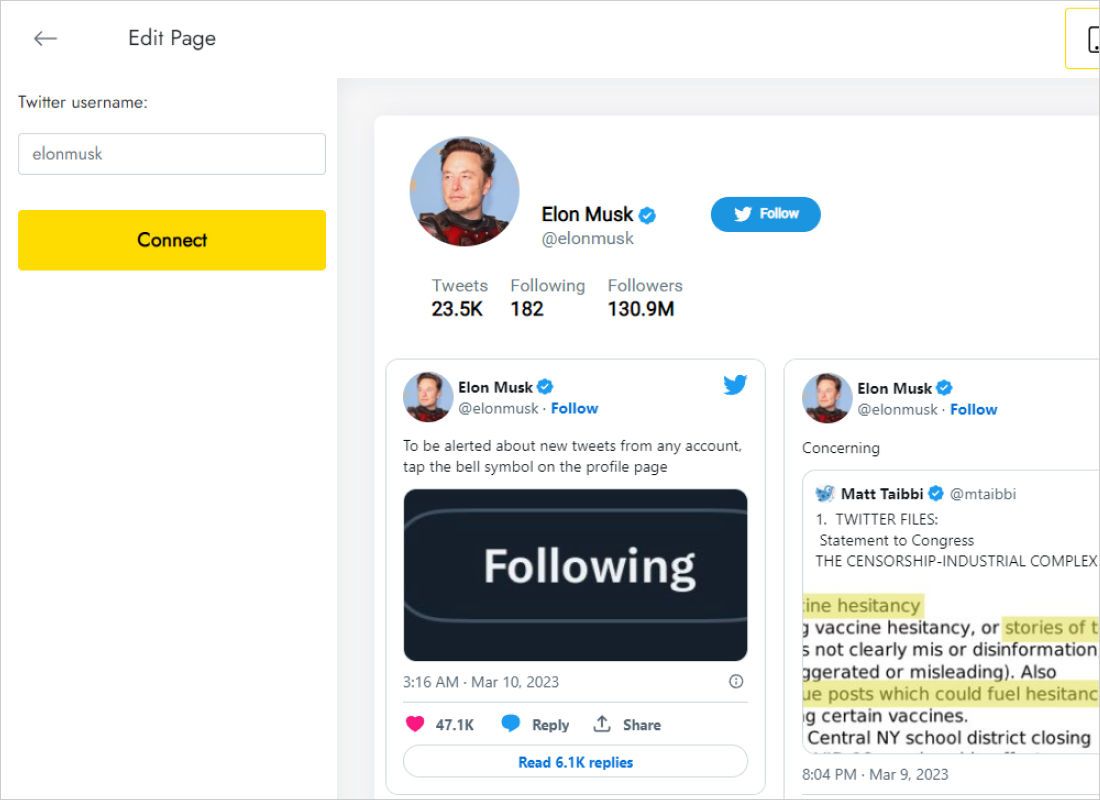
Type your X username into the Twitter username field on the Data tab and press Connect.
-
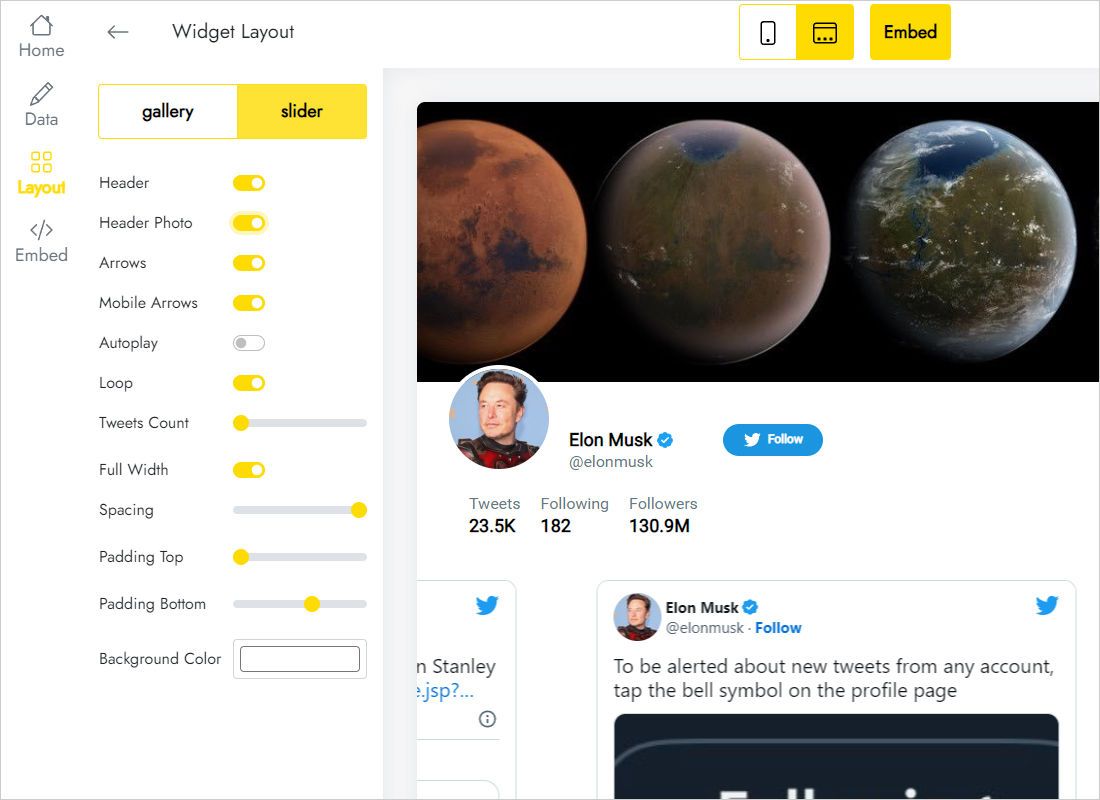
Move on to Layout, select Slider or Gallery and tune the look and parameters until the preview fits your design.
-
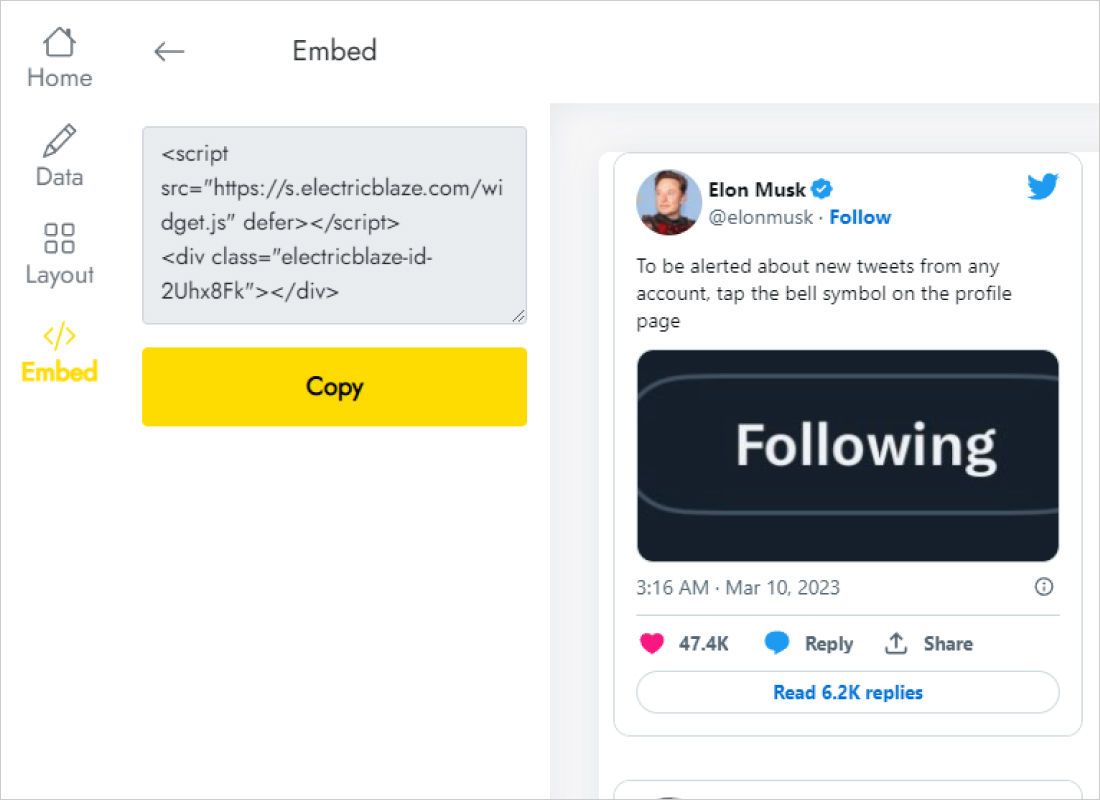
Grab the Twitter feed embed code behind the Add to website button, drop it into an HTML block where the posts belong and republish.
Step-by-step guides by website builder
Builders tuck their HTML embed option away in different menus. Find the walkthrough for yours:
ElectricBlaze widget vs the official X embedded timeline
X has its own code for an embedded timeline. This overview shows how that option differs from a feed built in our editor, which acts as a Twitter feed embed code generator with design controls.
| ElectricBlaze widget | Official X embedded timeline | |
|---|---|---|
| Setup | Enter a username, pick a layout, copy one snippet | Generate a code on the X publishing tool |
| Layouts | Slider or Gallery | A single vertical list |
| Reliability reports | Feed is prepared by ElectricBlaze and refreshed on a schedule | Site owners often report an empty frame or only a link |
| New posts | Once a day (Free) or once an hour (Start) | Depends on X |
| Appearance | Adjusted visually in the Layout tab | Limited styling options |
| Other networks | Same dashboard for Instagram, YouTube, TikTok and more | X content only |
Quoting one tweet inside an article works fine with the native tool. For a styled block that updates itself, the widget is simpler. See Free and Start compared.
Watch an X (Twitter) timeline being built
X (Twitter) feed widget questions
How do I embed an X feed on website pages?
To embed X feed on website pages, create an X (Twitter) Feed widget, type your username in the Data tab and grab the snippet with the Add to website button. It fits into any HTML or custom code block. The same x timeline embed works on landing pages, blogs and online stores.
Why is my Twitter embedded timeline not working?
Many site owners say the official Twitter timeline embed shows a blank area or just a link to the profile. Reasons they mention include browser tracking protection, blocked third-party scripts and changes on the X side. A widget that assembles the posts itself is a common workaround.
Is there a free Twitter feed widget?
Yes. On the Free plan you can build five widgets, place them on unlimited websites and serve up to 1,000 views monthly; registration takes no credit card. Upgrading to Start ($5 a month, charged once a year) unlocks unlimited views and hourly refresh and drops the ElectricBlaze branding.
Can I display tweets on website pages without coding?
Yes. To display tweets on website pages you copy a ready snippet and paste it; nothing is written by hand. Any builder with an HTML, Embed or Custom code element is enough to add twitter widget to website layouts.
How quickly do new tweets reach my site?
Free widgets refresh every 24 hours and Start widgets every hour. Something you publish on X shows up on the page after the next scheduled update.
Does the widget work like embedding a single tweet?
No. With the native tool you embed tweets on website pages individually, and each snippet stays tied to one post. The widget displays a whole stream that keeps adding your newest updates.
Can one Twitter feed appear on several sites?
Yes. One snippet can live on a company site, a blog and a microsite at the same time, since no plan caps the number of websites. Restyle it once and every copy follows.
What should I do if my Twitter widget is not working?
Check that the whole snippet went into an HTML block, the page was republished and the username in the Data tab is correct. If posts still do not load, send the page URL to [email protected].
What happens to the feed when my Start plan expires?
Your tweets keep showing, but the block gains a small ElectricBlaze link. It goes away after you renew.
How can I remove the X timeline from my pages?
Erase the code on a single page, or use the remove option in the Data tab to retire the widget on all of them. There is no undo for that action.
More widgets worth adding
Combine short posts with video, photos or a chat button visitors can use to reach you.
Give your site a live X timeline
Sign up free, enter your username and paste the snippet. Whatever you post on X will follow on your pages.
Create X (Twitter) feed