
How to Add an X (Twitter) Feed to Tilda
Company news, live event updates or a founder’s commentary often go to X first, or to a company Facebook page. Read on to add Twitter feed to Tilda, letting those posts reach your website visitors too, with zero manual copying.
What to have ready
- The handle you post from, i.e. the X (Twitter) username.
- A paid project (Personal or Business). Custom code in HTML blocks stays inactive while a site uses the Free tariff.
- An ElectricBlaze login. Our no-cost tier allows five widgets and 1,000 monthly views.
Screenshots of posts look stale within days and cannot be clicked. A live X (Twitter) widget shows real posts, keeps links working and replaces older items as new ones arrive.
Step 1: Build the X (Twitter) widget
You need five actions here; extra options are listed among the text-first widget settings.
-

Sign in on a.electricblaze.com. No account yet? Registration there is free.
-

Choose the X (Twitter) Feed card after pressing Create New Widget.
-
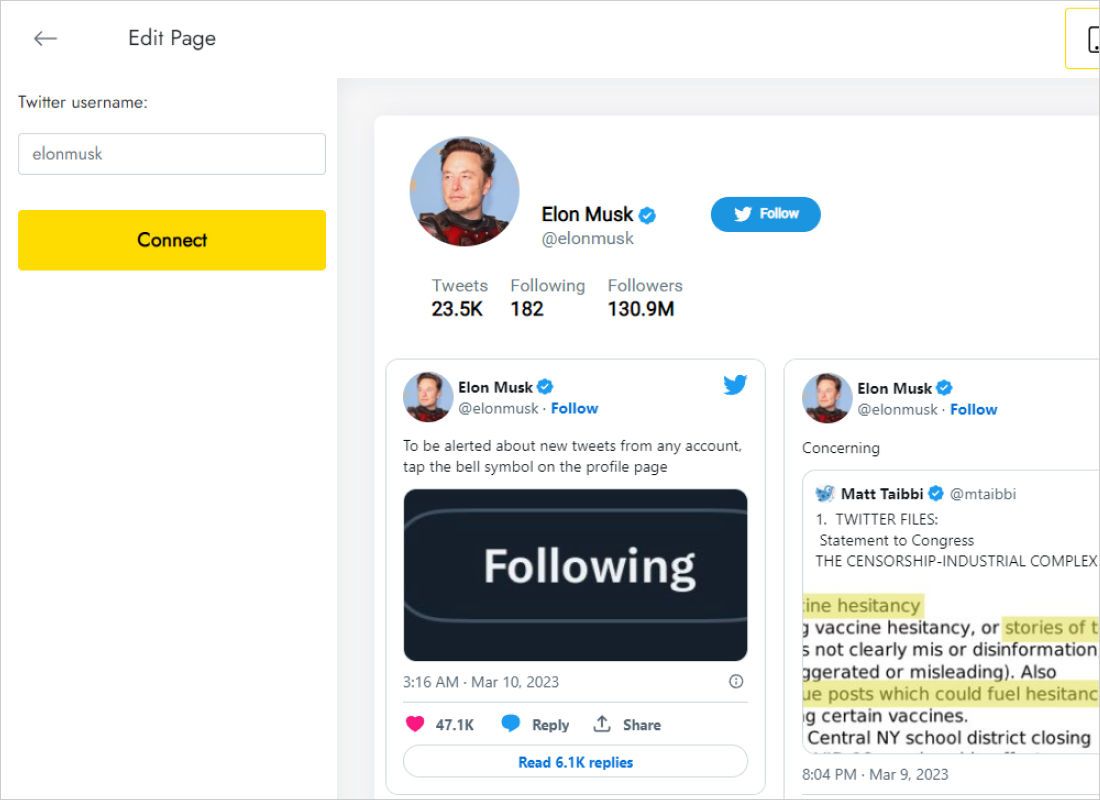
On the Data tab fill in Twitter username, then click Connect.
-
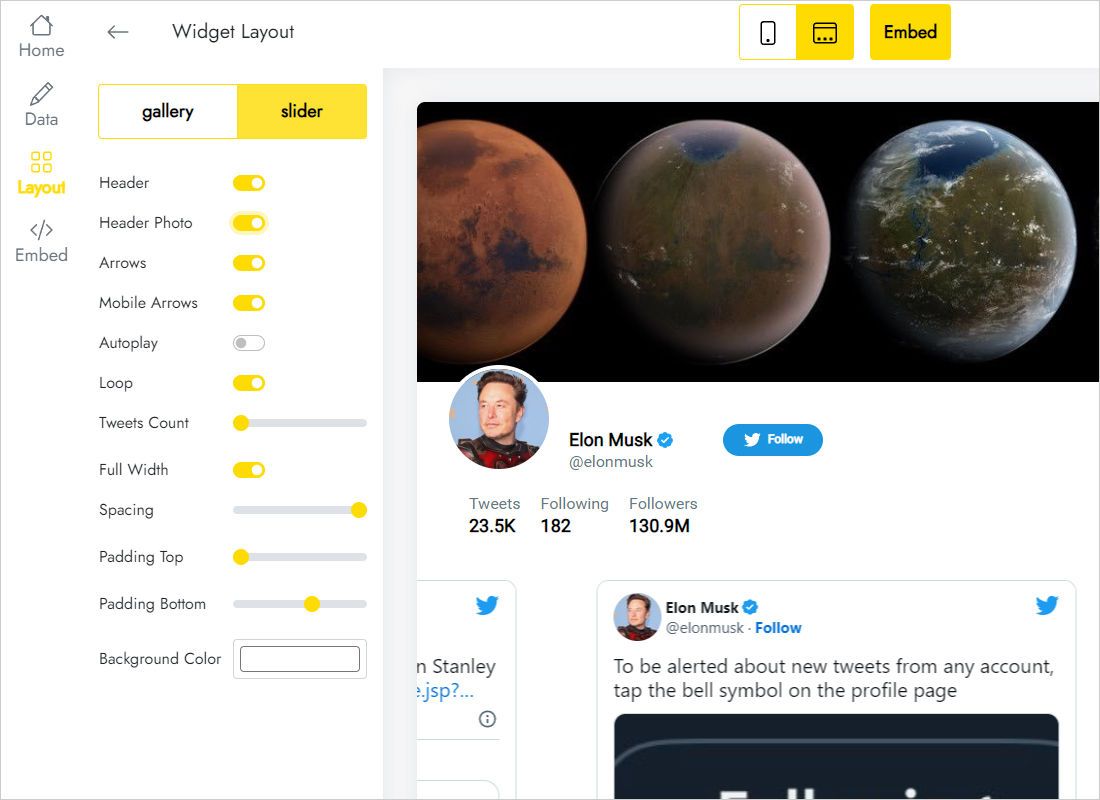
Go through Layout: slider or gallery, how many columns and rows, captions, and whether the feed spans full width.
-
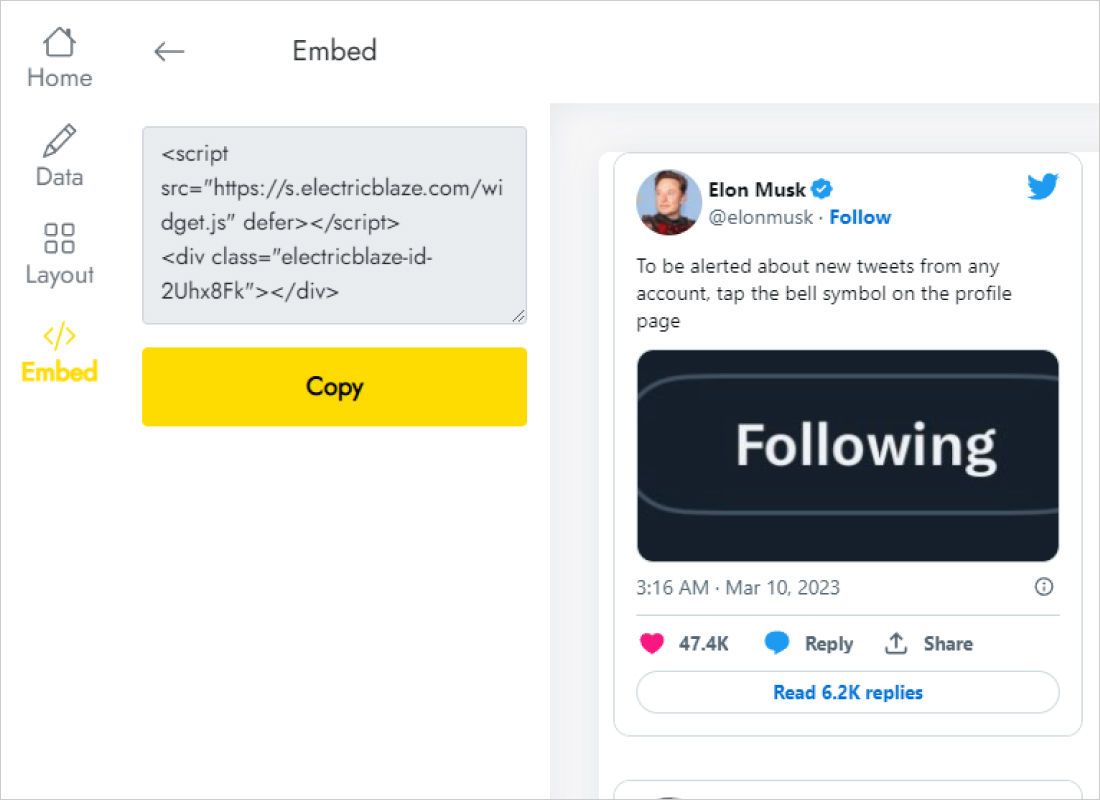
A press on Add to website shows the snippet to copy.
Step 2: Publish the posts on Tilda
Return to the page editor of your News or Press page.
- Open the block library, go to Other and pick T123 Embed HTML code. It lands where you clicked the plus sign.
- Press Content on the new block and paste the X (Twitter) snippet into the empty field.
- Confirm with Save & Close, then drag the block up or down with the arrows if it is not in the right place.
- Publishing is what activates it; before that you will only see raw code in the block.
The same snippet can live in several T123 blocks, for instance on the home page and on a dedicated news page.
Choosing a layout for short text posts
X posts are mostly text, sometimes with an image, and their length varies. The layout decides whether the section looks tidy.
- Slider with two or three cards works as a compact “Latest updates” strip on a home page.
- Two-column gallery gives longer posts room on a dedicated news page.
- Full width off keeps line length comfortable; very wide cards make text hard to read.
Standard blocks on this builder follow the page width and have no fixed height, so the widget takes the vertical space it needs. On a phone, cards line up in a single column; if that list grows too long, lower the row count. New posts are fetched daily for free accounts and hourly for Start subscribers.
X (Twitter) on Tilda: FAQ
Can I use the same code in Zero Block?
Yes. Add an HTML element in Zero Block and paste the snippet there. Remember to set its size and position for each screen width.
The page shows code, not posts. Why?
Scripts stay dormant while you edit or preview. They start working once the page is published.
What if I change my handle on X?
Enter the new name in the Twitter username field and save. The snippet in the T123 block does not need to be replaced.
Can I hide the ElectricBlaze branding?
Yes, by upgrading to Start ($5 per month with annual billing). The pricing page lists what each plan includes.
Show your latest X posts on Tilda
One username, one layout choice, one T123 block. No cost to try it.
Create a widget