
How to Add a Music Player to Tilda
Whether it is a band site, a wedding page or a podcast landing, it takes only a few minutes to add music player to Tilda. The ElectricBlaze Music Player wraps a Spotify or SoundCloud playlist and displays it within a block or docked to a side of the browser.
Built-in blocks or a widget?
Out of the box the builder offers block T153 for a single SoundCloud track; for playlists and other services its help center points to the Embed HTML code block. A widget adds what the native option lacks:
- Spotify embeds next to SoundCloud sources.
- A floating mode that keeps the player visible while visitors scroll.
- Height and position settings (left, right, top or bottom) without touching code.
Either way the code runs only on Personal or Business plans, since code blocks are switched off on the Free plan.
Step 1: Point the player at your playlist
Every setting is covered in the complete player options list. To get a working player:
-

Log on at a.electricblaze.com (first-timers register without paying).
-

In the widget list opened by Create New Widget, select Music Player.
-
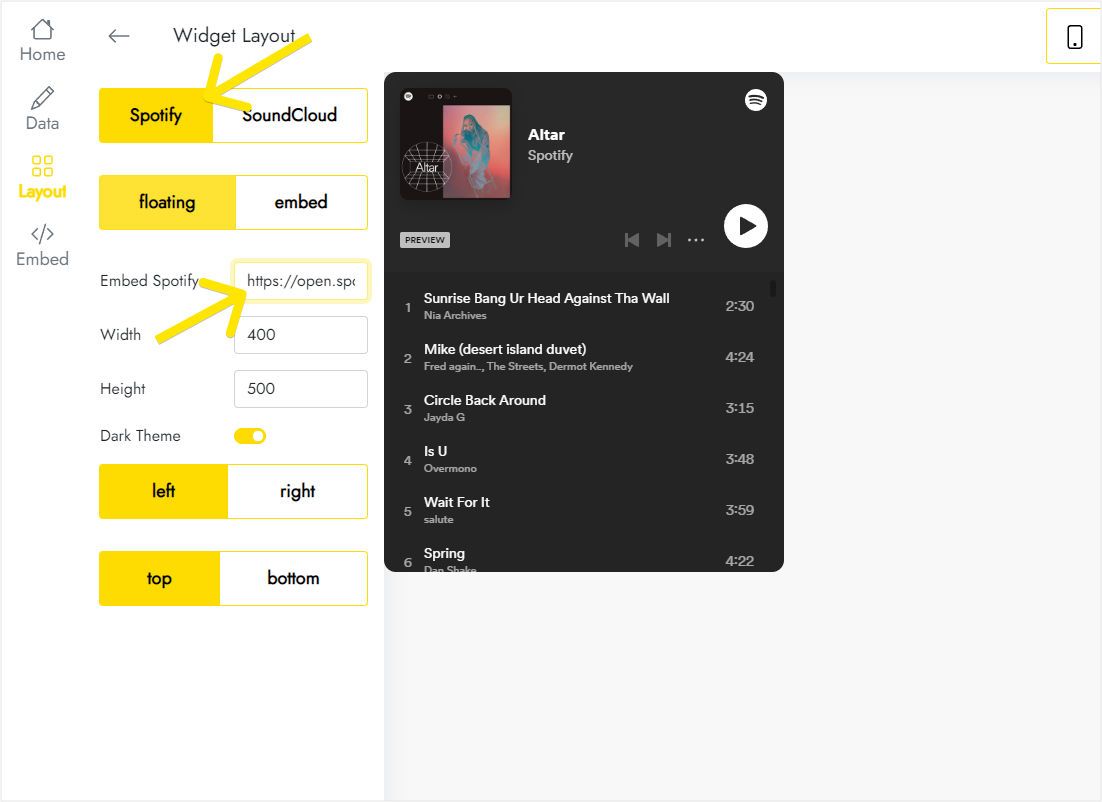
Go to Layout, flip between Spotify and SoundCloud, paste the playlist URL and, for a sticky player, leave floating mode on with a chosen corner.
-
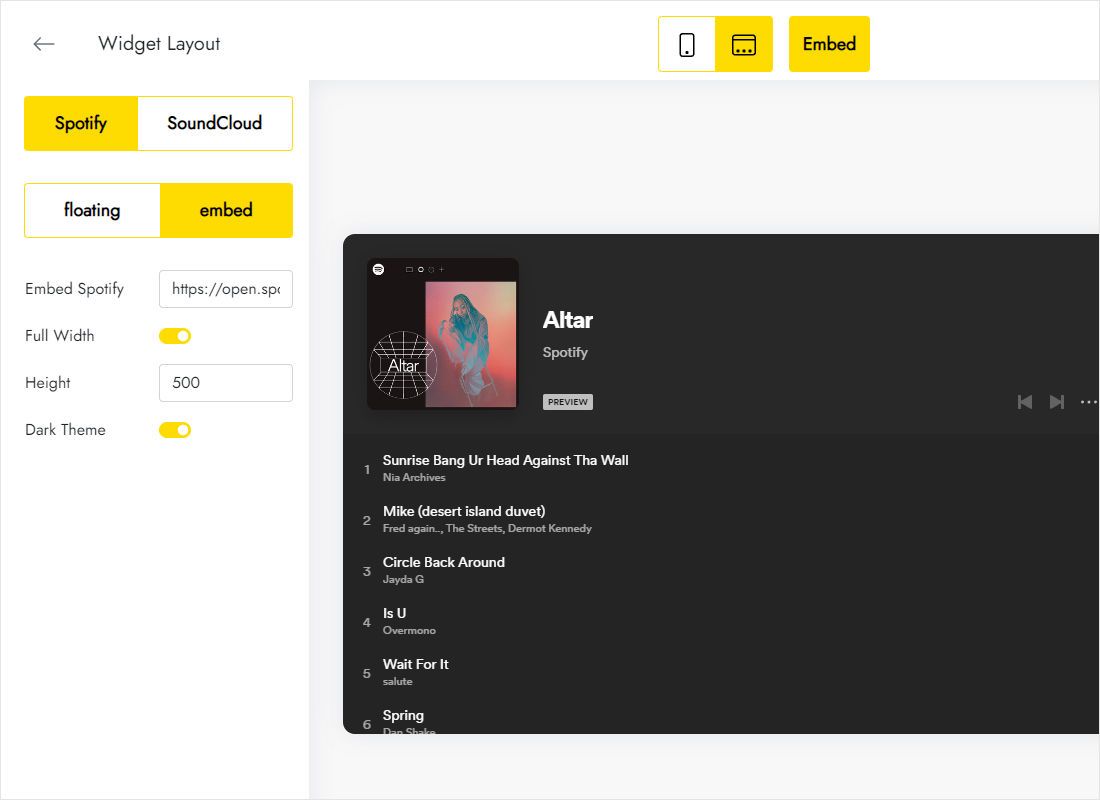
A player inside a Zero or T123 block works better in embed mode: turn on Full Width and pick the height.
-
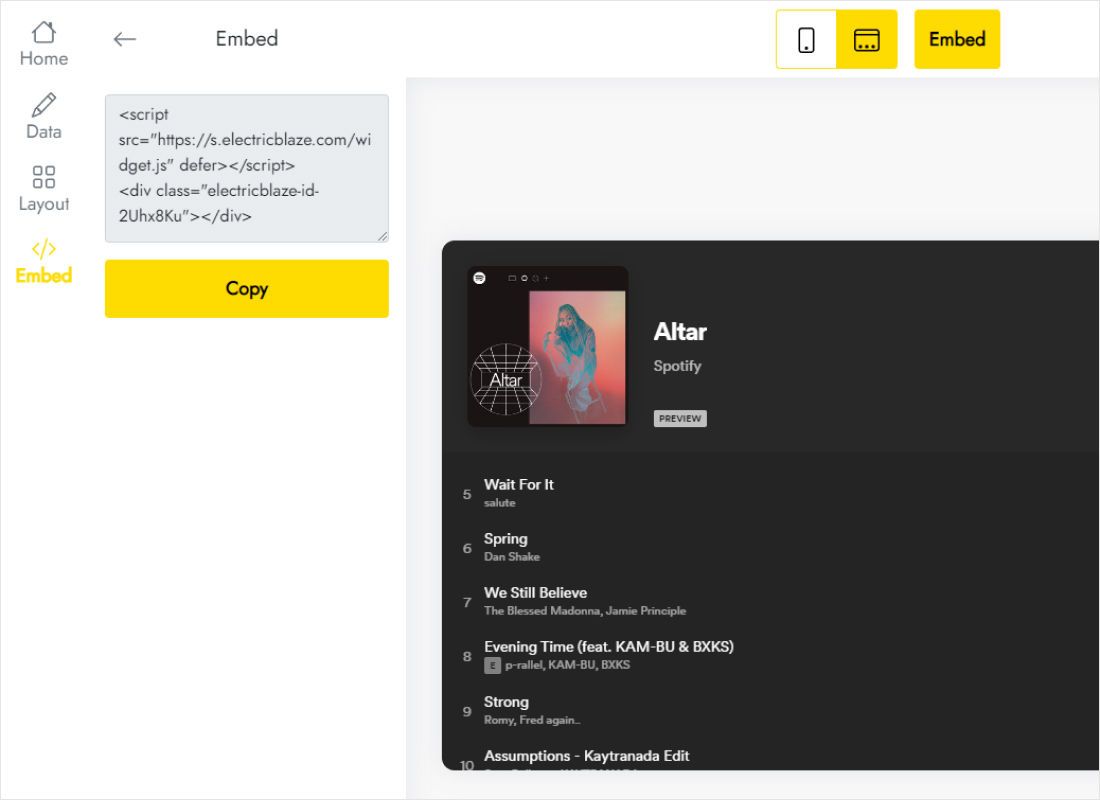
Take the finished code from Add to website.
Step 2: Place the Tilda audio player
Inline and floating players go to different blocks.
- Inline on one page: in that page’s editor insert an Embed HTML code block (T123) right where listeners should find the playlist, fill its Content with the snippet and save.
- Floating on every page: open the page that serves as your site footer (assigned in Site Settings → Header and Footer) and add the T123 block there instead.
- Publish. For the footer variant, publish all pages so each of them picks up the updated footer.
- Visit the live site and press play. Inside the editor the block shows code, not the player.
T123 places the code directly on the page, so a floating player does not get trapped inside the block and sits at the screen edge you selected.
Autoplay, previews and layout
No sound on page load
Browsers hold back audio until someone clicks or taps on the page, and no setting in any of the site builders we cover overrides that rule. Plan for a visitor who presses play on purpose.
Preview clips on Spotify
Listeners logged in to Spotify in their browser typically hear full songs. Everyone else may get short previews, which Spotify controls, not the widget.
Choosing a position
- A bottom bar is the least intrusive floating option on desktops.
- On phones, test the position next to other fixed elements: the builder’s own feedback widgets are pinned to the bottom on phones, and cookie notices may be too.
- For an album release page, inline mode right under the cover block gives the music the main stage.
Music on Tilda: FAQ
What about my own MP3 files?
Sources are limited to Spotify and SoundCloud. Upload your tracks to SoundCloud and use that link or embed code.
How do I hide the floating player on some pages?
In Page Settings → Additional choose “Don’t use footer for this page”. That removes the footer, and with it the player, from that page only.
Will music continue after a visitor opens another page?
Usually not. Every page on the site is a separate page load, so the player loads again and playback normally stops when the visitor navigates.
Is it possible to swap the playlist later?
Yes. Paste a different embed code on the Layout tab and save; whatever sits in the T123 block keeps working untouched.
Add music to your Tilda site
Build the player for free, pick inline or floating mode and paste the code.
Create a widget