
Music Player Widget for Your Website
Put your Spotify or SoundCloud playlist on the page where people already read about you. Our music player widget for website owners converts a playlist URL into a sticky bar or an inline block, and gives you a single snippet to paste. No audio files to upload, and no player code to look after.
Below is the real editor. Drop in a playlist URL, flip between the floating and the embedded mode and watch the preview. What you see on the right is how the player will sit on your own page.
Music player for website pages: the essentials
What this audio player widget for website owners does, written for bands, labels, DJs, podcasters and brands that curate their own soundtrack.
Spotify or SoundCloud as the source
Choose the streaming service in the editor, then paste either the share link or the embed code you copied there. Albums, single tracks and public playlists are all accepted.
Floating mode
A compact sticky music player docks to the edge of the screen and stays visible while the visitor scrolls, so a song keeps going as someone reads a long article or browses a tour page.
Embedded mode
Drop the player inline, inside a section of your layout: under an album announcement, next to a biography or in a column beside the booking form for a gig.
Listening without leaving
Visitors start your music right on your page. Nobody is sent to a new tab or asked to install an app just to hear the first track of your release.
Playlist changes carry over
The player shows the playlist as it is on the streaming service, so reordering or adding songs there is usually reflected on your site without touching the snippet.
Settings live in the dashboard
Switch source, link or mode later in the editor. The code you pasted stays the same, and one snippet may sit on several pages or on another domain at once.
Floating or embedded: choosing the player mode
Both modes stream the same content. The difference is how much attention the player asks for and where it lives on the screen.
Floating music player
The floating mode pins a small bar to one side of the viewport. It follows the reader down the page, which suits artist homepages, long blog posts about a record, press kits and event pages where people scroll a lot. Visitors can pause it at any moment, and because it never covers the middle of the screen, the text and buttons of your page remain easy to reach.
Embedded music player
The embedded mode behaves like any other block of your layout. It takes a fixed place in the flow of the page and scrolls away with the section around it. Pick it for a discography page with one player per album, for a release announcement, or when a sticky bar would clash with a chat button or a cookie notice already docked at the bottom.
Spotify or SoundCloud for your music?
Spotify is where most listeners already keep their music libraries, so a Spotify player for website visitors lets fans save a song to their account in one click. SoundCloud is popular with independent producers, DJs and podcasters who publish mixes, demos and episodes directly. If your catalogue lives on both, create two widgets and place each where it makes sense.
Where the player fits best
- Artist or band homepage: a floating bar with the latest single greets every visitor without pushing the tour dates down.
- Release or album page: an inline player next to the cover art and credits lets people hear the record while they read, with the official music videos just below.
- Venue, bar or event page: a curated playlist gives a feel for the night before anyone buys a ticket.
- Podcast site: a SoundCloud playlist of recent episodes sits above the show notes and transcripts.
Why add music to your website
More plays for your playlists
Every share link you post elsewhere competes with a feed full of other links. A visitor who has already opened your site is interested in you specifically, and a visible play button turns that interest into streams, follows and saved tracks.
For a label or a curator, the player also gives a playlist a permanent home. Social posts sink within days; the page with the player keeps sending listeners to the same collection for as long as it is online.

Visitors stay on the page
When hearing a track means opening another tab, part of the audience never returns to finish reading, book a show or buy merch. With the audio right on the page, people listen and keep browsing at the same time.
A floating bar helps most on long pages: the song goes on while someone reads your story, checks the gig calendar or scrolls through photos, and the call to action stays one scroll away instead of one tab away.
Brand music that sets the mood
Shops, cafés, studios and hotels spend time choosing the music played on site. A branded playlist on the website extends that atmosphere online and gives customers a way to take it home by following the list on their streaming account.
Keep in mind that the widget streams tracks from Spotify or SoundCloud under the terms of those services. It is a player for listeners, not a licence to use copyrighted recordings as background music in a business.
Who uses an audio player on their site
Musicians and bands
Keep the newest single, an EP or a live set one click from your biography and upcoming concerts, so a booker or a new fan can judge the sound in seconds.
Labels and managers
Give each artist on the roster a player with their catalogue, or run one label music sampler that you update on the streaming side whenever a release drops.
DJs and producers
Share mixes, edits and demos from SoundCloud on a portfolio page where promoters can listen while they look at past events, recordings of live DJ streams and contact details.
Podcasters
List recent episodes above the show notes, guest bios and sponsor links, and let people start listening before they decide to subscribe.
Venues, bars and events
Publish the music that sets the tone of a place or a festival line-up, so visitors know what the night will sound like.
Brands and curators
Share themed playlists for a campaign, a season or a store, and turn website visitors into followers of the list on Spotify.
How to embed a Spotify playlist or SoundCloud tracks on your site
Getting from a playlist URL to a player that people can press is a five-step job. Have the Spotify or SoundCloud share link open in another tab before you begin.
-

Visit a.electricblaze.com, then log in or register for free. The Free plan asks for no card details.
-

Click Create New Widget; in the list of types, select Music Player.
-
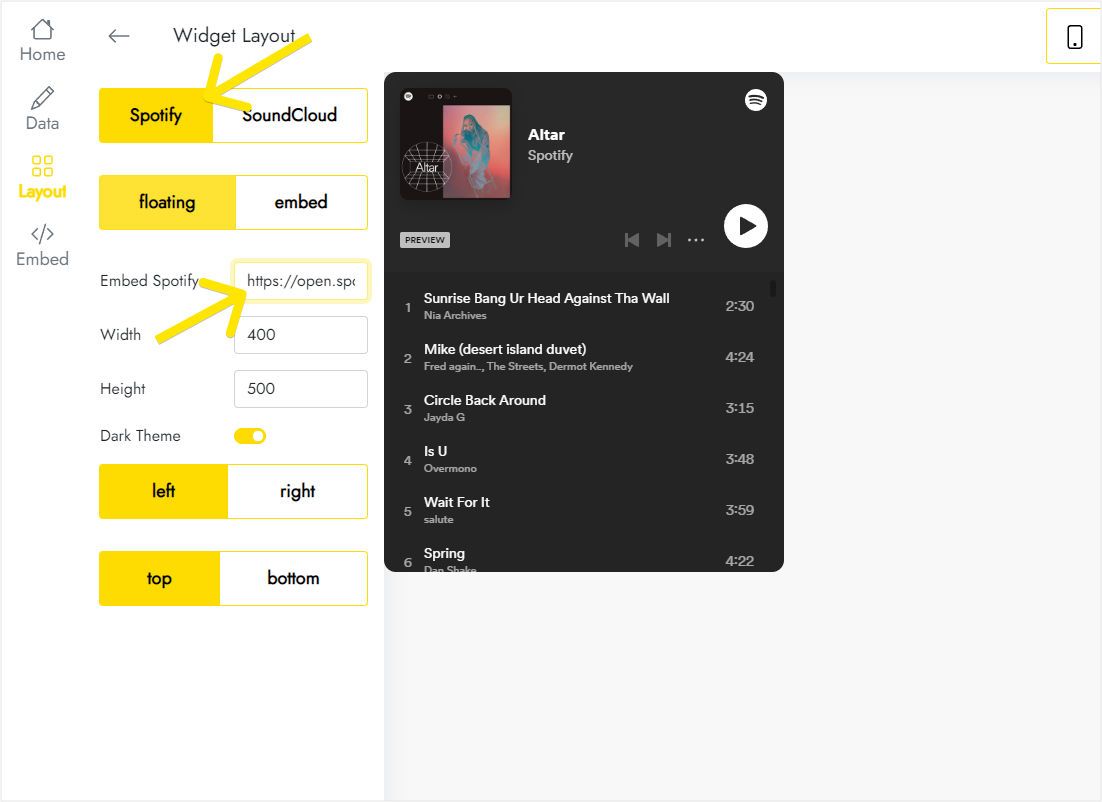
On the Layout tab, pick Spotify or SoundCloud as the source and paste the playlist link or the embed code you copied from the service.
-
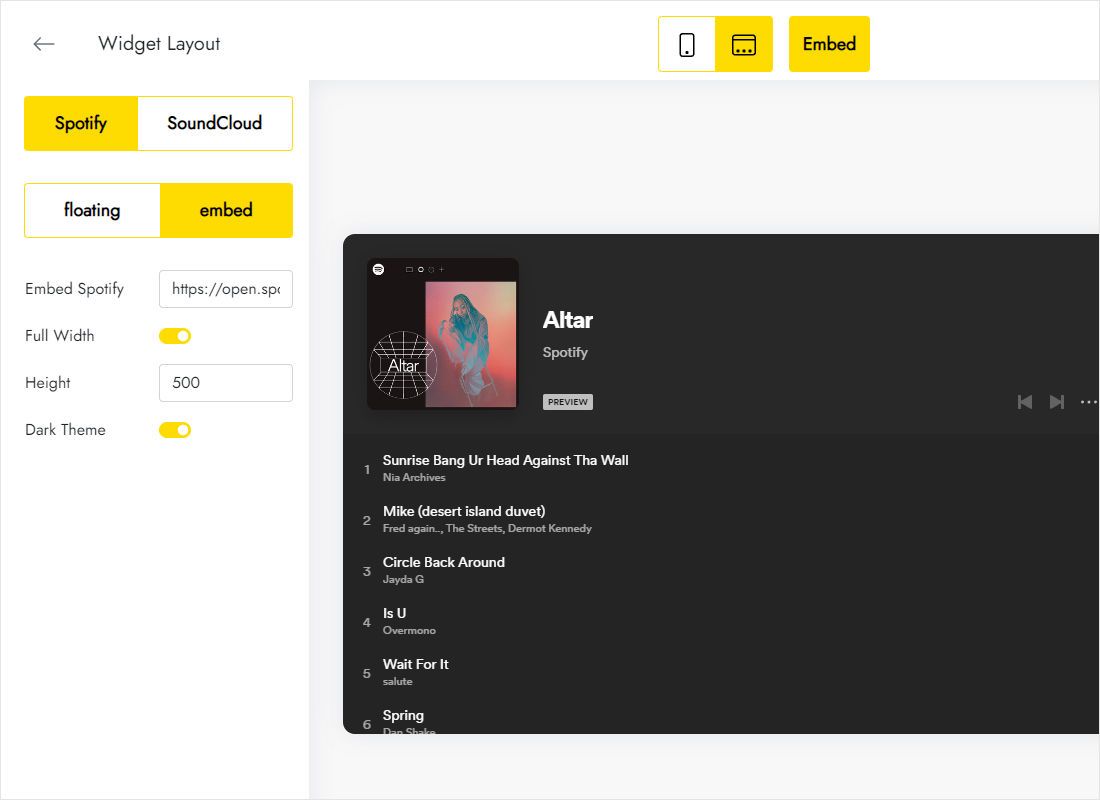
Still on the Layout tab, decide between the floating sticky bar and the embedded inline block, then set the height and the screen edge for the floating player.
-
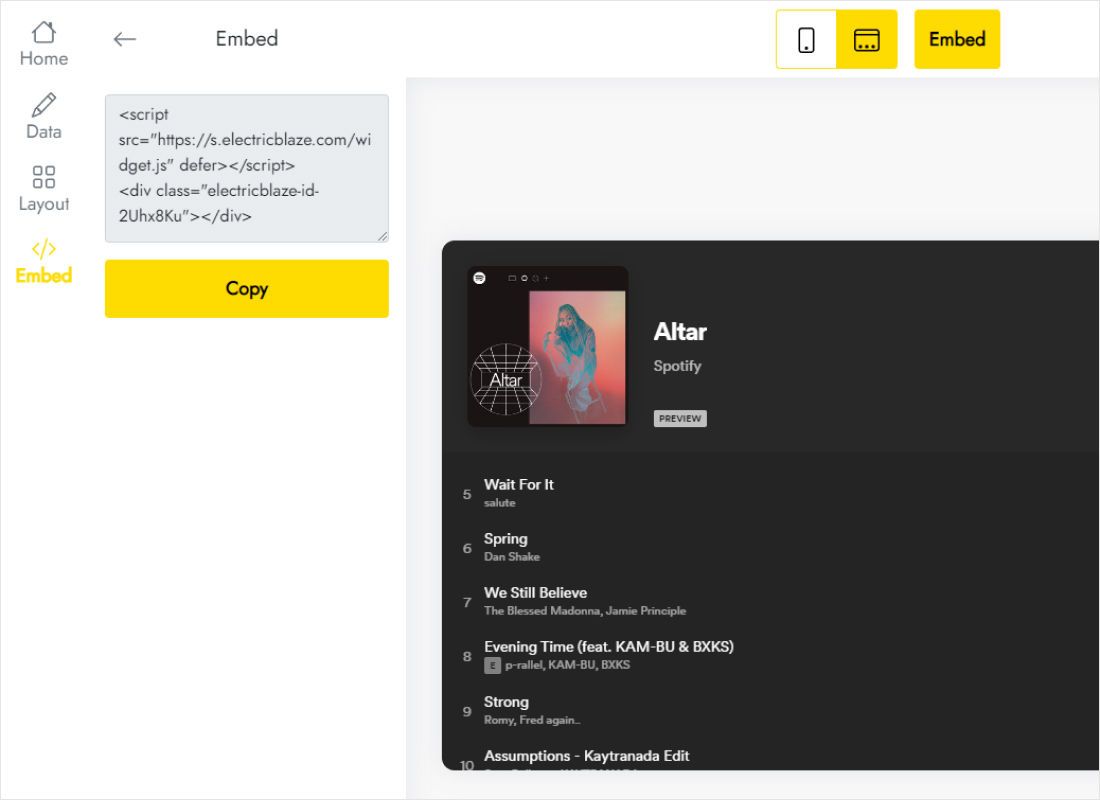
Press Add to website, copy the snippet and place it in a code block of your page editor exactly where the player should appear. Publish, and you are done.
Step-by-step guides per website builder
Menus for custom markup differ from one platform to the next. Open the guide that matches yours:
ElectricBlaze player vs the native Spotify or SoundCloud embed
Both streaming services let you copy an iframe for a music track or a playlist. Here is the difference once that content goes through the widget.
| ElectricBlaze Music Player | Native service iframe | |
|---|---|---|
| Placement | Floating sticky bar or inline block | Inline only, where the iframe is pasted |
| Sources | Spotify or SoundCloud from one editor | A different code format for each service |
| Changing the playlist | Swap the link in the dashboard, snippet unchanged | Copy a new iframe and edit every page |
| Several pages or sites | One snippet reused everywhere, managed in one place | Each copy maintained separately |
| Scrolling behaviour | Floating mode stays on screen | Scrolls out of view with the page |
| Cost | Free plan available, Start plan without branding | Free |
For a single track quoted in a blog post, the service’s own iframe does the job. When you want a player that follows readers down the page or one you can change without editing code, use the widget. See the plans and limits.
See the music player in action
Music player widget FAQ
Can I embed Spotify on my website?
Yes. Spotify allows its tracks, albums, podcasts and playlists to be shown on other sites through an embedded player. In ElectricBlaze you paste the Spotify link, pick floating or embedded mode, and add the generated snippet to your page.
Can I embed a Spotify playlist on my website?
Yes, as long as the playlist is public. Copy its link in Spotify, paste it into the Music Player editor and publish the snippet. It is the quickest way to embed spotify playlist on website pages with zero hand-written markup.
Where is the embed code for a Spotify playlist?
Open the playlist in Spotify, click the three-dot menu, go to Share and choose either “Copy link to playlist” or “Embed playlist”. The widget accepts both, so the plain link is enough.
How do I get the SoundCloud embed code?
Under a track or playlist on SoundCloud, click Share. The Embed tab holds the code; the Share tab holds a link. Paste either into the editor after selecting SoundCloud as the source to create your soundcloud player widget.
What is the difference between floating and embedded mode?
Floating mode docks a compact bar to the corner of the screen and keeps it visible while the visitor scrolls. Embedded mode places the player inside the page content, where it scrolls away like any other block.
Can the player start music automatically when the page opens?
Most browsers block audio that starts on its own, so plan for visitors pressing play themselves. That is also friendlier: people who open your site in an office or on public transport decide when the sound begins. If you want background music for a business, check the licensing terms of the tracks first.
Do listeners need a Spotify or SoundCloud account?
Not to use the player on your page. Spotify generally plays short previews to visitors who are not logged in and full tracks to logged-in users; SoundCloud tracks usually play in full unless the uploader has restricted them.
Is the music player free to use?
Free plan: 5 widgets, 1,000 monthly views, any number of websites and no card required. Start, at $5 per month paid yearly, lifts the cap on views and drops the ElectricBlaze branding from your music widget.
Can one player run on several pages or on different domains?
It can. Reuse the snippet on any page or domain where you want music. Swap the playlist or mode in the dashboard, and each copy follows.
What if my paid subscription expires?
Your music keeps playing, but the player starts showing an ElectricBlaze link. Renewing hides that link again. Billing questions: [email protected].
How can I remove the player later?
Erase the snippet from a single page. To clear it from all pages together, delete the widget in the Data tab of the dashboard; that step is permanent.
More widgets that work well with audio
Add music videos, a clip gallery or a quick contact button beside your player.
Give your website a soundtrack
Open a free account, drop in the link to your music and choose a floating or inline player. The snippet takes a minute to add.
Create music player