
How to Add Music Player to Nicepage
Bands, podcasters, DJs and cafés usually want their sound on the website, not just a link to it. Here is a way to add music player to Nicepage from a Spotify or SoundCloud source, and to decide between a player floating in a corner and one sitting inside a block.
What the player needs
- Something to play on Spotify or SoundCloud: a playlist, album, track or set.
- Its embed link from that service’s Share menu.
- A Nicepage project and an ElectricBlaze account (free to open).
A widget spares you from coding a player by hand and lets you swap the playlist later without touching the design.
Browsers will not start audio with sound before a visitor interacts with a page, so treat the music as something people press play on, not as background sound that starts on arrival.
Step 1: Set up the player
All player settings are listed with previews of each player mode. Steps:
-

Go to a.electricblaze.com and access the dashboard, creating an account if you have none.
-

Select Music Player as the type of the new widget.
-
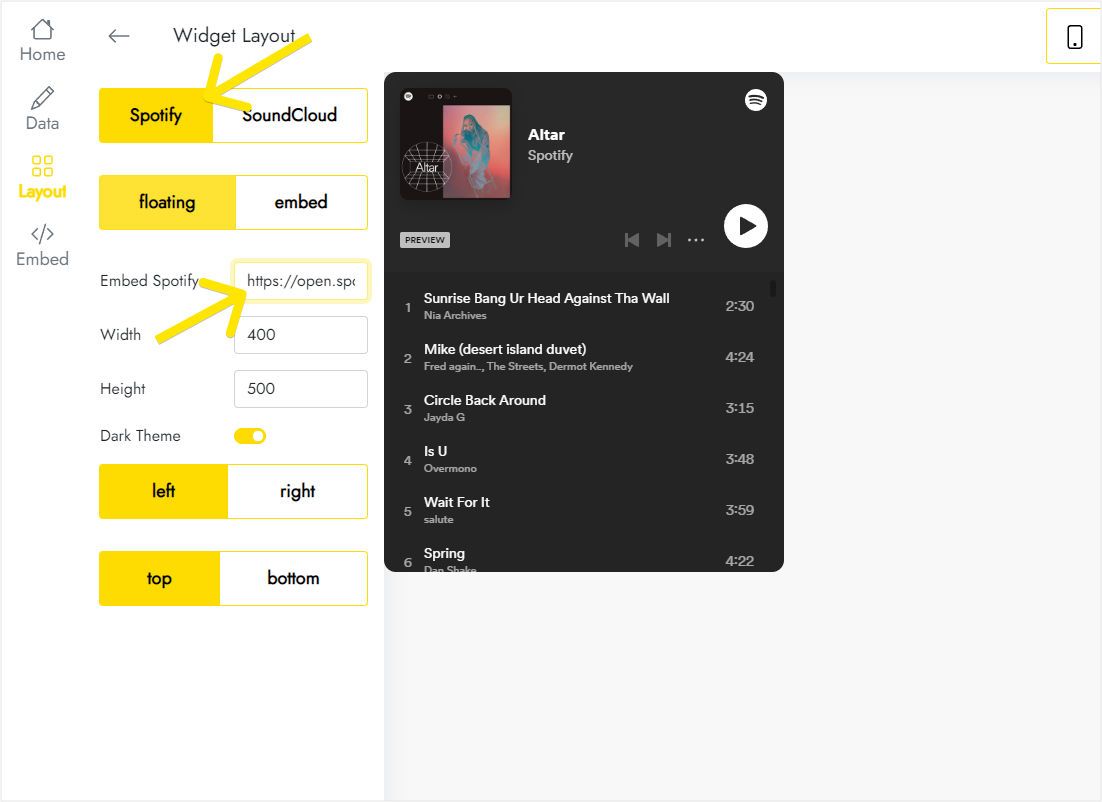
On Layout, pick Spotify or SoundCloud, keep floating selected, paste the source into the embed field and choose left or right, top or bottom.
-
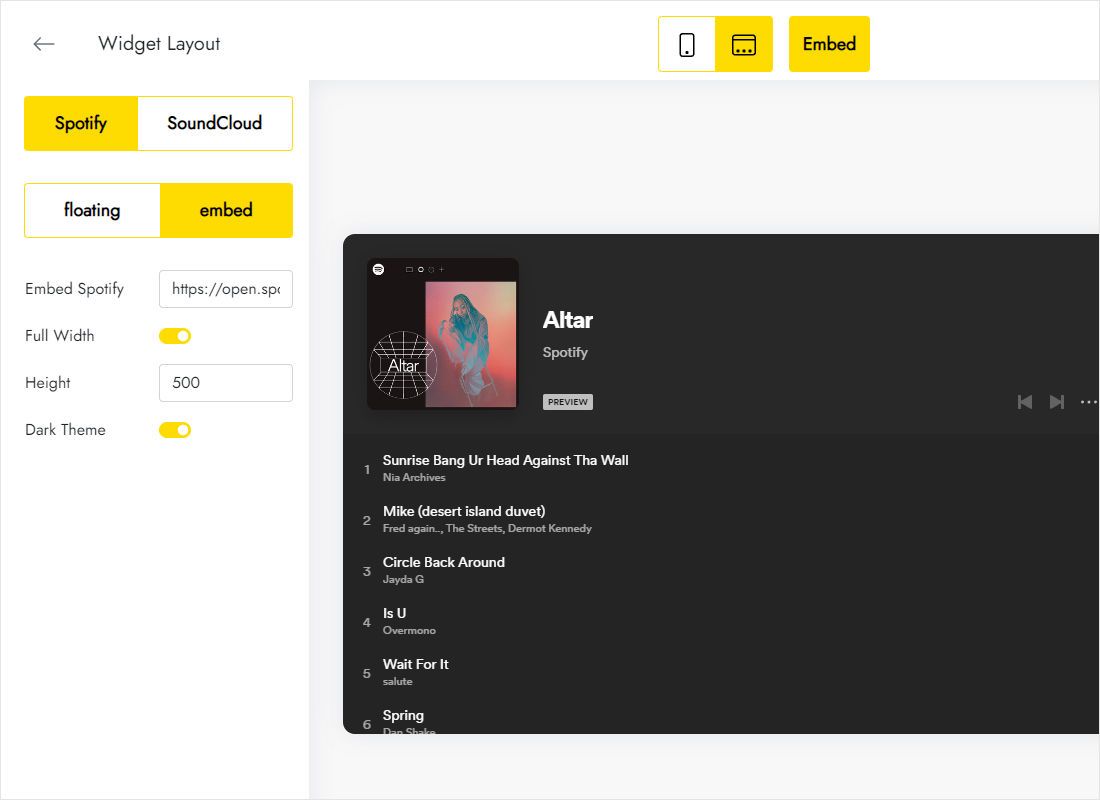
Prefer the player inside a block? Switch to embed and set height and full width instead.
-
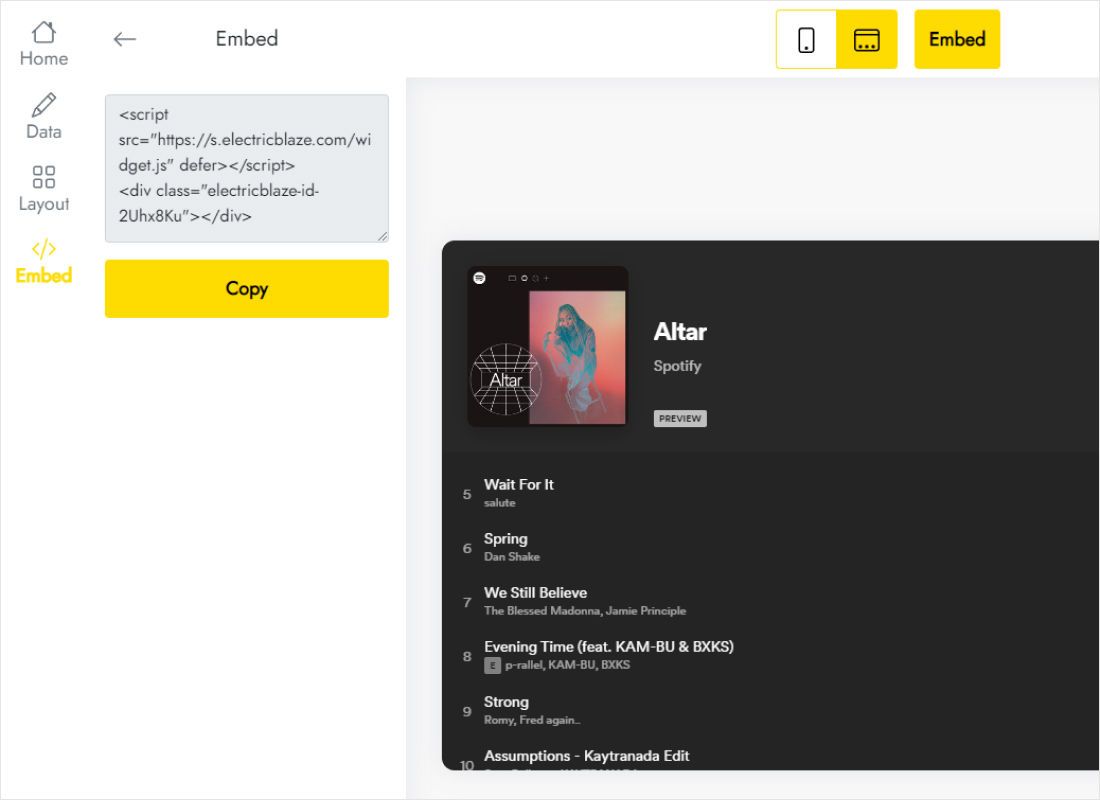
Add to website shows the code; copy it.
Step 2: Add the code in Nicepage
Where the snippet goes depends on the mode you chose.
- Floating on all pages: select the Header block, which the whole site shares, and add an HTML element to it with the plus icon.
- Embedded on one page: add an HTML element to the block where the player should sit.
- Paste the snippet into the Code field on the Property Panel.
- In embed mode, make the element as tall as the height you entered in the widget.
- Preview, press play to test the sound, then publish or export.
If a floating player appears inside the header strip rather than in the window corner, move the element to the Footer block or use embed mode.
Floating or embedded on a Nicepage site?
Floating
Best when music should accompany visitors on every page, as on a musician’s site. The player keeps to a corner and takes no space in your layout.
Embedded
Better for a Listen or Discography page, a podcast episode list or a single release. It behaves like any other element, so you control its width and the spacing around it.
- Keep the player clear of the Back To Top button if both would use the same corner.
- On phones a floating player covers part of the screen, so review the phone view.
- Changing the playlist in ElectricBlaze updates the site with no re-export.
Music on Nicepage: FAQ
Can the music start automatically?
Browsers hold back sound until a visitor clicks or taps, so plan for a play button rather than autoplay.
Can one music player use Spotify and SoundCloud together?
Each player takes one source. Build two widgets if you need both services.
Does the player keep working after exporting to Joomla or plain HTML?
Yes. The code becomes part of the exported page and loads from ElectricBlaze.
Is the player free?
It counts as one of five widgets on the Free plan, which includes 1,000 views a month.
Other guides for Nicepage users
Feeds for the same builder, the music widget overview and the HTML element instructions:
Add sound to your Nicepage site
Paste a playlist, pick a mode and give visitors something to listen to.
Create a widget