
How to Add HTML and Widget Code to Nicepage
Wondering how to add HTML to Nicepage? The builder ships a dedicated HTML element, so widgets and scripts go straight into your design rather than into exported files. This guide covers that element, its Code field and the settings panels meant for tags that belong in the page head.
Where Nicepage accepts custom code
Three places take your own markup, and each reaches a different part of the site:
- HTML element, found in the Add Elements menu of any block. A resizable box that accepts HTML, CSS and JavaScript and renders them in Preview or on the published site, not on the editing canvas.
- Page Settings → Additional HTML. Extra head tags for a single page, such as a script or a stylesheet link.
- Site Settings → HTML → Additional Head HTML. The same idea applied to every page of the project.
The head fields suit tags with no visible output. An ElectricBlaze snippet holds a script plus a placeholder div marking where the widget draws itself, so it belongs in the HTML element, where you decide its position on the page.
Code in the element is written into the page itself instead of an isolated iframe, which matters for widgets that position themselves on screen, as explained below.
Insert the HTML element step by step
Copy the widget snippet behind the Add to website button in ElectricBlaze, then open your project in the desktop app or the online editor:
-
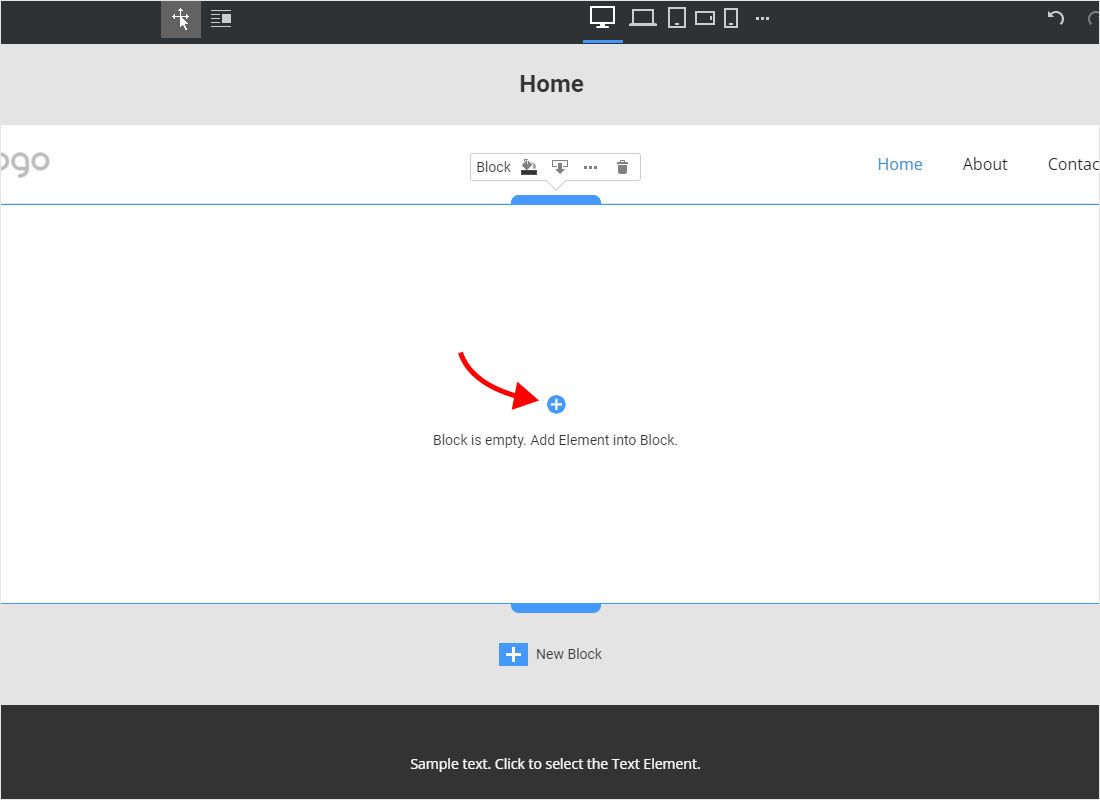
Go to the page, select the block that should hold the widget and click the blue plus icon inside it. An empty block shows that icon in its centre with the hint to add an element.
-
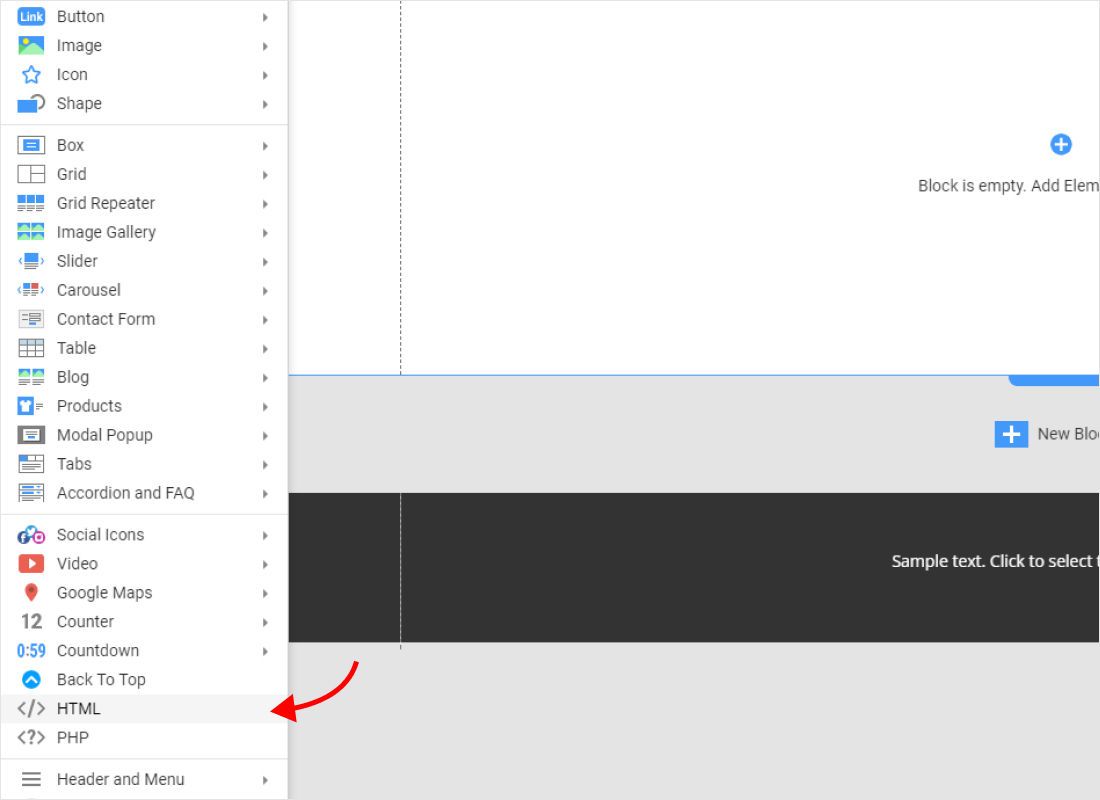
The elements menu opens. Near the bottom, below Back To Top, click HTML, the entry with angle brackets rather than the PHP one.
-
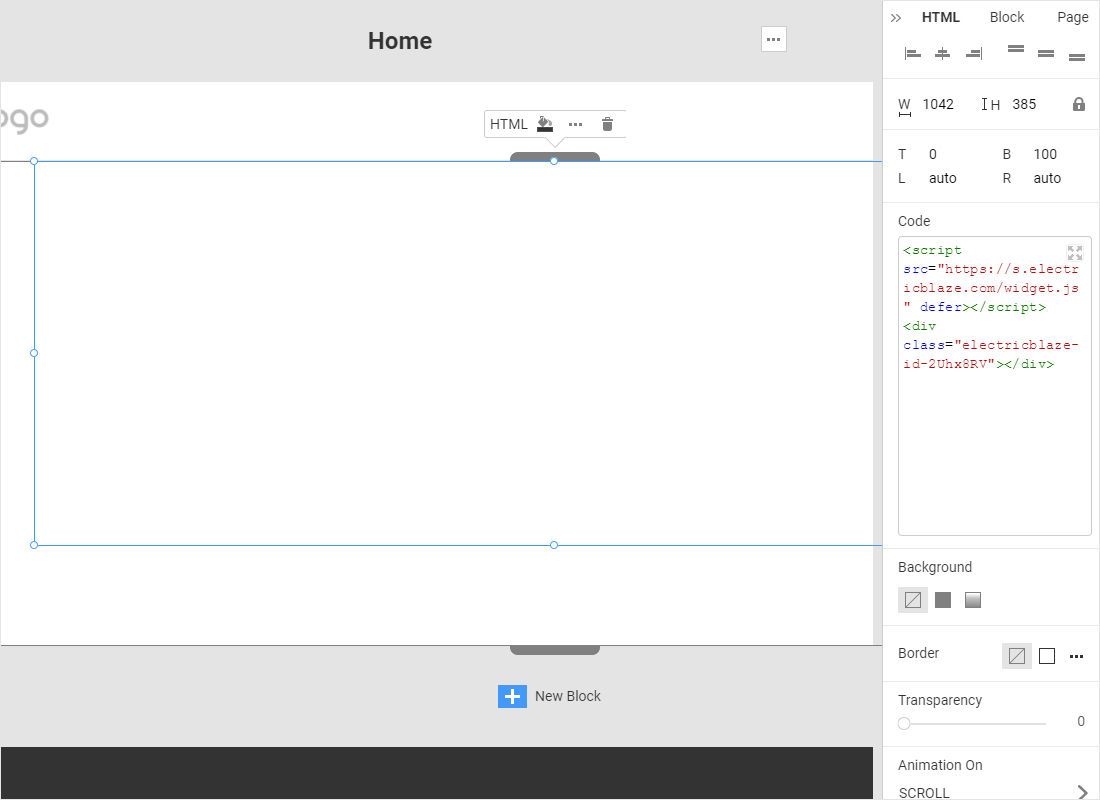
With the new box selected, paste the snippet into the Code field of the Property Panel on the right, then set width and height in W and H.
-
Open Preview to watch the widget load, then publish to Nicepage hosting or export the project as HTML, a WordPress theme or a Joomla template.
Nicepage’s documentation asks that JavaScript placed in the element contain no comments. The ElectricBlaze snippet has none, so paste it unchanged.
Nicepage add JavaScript: choosing the right spot
Feeds and galleries
Give the element its own block, or a cell of a grid, with enough height. Icons in the top toolbar switch between desktop, laptop, tablet and phone views; check each one, because a gallery that fits one row on a wide screen needs more room once columns stack.
Floating Music Player
Since element code runs directly in the page, floating mode can pin the player to a corner of the browser window. To keep it on every page, put the HTML element into the Header or Footer, which all pages of a Nicepage site share. If Preview shows the player trapped inside the header area, move it to the footer or use embed mode.
Code with no visible output
Analytics tags, verification meta tags or a font stylesheet go into Additional Head HTML under Site Settings for the whole project, or under Page Settings for one page.
HTML element blank or broken? Fixes
- Empty box while editing. Expected: the canvas does not run element code. Use Preview.
- Markup shows as plain text. It landed in a Text element. Delete it and add an HTML element instead.
- Bottom of the widget cut off. Raise H in the Property Panel or reduce rows in the widget.
- Missing on phones. The element may be hidden for that device view; check its visibility in the phone view.
- Your own script ignored. Strip comments from any custom JavaScript placed around the snippet.
New posts and style tweaks come from ElectricBlaze on their own. Republish or re-export only after moving, resizing or adding elements.
Nicepage widget guides
Walkthroughs per widget, with the account each one connects and the layout that sits well in a block.
-

How to add Instagram Feed to Nicepage
-

How to add TikTok Feed to Nicepage
-

How to add YouTube Feed to Nicepage
-

How to add Twitter Feed to Nicepage
-

How to add Twitch Feed to Nicepage
-

How to add Facebook Feed to Nicepage
-

How to add Popup Chat to Nicepage
-

How to add Music Player to Nicepage
-

How to add Pinterest Feed to Nicepage
-

How to add Vimeo Feed to Nicepage
-

How to add Simple Shop to Nicepage
Custom HTML in the builder: FAQ
When I add HTML to Nicepage, does JavaScript in it run?
Yes. HTML, CSS and JavaScript are accepted, and the result appears in Preview and on the published or exported site.
Where do I add code to the head of every page?
Open Site Settings, go to the HTML tab and use Additional Head HTML. For one page only, use Additional HTML in Page Settings.
Can the same widget appear on several pages?
Yes. Paste identical code into an HTML element on each page, or place a single element in the shared header or footer.
Does a widget survive export to WordPress or Joomla?
The element code travels with the exported theme or template, so content keeps loading from ElectricBlaze. Look over the page once on the new host.
What does an ElectricBlaze widget cost?
Free covers five widgets and 1,000 views a month on unlimited websites. Start is $5 monthly, billed yearly, with unlimited views and hourly refresh.
Build a widget for your project
Create one at no cost, copy the snippet and drop it into an HTML element.
Create a widget