
How to Add Facebook Feed to Nicepage
Posting news on Facebook and designing the website in Nicepage stay two separate chores until you link them. Here you will add Facebook feed to Nicepage, so your Page’s latest posts fill a block and keep themselves current.
Prerequisites
- A public Facebook Page on which you have a role. Personal timelines are not supported.
- A Nicepage project, open in the desktop application or the browser editor.
- An ElectricBlaze account on any plan, the free one included.
The Social Icons element in Nicepage links out to your profiles but shows no posts. A feed widget brings the content onto the page, and since it loads from ElectricBlaze, it keeps working whether you publish to Nicepage hosting or export to HTML, WordPress or Joomla.
Step 1: Prepare the Facebook feed
Display options are shown in the Facebook post layout examples. In short:
-

Open a.electricblaze.com; returning users log in, newcomers register without paying.
-

At the widget type prompt, go with Facebook Feed.
-
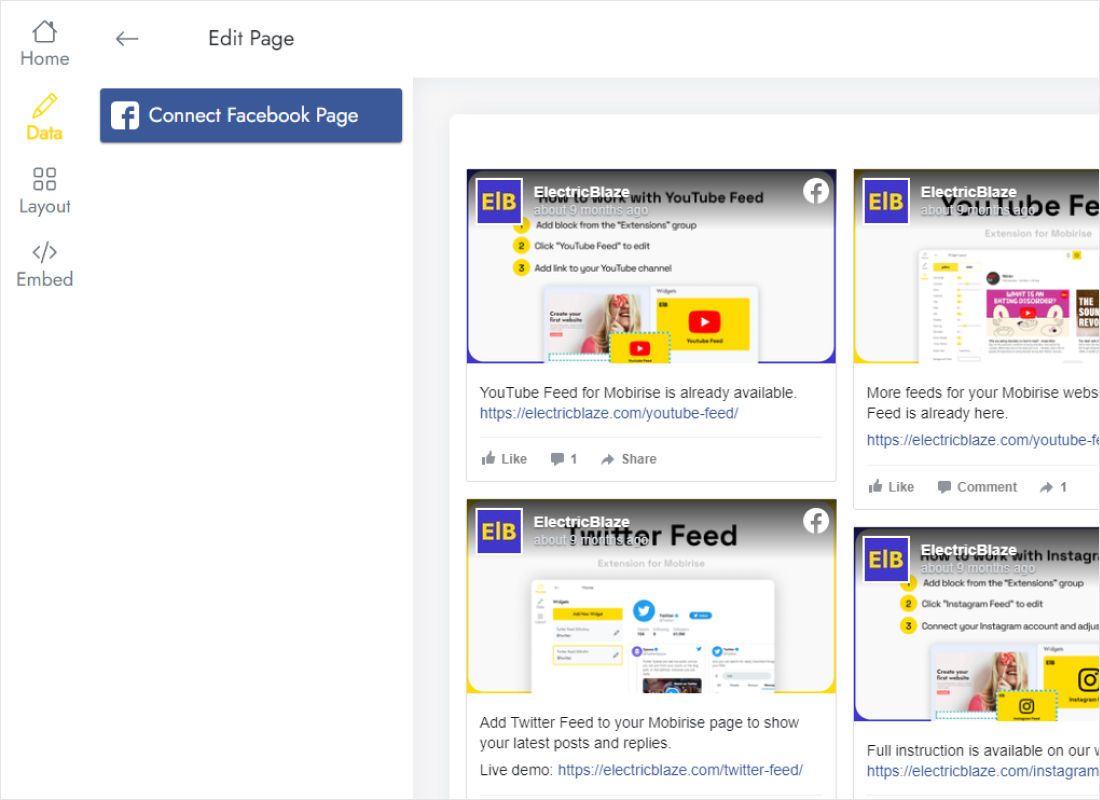
Use Connect Facebook Page on Data and grant ElectricBlaze access to that Page.
-
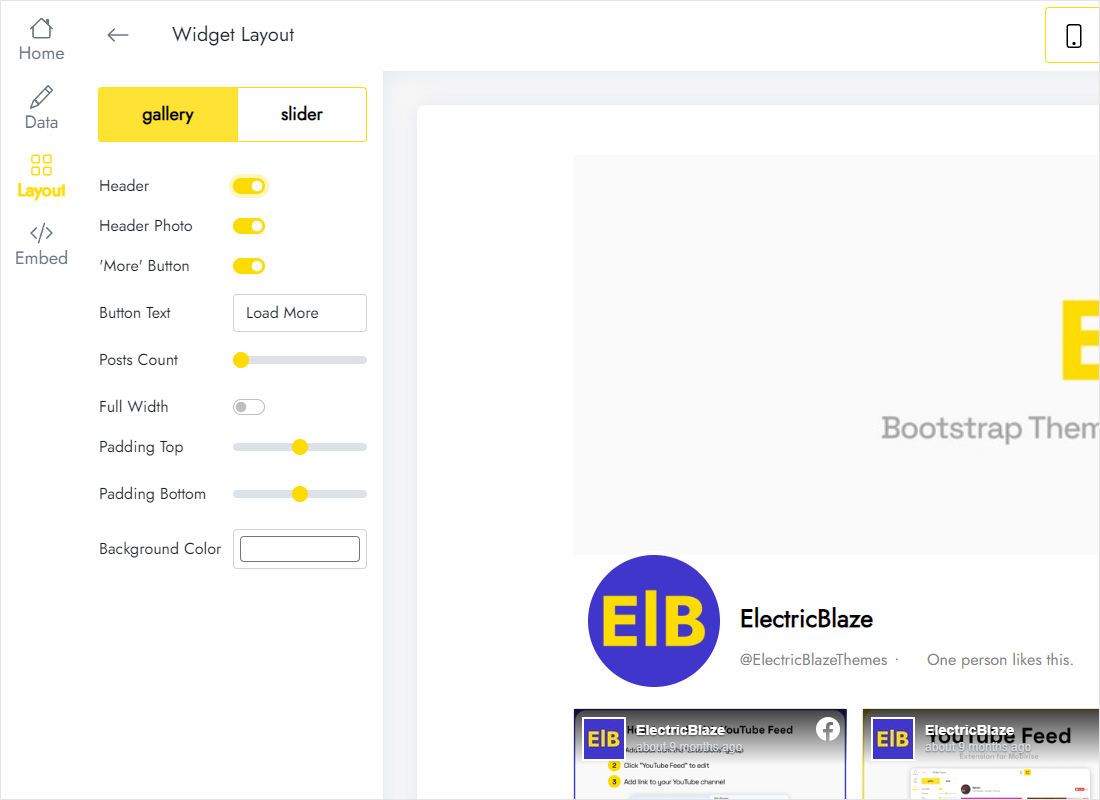
Shape the look on Layout: gallery or slider, column and row counts, captions, background colour.
-
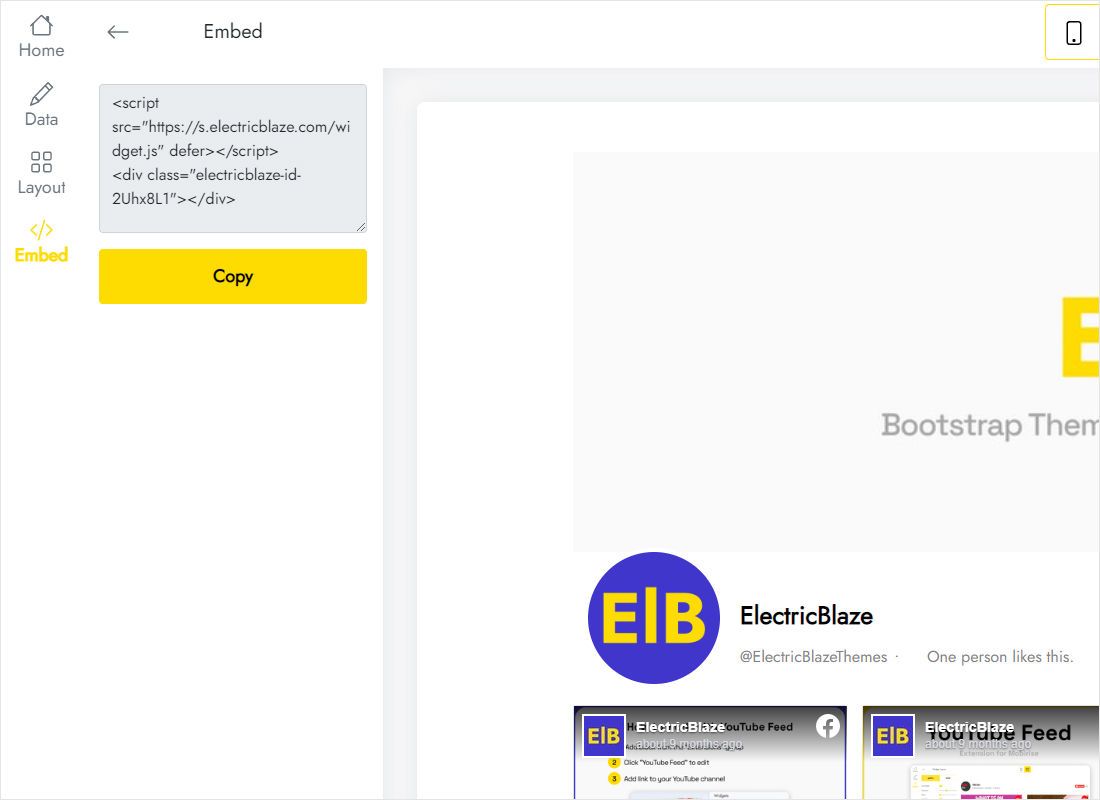
Pressing Add to website brings up the snippet. Copy it whole.
Step 2: Drop the feed into a Nicepage block
Now switch to the design project.
- Choose the page, then add a new block under the existing ones or pick a block that has free space.
- Click the plus icon inside that block and select HTML near the end of the elements list.
- Paste the snippet into Code on the Property Panel.
- Drag the element handles, or type values into W and H, until the posts have room to breathe.
- Preview, look through the posts, then publish or export.
The editing canvas leaves HTML elements blank on purpose; only Preview and the live website execute their code.
Facebook post layout tips for Nicepage
Nicepage lets you tune elements separately for desktop, laptop, tablet and phone modes. Put that to work: keep a three-column grid on desktop and give the phone mode a taller element for the stacked posts.
- News block. A slider with captions on, placed under a heading like Latest updates.
- Every page. Place the element in the footer, which the builder repeats across the site.
- Colours. Match the widget background to the block colour so the feed does not look pasted on.
Facebook posts reach the site after a daily refresh with Free or an hourly one with Start. Republish in Nicepage only after layout changes.
Facebook posts in Nicepage: questions
Will the feed still work after exporting the site to WordPress?
Yes. The HTML element’s code is written into the exported theme, and posts keep loading from ElectricBlaze.
Why is the element empty in the editor?
The builder never executes HTML element code on the canvas. Preview the page to see the posts.
Can a Facebook group be connected?
Groups are not supported; the widget reads public Pages that you help manage.
How many views does the free plan include?
A thousand each month, shared by up to five widgets, a matching Instagram photo block included. Start, $5 a month on annual billing, removes the cap.
Related Nicepage guides
Other widgets for this builder, the Facebook feed overview and the general HTML element guide:
Create your Facebook feed
Link your Page, copy the snippet and give your Nicepage design a news section that updates itself.
Create a widget