
Embed Twitch Streams on Your Website
Drop your channel URL into the editor and your latest streams and clips appear on your personal site as a slider or gallery. It is a quick way to embed Twitch stream on website pages without writing code or updating links after every broadcast.
This is the working editor. Change the layout and options, then compare the result in the preview, which matches what fans get once the code is live.
What the Twitch widget for website includes
Made for streamers who want to embed their channel activity on a personal site instead of copying video links by hand.
A channel link is all it takes
No developer console or tokens to set up: enter the address of your Twitch channel in the Data tab and the widget loads your recent content.
Latest streams and clips
Recent broadcasts and clips sit in one block, so visitors who missed a stream can catch up.
Slider or Gallery
Use the slider for a compact strip under your bio, or the gallery when a whole page is dedicated to your videos.
Updates on schedule
Fresh videos are picked up daily with Free or hourly with Start, so last month’s session never stays at the top.
Fits the page width
Cards rearrange for narrow screens, which matters for fans who open your site from a phone.
Reusable embed code
Place the same snippet on your homepage, a schedule page and a sponsor media kit, or on a second website entirely.
Slider or gallery for your channel videos
A channel feed does a different job from a live player. It presents a set of recent videos at once, and the layout decides how much room that set takes.
Slider
The slider keeps several thumbnails in one horizontal row. It suits a twitch streamer website homepage where the bio, schedule and social links also need space, and it fits a sidebar next to blog posts.
Gallery
The gallery lays videos out in rows, like a small archive. Creators with a separate “Highlights” page often prefer it, because visitors can scan thumbnails and choose what to watch.
Pairing the feed with a live player
Some creators want both: the broadcast itself when they are on air and past content for the rest of the week. Put a Twitch player embed at the top of a page and the feed widget below it. When the channel is offline, the feed still gives visitors something to watch.
Where to show Twitch clips on website pages
- Homepage: a short slider under your intro tells newcomers what kind of content you make.
- Schedule page: recent broadcasts show what a typical session looks like.
- Sponsor or media kit page: brands can review your latest output without searching the platform.
- Team or community site: a member’s newest streams sit next to match results and announcements.
Why add stream videos to your personal site
A home base you control
Platform pages follow the platform’s design and rules. A personal website is yours: your domain, your layout, your links to merch and sponsors. Showing recent streams there ties that home base to the place where you actually broadcast.
Catch-up for people who missed the show
Most visitors do not arrive while you are live. Recent broadcasts and clips let them watch the best moments at any hour, and a good highlight is often what turns a curious visitor into a follower.
Proof of activity for sponsors
Brands and event organisers check whether a creator streams regularly. A feed that always shows fresh videos answers that question at a glance, with no screenshots or manually maintained lists.
Less routine after every stream
Copying video links into your site after each session is easy to forget. The widget handles it on its own schedule while you plan the next broadcast.
Who uses a Twitch channel feed
Variety and game streamers
Show recent sessions on a personal site so fans can find a game they enjoy and dive into the archive.
Esports teams
Put the latest matches from a team channel next to rosters, brackets and results.
Musicians and artists
Creators who play live sets or paint on stream can present recent sessions as a portfolio, with their released tracks on Spotify playing alongside.
Educators and coders
Programming, language and chess streamers can collect lessons on a course page where students already look, next to edited tutorials uploaded to YouTube.
Charity event organisers
Marathons and community events can keep broadcast recordings on the event website after the day is over.
Talent agencies
Roster pages can give each creator a feed, so partners see current output.
How to embed Twitch stream on website
Five steps take you from a new account to a working embed. Keep your channel address handy, for example twitch.tv/yourname.
-

Go to a.electricblaze.com and register at no cost, or sign in if you already have an account.
-

Press Create New Widget, then select Twitch Feed.
-
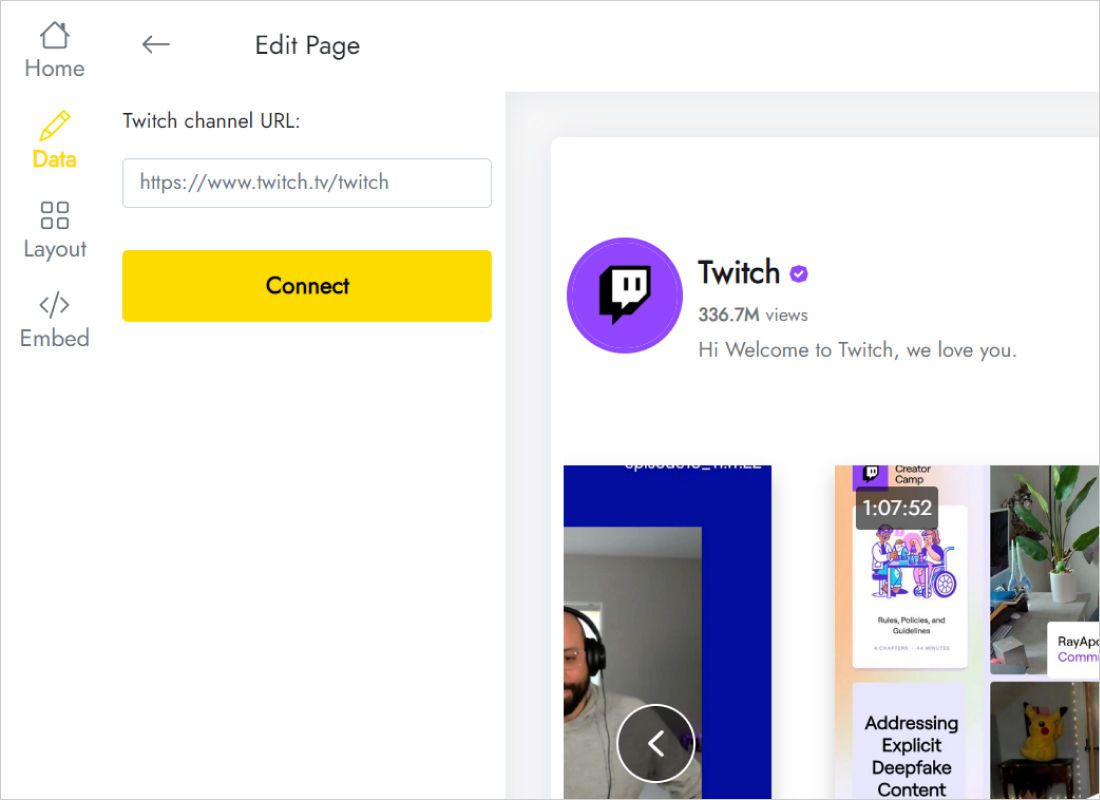
Under Data, paste your address into the Twitch channel URL field and press Connect; the widget uses it as the video source.
-
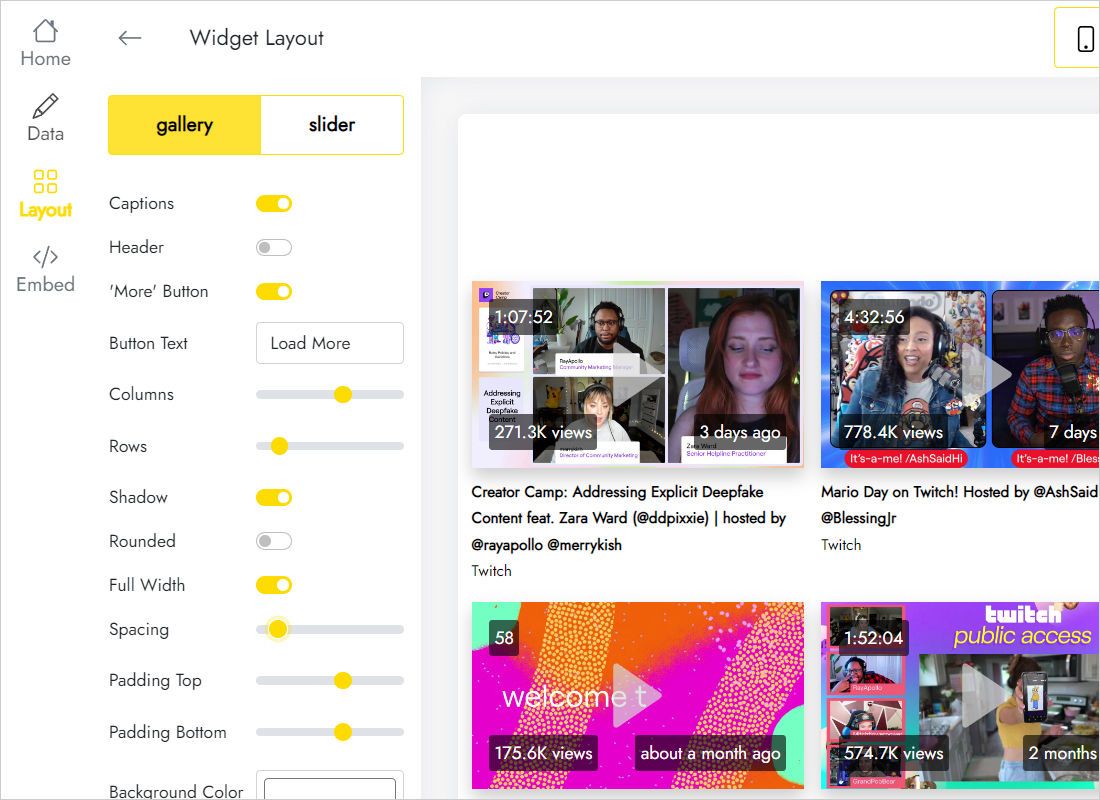
In Layout, choose Slider or Gallery and play with the settings while the preview updates.
-
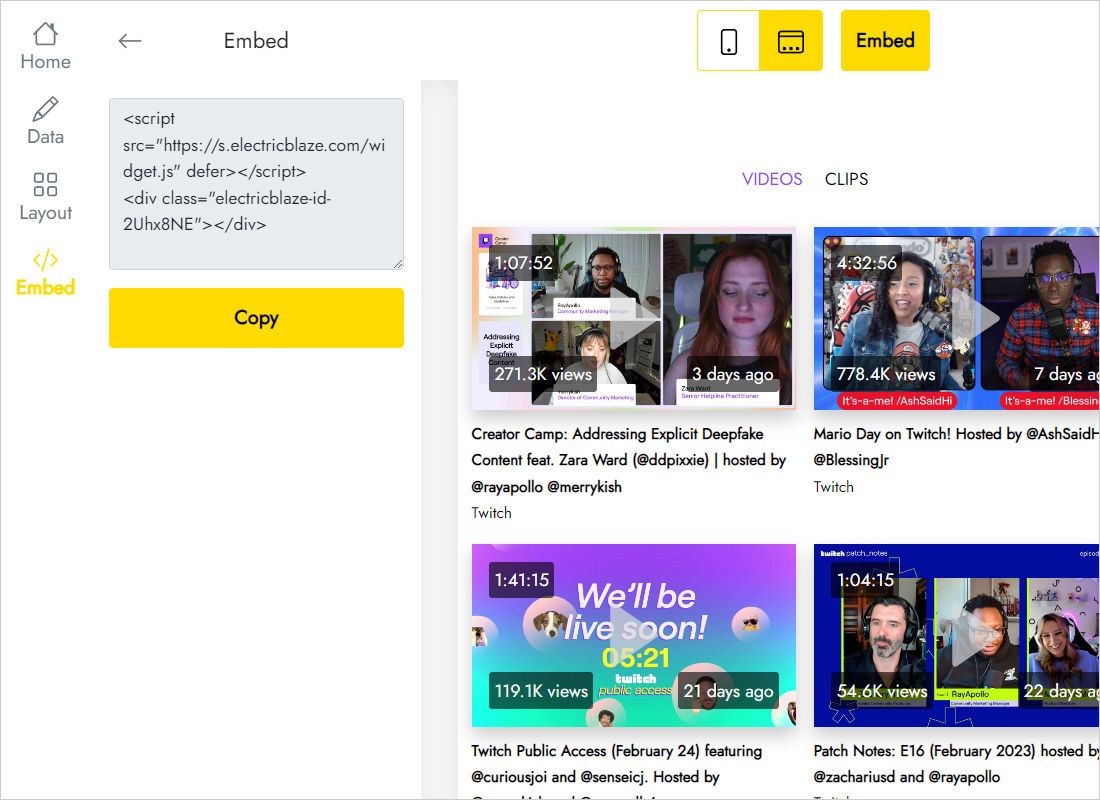
Press Add to website, grab the snippet, drop it into a code element on your site and publish.
Setup notes for popular site builders
Code blocks live in a different place on every platform. Find yours below:
Twitch embed code: channel feed vs official player
Twitch offers an official embed for a single live channel, video or clip. The table shows where each option fits.
| ElectricBlaze Twitch Feed | Twitch embedded player | |
|---|---|---|
| What it shows | A set of your latest streams and clips | One live channel, video or clip per player |
| Getting the code | Paste a channel link, copy the snippet | Write an embed iframe with the channel name and a parent domain parameter |
| New videos | Added on the plan’s update schedule | Replace the video ID in the code by hand |
| Layout | Slider or Gallery | Single video frame |
| Best for | An archive of recent content on a personal site | Watching a broadcast while it is live |
Plenty of streamers use both. For a live window with options such as autoplay or mute, the Twitch player embed is built for that job; for a self-updating overview of your channel, use the feed. Each plan’s limits are explained in our pricing overview.
Watch the channel feed setup
Stream feed FAQ
Can I embed a Twitch live stream on my website?
Twitch’s own embedded player shows your channel while you are live. It is an iframe or script that needs your channel name and your site’s domain as the parent parameter. To list recent streams and clips next to it, add the Twitch Feed snippet to the same page.
Can I embed Twitch stream on website pages for free?
Yes. On Free you get five widgets, a thousand monthly views and any number of sites, without a card. Start, at $5 per month paid annually, lifts the view limit, drops ElectricBlaze branding and checks for new videos hourly.
What is the easiest way to embed Twitch clips or one video?
For a single clip or past broadcast, open the share menu on Twitch, copy the embed iframe and place it on your page. To show many clips that refresh themselves, the feed widget saves you from repeating that for every new video.
How to embed live stream on website pages from other platforms?
Most streaming services offer an embed option in their share menu. Put that player code in a code block of your page editor, where widget snippets go too. The feed described here works with Twitch channels.
Which tab gives me the Twitch stream embed code for the feed?
After you link your channel and choose a layout, press Add to website. The snippet there is generated for your widget, so no separate generator is needed.
What content does the feed pull from my channel?
Your newest streams and clips. Broadcasts you delete, or that Twitch no longer stores, will not be listed.
When will today’s stream appear on my site?
The feed checks the channel daily with Free and hourly with Start, so a saved broadcast turns up after the following check.
Can I change the look after the code is on my site?
Yes. Adjust Slider or Gallery options in the dashboard and save; nothing needs to change in the code already on your pages.
What happens when my paid subscription ends?
Your feed stays online, now carrying a small ElectricBlaze credit link. Renewing at any time hides it again.
How do I retire the stream feed?
Strip the snippet out of any page where it should disappear. To retire it everywhere, delete the widget under Data, which is irreversible. Need a hand? Contact [email protected].
More video and audio widgets
Put videos from other platforms and your own music next to the stream feed.
Show your latest streams on your own site
Register free, enter your channel URL and paste the snippet once. Future broadcasts arrive without extra work.
Create Twitch widget