
Twitch Feed Extension for Mobirise
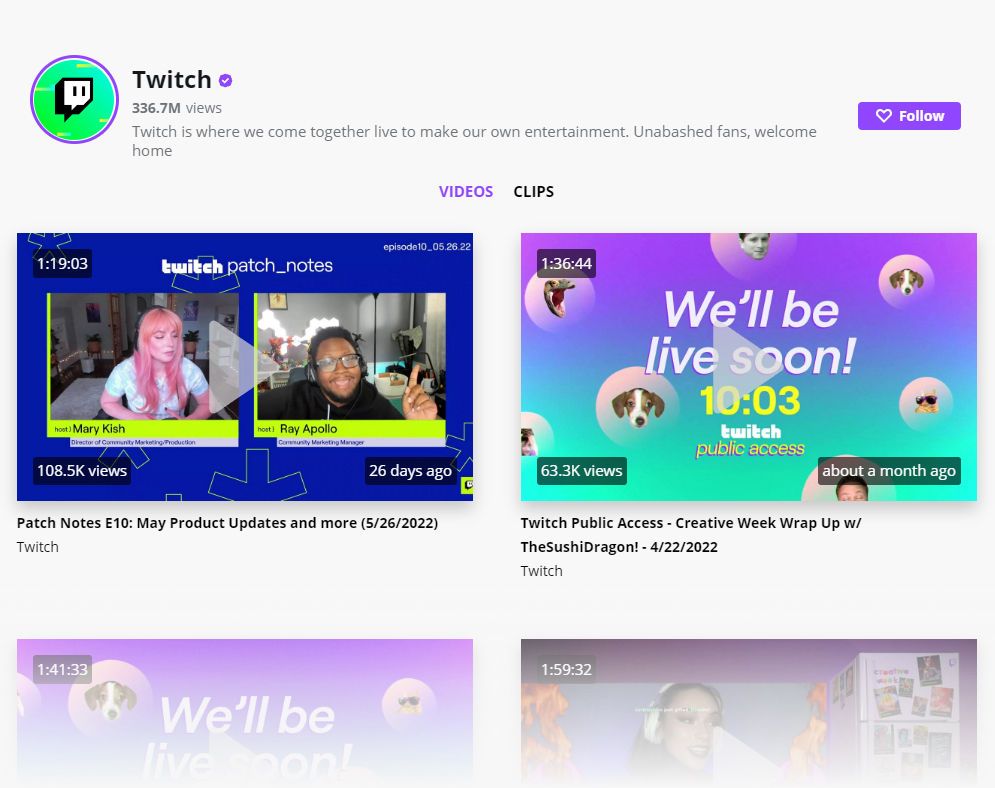
The Mobirise Twitch Feed extension adds your channel content to any page. Paste the channel link, and the block shows your videos as a gallery or a slider, optionally with descriptions.
Buy NowGallery layout: stream videos
Slider layout: stream videos
Grow your audience with the Mobirise Twitch Feed block
Your website audience gets a quick look at what you stream and a direct path to the channel. More followers come from traffic you already have, and choosing Slider or Gallery plus a few style tweaks takes only a moment, and musicians who stream can pair it with a playlist of their released tracks.
Not building with Mobirise? Check the stream embed for any HTML page.
How to add your streaming channel in Mobirise
- Open Extensions from the Mobirise menu and click the Import link for Twitch Feed.
- Add the block with the Twitch Feed from the blocks list to a page of your site.
- Clicking the block opens the app.
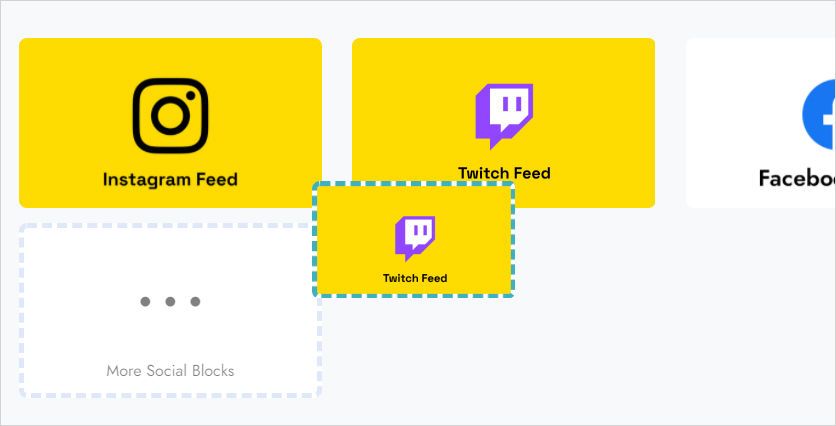
- Press Add New Widget and select Twitch Feed.
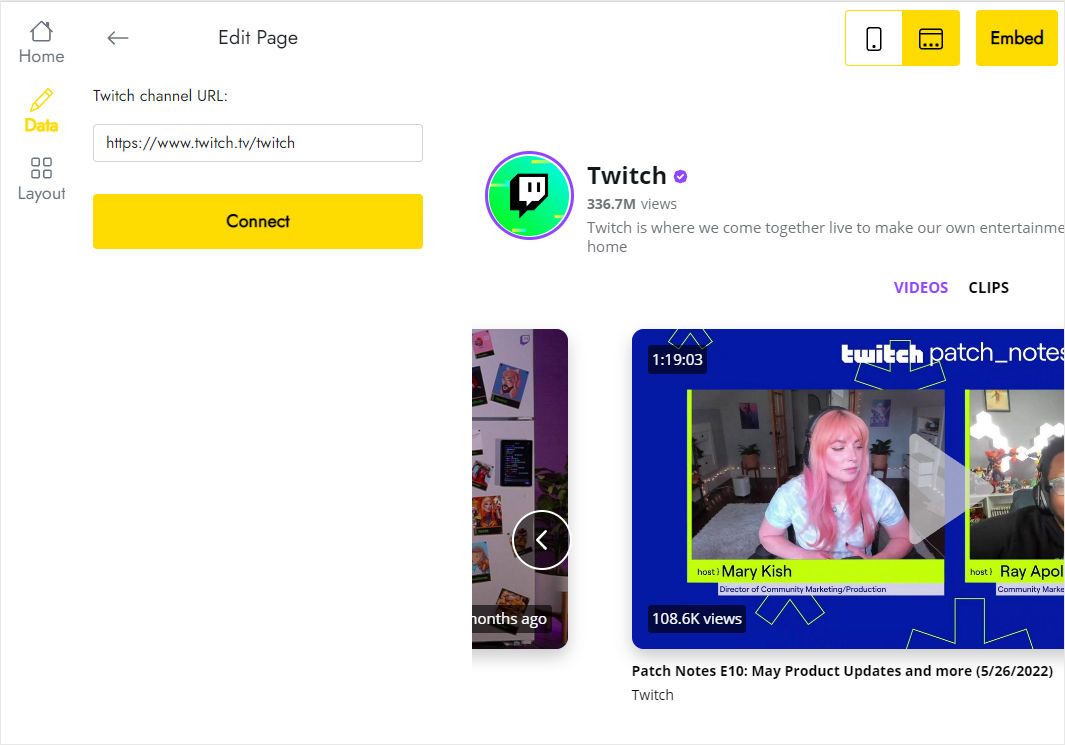
- Paste the link to your channel on the Data tab and click Connect.
- Set the view on the Layout tab.
- Click Save and Close, then publish to see the channel on your site.
Questions and answers
How do I link my streaming channel?
Paste the channel URL into the Data tab of the block and press Connect. Your content then loads.
How do I add the block to a site?
Import the extension from the Extensions menu, then take the Mobirise Twitch Feed block from the blocks list and put it on the page.
How many widgets are allowed?
Five widgets overall.
Can I show the channel on several pages?
Yes, in two ways: save the block to User Blocks and paste it into other pages and projects, or insert another block and choose the channel widget you already set up from Home in the editor.
How do I delete a channel widget?
In the editor go to Data and press Remove at the bottom. This deletes it in all projects and on all published sites, with no undo.
Can I change a widget that is already live?
Yes. Content and appearance can be changed in the editor at any time, and published sites reflect it without you editing the site.
Who develops the streaming extension?
ElectricBlaze, working as a Mobirise partner.
How do I get help with the block?
Email the Mobirise support team at [email protected] and mention ElectricBlaze in the body. Your request is forwarded to us automatically.
Can I use it as part of Mobirise Kit?
Yes. During a valid Kit license period it is available without extra charge, and it can be bought as a single extension too.
What happens when the Kit license expires?
Adding and editing the block stops working. Live sites might show a “Your license has expired” alert on the block.