
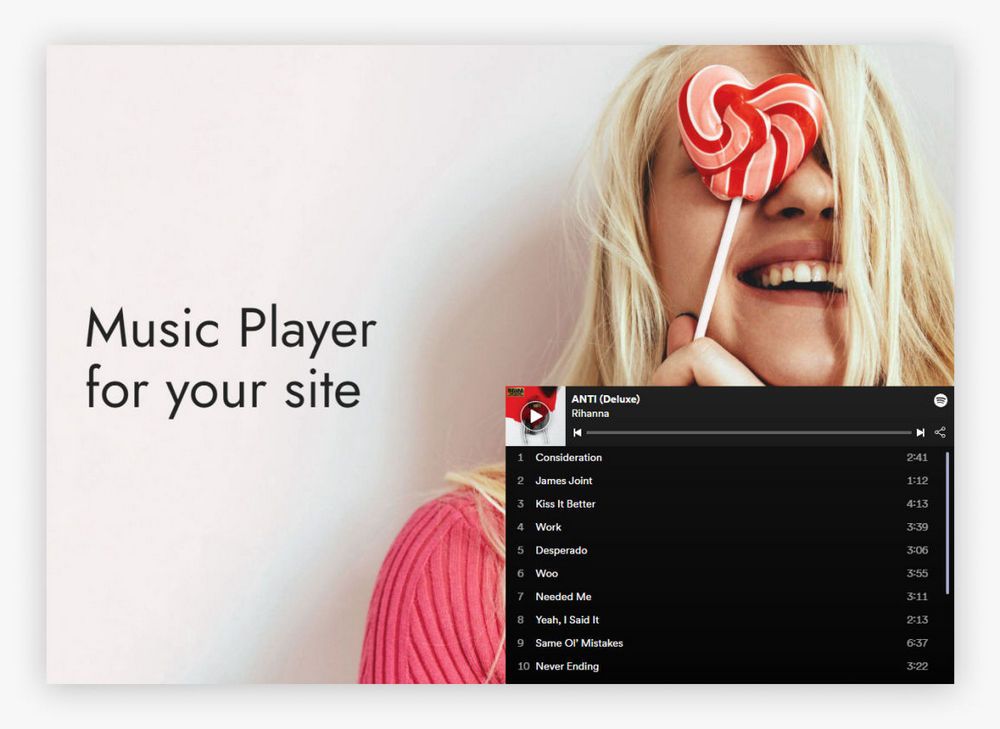
Music Player Extension for Mobirise
The Mobirise Music Player extension puts a Spotify or SoundCloud player on your website in a few clicks. Paste a playlist link, then show it as a block inside the page or as a floating bar that stays in a corner.
Buy NowEmbed layout demo
Floating layout demo
You can see the floating widget at the right top corner of this page.
Let visitors listen with the Mobirise Music Player block
Artists, podcasters and venues can let people hear their tracks while they read, right above the latest music videos from their channel. Pick the Embed or Floating layout, adjust the look and publish.
Not building with Mobirise? Get the playlist embed for other sites.
How to set up a Spotify or SoundCloud player in Mobirise
- Open the Mobirise menu, go to Extensions and import Music Player with the link under its title.
- In your project, add the Music Player block from the blocks list.
- Click the block to open the app.
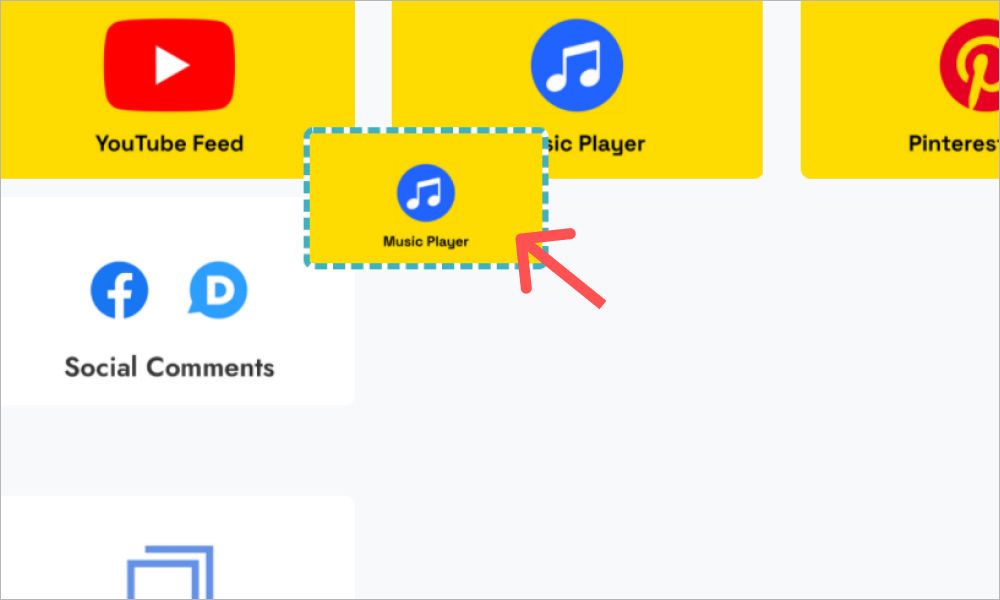
- Press Add New Widget and choose Music Player.
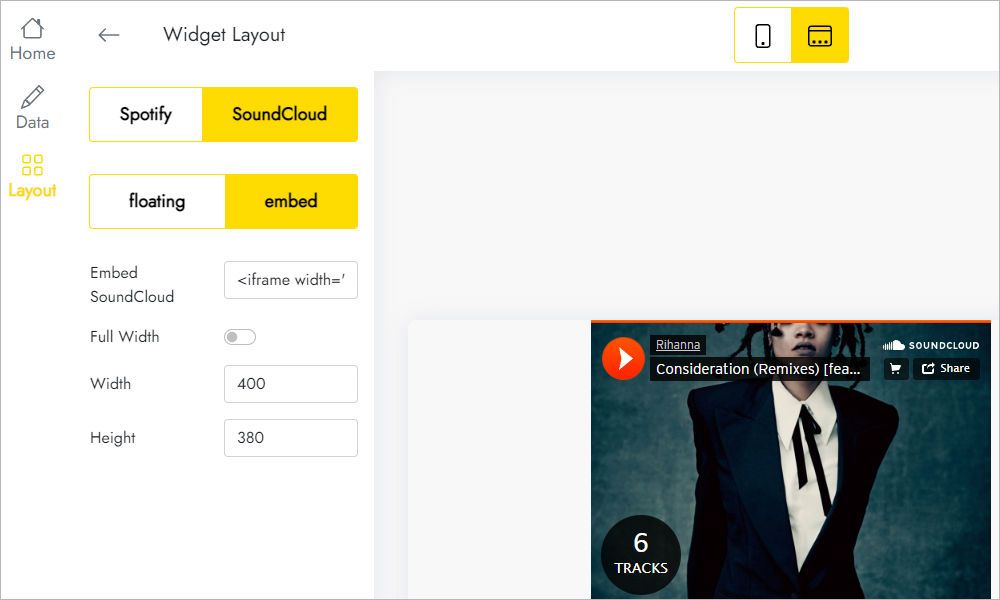
- On the Layout tab paste your Spotify or SoundCloud playlist link.
- Still on Layout, select Embed or Floating and adjust the view.
- Click Save and Close and publish the site to hear the result.
Player FAQ
Which services does it support?
Spotify and SoundCloud. Paste a playlist link from either one on the Layout tab.
How do I add the block to my site?
Import the extension in the Extensions menu. After that, pick the block from the blocks list and drop it on the page where the tracks belong.
How many players can I create?
You are limited to five widgets overall.
Can one playlist play on several pages?
Yes. Put the finished block into User Blocks and reuse it, or add a new block and select the existing player from the Home menu in the editor.
How do I delete a player?
Use the Remove button at the bottom of the Data panel. It disappears from all projects and published sites, and the action is irreversible.
Can I swap the playlist after the site is live?
Yes. Paste a new link or switch layouts in the editor, and the published site plays the new tracks without editing the site itself.
Who develops the audio extension?
ElectricBlaze, a Mobirise partner, is the developer.
How do I get technical help?
Send an email to [email protected] with ElectricBlaze mentioned in the text, and it will be forwarded to the ElectricBlaze team.
Is Music Player included in Mobirise Kit?
Yes, at no additional cost while your Kit license is valid. It is also sold separately.
What happens when my license expires?
You can no longer add or edit the player block, and a published site may show the “Your license has expired” alert over it.