
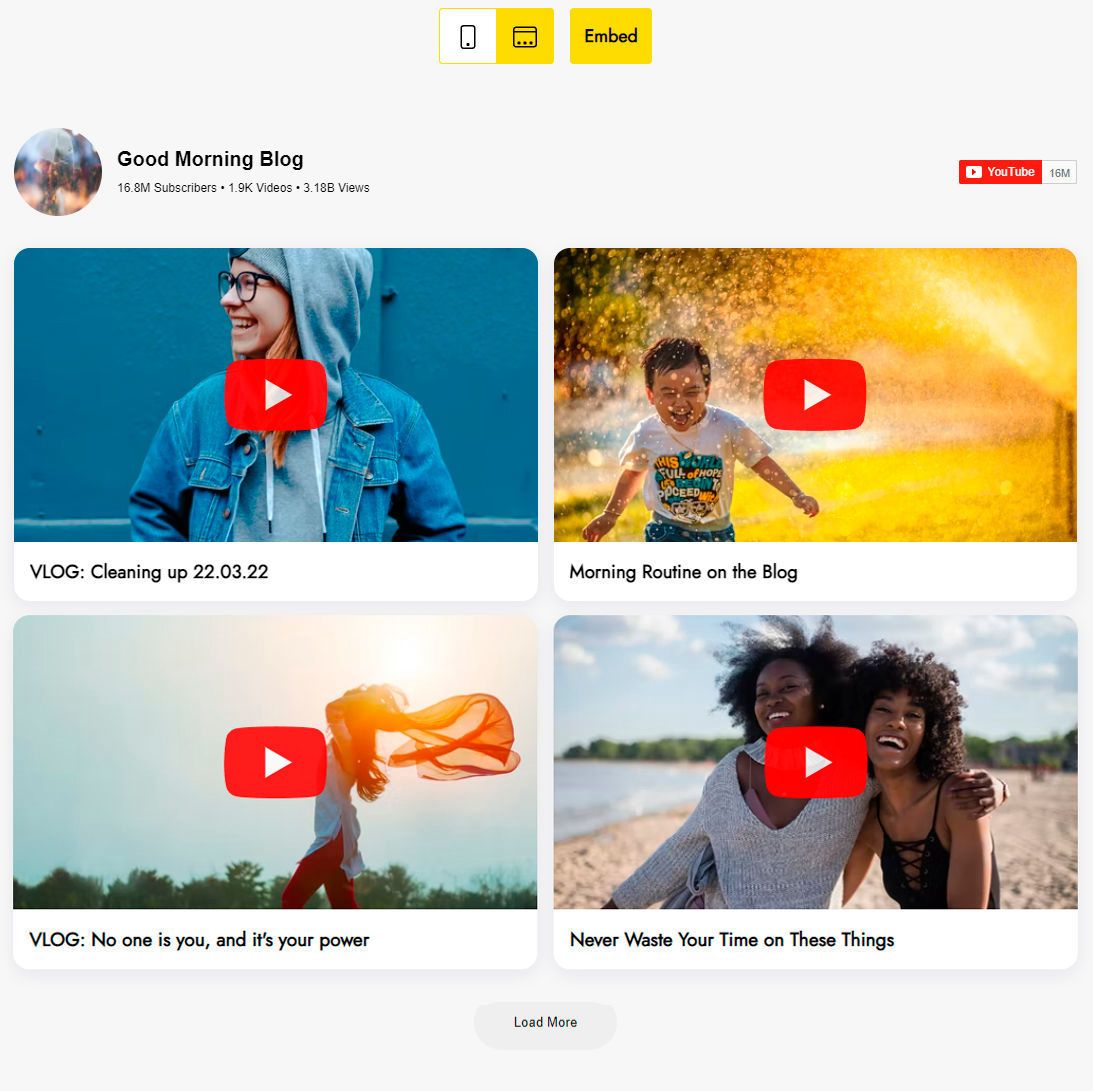
YouTube Feed Extension for Mobirise
The Mobirise YouTube Feed extension turns your channel into a block of recent uploads. Paste the channel link, and visitors can browse and play your videos on the page, laid out as a slider or a grid, optionally with descriptions.
Buy NowSlider layout of channel uploads
Gallery layout of channel uploads
What the Mobirise YouTube Feed block does
Every clip on the site is a small invitation to subscribe. Choose Slider or Gallery, adjust thumbnails and titles in a couple of clicks, and new uploads join the block automatically, next to recent broadcasts from a streaming channel if you also go live.
Not building with Mobirise? Try the same video feed for other websites.
How to show a YouTube channel in Mobirise
- From the Mobirise menu go to Extensions, find YouTube Feed and press its Import link.
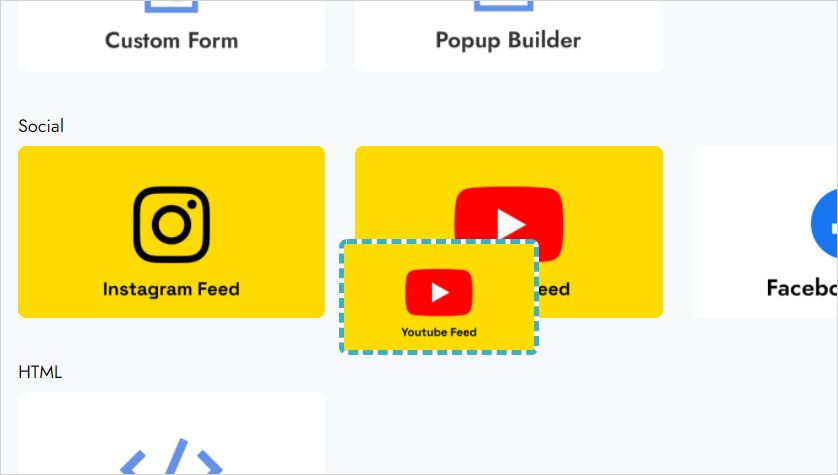
- In your project, pick the YouTube Feed block in the blocks list and add it to a page.
- Click the inserted block; the ElectricBlaze editor opens.
- Choose Add New Widget, then select YouTube Feed.
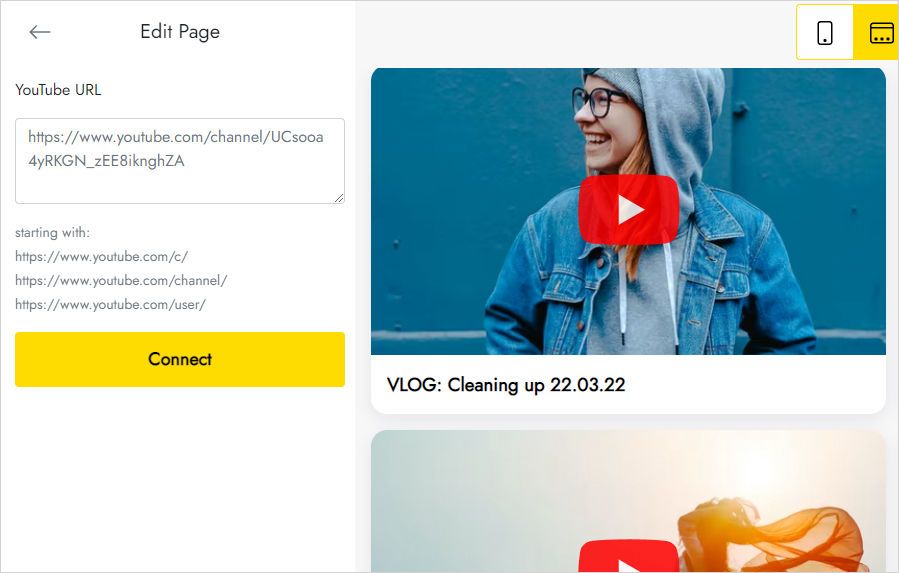
- Paste the link to your YouTube channel on the Data tab and press Connect.
- Set Slider or Gallery and fine-tune thumbnails on the Layout tab.
- Hit Save and Close and publish the project.
YouTube extension: frequent questions
How do I connect my YouTube channel?
In the block editor open Data, paste the channel address and click Connect. Your recent uploads then fill the block.
How do I put the Mobirise YouTube Feed block on my site?
Import the extension from the Extensions menu first. After that the block sits in the blocks list, ready to drop onto any page.
Is there a limit on channel widgets?
Yes, five widgets is the total you can create.
Can I show one channel on more than one page?
Store the finished block in User Blocks and reuse it in any project. Another option is to add a fresh block and select the widget you already built in the editor’s Home menu.
How can I delete a YouTube widget?
Go to Data in the editor and use the Remove button at the bottom. Removal is permanent and applies everywhere: every project and published website loses that widget.
Will edits reach sites that are already online?
Yes. Change the layout or point the block to another channel, and published pages show the update with no change to the site files.
Who is behind the YouTube extension?
ElectricBlaze develops it as a partner of Mobirise.
How do I contact support?
Email [email protected] and include the word ElectricBlaze in your message. Such emails are forwarded to the ElectricBlaze team automatically.
Do I get the video feed with Mobirise Kit?
Yes. A valid Kit license covers it with no additional payment for the whole license term. Prefer a single purchase? It is available separately too.
What if the Kit license runs out?
The block becomes locked for adding and editing, and a published page may show the “Your license has expired” message over the videos.