
How to Add a Nicepage Instagram Feed
A Nicepage Instagram feed turns your newest posts into a gallery block that refreshes by itself. The steps below cover linking the profile, placing the snippet in an HTML element and setting sizes for desktop and phone views.
Things to have ready
- An Instagram Creator or Business profile; personal ones cannot be linked.
- Your Nicepage site open in the app or the online editor.
- An ElectricBlaze account, where the Free plan is plenty for one gallery.
The Image Gallery element in Nicepage needs every picture uploaded by hand. Linking Instagram instead means each new post lands on the site without reopening the project.
Step 1: Build the Instagram widget
The overview of Instagram grid styles pictures every layout. Quick path:
-

Load a.electricblaze.com and get into your dashboard, or register a new account.
-

From the list of widget types, choose Instagram Feed.
-
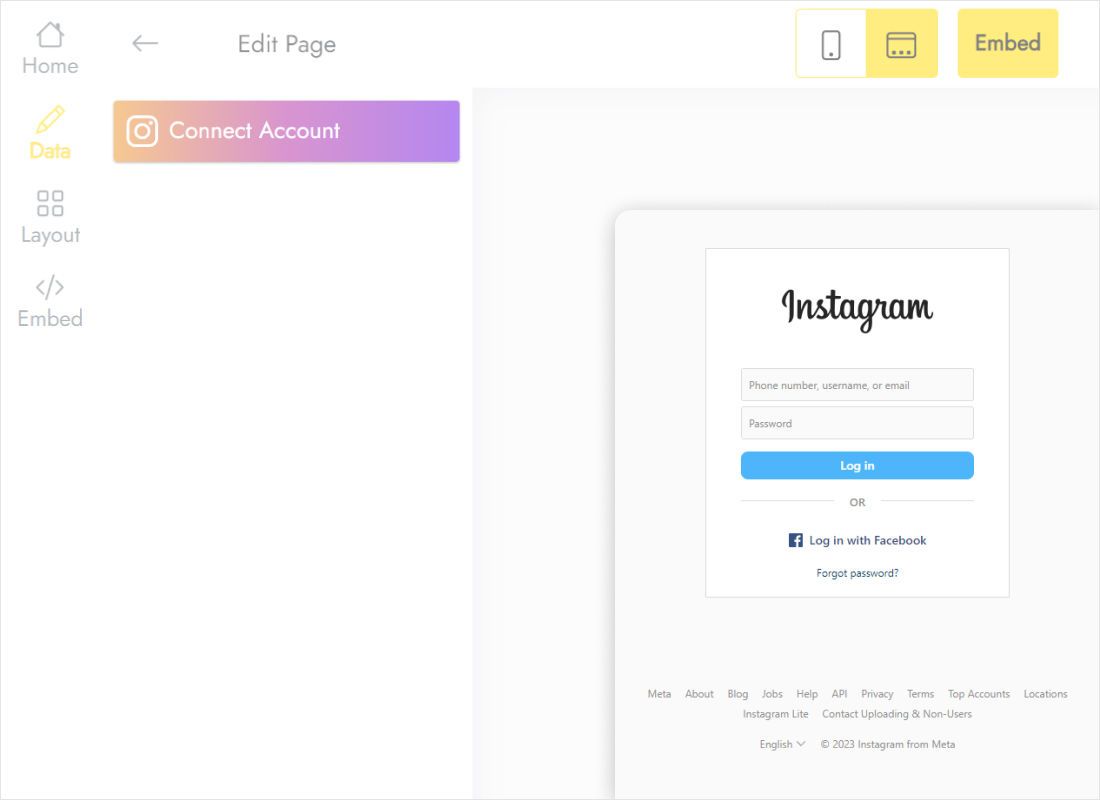
Press Connect Account on Data, then approve ElectricBlaze in the Instagram window.
-
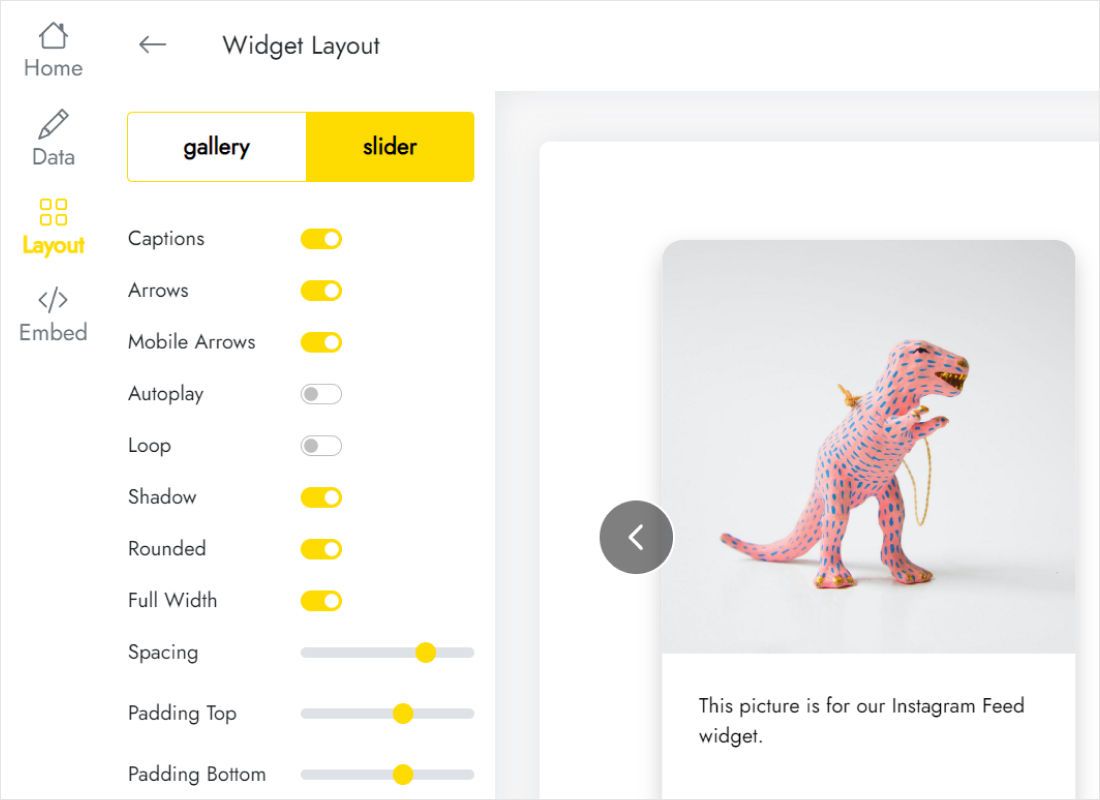
Adjust Layout: gallery for a portfolio section, slider for a slim strip, then columns, rows and spacing.
-
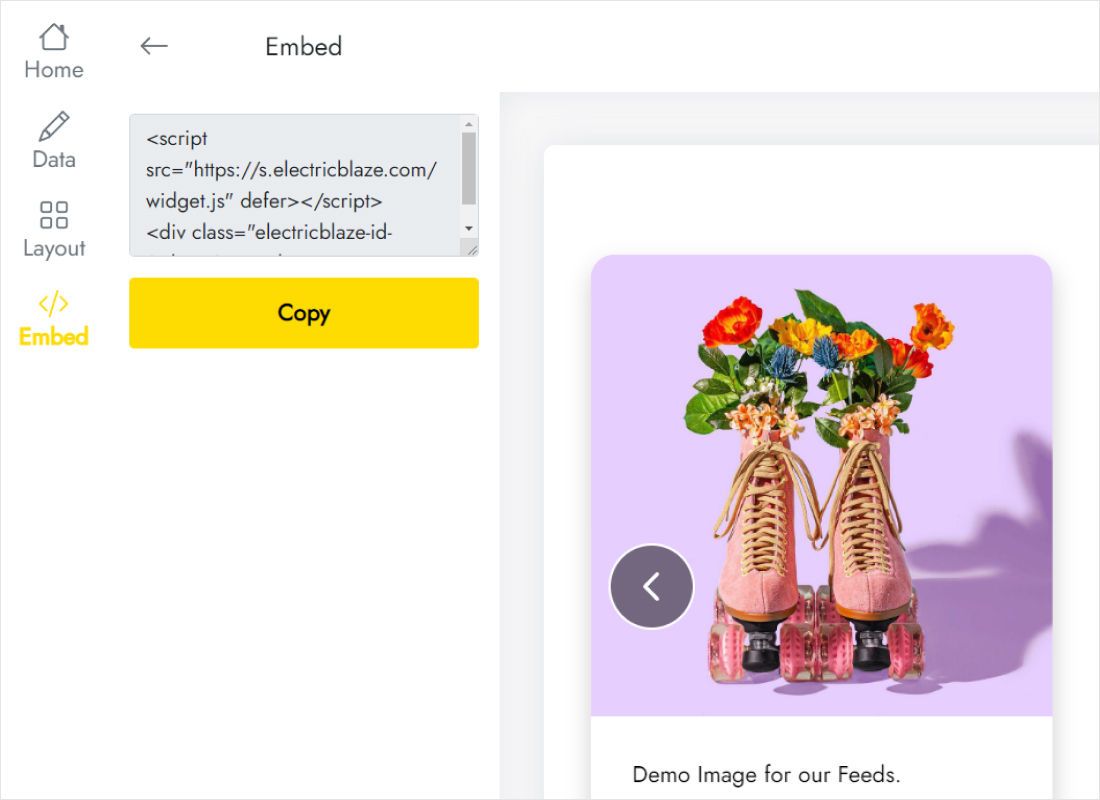
Add to website reveals the snippet to copy.
Step 2: Place the code in your project
Open the page that should show your photos.
- Insert a block with New Block below the last section, or reuse one with spare room.
- Hit the plus icon in that block and select HTML from the elements list.
- On the Property Panel, paste into Code; the expand icon in its corner widens the field if you want to double-check the snippet.
- Set W to the width of the block and H to the height your photo rows need.
- Preview, fine-tune, then publish or export.
Photos stay invisible on the canvas. Preview shows the real gallery.
Sizing the photo grid across device views
Nicepage keeps separate adjustments for its device modes, switched with the icons along the top of the editor. Set the element height in each mode, since a four-column gallery on desktop becomes narrower columns on a phone and can need far more vertical space.
- Portfolio page. Gallery with Full Width on and the element stretched to the block edges.
- Homepage. A single-row slider under the hero keeps the page compact.
- Site-wide. Put the element in the footer, which the builder repeats on every page.
New posts appear after the refresh, daily for Free and hourly for Start, with no re-export required.
Photo gallery in Nicepage: FAQ
Does the Nicepage Instagram feed work on Nicepage hosting and on my own server?
Both. The snippet loads content from ElectricBlaze, so it runs wherever the published or exported pages are served; embedding notes for other platforms follow the same idea.
Why does the gallery look cropped on my phone?
The element in phone mode is shorter than the stacked photos. Switch the editor to phone view and raise H.
Can I use a personal Instagram profile?
Not directly. Switch it to Creator or Business in the Instagram settings; posts and followers stay intact.
Is there a free option?
Yes: five widgets and a thousand monthly views on Free. Start costs $5 a month, paid yearly.
More instructions for Nicepage
See other widgets for this builder, the Instagram widget overview or the HTML element basics:
Connect your Instagram profile
Link the account, copy the snippet and let your latest shots decorate the site.
Create a widget