
How to Add Music Player to BigCommerce
A featured playlist can set the tone for a fashion label, a record shop or a lifestyle brand. Here you will add music player to BigCommerce with ElectricBlaze, choosing between a floating player loaded through Script Manager and an inline one placed with Page Builder.
Should your store play music?
Shoppers browse at work, on trains and late at night, and browsers already prevent audio from starting by itself. A player visitors choose to press is friendlier than any attempt at background sound. With that in mind, pick a mode:
- Floating keeps a compact player in a screen corner across the storefront. It is loaded site-wide through Script Manager.
- Embed places the player inside a page, for instance on an About or Our Sound page, using the Page Builder HTML block.
You will also need the embed code of the Spotify or SoundCloud track, album or playlist you want to feature.
Step 1: Configure the playlist widget
Settings are explained next to floating and inline player demos. For the store:
-

Whoever manages store widgets signs in at a.electricblaze.com.
-

Pick Music Player when adding a widget.
-
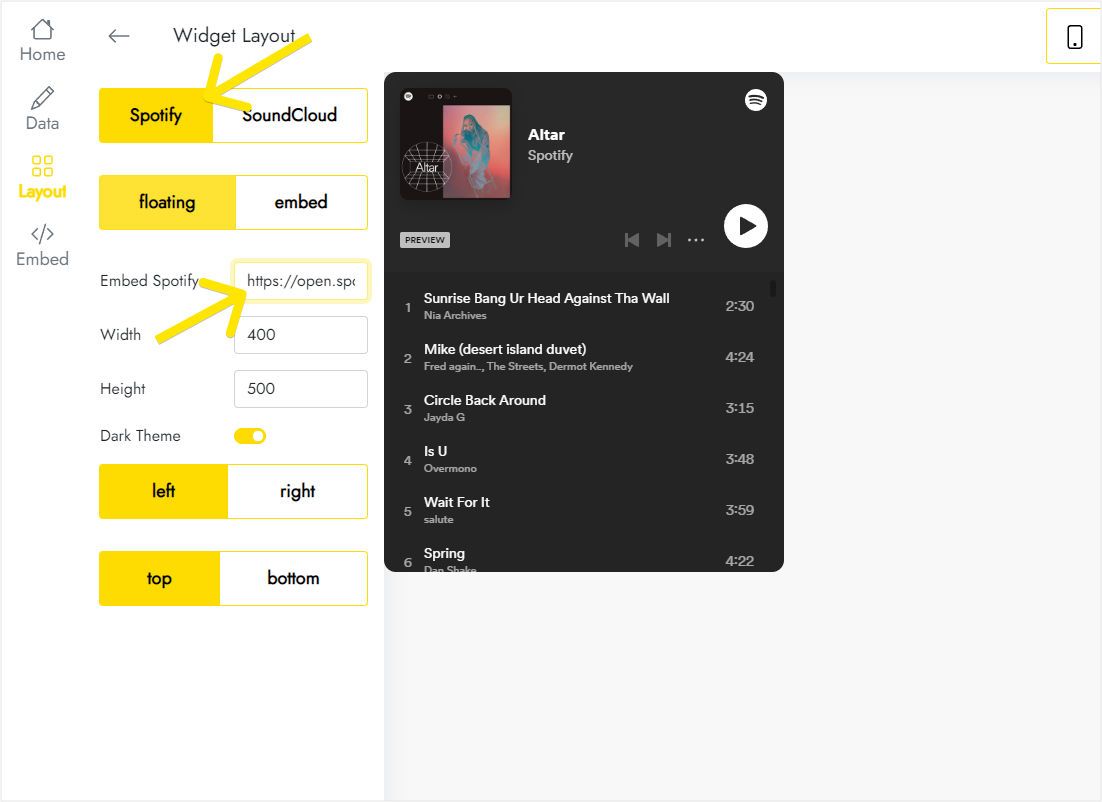
Open Layout, keep Spotify or switch to SoundCloud, and paste the playlist address into the embed field. Floating mode docks the player in a store corner you choose.
-
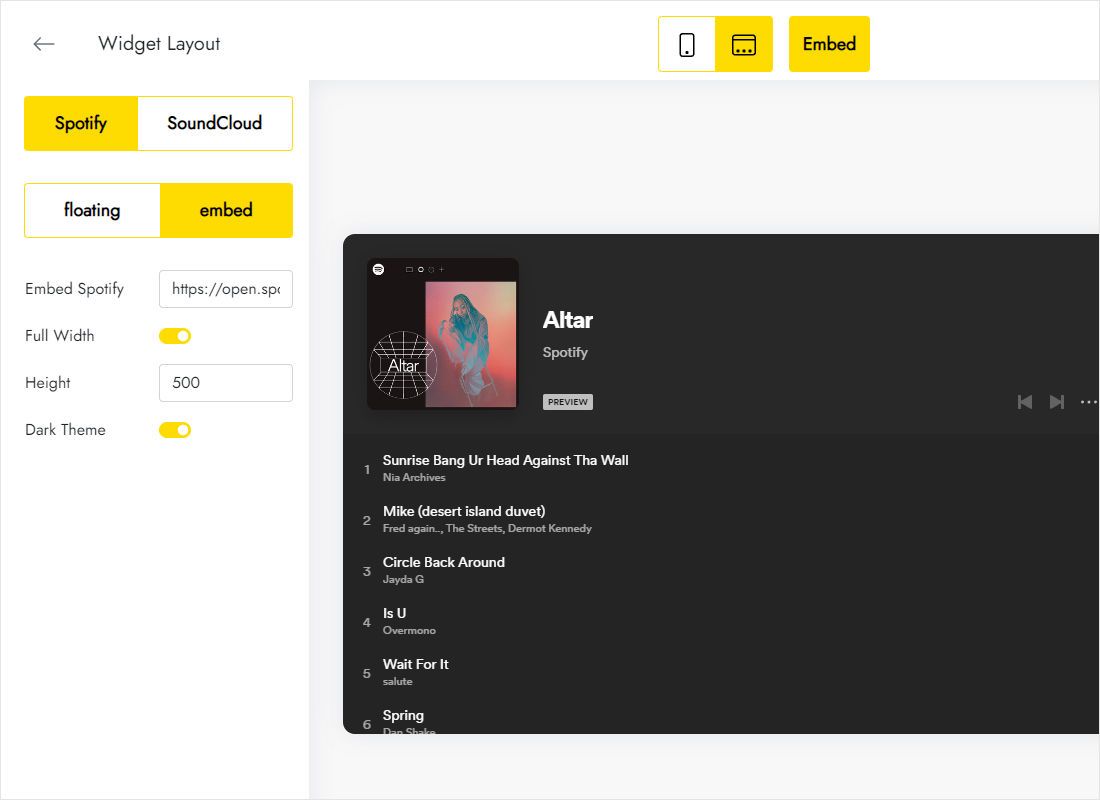
Prefer the player inside a product or brand story block? Switch to embed, enable Full Width and set a height that fits the section.
-
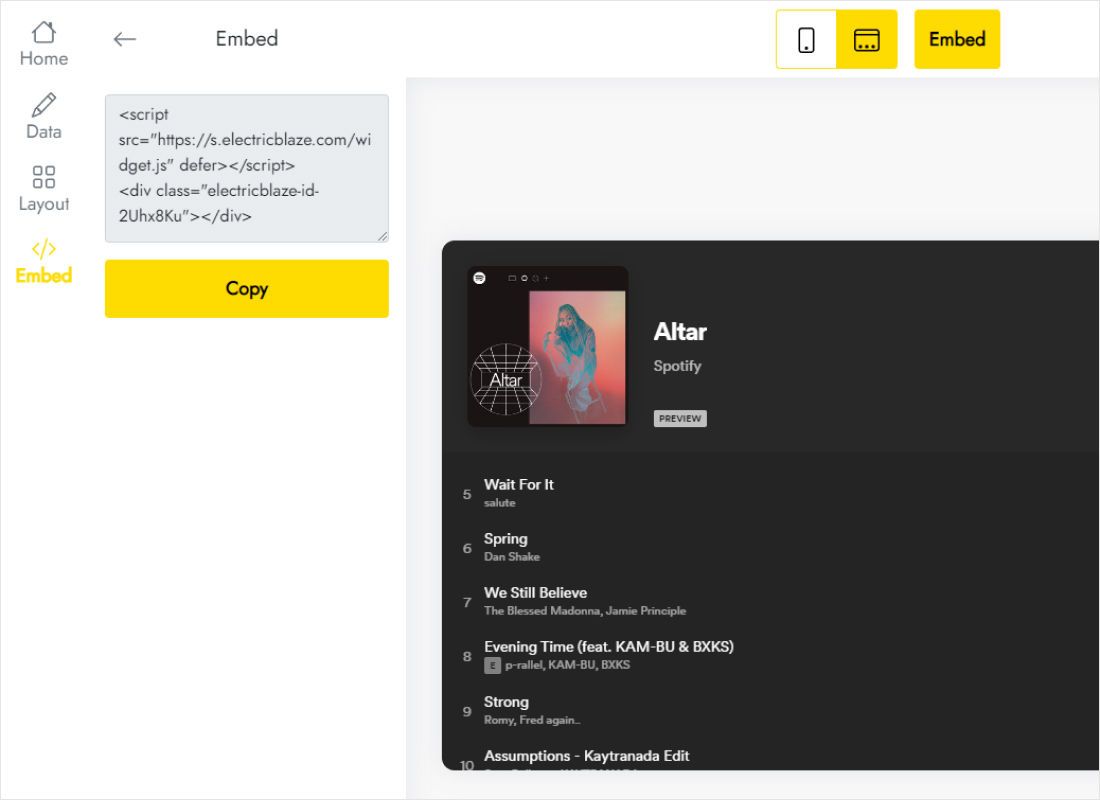
From Add to website, copy the code block.
Step 2: Load the floating player with Script Manager
In the BigCommerce control panel:
- Go to Storefront, open Script Manager and click Create a Script.
- Name it clearly, for example “ElectricBlaze player”, so colleagues know what it does.
- Choose Footer as the location and Store pages as the page selection, which leaves checkout and order confirmation out.
- Select a category (Functional fits a player), keep the type as Script and paste the code.
- Save, open the storefront and start a track to confirm it plays.
Using embed mode instead? Skip Script Manager: in Page Builder drag an HTML block onto the page, paste the code and publish.
Sound and placement tips for a shop
No autoplay, by design
Modern browsers only allow audio after a click or tap, so the player waits for the shopper. Label the page or playlist clearly so people know what they will hear.
- Corner choice: keep the player away from the corner used by a messenger chat button, review badge or cookie banner.
- Mobile: on small screens a floating player can hide sticky Add to Cart bars that some themes show; check a product page on a phone.
- Consent: with the BigCommerce cookie banner enabled, shoppers who decline the category you chose will not load the player.
- Page changes: Stencil pages reload on each click, so playback stops when a shopper opens another product.
To feature a new playlist, change the embed in ElectricBlaze; Script Manager needs no edit.
Music on a BigCommerce storefront: FAQ
Can the player appear on checkout?
Script Manager can target checkout, but a music bar there distracts buyers. Store pages is the better choice.
Which category should the script use?
Functional describes a player well. Essential would load it even for shoppers who refuse optional cookies, which is hard to justify for music.
Can I upload my own audio files?
The widget plays Spotify and SoundCloud embeds. Publish original tracks on SoundCloud and use that embed.
Does this need a paid plan?
No. Free covers it within a thousand views a month; paying yearly for Start ($5 monthly) lifts limits and drops branding.
Other BigCommerce guides
More widgets for your storefront, the main BigCommerce page and the Music Player overview:
Give your store a soundtrack
Pick a playlist, choose floating or inline and load it through Script Manager.
Create a widget