
How to Add a BigCommerce Instagram Feed
Styled product shots and customer photos sell quietly. This guide builds a BigCommerce Instagram feed with ElectricBlaze, from connecting the account to placing the gallery on the home page, category listings and individual products.
What you need to begin
- A professional Instagram profile (Creator or Business) for the brand.
- A Stencil theme that exposes Page Builder regions.
- An ElectricBlaze account; the free tier is fine while you test.
Decide what the gallery should do. On the home page it sets the mood. On a product page it acts as user-generated content, or UGC: social proof that real people use the item. The widget displays posts from the connected profile, so repost customer photos there (with permission) if you want them in the feed.
Step 1: Connect Instagram and style the grid
Every setting is documented in the complete rundown of gallery settings. The store version:
-

Load a.electricblaze.com and authenticate, or create credentials if the team has none yet.
-

Add a widget, picking Instagram Feed from the catalogue.
-
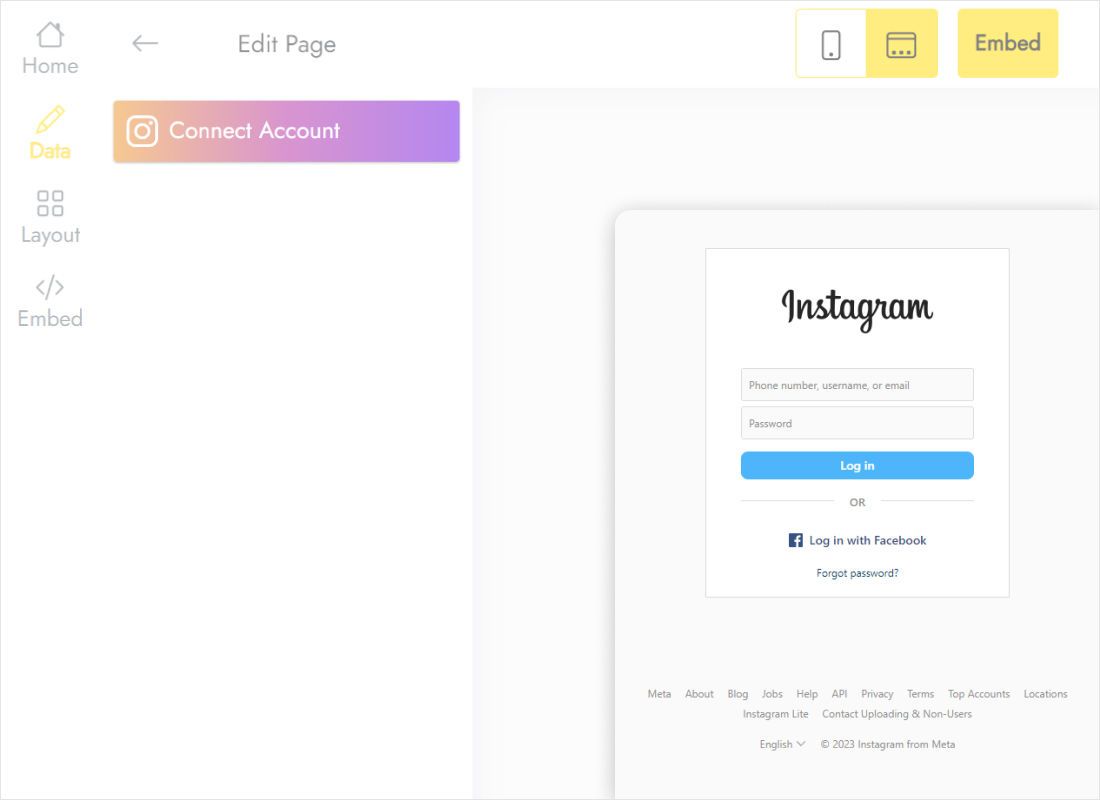
The Data tab has a Connect Account button. Use it to authorise the brand profile.
-
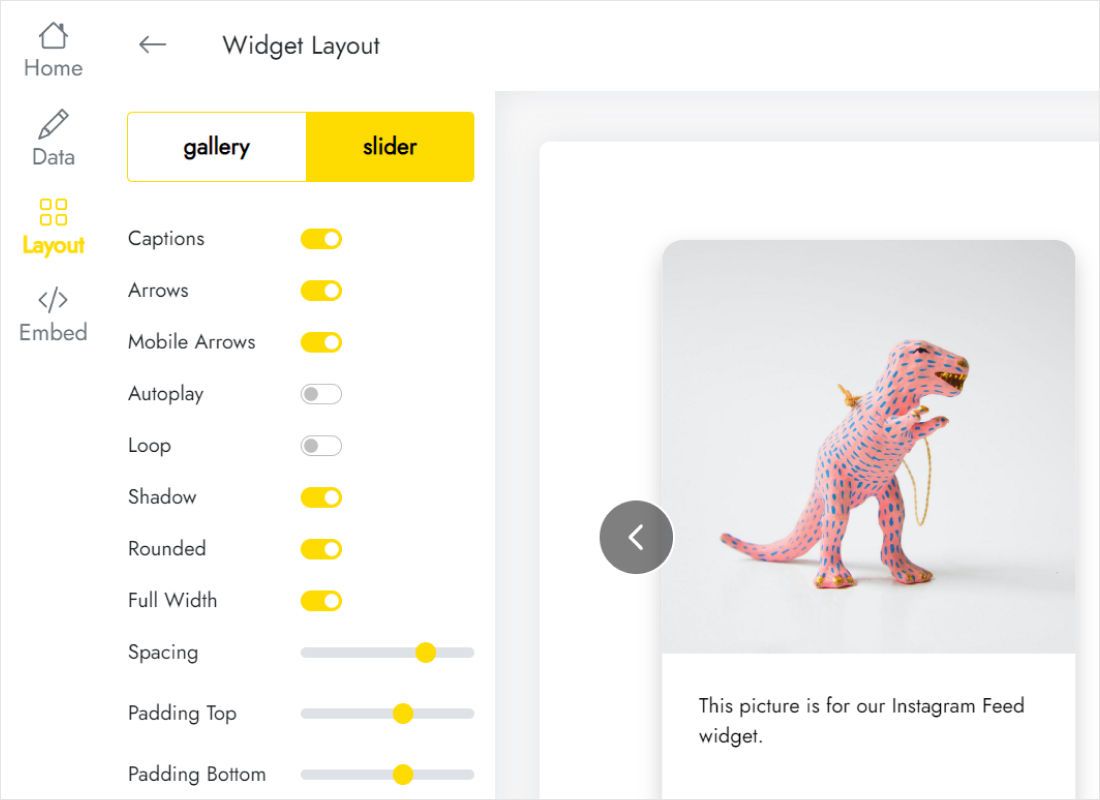
Head to Layout. A one-row slider for product pages, a four-column gallery for the home page.
-
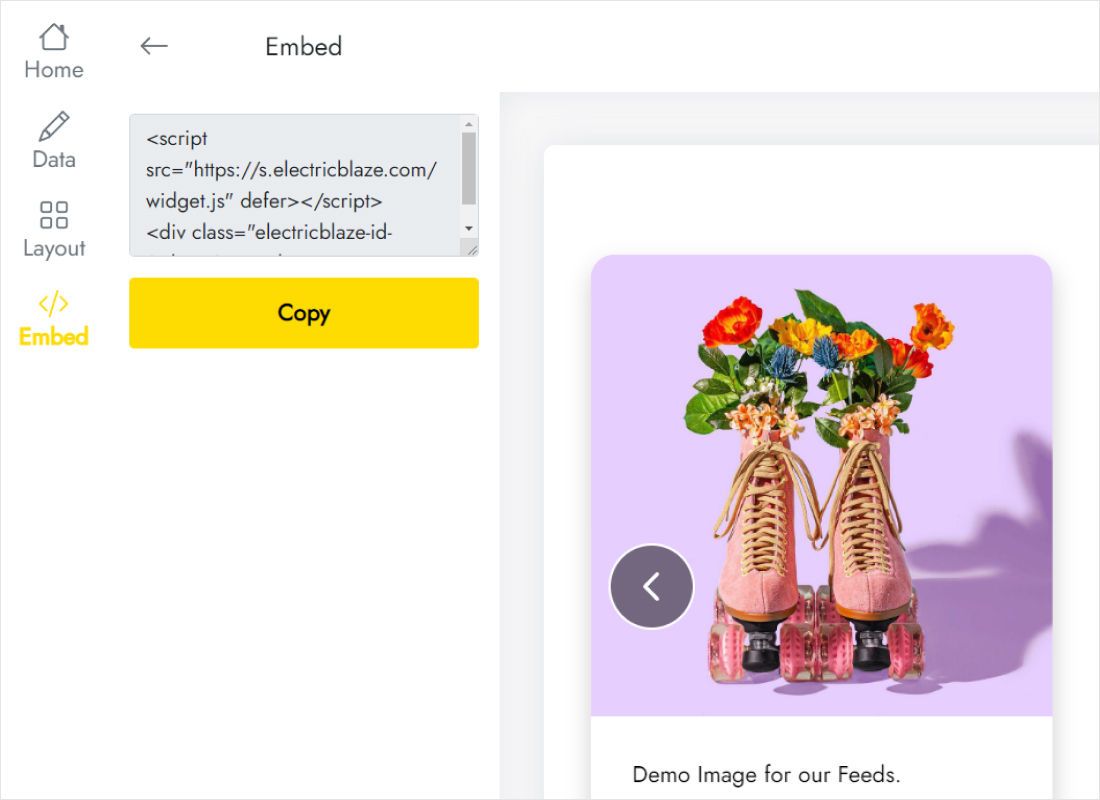
Grab the snippet that Add to website presents.
Step 2: Position the gallery in Page Builder
Inside BigCommerce:
- Launch Page Builder with Customize on the live theme in the Storefront area.
- Use the top selector to jump to Home, a category, or a specific product.
- Locate HTML among the widgets and pull it to the spot where photos should sit.
- Put the snippet into the HTML field, then save that block.
- Publish, and review both the desktop and mobile storefront.
An empty HTML block in the editor is normal for script content. The photos render on the published page.
Placing photos where shoppers decide
Product pages come first. Put the gallery under the description or reviews so it supports the decision without pushing the Add to Cart button down; a single row is enough there.
- Home page: two rows of four photos give a lookbook feel without dominating the page.
- Category pages: a slider between the product grid and the footer reminds browsers how items look in use, much as short product clips from TikTok do.
- Every product at once: a Global region in the product template repeats the gallery on all products.
- Phones: columns collapse on small screens, so fewer rows keep the page short.
Because the gallery refreshes itself (hourly with Start, every 24 hours with Free), a new campaign reaches the BigCommerce storefront without republishing.
Instagram photos in a store: FAQ
Can shoppers buy directly from the photos?
No. The widget is a gallery, not a shoppable feed. Place it on the page of the product it shows, so the Add to Cart button is one scroll away.
Will a personal Instagram account work?
Only after switching it to Creator or Business in the Instagram app.
Does the gallery appear at checkout?
No. Page Builder regions do not exist on checkout pages.
Is the free plan enough for a store?
Free allows a thousand widget views monthly, which a shop with regular traffic can pass; Start has no cap.
Related BigCommerce guides
Other widgets for your catalogue, the general BigCommerce guide and the Instagram widget overview:
Put your Instagram photos to work
Connect the brand profile and let real photos sit beside your products.
Create a widget