
How to Add Facebook Feed to BigCommerce
Recent Facebook posts about launches, restocks and pop-up events tell shoppers the brand behind the catalogue is active. You can add Facebook feed to BigCommerce with an ElectricBlaze widget and the Page Builder HTML block, without opening a single theme file.
What the setup requires
- Your brand's public Facebook Page. Personal accounts are out of scope, since Facebook exposes only Pages to connected apps.
- A Stencil storefront with Page Builder regions, as in Cornerstone and most current themes.
- Staff permissions that allow editing the storefront design.
- An ElectricBlaze account on any plan.
Natural homes for the posts are the home page and an About or Community page. On a product page, keep the block below the description, well away from price, variants and the Add to Cart button.
Step 1: Link the brand Page in ElectricBlaze
The tour of Page post layouts explains each option. For a store, work through these screens:
-

Reach the editor at a.electricblaze.com, using your store email to log in or register.
-

Open a blank widget and set Facebook Feed as the type.
-
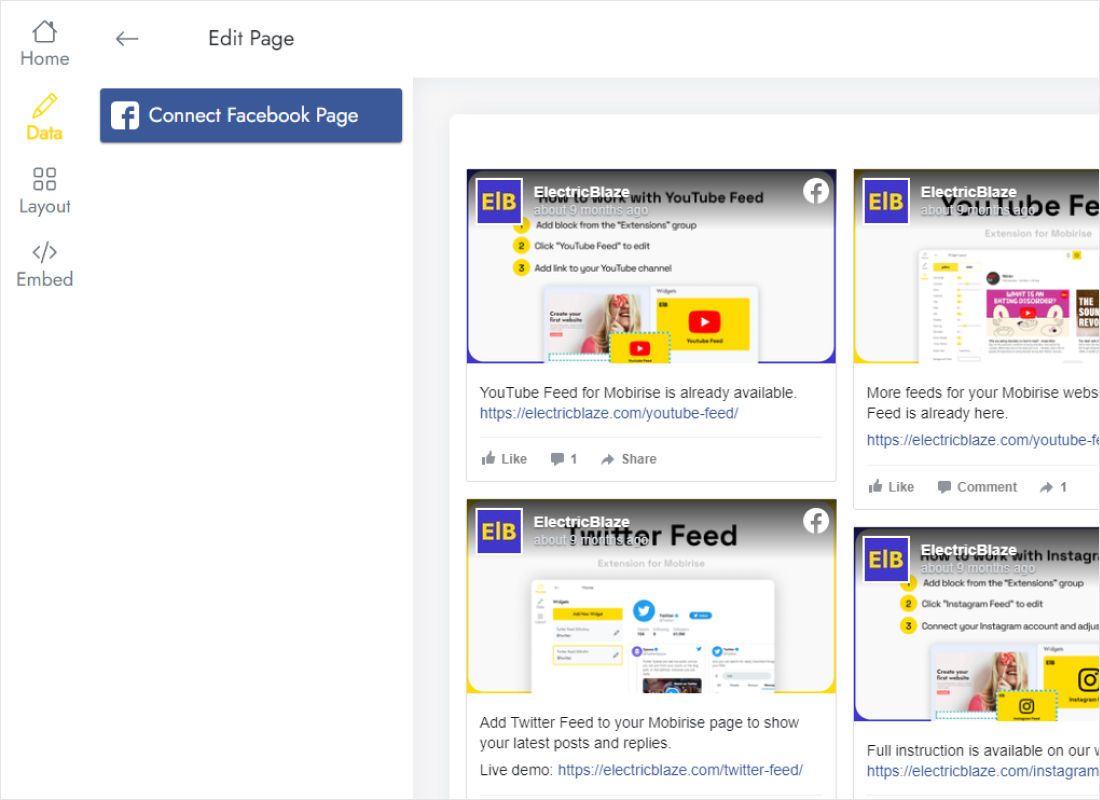
Connect Facebook Page sits on the Data tab. Click it, approve the permissions and select the store's Page.
-
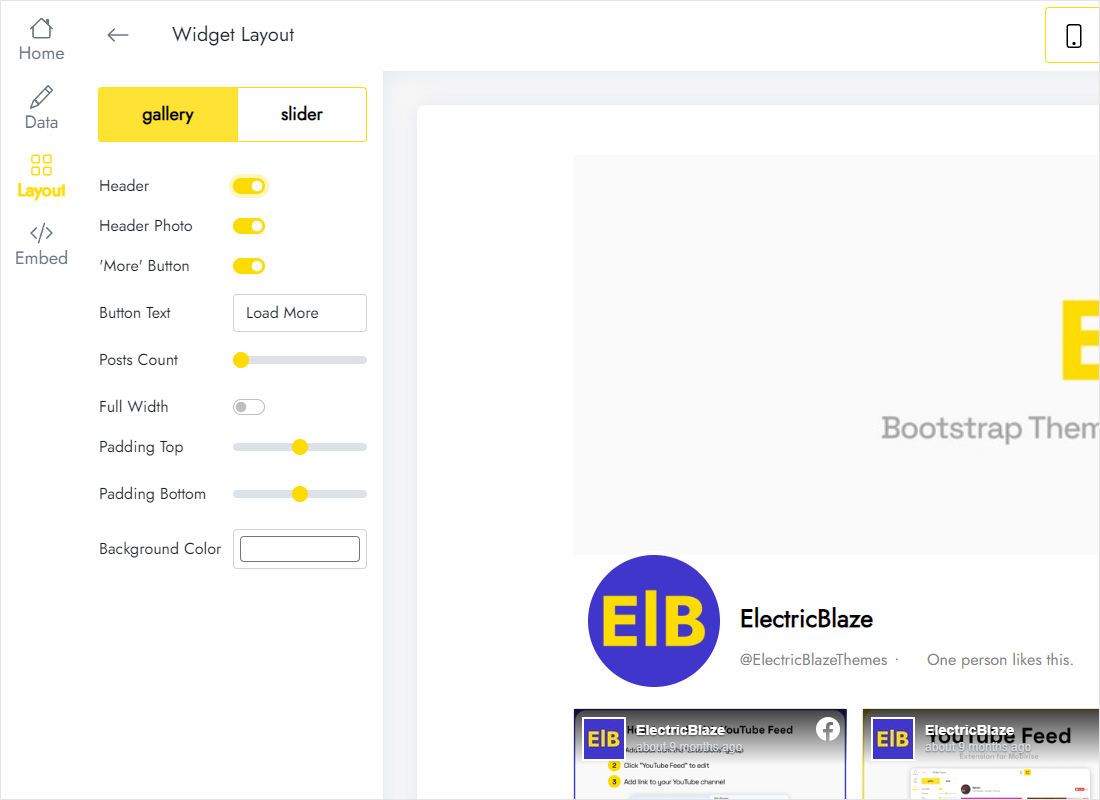
On Layout, a slider suits a strip on the home page, while a three-column gallery fills a dedicated community page.
-
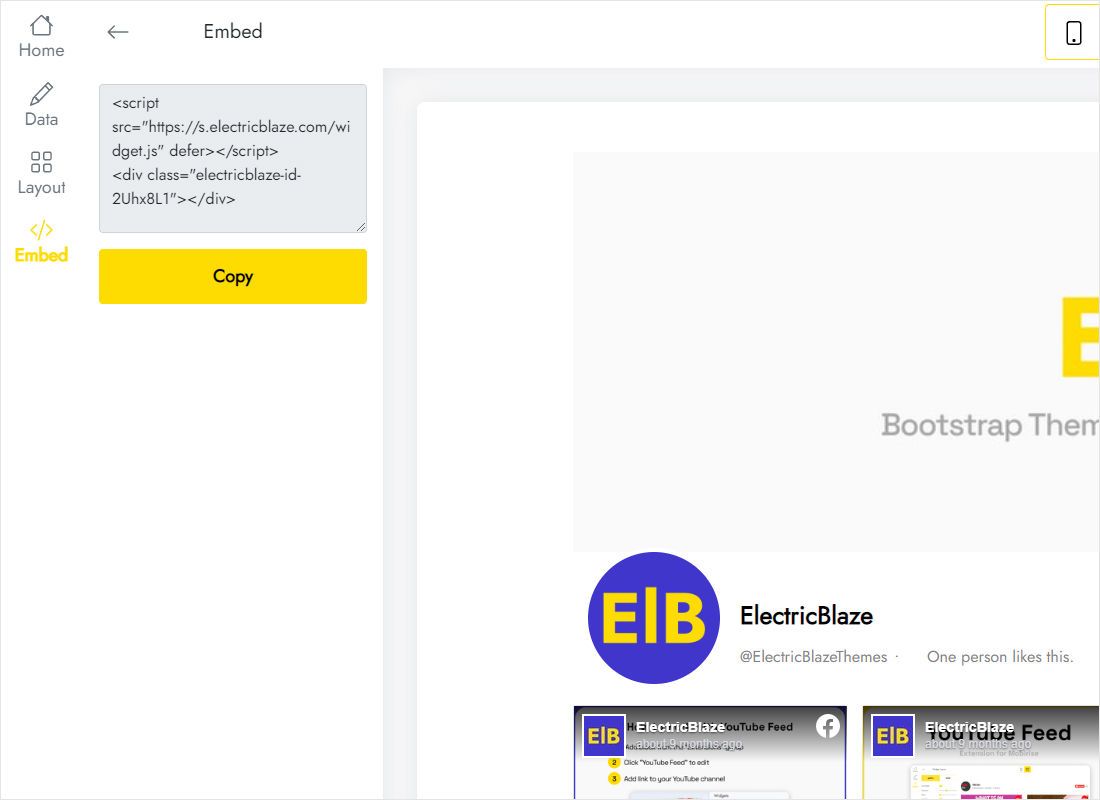
Add to website produces the embed; copy it to your clipboard.
Step 2: Drag an HTML block into Page Builder
Now switch to the BigCommerce control panel:
- Under Storefront, press Customize for the active theme; Page Builder opens.
- Pick the page you are editing, such as Home, from the selector in the top bar.
- In the widget list, grab HTML and release it over a highlighted region.
- Click the new block, paste the Facebook snippet into its code box and save.
- Hit Publish, then view the live storefront in another tab.
Script-based content sometimes stays blank inside the editing preview. Judge the result on the published store.
Making the posts work for a store
Most Stencil themes give content sections plenty of width, so three or four columns look fine on desktop. On phones the columns stack, so cap the rows; shoppers should not scroll past a long wall of posts to reach your footer links.
- Repeat it everywhere: a region marked Global shows the block on every page whose template includes that region, for example above the footer.
- Announcements: keep captions visible when posts carry sale dates or restock news; hide them when the Page is mostly photos (an Instagram product gallery may suit such brands better).
- Look native: give the widget the same background as the surrounding section.
- Checkout stays clean: Page Builder cannot reach checkout pages, so the feed never interrupts payment.
New Page posts show up on the storefront by themselves, once a day with Free and hourly with Start.
Facebook posts in a BigCommerce store: FAQ
Can the posts appear on all product pages at once?
Yes, if your product template has a Global region. Drop the HTML block there and it repeats across products. Which regions exist depends on the theme.
Will the feed get in the way of checkout?
No. It stays on browsing pages; checkout sits outside Page Builder.
Can I use a personal Facebook profile?
No. Connections work with public Pages only, so link the brand's Page.
What happens when the store gets a lot of visitors?
Free counts a thousand widget views per month. Past that, Start ($5 per month, billed yearly) removes the view limit and the ElectricBlaze branding.
More BigCommerce guides
Further widgets for your store, the main BigCommerce instructions and the Facebook widget overview:
Show your Facebook activity in the store
Link the Page, drop one HTML block into Page Builder and let new posts publish themselves.
Create a widget