
How to Add Twitter Feed to BigCommerce
Many brands use X (Twitter) for shipping notices, flash sales and restock alerts. When you add Twitter feed to BigCommerce, those updates reach shoppers who never open the app, right on the pages where they browse.
What you need
- The brand's X (Twitter) username.
- A Stencil theme with Page Builder.
- An ElectricBlaze account on the Free or Start plan.
X (Twitter) posts are short text, so they suit informational pages: the home page, a Shipping or FAQ web page, or a blog post that rounds up news. On product pages, a photo feed or a gallery of demo videos usually does more.
Step 1: Point a widget at your X (Twitter) handle
More detail is in the store update widget overview. The steps:
-

At a.electricblaze.com, enter your login or create one for the store.
-

Begin a widget of the X (Twitter) Feed kind.
-
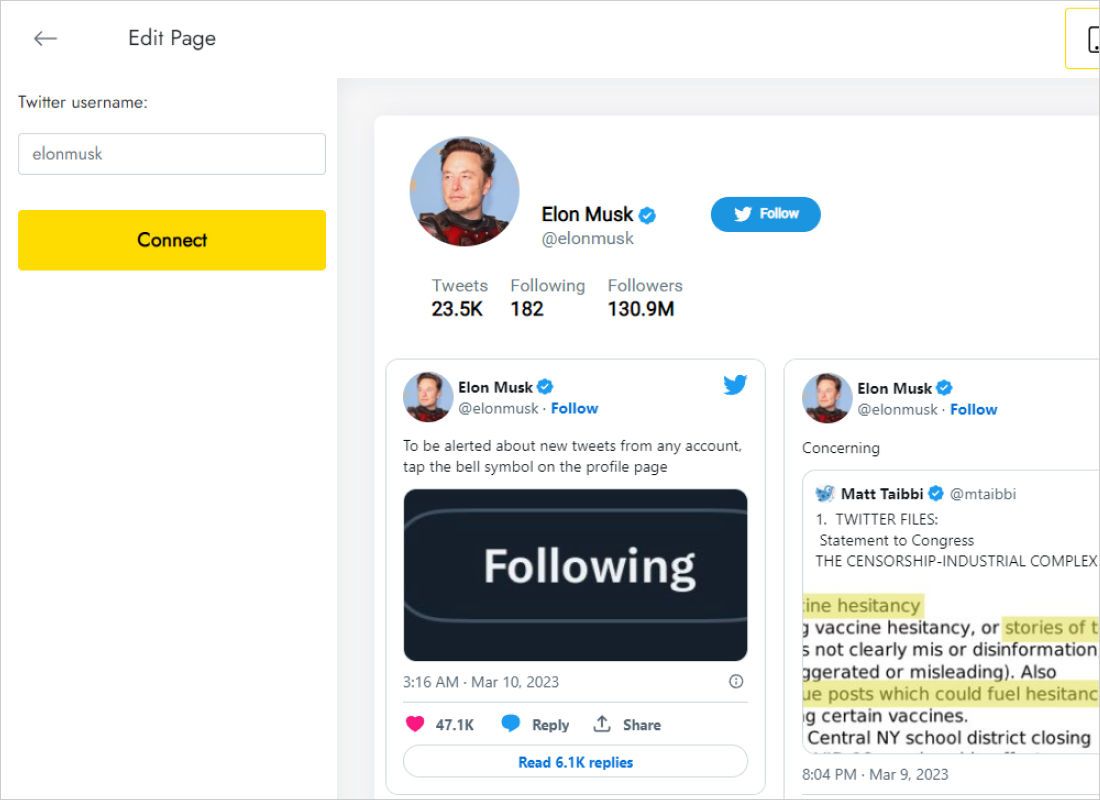
Fill the Twitter username on Data and press Connect.
-
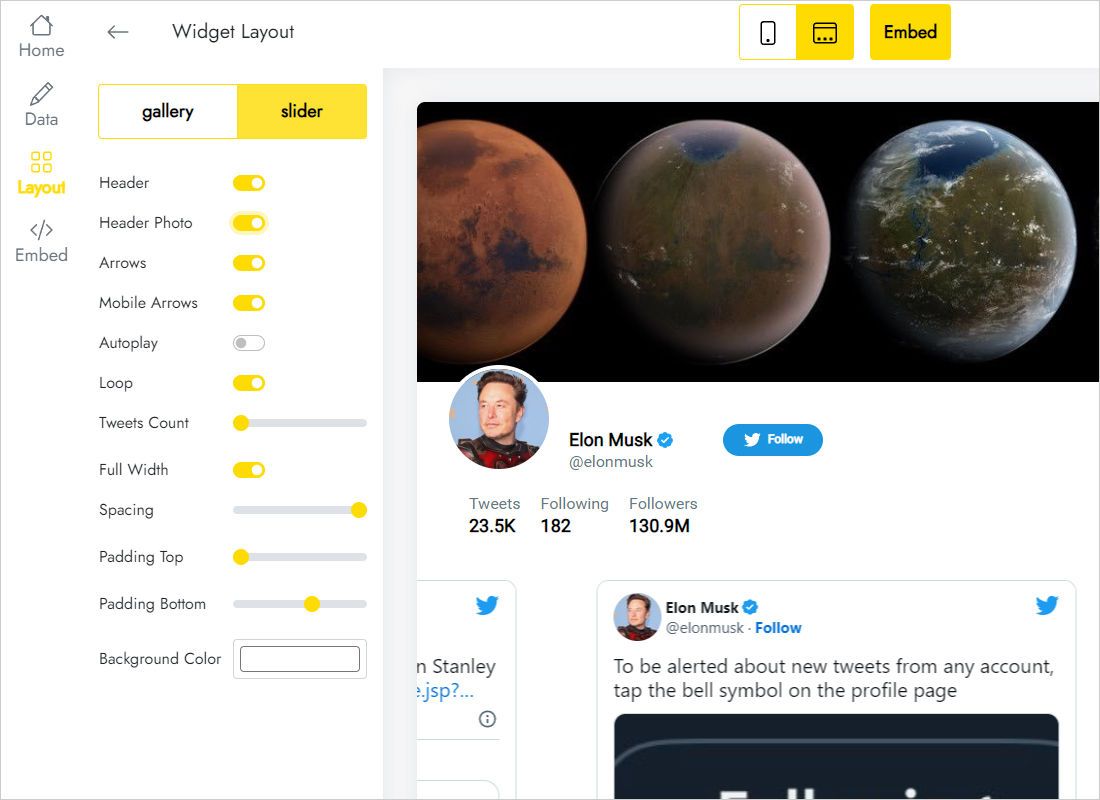
Adjust Layout: a slider for the home page, a two- or three-column gallery for a news page, plus spacing and background.
-
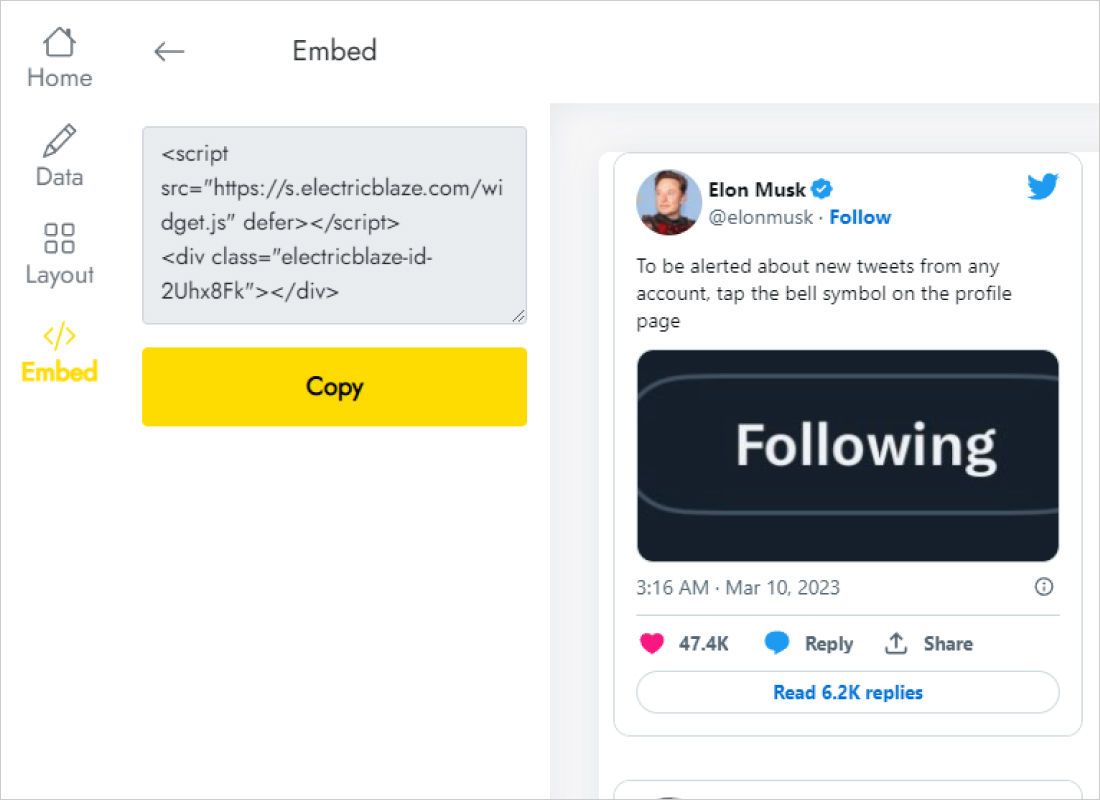
Copy what the Add to website dialog shows; that is your storefront code.
Step 2: Publish the posts on your storefront
Now in BigCommerce:
- Open Page Builder with the Customize button of your live theme under Storefront.
- Select the page, for example Home or the Shipping information page.
- Drag an HTML widget into the region where updates should appear.
- Paste the X (Twitter) code into the block, save and Publish.
- Refresh the live store to see the posts load.
Blank block in the editor? That is common for scripts. The published page shows the posts.
Making store updates easy to read
Text cards grow taller in narrow columns. Across a full content width, three columns with one or two rows keep each post readable and the section compact.
- Delivery notices: on a Shipping page, the latest posts about carrier delays are more current than any static text.
- Sales: a slider on the home page lets shoppers flip through recent offers without taking much space.
- Blog posts: Page Builder also works on BigCommerce blog posts, handy for a monthly news round-up.
- Theme match: set the widget background to your section colour so the cards do not look pasted in.
Free fetches new posts once daily and Start does so hourly, which matters for fast-moving sale announcements.
X (Twitter) posts in BigCommerce: FAQ
Do I need X API keys?
No. Enter the username on the Data tab and connect; no developer credentials are involved.
Can I show the feed across the whole store?
Place the HTML block in a Global region, often above the footer, and it repeats on every page that includes that region.
Is the feed visible at checkout?
No. Checkout pages are outside Page Builder.
What if we change the brand handle?
Update the username on the Data tab and reconnect. The block in BigCommerce keeps the same code.
More guides for BigCommerce
Other widgets for your store, the complete BigCommerce guide and the X (Twitter) widget overview:
Show store news from X
Type your handle, pick a layout and drop the code into Page Builder.
Create a widget