
How to Add WhatsApp Chat Button to BigCommerce
Pre-sale questions about sizing, delivery or stock are easier to answer in a chat than by email. This page shows how to add WhatsApp chat button to BigCommerce as a floating Popup Chat that follows shoppers through the catalogue but stays out of checkout.
Preparation
- A WhatsApp number, ideally a WhatsApp Business line that your support team monitors.
- Other channels, if you use them: Messenger, Telegram, Viber, Signal or Discord.
- Control panel access to Script Manager.
- An ElectricBlaze account.
Because the button floats over every page, it does not belong in a Page Builder region. Script Manager loads it site-wide and lets you exclude checkout.
Step 1: Design the chat popup
All options are listed in the six-messenger chat widget tour. For a store:
-

Use the store team's credentials on a.electricblaze.com, or register them now.
-

Create a widget and choose Popup Chat.
-
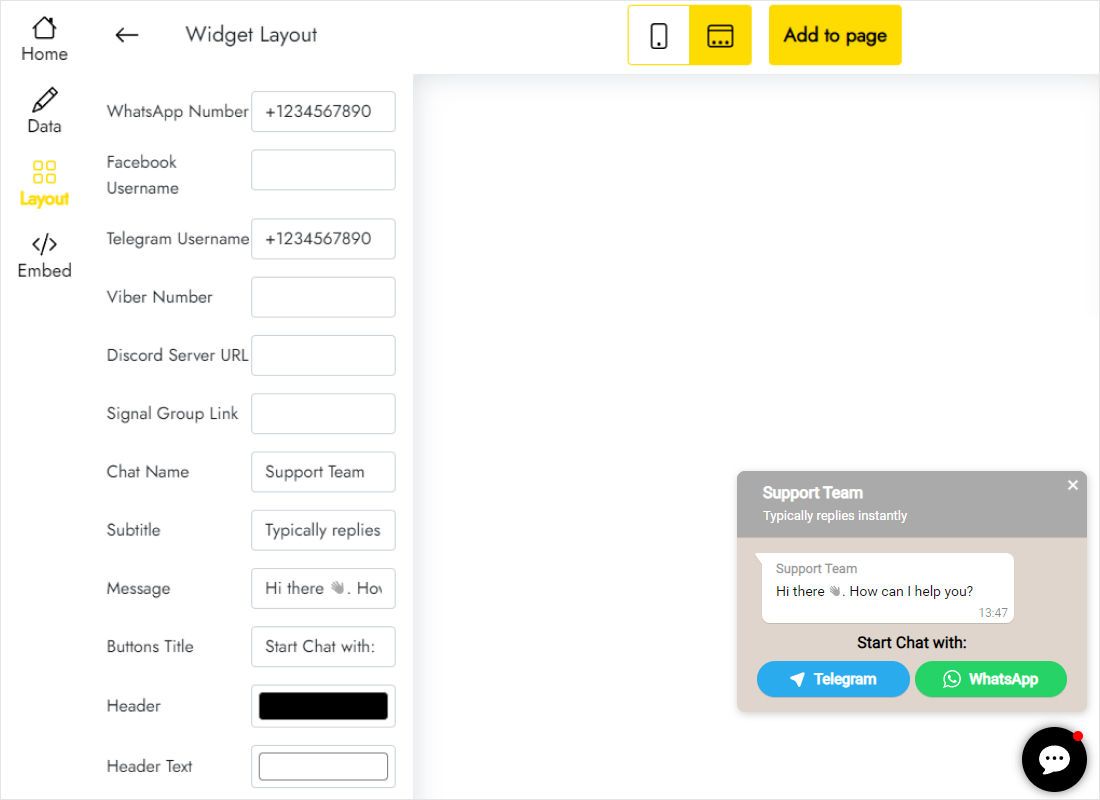
On Layout, type the WhatsApp number your store answers from, add Telegram, Viber, Signal or Discord if you use them, and set a chat name and greeting such as “Store support”.
-
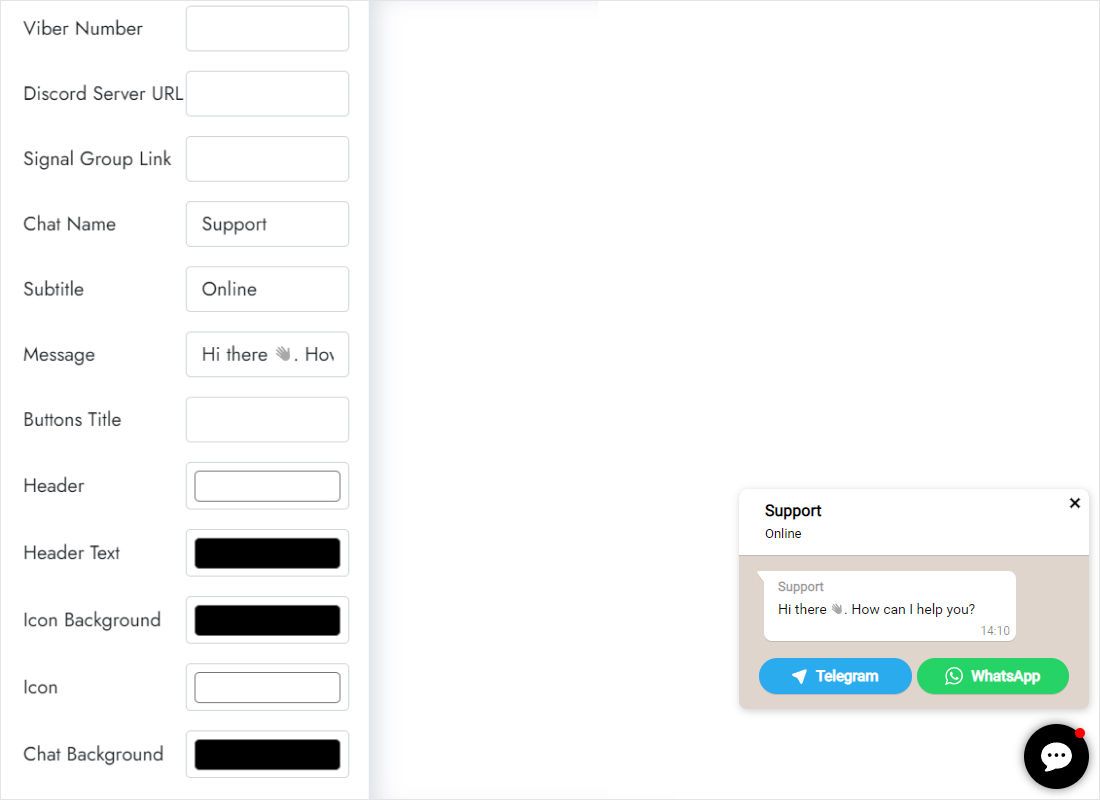
Scroll further down to colour the header, header text, icon and chat background so the popup matches your storefront theme.
-
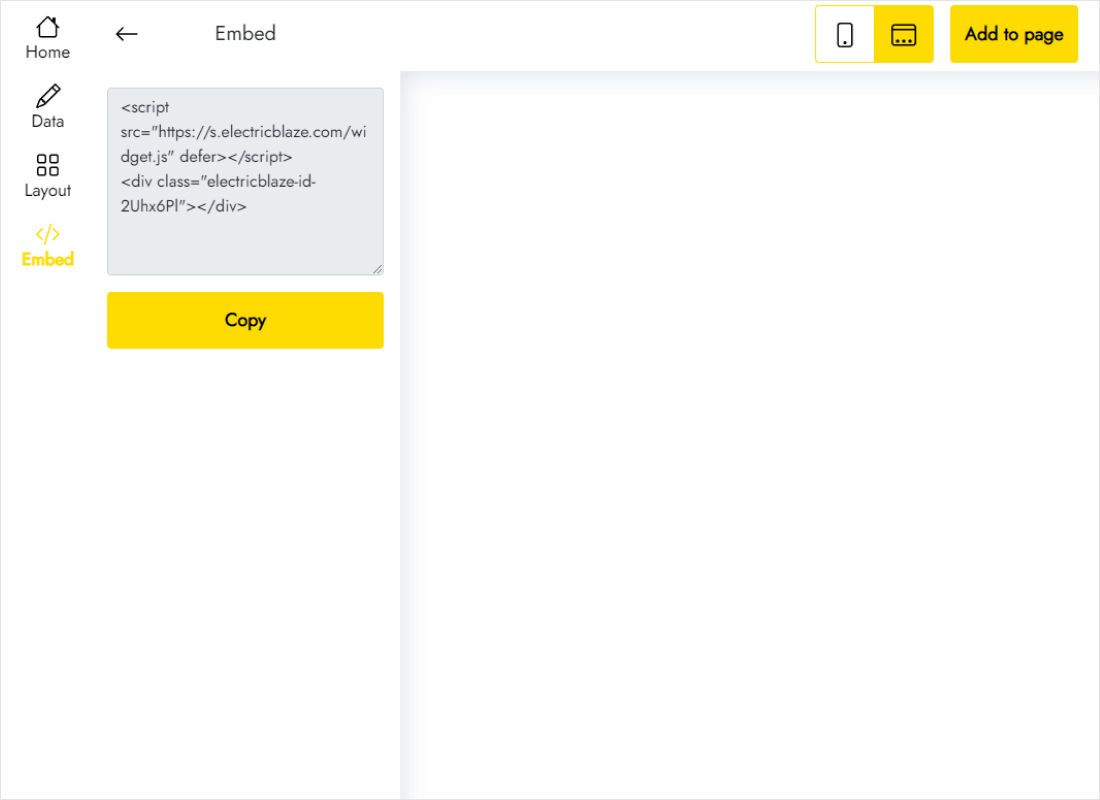
Copy the code that appears under Add to website.
Step 2: Add the script to your store
Over in the store admin:
- Open Storefront → Script Manager and choose Create a Script.
- Call it “WhatsApp chat button” and add a short description for your team.
- Set the location on page to Footer and the pages to Store pages, so checkout and order confirmation stay chat-free.
- Choose Functional as the category, Script as the type, and paste the Popup Chat code.
- Save, visit a product page on desktop and phone, and tap the button to test WhatsApp.
If the button never appears, open the site in a private window and accept cookies: a declined Functional category blocks the script.
Placing the button without blocking sales
A floating icon competes for the same corners as cookie banners, review badges and back-to-top arrows. Check the storefront with the BigCommerce consent banner visible and move the WhatsApp button to the other side if they overlap.
- Phones: many themes show a sticky Add to Cart bar at the bottom of product pages. Confirm the chat icon does not cover it.
- Greeting: mention response hours, for example “We reply 9–5 on weekdays”, so shoppers know when to expect an answer.
- Order questions: ask shoppers in the greeting to include their order number, which speeds up replies.
- Channels: WhatsApp plus one desktop-friendly option like Messenger covers most shoppers without crowding the popup.
Update numbers or hours in ElectricBlaze at any time; the script in BigCommerce stays the same.
WhatsApp chat in BigCommerce: FAQ
Should the button show during checkout?
Usually not. Store pages keeps it off checkout so buyers are not tempted away from payment. Choose All pages only if you deliberately want chat support there.
Does it work without WhatsApp Business?
Yes. Any WhatsApp number works; the Business app just adds tools like away messages.
Can I show the chat on a single page?
Paste the code into a Page Builder HTML block on that page instead of using Script Manager.
What will it cost?
Free covers a thousand views a month across all your ElectricBlaze widgets. Stores with more traffic can switch to Start, $5 per month billed yearly, for unlimited views without branding.
Guides for other store widgets
Other widgets for BigCommerce, the full BigCommerce setup page and the Popup Chat overview:
Start chatting with shoppers
Enter your WhatsApp number, style the popup and load it through Script Manager.
Create a widget