
How to Add Music Player to Shopify
Bands, labels and lifestyle brands often want their sound on the storefront. This guide shows how to add music player to Shopify pages with a Spotify or SoundCloud source, and how to keep it from getting in the way of shopping.
Can I add music to my Shopify store?
Yes. Can I add music to my Shopify store without an app? Shopify themes have no audio section of their own, so the options are a Shopify music player app from the App Store or a snippet placed in Custom Liquid. The snippet route needs no install and the same player can run on your band site or blog too.
Before starting, have ready a public Spotify playlist, album or track, or a SoundCloud link, plus an ElectricBlaze login.
Step 1: Build the store playlist widget
All modes are explained with inline and corner player examples. In short:
-

Log in to a.electricblaze.com; new users register from the same page.
-

Choose Create New Widget and click the Music Player type.
-
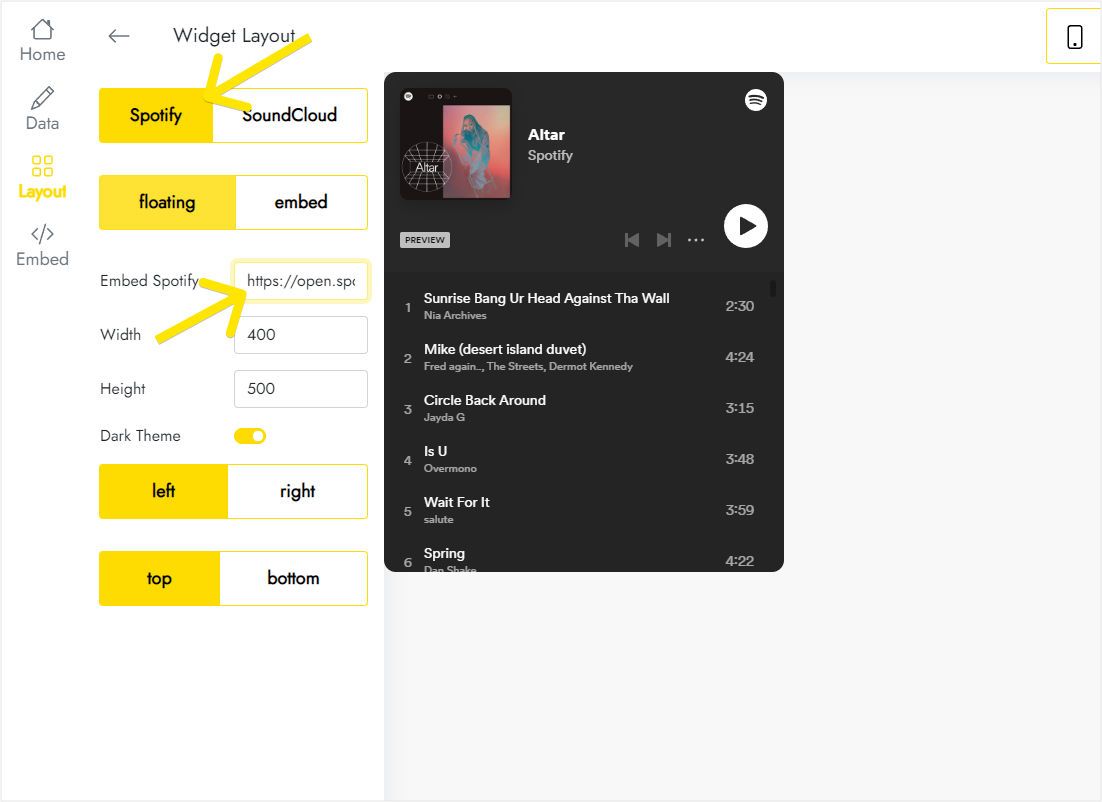
On Layout, select the service, Spotify or SoundCloud, and paste the embed code you copied for your release.
-
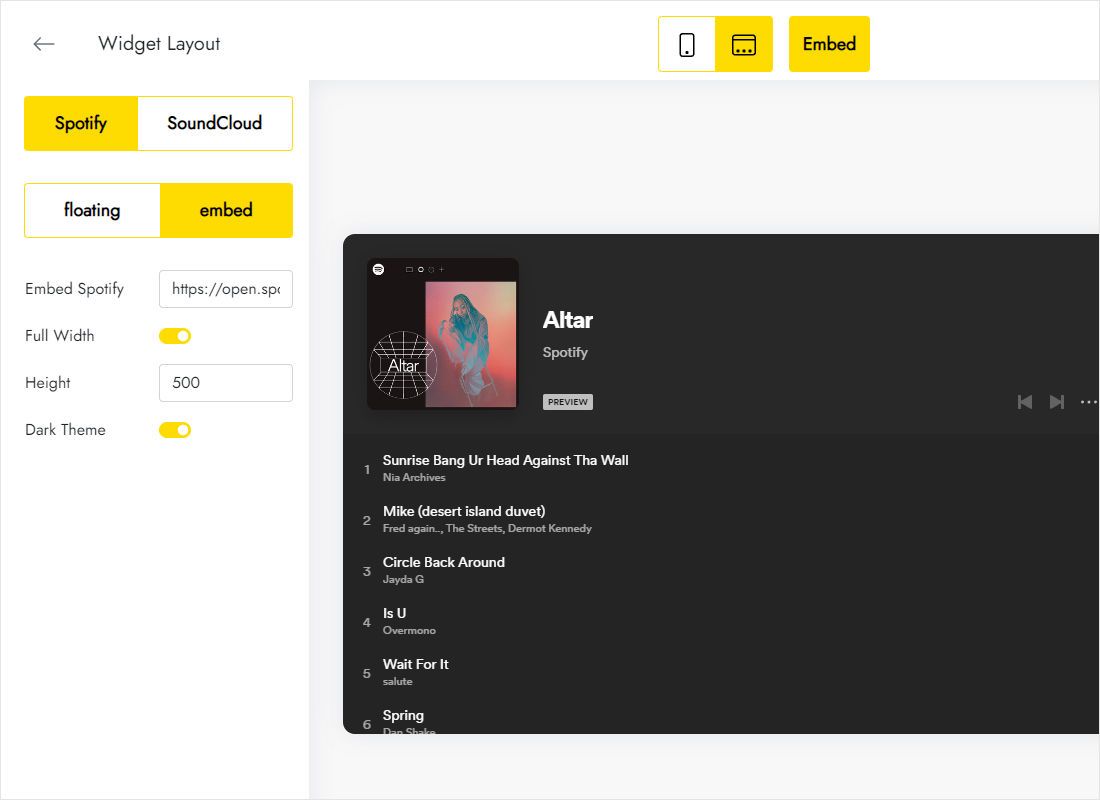
Decide how shoppers meet the music: embed for a box on one template, floating for a bar that stays on screen. Then set height and position.
-
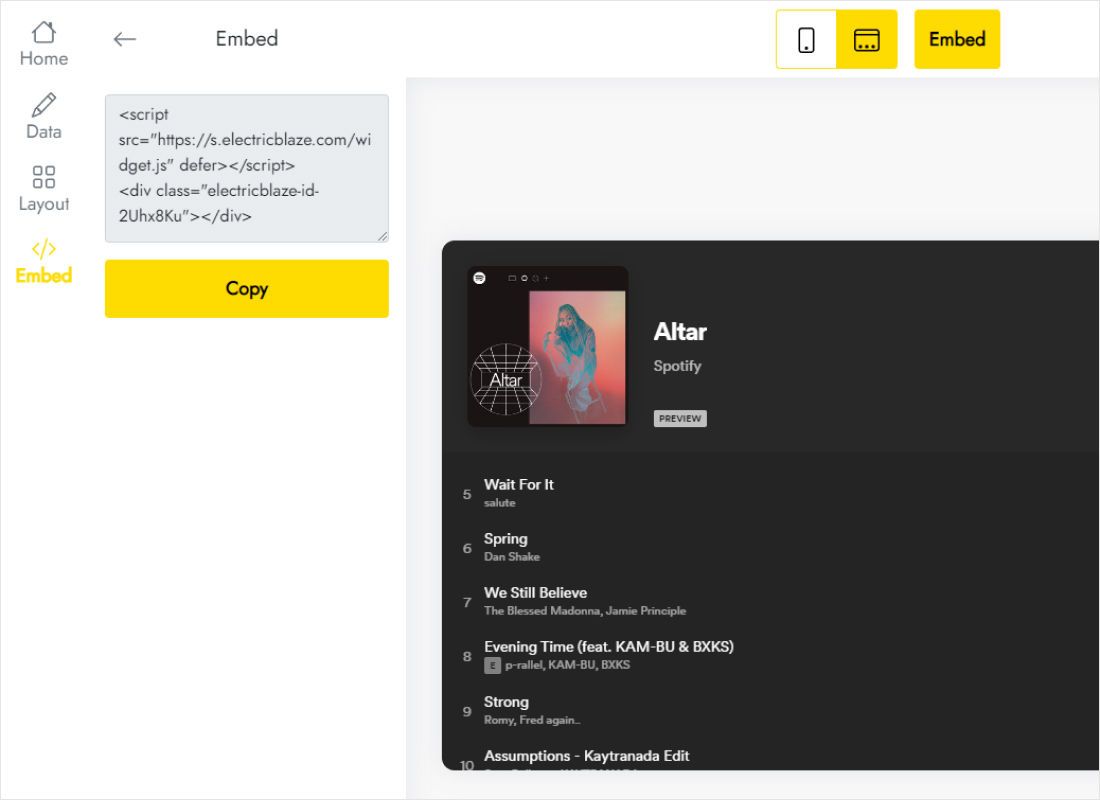
Press Add to website and copy what appears.
Step 2: Place it in your theme
Which Shopify area you use follows from the mode you chose:
- Embed on a page: Online Store → Themes → Customize, choose the template (Home page, a product or a custom page), Add section → Custom Liquid, paste and save.
- Floating across the store: in the same editor, add Custom Liquid to the Footer group so it loads on every storefront page.
- Code editor alternative: back up the theme with Duplicate, then in Edit code place the snippet at the very end of the body section of theme.liquid.
- Check the live store on a phone and make sure the player does not sit on top of the Add to cart button or a sticky cart bar.
Checkout pages do not accept custom code, so the player never appears during payment.
How to add Spotify playlist to Shopify the right way
Spotify hands out the code from the playlist menu: Share, then Embed playlist. Paste that code into the widget. That covers how to add Spotify playlist to Shopify; make sure the playlist is public.
- Autoplay. Browsers refuse to start audio before a shopper has clicked or tapped something. Treat the player as an invitation, not background music that starts itself.
- Navigation. Each product click is a full page load in most themes, which typically resets a floating player to the first track.
- Merch pages. An embedded album on the product template next to the vinyl or T-shirt lets fans listen before buying.
- Mobile corner. Pick the corner opposite any floating chat icon so both stay tappable.
A label or artist store can pair the floating player with a new-release collection: shoppers browse the drop while the lead single is one tap away.
Audio on Shopify: questions
Is a Shopify music player app better?
Apps can add features like file uploads. For streaming a Spotify or SoundCloud catalogue, a snippet does the job without another monthly charge.
Can I sell the songs through the player?
No. Playback comes from the streaming service, and selling downloads is a separate job for Shopify’s digital product tools.
Do I need a music licence for my store?
Streaming your own releases is fine. Playing other artists as shop background music can need a licence; check local rules.
More store guides
General Shopify embedding, the player overview and other widgets for your storefront:
Put your sound on Shopify
Bring a playlist code, decide between a corner bar and an inline box, and the storefront has sound in minutes.
Create a widget