
How to Add Twitter Feed to Shopify
If launches and restock alerts go out on X first, your storefront can repeat them automatically. Follow these steps to add Twitter feed to Shopify through the theme editor and choose a layout that fits between products.
Why a widget instead of X’s embed
X (Twitter) offers embed code for single posts and timelines, but its timeline script has become unreliable for visitors who are not logged in to X, and it keeps X’s look. The ElectricBlaze widget, part of a family of social embeds, loads posts through its own service and renders them as cards styled to match the theme.
Prepare:
- The public username of the account to show.
- A Shopify theme with a Custom Liquid section.
- An ElectricBlaze account (Free is enough to start).
Step 1: Create the X (Twitter) widget
Full details are in the themed post card overview.
-

Sign in at a.electricblaze.com, or register first if this is your first widget.
-

Pick Create New Widget, then the Twitter Feed type.
-
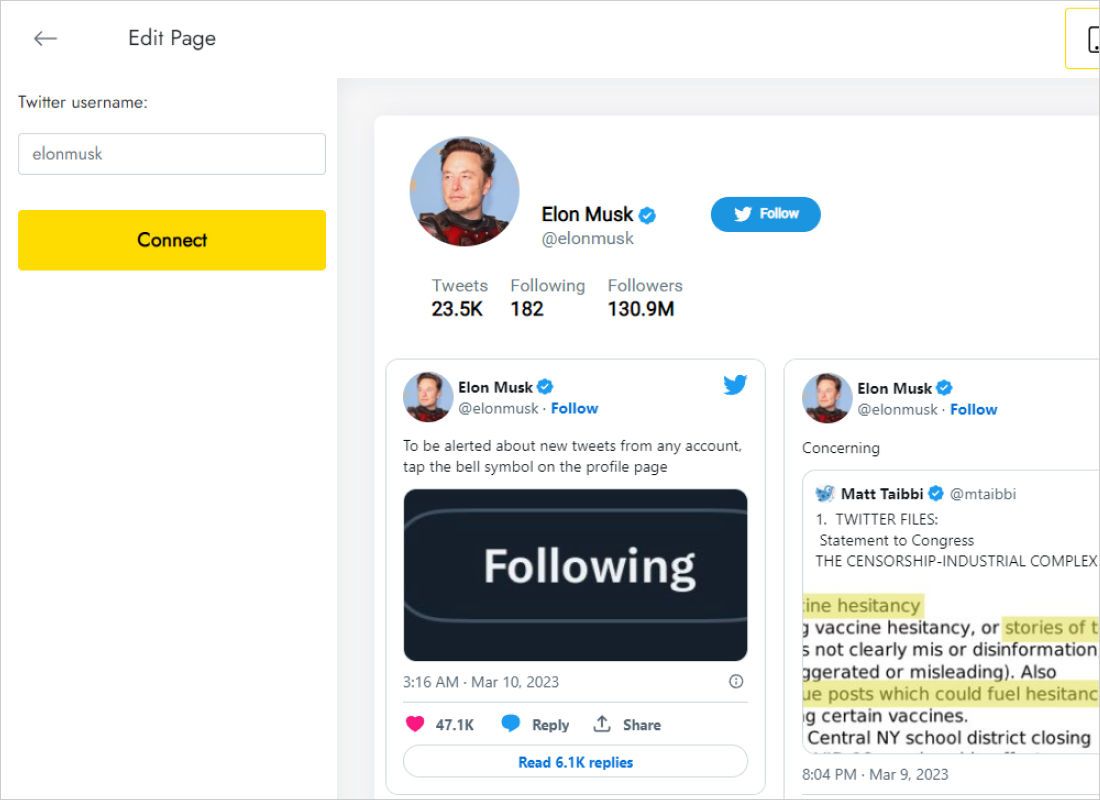
In the Data tab enter the store’s handle in the Twitter username field and press Connect.
-
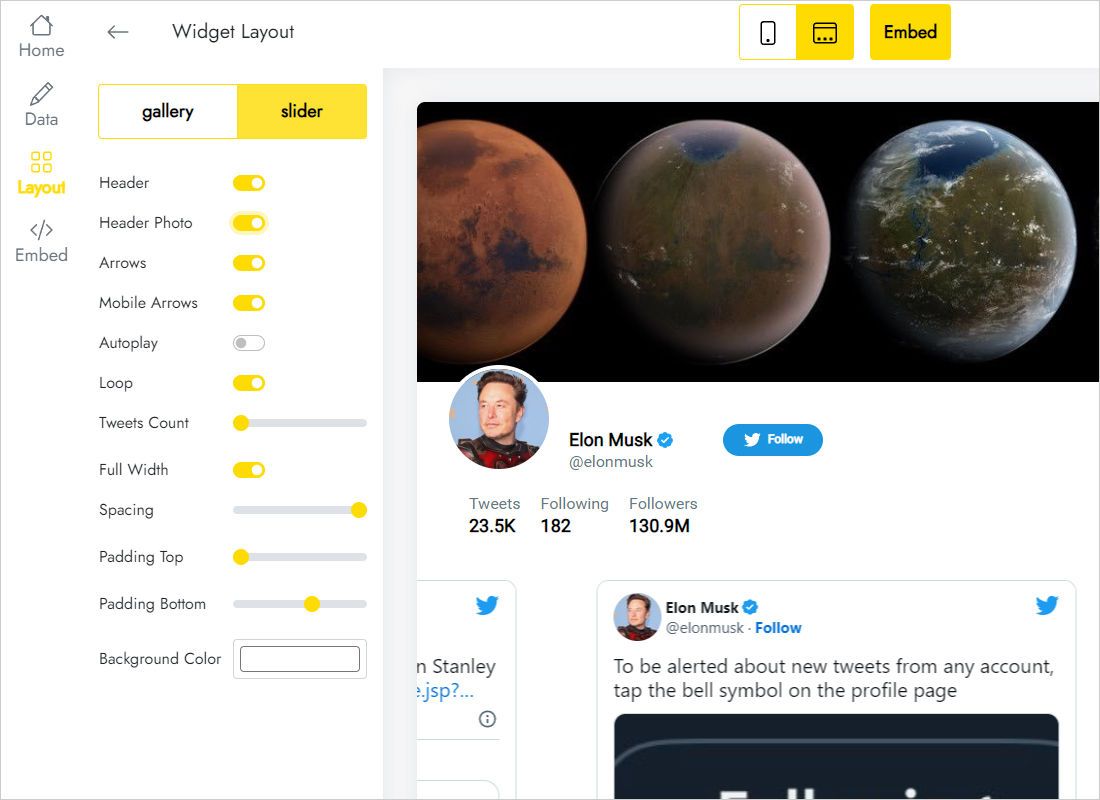
Adjust Layout for your theme: slider or gallery, columns, rows and colours.
-
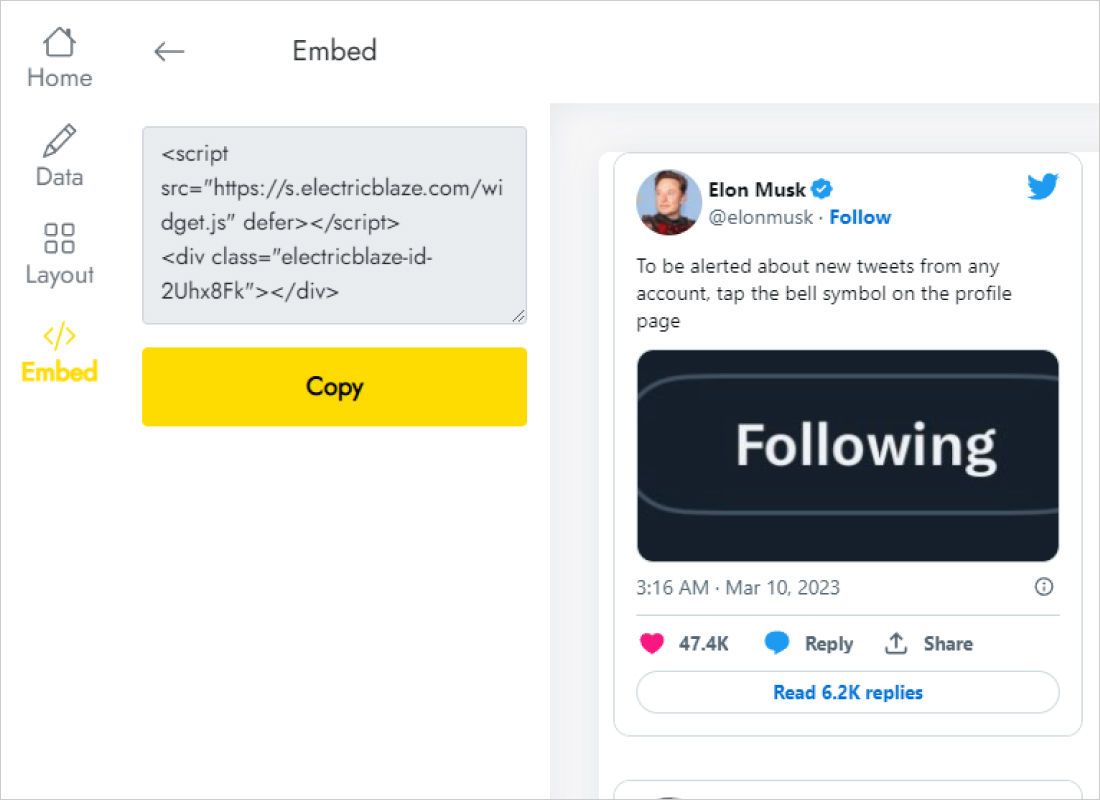
Copy the code from the Add to website dialog.
Step 2: Place the posts in your theme
From Shopify admin:
- Go to Online Store → Themes → Customize.
- Select Home page, a collection template or the product template at the top.
- Click Add section, choose Custom Liquid and paste the code.
- Move the section into position and click Save.
- Open the storefront logged out of Shopify and check desktop and phone views.
If the preview in the editor stays blank, reload the live store; some scripts only start on the published page.
Where X posts help a store
- Drop announcements. A one-row slider under the hero shows the latest release post, so returning fans see it immediately.
- Collection pages. Place posts about a limited series under that collection’s grid.
- Press and mentions. A two-column gallery on an About page collects coverage without manual updates.
Text posts stay readable at two or three columns on desktop. On phones, cards stack, so limit rows to keep product pages short. Widgets on Free pull new posts every 24 hours, and on Start every hour.
Posting about a stock issue or shipping delay? The same card shows up on the storefront, which keeps customers informed without editing a banner. Because the cards mirror the account, a dedicated brand profile works better on a storefront than a personal one full of unrelated chatter.
Sneaker, streetwear and collectibles shops often confirm release times on X first. Mirroring those posts on the collection page cuts down on “when does it launch?” emails.
X (Twitter) posts on Shopify: FAQ
Do I need an X developer account?
No. The widget only asks for the public username.
Can I show posts from a hashtag instead of an account?
The Data tab takes a username, so each widget follows one account. Create one widget per account if you want several.
Will it appear during checkout?
No. Shopify checkout does not run theme sections or custom scripts.
Keep building your store
The Shopify code guide, the X widget overview and other widgets for your theme:
Show your X posts in your store
Type the username, choose a layout and paste the code into Custom Liquid.
Create a widget