
How to Add Facebook Feed to Shopify
Many shops post restocks, events and customer photos on Facebook first. Here is how to add Facebook feed to Shopify so those updates also appear in your storefront, placed through the theme editor instead of another subscription app.
App or snippet?
Searching the App Store for a Facebook feed Shopify app returns several options, each with its own billing and settings screen inside the admin. A code snippet is lighter: nothing to install, no extra permissions on your store data, and one widget can serve other websites as well.
What you need:
- A public Facebook Page with you as a manager. Profiles and private groups are not supported.
- An Online Store 2.0 theme with a Custom Liquid section (Dawn and most current themes have one).
- An ElectricBlaze account on any plan.
Step 1: Make the widget
Details of every option are in the Facebook widget settings explainer.
-

In a browser tab next to Shopify admin, log in to a.electricblaze.com or create an account.
-

Hit Create New Widget and choose the Facebook Feed type.
-
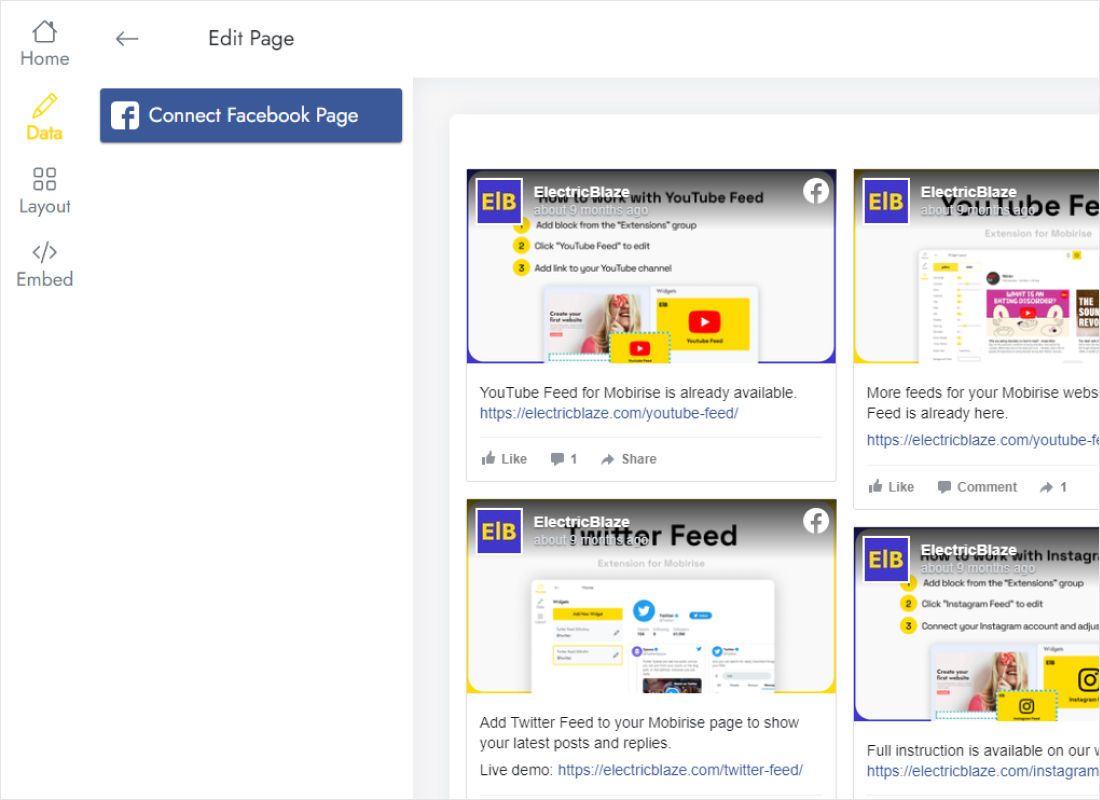
Go to the Data tab, press Connect Facebook Page and authorise with the account that runs the shop’s Page.
-
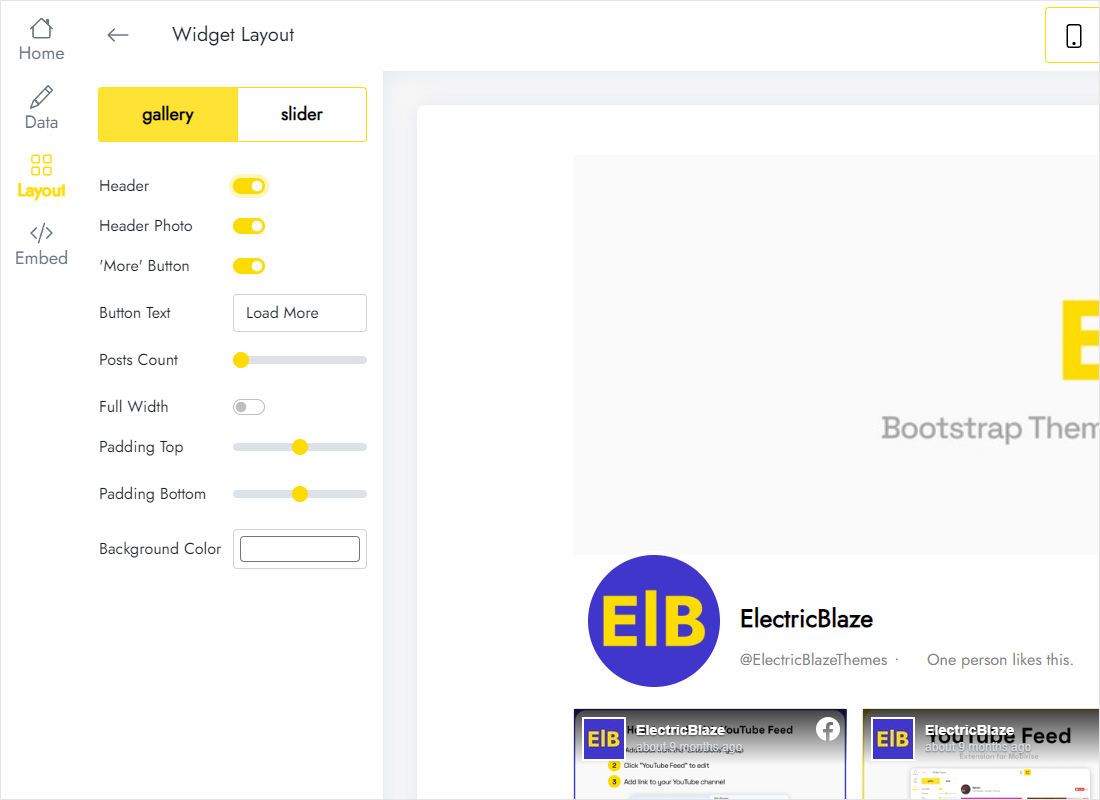
Tune Layout so the cards suit your theme: gallery or slider, column and row counts, colours close to the theme palette.
-
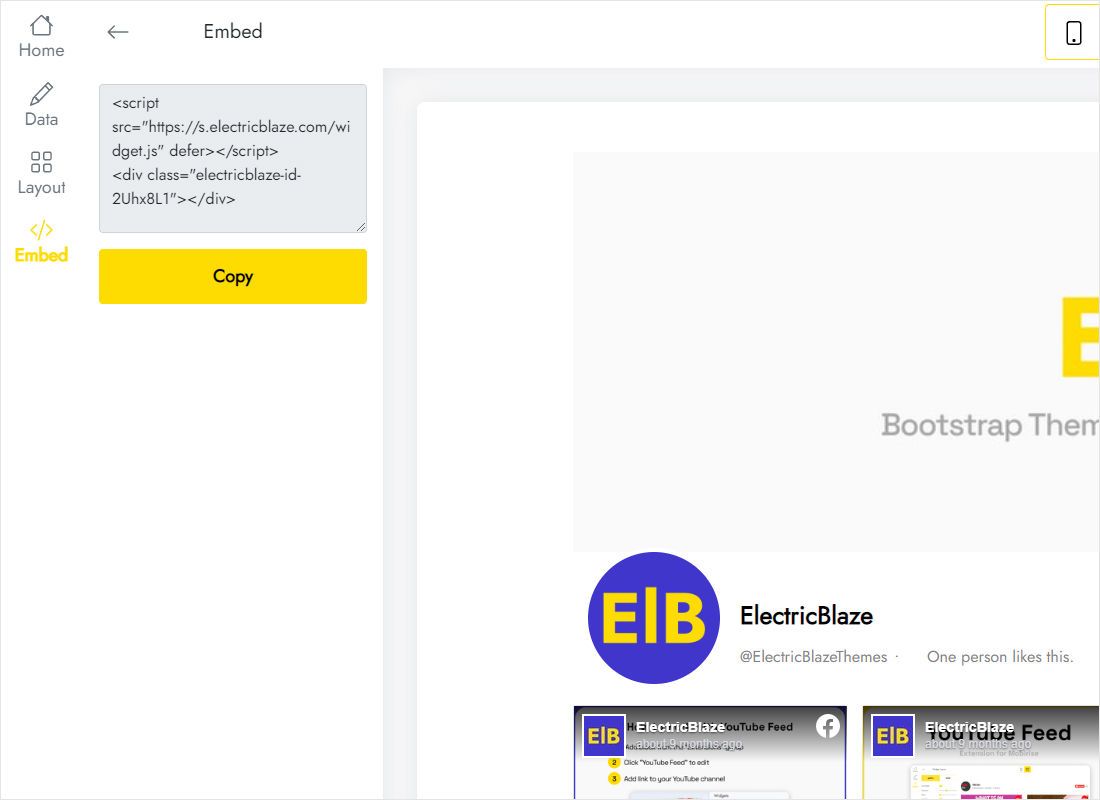
Open Add to website and copy the snippet it shows.
Step 2: Add the posts in the theme editor
In Shopify admin:
- Open Online Store → Themes → Customize.
- Pick the template in the top drop-down: Home page for a news wall, or Default product for posts under every product.
- Click Add section → Custom Liquid, paste the snippet and save.
- Drag the section to where it makes sense, for example after Featured collection.
- Visit the live store on desktop and phone to check spacing.
The editor preview may stay empty until the page reloads. The published storefront is the reliable check.
Using Page posts to sell
A Shopify Facebook feed works best when it supports a buying decision rather than filling space.
- Home page. A slider with one row of recent posts, placed below the hero banner, shows the store is active.
- Product template. A two-column gallery near reviews gives shoppers real-life photos and comments, as customer photos from Instagram do. Keep rows low so the Add to cart area stays close.
- About or Contact page. Create a page template with the widget to show your community and opening updates.
On phones, columns stack into a longer list. If the product page gets too long on mobile, switch to slider mode. Free widgets pick up new Page posts daily, Start widgets hourly.
Stores that run giveaways or pop-up markets through Facebook can place the feed on a dedicated Events page template, so winners, dates and locations are visible without writing a blog post each time.
Facebook posts in a Shopify store: FAQ
How is a Facebook Page Shopify connection different from the Facebook sales channel?
The sales channel syncs products to Meta for ads and shops. This widget works the other way, bringing Page posts into your storefront.
Will it slow down product pages?
The script loads asynchronously, so product images, price and the buy button render first.
Can I show the feed on one product only?
Yes. Create an alternate product template, add the Custom Liquid section there and assign it to that product.
What if I switch themes?
Copy the snippet into a Custom Liquid section of the new theme. The widget and its settings stay in ElectricBlaze.
Related guides
Store setup basics, the Facebook widget overview and other widgets for Shopify:
Show Page posts in your store
Connect the Page and paste one snippet into Custom Liquid. The Free plan is a good start.
Create a widget