
Shopify WhatsApp Chat Button: Store-Wide Setup
A Shopify WhatsApp chat button lets shoppers ask about sizes, delivery or stock without leaving the product page. This guide installs it on all storefront pages and positions it so it never hides the buy button on a phone.
What the widget adds
Popup Chat is a small round icon fixed to a screen corner. A tap opens a panel with your greeting and one or several contact options: WhatsApp, Messenger, Telegram, Viber, Signal or Discord. Conversations continue in the messaging app, so there is no dashboard to monitor inside Shopify.
Instead of a WhatsApp chat button Shopify app with monthly billing, you paste a snippet once, as with any ElectricBlaze widget. You need a WhatsApp number (ideally WhatsApp Business), a theme with Custom Liquid support and an ElectricBlaze login.
Step 1: Design the pop-up
Every field is described in the chat pop-up feature tour.
-

Open a.electricblaze.com and sign in to your dashboard.
-

Click Create New Widget; Popup Chat is one of the listed types.
-
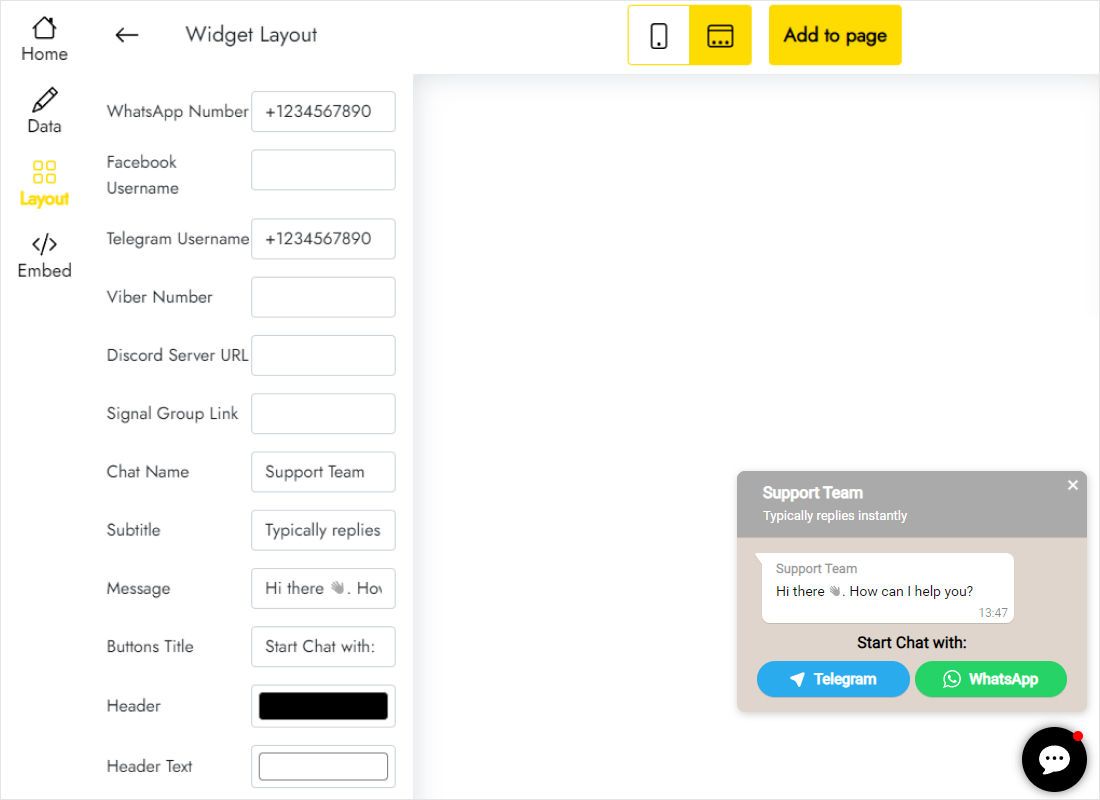
The Layout tab starts with contact fields. Type the WhatsApp number with its country code, and fill Telegram, Viber or Messenger only if someone answers there.
-
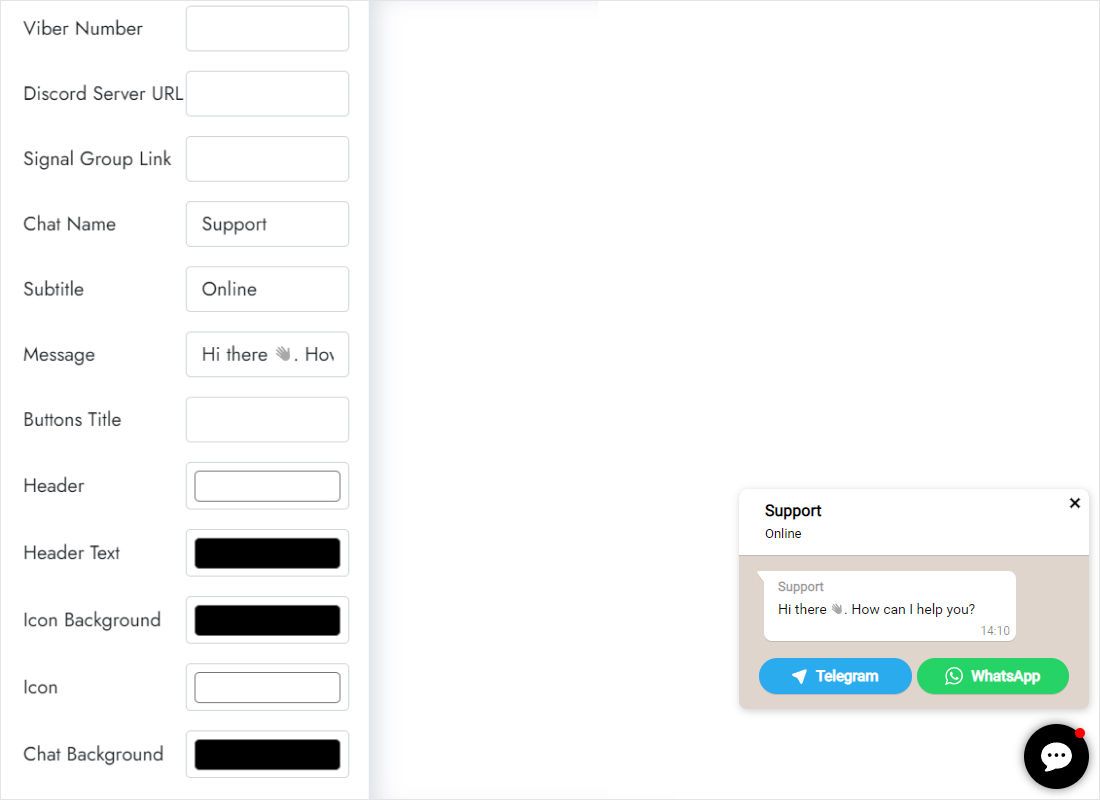
Lower on Layout, name the chat, add a subtitle such as your usual reply time, write a greeting and choose colours that match the theme.
-
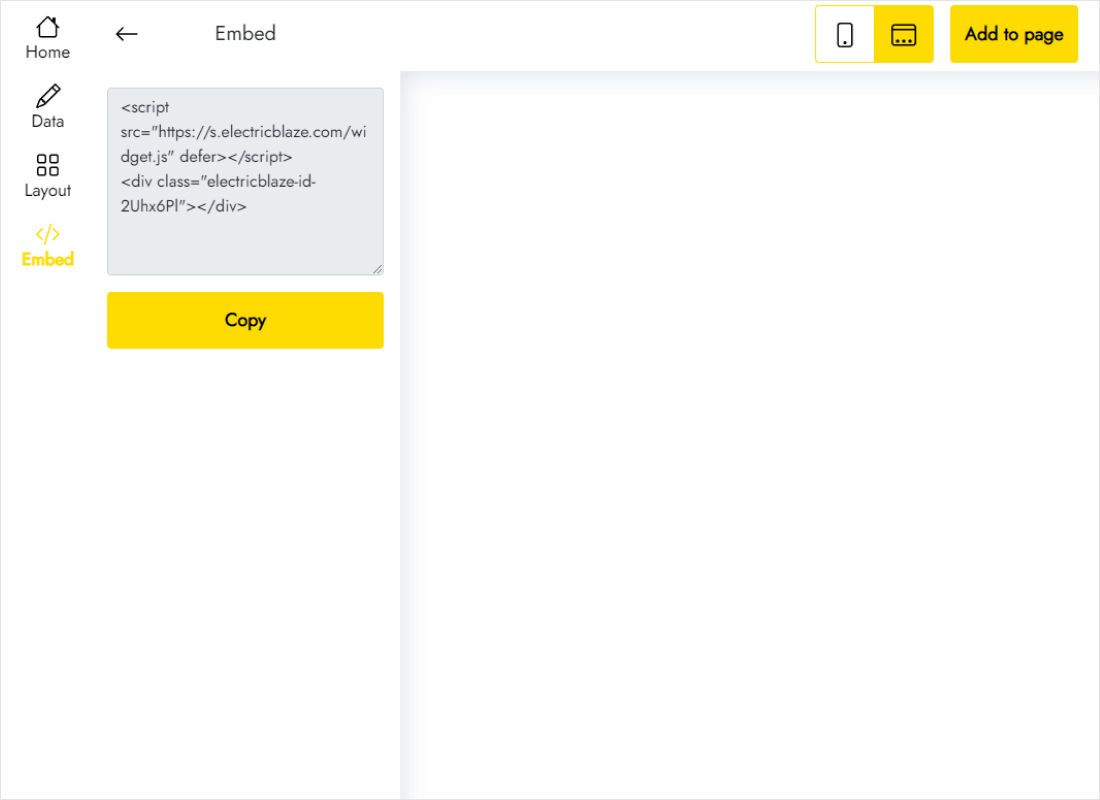
Use Add to website in the top bar to copy the snippet.
Step 2: How to add WhatsApp button on Shopify pages
A floating icon should load everywhere, so place it once for the whole theme:
- Go to Online Store → Themes → Customize.
- In the left sidebar, find the Footer group and choose Add section → Custom Liquid.
- Paste the code and click Save. The footer is shared, so the icon now loads on home, collection, product, cart and content pages.
- Prefer code? Duplicate the theme, open Edit code, and paste the snippet into layout/theme.liquid right before the closing body tag. Use one method, not both.
Shopify checkout does not load theme code, so shoppers will not see the icon while paying. That is expected.
Placement that does not block sales
Many themes show a sticky Add to cart bar or a cart drawer along the bottom of the screen on phones. Open a product on your own phone and check the corner:
- If a sticky bar spans the bottom, move the icon to the opposite side or raise it in the Layout settings.
- Keep the pop-up greeting short; a long paragraph covers product photos on small screens.
- If the store uses a cookie banner or a review badge in a corner, give the chat the other one.
Answering from WhatsApp Business lets you set away messages outside working hours, so shoppers are not left waiting in silence.
That covers how to add WhatsApp chat button in Shopify for the whole store. For a single landing page, add the Custom Liquid section to that page’s template instead of the footer.
A greeting that asks for the order number (“Send your order number for delivery questions”) saves a round of back-and-forth once the conversation moves to WhatsApp.
WhatsApp in a Shopify store: FAQ
Does the shopper need WhatsApp installed?
On phones the app opens directly. On desktop, WhatsApp Web or the desktop app takes over.
Can I use Messenger and Telegram as well?
Yes. Fill in those fields on the Layout tab; the pop-up lists each channel you entered.
Will it slow the store?
The script is small and loads asynchronously after the page content.
How do I remove it?
Delete the Custom Liquid section from the footer group, or the snippet from theme.liquid, and save.
Other store guides
Shopify code basics, the chat widget overview and more widgets for your theme:
Talk to shoppers on WhatsApp
Add your number, pick colours and paste the snippet into the footer. Free plan available.
Create a widget