
How to Add Music Player to Duda
Want listeners to hear your tracks without leaving the website? You can add music player to Duda projects in two ways: as an inline block on a single page, or as a floating bar that follows visitors everywhere. Below you will find the Duda field that each music option requires and the browser behaviour that shapes playback.
Things to have ready
- The embed snippet Spotify or SoundCloud gives you for a playlist, album, single or podcast.
- Editor access. The floating version also needs the Header HTML screen in Settings, which some client logins cannot reach.
- An ElectricBlaze login.
Settle on the music mode early. An album launch page calls for an inline block, whereas a band or DJ website wanting a soundtrack throughout the visit is a case for the floating bar.
Step 1: Configure the audio widget
You can try both variants in the interactive player demo. Setup looks like this:
-

Open a.electricblaze.com and either sign in or make an account; no payment details are requested.
-

In the dashboard, begin a new widget and select the Music Player type.
-
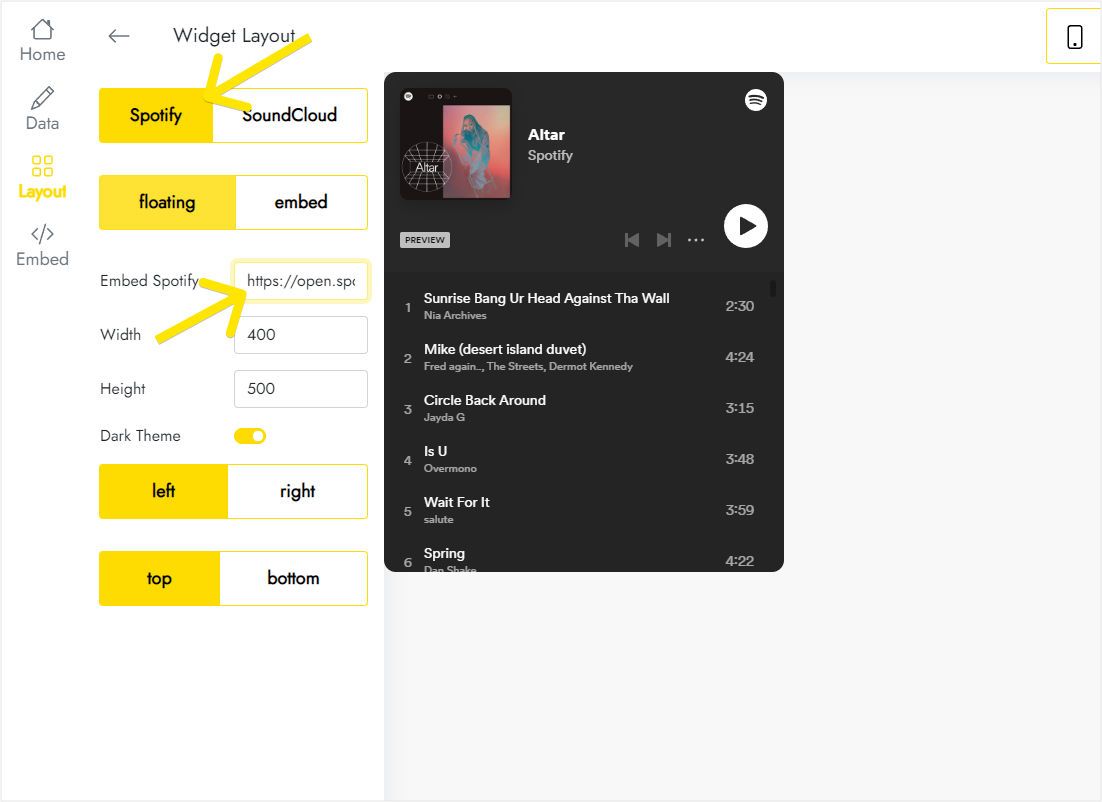
Start on Layout: choose Spotify or SoundCloud, paste the share URL, then use floating mode and pick left or right, top or bottom.
-
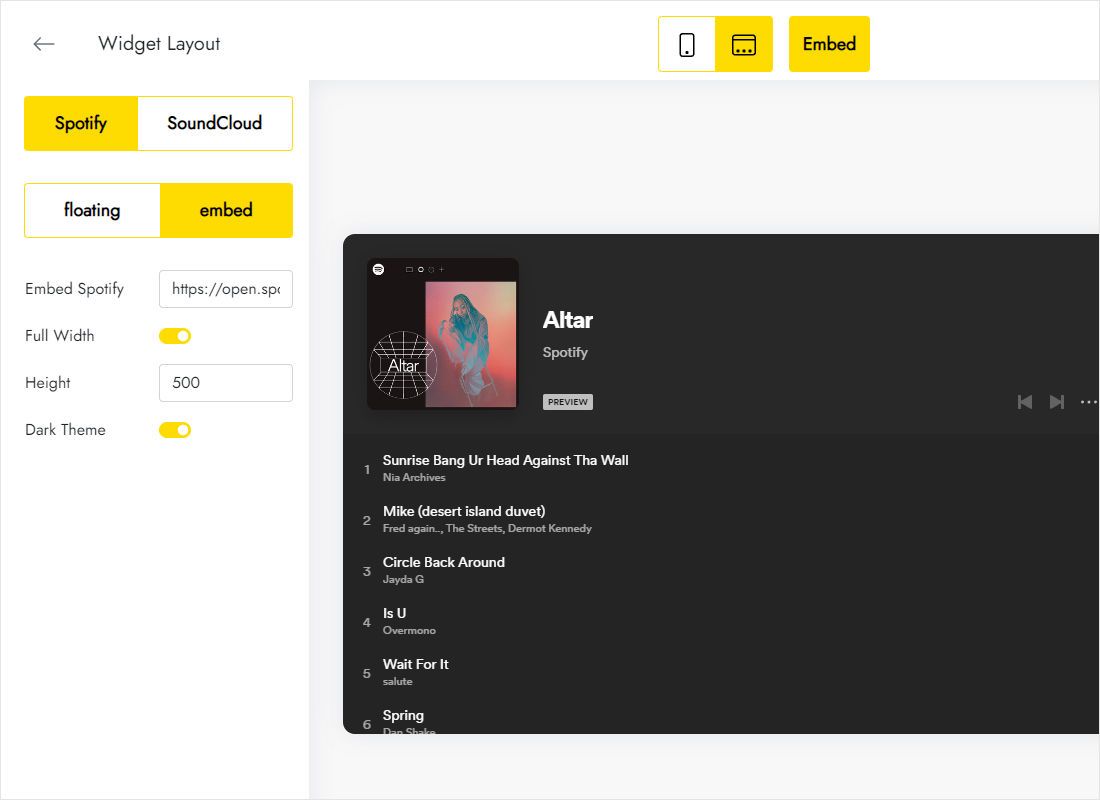
For an inline section player, switch the mode to embed, keep Full Width on and adjust the height value.
-
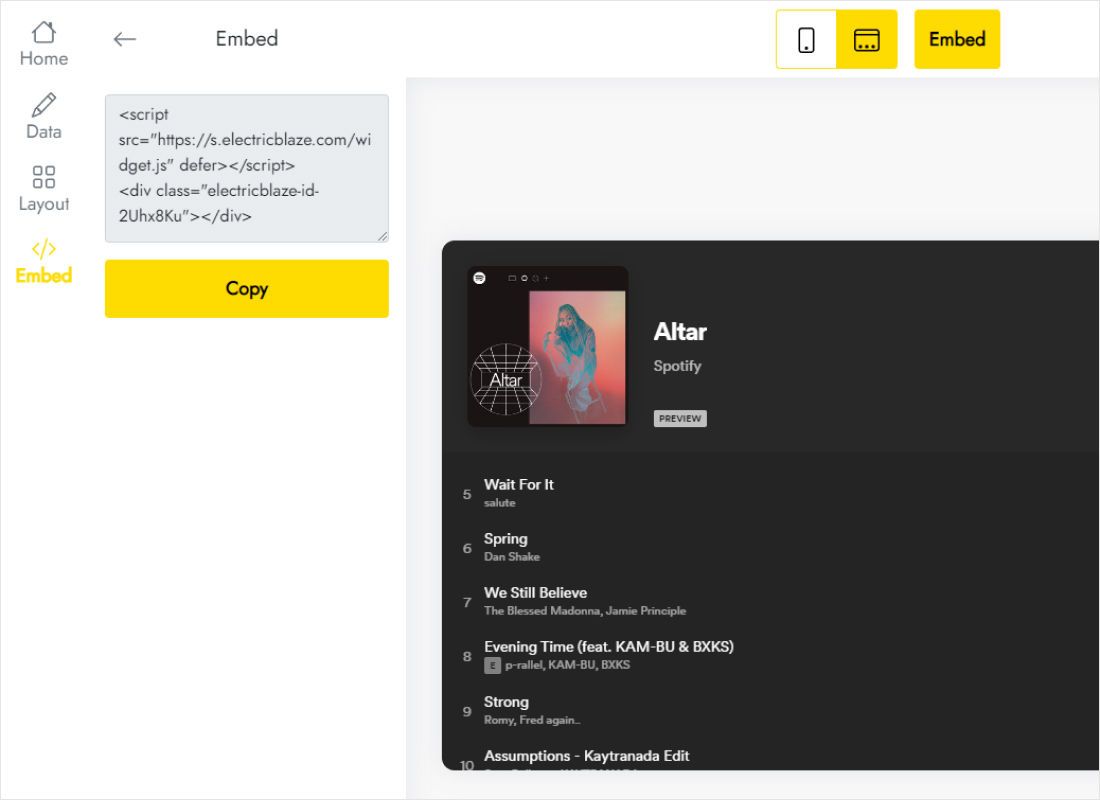
Pressing Add to website reveals the finished code; copy it.
Step 2: Choose the right Duda field
Your chosen mode determines the destination.
- Inline, one page: inside the editor, open Widgets, drag HTML beside the text about your release and put the code into the HTML Content box.
- Floating, all pages: visit Settings, choose Header HTML and insert the code into Body End HTML.
- Save, preview on a desktop screen and on a phone, then republish.
Placing a floating bar both in an HTML widget and in Body End HTML gives visitors two bars, so pick one location.
Embedded block or floating bar on Duda
An inline block behaves like regular page content: a release section, a podcast episode page, a restaurant page with its house playlist. Its height, chosen in the widget editor, decides how many tracks are visible, so match it to the length of your list.
A floating bar is for brands where music is part of the identity. Keep it clear of the mobile menu button and of any sticky Click to Call button already on the site.
Modern browsers refuse to start audible playback until someone has clicked or tapped on the page. Treat the widget as something people choose to press, and invite them to do so in the text near an inline block.
Duda music player: FAQ
Header HTML is not in my settings menu. Why?
Site-wide code is controlled by the agency or account owner. Ask them to paste the snippet or to extend your permissions.
Can one Duda site use both Spotify and SoundCloud?
Yes. Build two separate widgets, one per service, and place each snippet where it belongs. A free account holds up to five widgets of any kind.
Do phone visitors see the floating bar?
It loads wherever the page loads, handsets included. Check the mobile preview so it does not sit over important buttons.
Will swapping the music break my page?
No. Replace the source in the widget editor; the code already on Duda keeps working unchanged.
More for Duda
Tutorials for other widgets on this builder, the platform overview and the audio widget description:
Build a player for Duda
Bring a Spotify or SoundCloud link, decide between inline and floating, and grab the snippet.
Create a widget