
How to Add a Blogger Music Player
Musicians, podcasters and playlist curators can put a Blogger music player on their site with a single paste. ElectricBlaze takes a Spotify or SoundCloud embed and presents it inline or as a floating bar that stays in view.
Choose embed or floating mode first
Two modes exist, and they live in separate parts of the blog:
- Embed mode acts as ordinary content. Put it in a post next to an album review, or in a sidebar gadget as a standing playlist.
- Floating mode docks the player in a screen corner. Place it in the template so every page carries it.
Have the Spotify or SoundCloud embed ready as well: a track, album, playlist or set, copied from the service's Share menu. Whichever mode you choose for the music player, Blogger accepts the code at no cost.
Step 1: Set the music source
Deeper detail is in the Spotify and SoundCloud player tour. For this blog:
-

Enter a.electricblaze.com with your account, or make one if you are new.
-

Add a widget and choose Music Player as the kind.
-
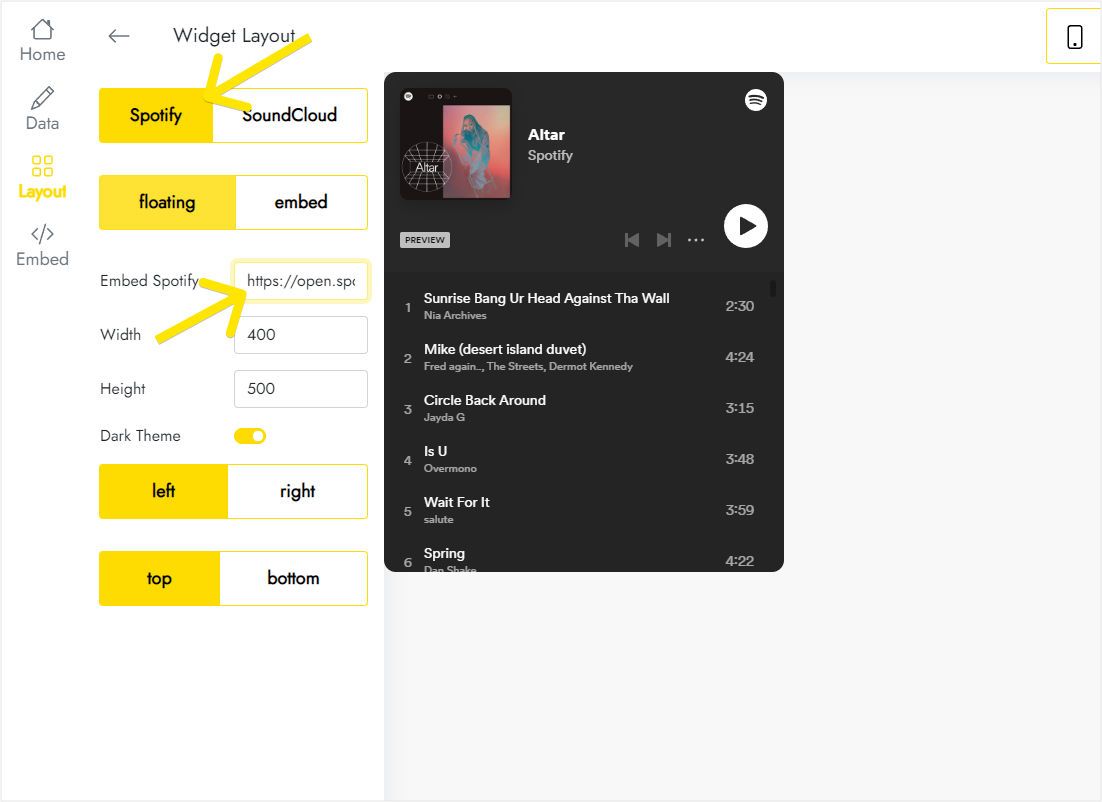
On Layout, pick the service and drop the playlist link into its embed field; floating mode adds width, height and the corner where the bar sits.
-
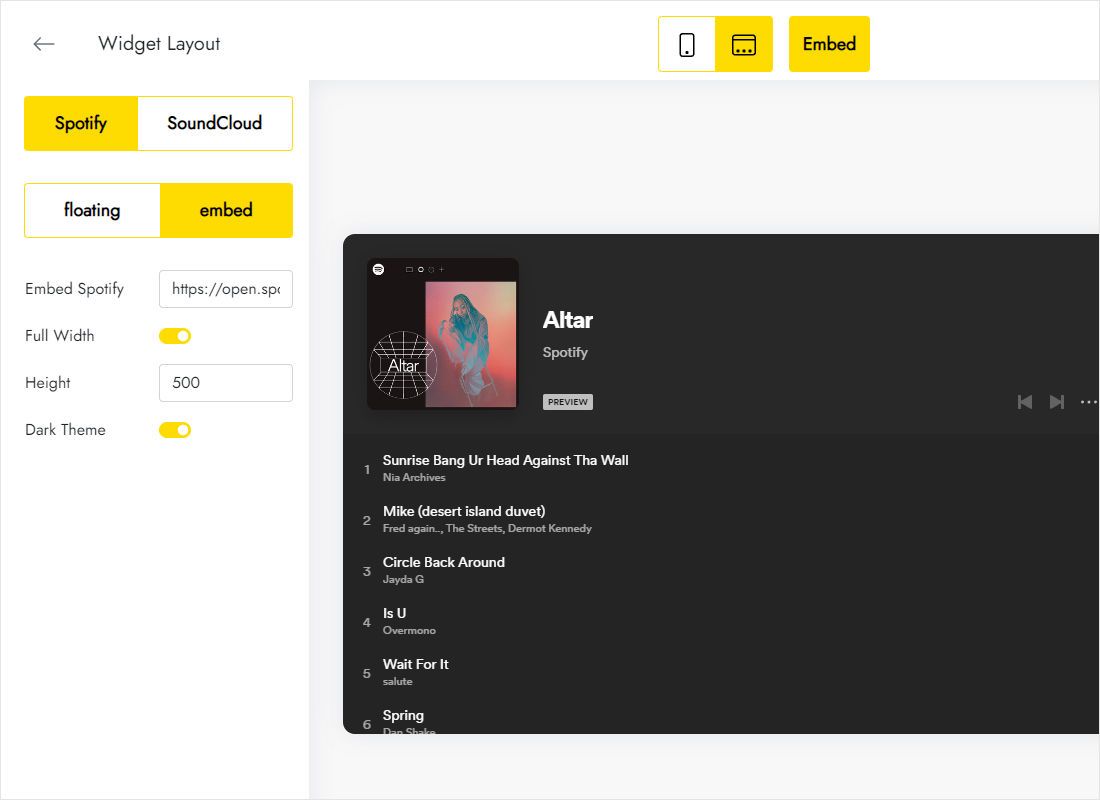
For a player inside a post or the sidebar, choose embed instead, turn on Full Width and give it a height that suits the column.
-
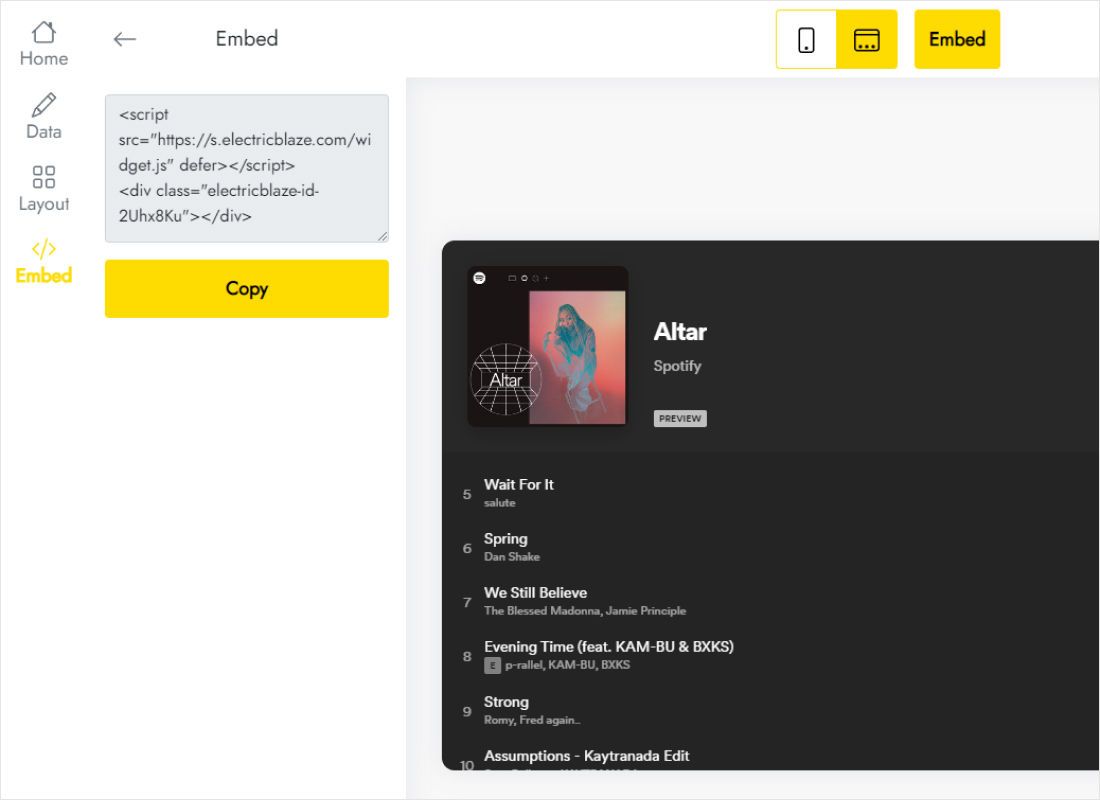
Add to website then shows the snippet for the theme; copy it.
Step 2: Add the floating player to the theme
Floating mode goes into the template. In Blogger:
- Open Theme, click the arrow next to Customize and choose Backup to download a copy.
- From that menu select Edit HTML.
- Click inside the code, press Ctrl+F and search for /body to reach the end of the template.
- Put the snippet on a new line directly before it, then press the save icon.
- Open any page of the blog and start playback once to confirm sound.
Using embed mode? Skip the theme and use Layout, Add a Gadget, HTML/JavaScript, or drop it into a post while in HTML view.
Autoplay, height and placement
Readers must press play
Chrome, Safari and Firefox refuse to start audio before someone clicks or taps somewhere on the page. This is browser behaviour rather than a fault in the Blogger audio player code, so expect readers to press play themselves and make the player easy to spot.
- Corner: choose the one opposite any back-to-top arrow your theme draws.
- Height: one track fits in a slim bar, whereas a whole playlist view wants more room. Change the number in ElectricBlaze, not in the snippet.
- Sidebar: an embedded player there suits a fixed playlist, but the separate mobile theme may hide it on phones.
- Posts: in a track review, place the player under the first paragraph so listening and reading happen together.
Swapping the playlist later only takes an edit in ElectricBlaze; the music player for Blogger picks up the new source without another theme change.
Blogger audio player: FAQ
Does music keep playing when a reader opens another post?
No. Every post opens as a fresh page load, so the audio halts on each click and starts again only when pressed.
Can I play my own MP3 instead?
The widget uses Spotify and SoundCloud embeds. Upload your recording to SoundCloud first, then use its embed code.
The player vanished after I changed themes. Why?
Edit HTML changes live inside one template only. Add the snippet to the new theme the same way.
Is the player free?
Free includes it, together with four other widgets and a thousand views monthly. Start, at $5 per month on yearly billing, removes our branding.
Other Blogger guides
Add more widgets to the blog, read the general Blogger guide or see the player overview:
Create your player
Choose your soundtrack, decide between floating and inline, and paste one snippet into the theme.
Create a widget