
How to Add WhatsApp Chat Button to Blogger
Readers with a question rarely go looking for a contact page. Below you will add WhatsApp chat button to Blogger as a floating corner icon, with Messenger, Telegram and other apps available in the same popup if you want them.
What to have ready
- A WhatsApp number with its country code, on a phone you actually check.
- Optional extra channels: a Messenger or Telegram handle, a Viber number, a Signal group invite or a Discord server address.
- An ElectricBlaze account and admin access to the blog.
Popup Chat floats above the page instead of sitting in the text. For that reason the snippet belongs in the theme, where the icon follows readers from post to post.
Step 1: Configure the chat popup
Field-by-field notes live in the contact popup reference.
-

Open a.electricblaze.com and sign in; first-timers register there too.
-

Add a widget of the Popup Chat kind.
-
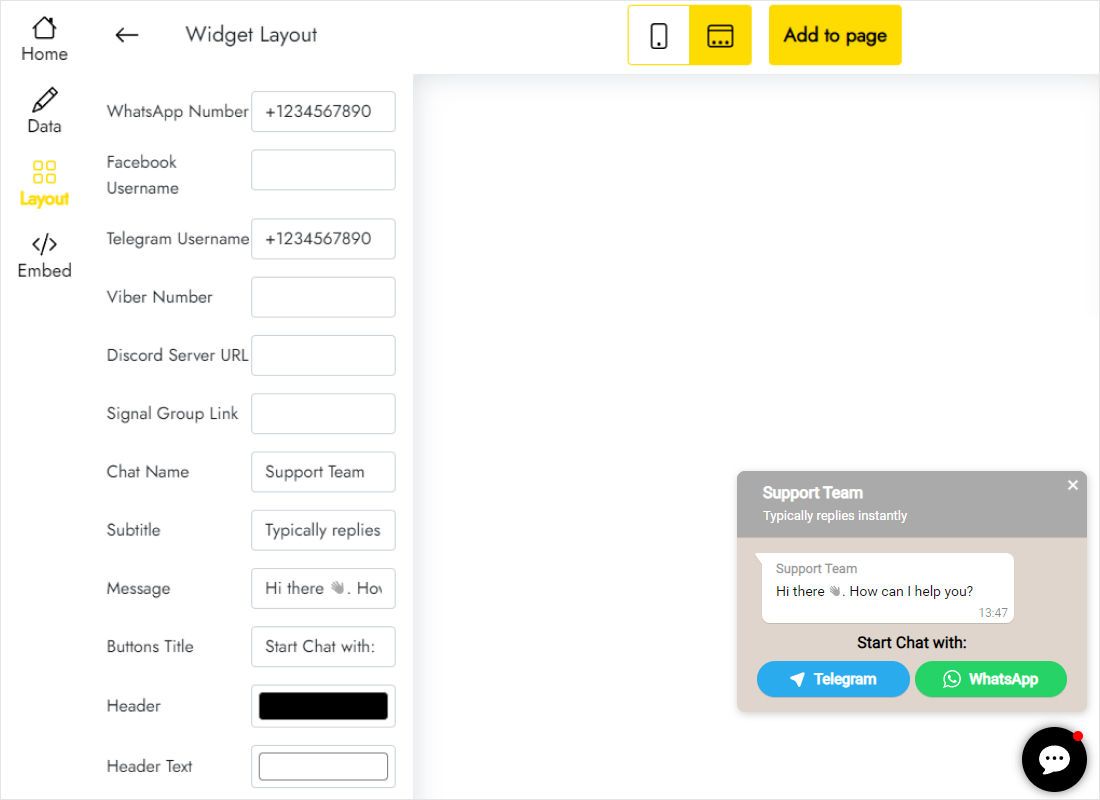
On Layout, add the WhatsApp number plus any Telegram, Messenger, Viber, Signal or Discord contacts readers may prefer, then name the chat and write the welcome line.
-
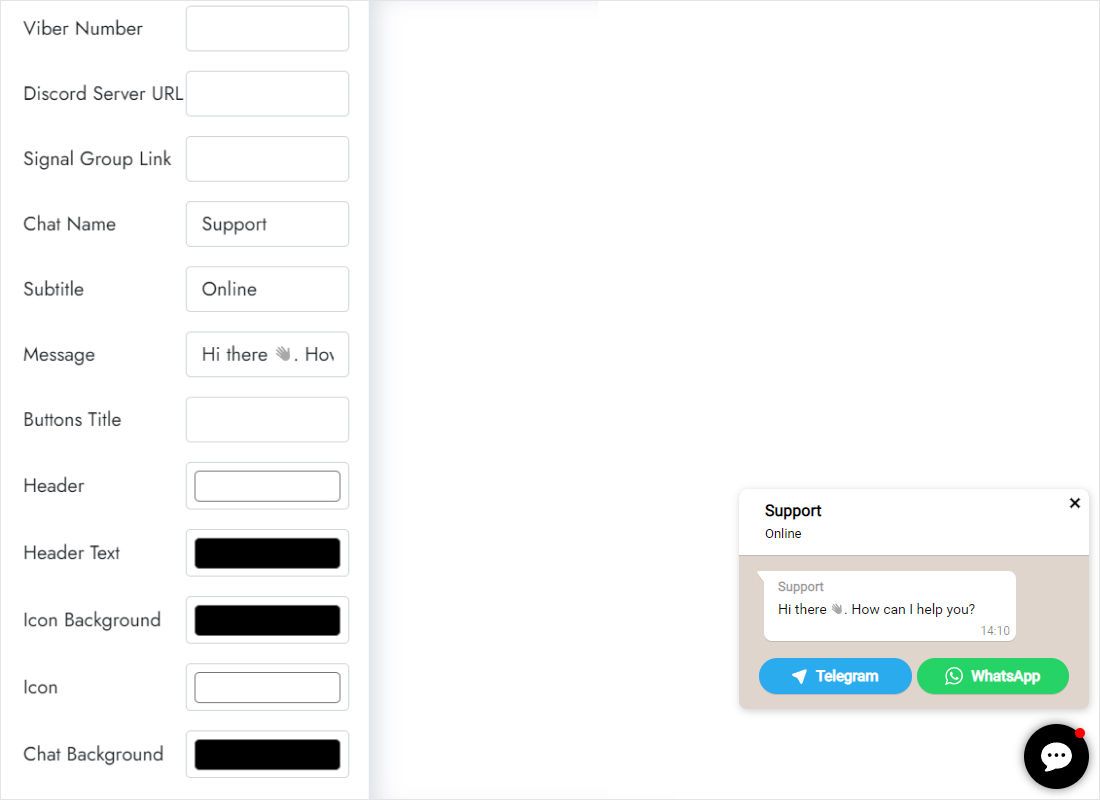
Lower on the same tab, pick header, icon and background colours that suit the blog template.
-
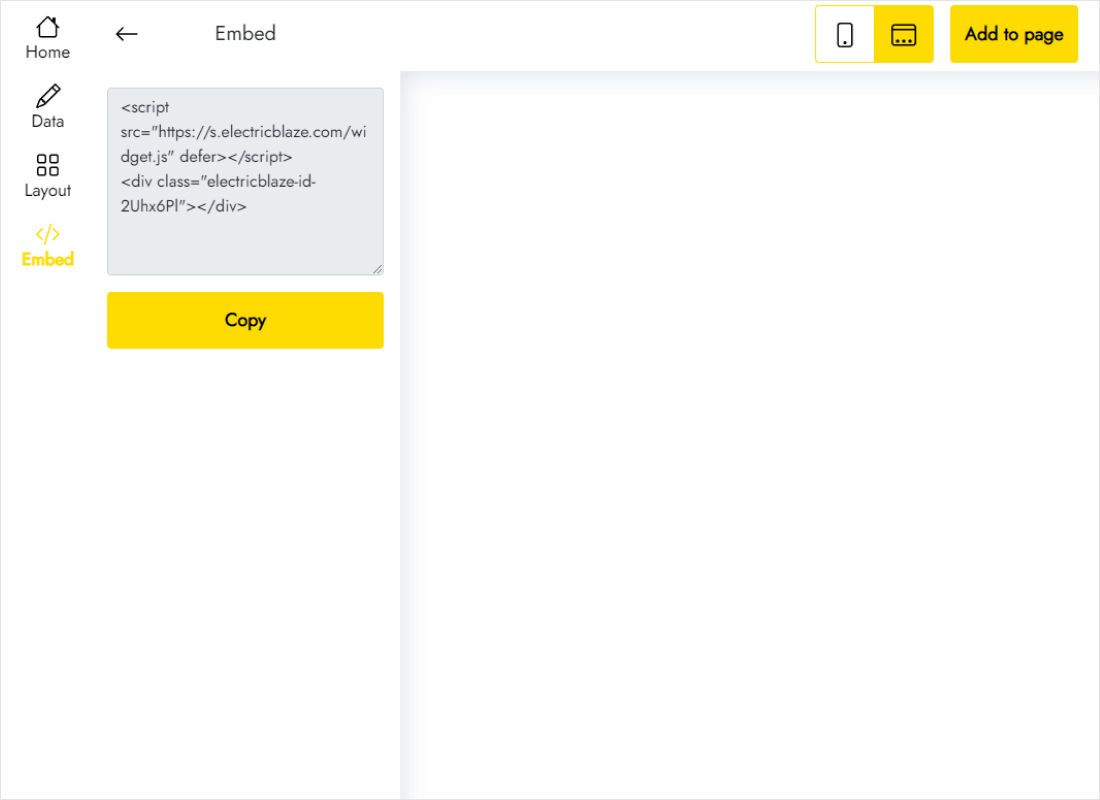
Add to website reveals the snippet. Copy it whole.
Step 2: Load the button from your theme
Template code runs on every page of the blog, including phones:
- In the dashboard go to Theme and save a backup through the menu beside Customize.
- In the same menu, pick Edit HTML.
- Head to the last lines of the template, where the body section closes.
- Insert the Popup Chat snippet right before that closing tag, then save the theme.
- Open the blog on a phone, tap the icon and confirm WhatsApp starts a chat with your number.
Prefer not to touch the template? A footer HTML/JavaScript gadget also loads the button across the blog on desktop, though a mobile theme may drop it.
Keeping chat for Blogger readers useful
Pick the corner with care. Many themes pin a back-to-top arrow low on the screen, and Blogger shows a cookie notice to visitors from the EU. Set the button position so it never sits on top of either.
- Greeting: say when you usually reply, for example “I answer within a day”, so nobody expects an instant response.
- Channels: WhatsApp suits phone readers, while Telegram or Messenger help people on a computer. Three or four icons are easier to scan than six.
- Small screens: check that the floating icon does not cover share buttons or the comment link below each article.
- One post only: paste the code into that post in HTML view if you want WhatsApp contact on a single page, such as a booking article.
Changing your WhatsApp number later needs no theme edit. Edit the number in ElectricBlaze and the button on the blog follows.
WhatsApp button on Blogger: FAQ
Does the WhatsApp button work for desktop visitors?
Yes. On a computer the link opens the WhatsApp desktop app or its web version, depending on what the reader uses.
Will readers see my phone number?
Anyone who starts a WhatsApp chat sees the number in the app. Use a separate business number if that matters to you.
Can I remove the button during holidays?
Delete the snippet from the theme, or simply clear the WhatsApp field on the Layout tab while you are away.
How much does it cost?
The Free plan costs nothing while the blog stays within a thousand views per month across every widget you run. Beyond that, Start ($5 monthly, paid yearly) lifts the limit.
Guides for other widgets
Other Blogger widget walkthroughs, the main Blogger page and the Popup Chat overview:
Open a WhatsApp line for readers
Type your number, write a friendly greeting and add one snippet to the template.
Create a widget