
How to Add Twitter Feed to Blogger
If you post quick thoughts on X (Twitter), your blog can repeat them without any extra work. Below you will learn to add Twitter feed to Blogger in a sidebar gadget or inside a post, and to keep text-heavy cards readable.
Checklist before you begin
- Your handle. Have the X (Twitter) username you plan to show written down, without the @ sign if in doubt.
- ElectricBlaze login. Nothing paid is required for one or two feeds.
- Blog permissions for Layout, or at least for writing posts.
Unlike Instagram photo galleries, X (Twitter) posts are mostly words. The layout decisions are therefore about line length and card height, not image size.
Step 1: Make the X (Twitter) widget
Feature details sit in the text post widget rundown. The blog setup is quick:
-

Open a.electricblaze.com in a new tab; log in with an existing account or register one.
-

Start a fresh widget from the dashboard and choose X (Twitter) as the source.
-
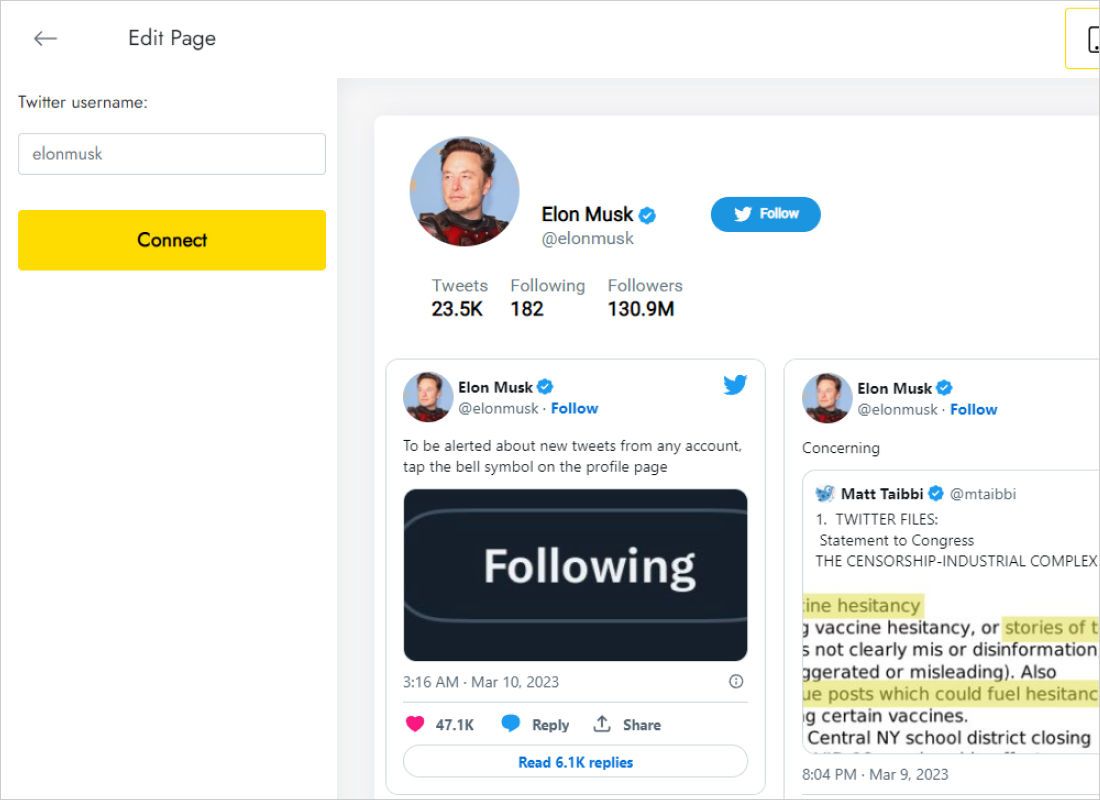
The Data tab asks for a Twitter username: type yours, then press Connect.
-
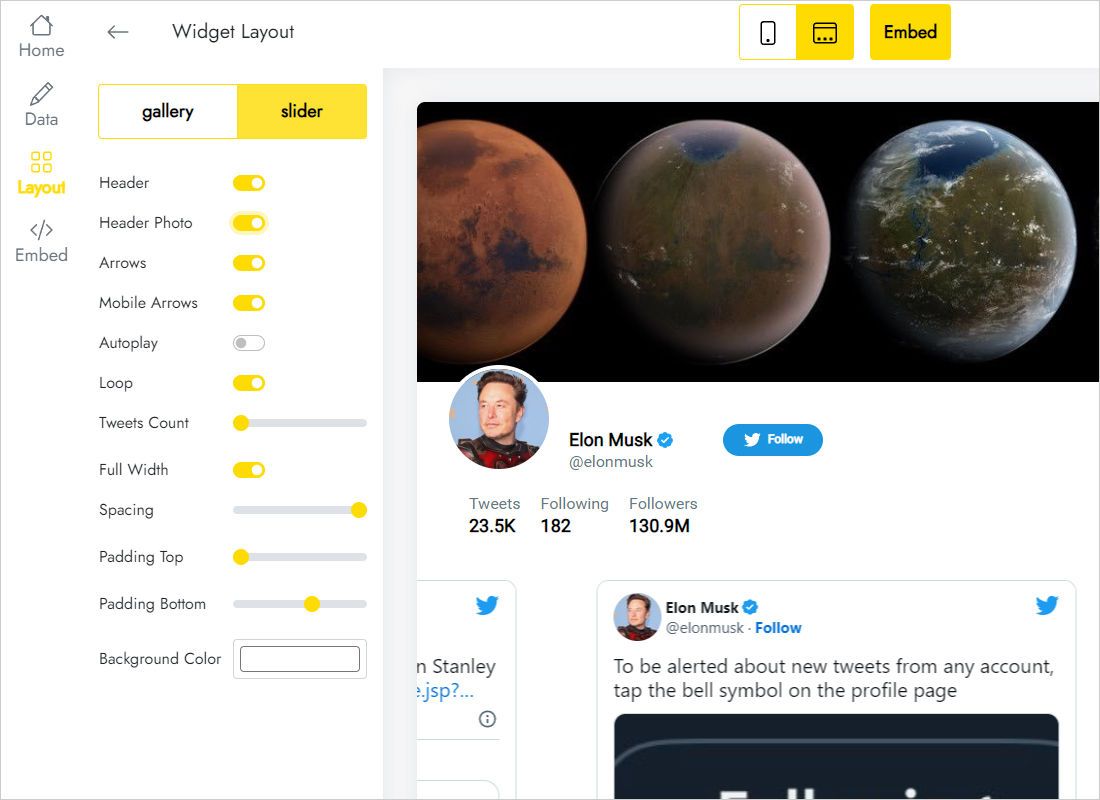
The Layout tab controls presentation: slider or gallery, how many columns and rows, and the gap between cards.
-
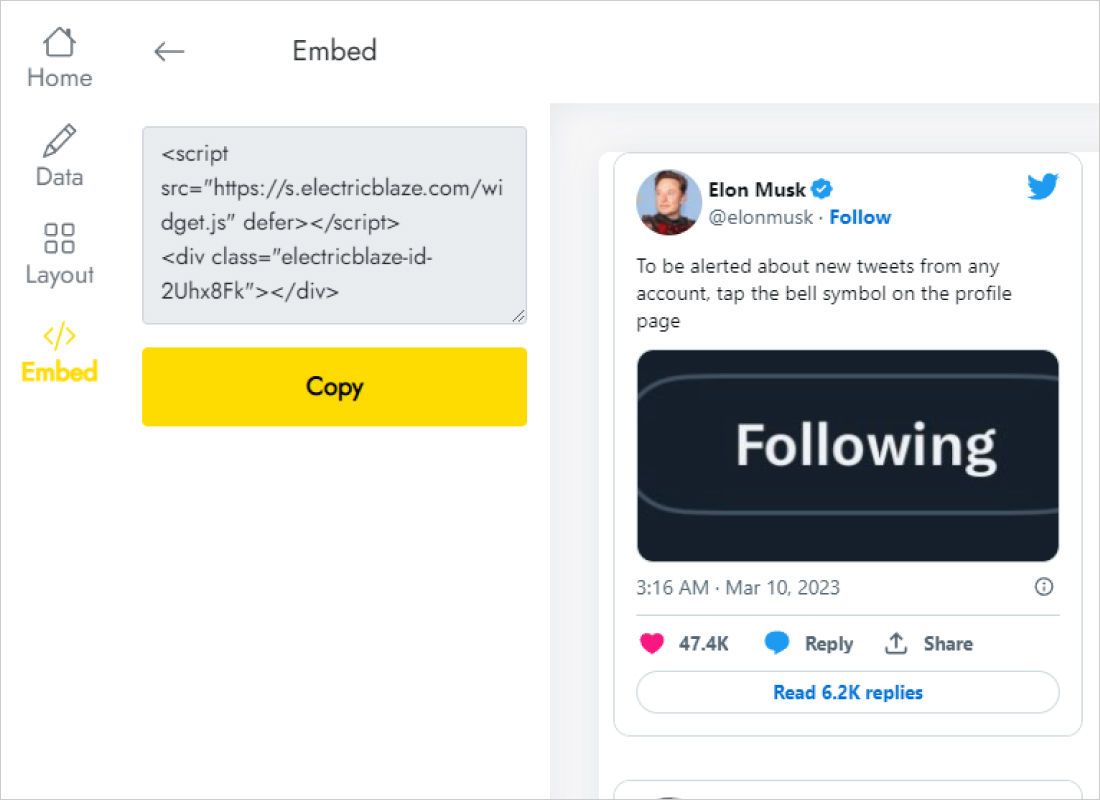
Once it looks right, open Add to website from the top bar and copy everything in the box.
Step 2: Show the posts in your sidebar
A gadget suits a running list of updates:
- Open the Layout screen of the blog.
- Find the sidebar section and press its Add a Gadget link.
- Scroll the gadget list to HTML/JavaScript and select it.
- Paste into Content, type a heading such as “On X” and save.
- Check the live blog. If the gadget sits too low, drag it higher on the Layout screen.
Prefer the cards inside an article? Switch that post to HTML view, paste the snippet where the list should go and click Update.
Readable X (Twitter) cards in a narrow column
Text cards grow taller as columns narrow. In a sidebar, use one column and two or three rows so each post shows in full without a tall gadget pushing your archive list out of sight.
- Header or footer: the slider keeps everything on one line of cards that visitors page through with arrows or a swipe.
- Round-up posts: a two-column grid fits a wide main column, for example a monthly “what I shared on X” article.
- Dark themes: give the widget a background colour that matches the blog rather than leaving bright cards on a dark page.
- Phones: sidebars usually move below the articles on small screens, or disappear in the separate mobile theme. Check both.
Your newest X (Twitter) posts reach the blog on the widget schedule: every 24 hours with Free, every 60 minutes with Start.
X (Twitter) on Blogger: common questions
Is an X developer account needed?
No. Typing the username on the Data tab and pressing Connect is all ElectricBlaze asks for.
Why is the gadget taller than I expected?
Long posts and several rows add height quickly. Cut the rows or change to the slider layout.
Will the feed appear across the whole blog?
In a sidebar or footer gadget, yes. Pasted into an article, it is visible only there.
What happens if I rename my X (Twitter) account?
Enter the new username on the Data tab and connect again. The snippet already in Blogger does not change.
Further Blogger guides
Add other widgets to your blog, open the full Blogger guide or read the X (Twitter) widget overview:
Bring your X posts to the blog
Type a handle, choose slider or grid, and your sidebar starts showing fresh posts.
Create a widget