
How to Add Instagram Feed to Blogger
A strip of photos under the header or a small grid beside your articles gives readers a reason to follow you. Read on to add Instagram feed to Blogger through a free ElectricBlaze gadget and to size the gallery for whichever column you pick.
Requirements
- A professional Instagram account, either Creator or Business. Converting a personal profile takes a few taps inside the Instagram app.
- An ElectricBlaze login; the no-cost tier handles a single blog comfortably.
- Admin rights on the blog. Authors can edit posts but not the Layout screen.
Searching for a Blogger Instagram widget often turns up old copy-paste codes that stopped loading when Instagram retired its older API. An ElectricBlaze feed signs in through the current official connection, so the photos keep coming.
Step 1: Prepare the photo gallery
The tour of grid and slider options lists every setting. The quick path:
-

Point your browser to a.electricblaze.com and enter the app, registering first if needed.
-

Begin a new widget, choosing Instagram Feed as its kind.
-
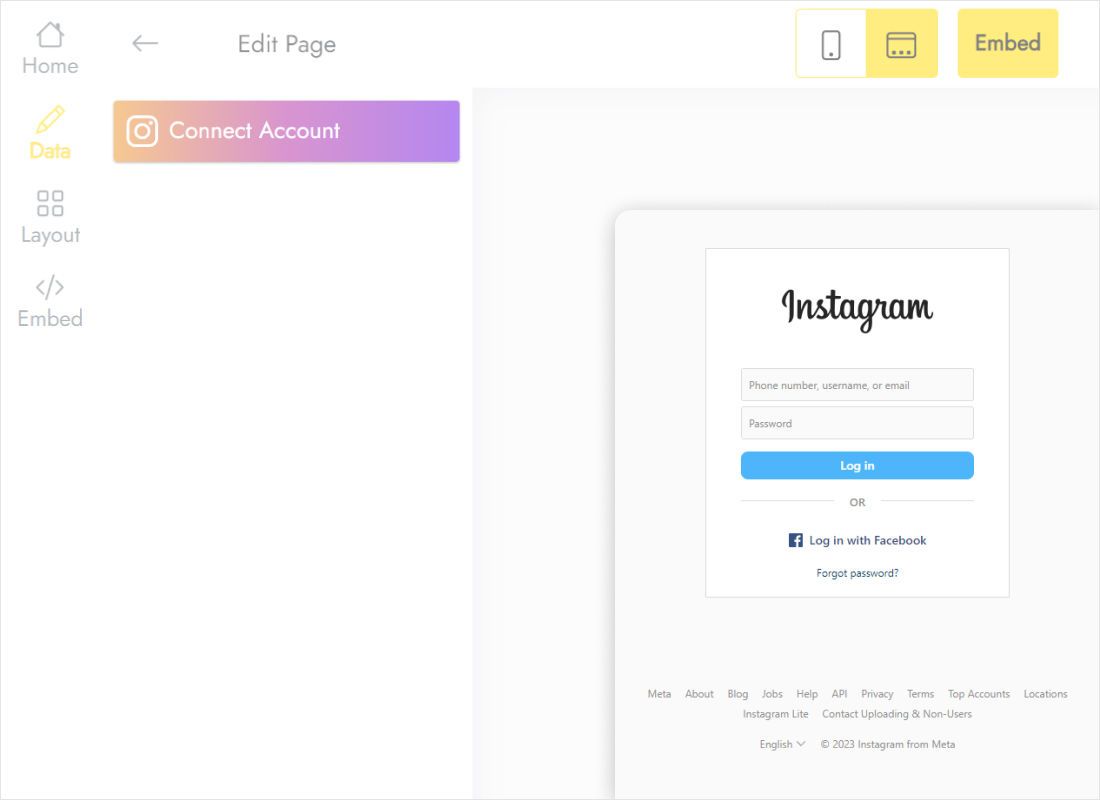
Data holds a Connect Account button; click it and approve your Creator or Business profile in the pop-up.
-
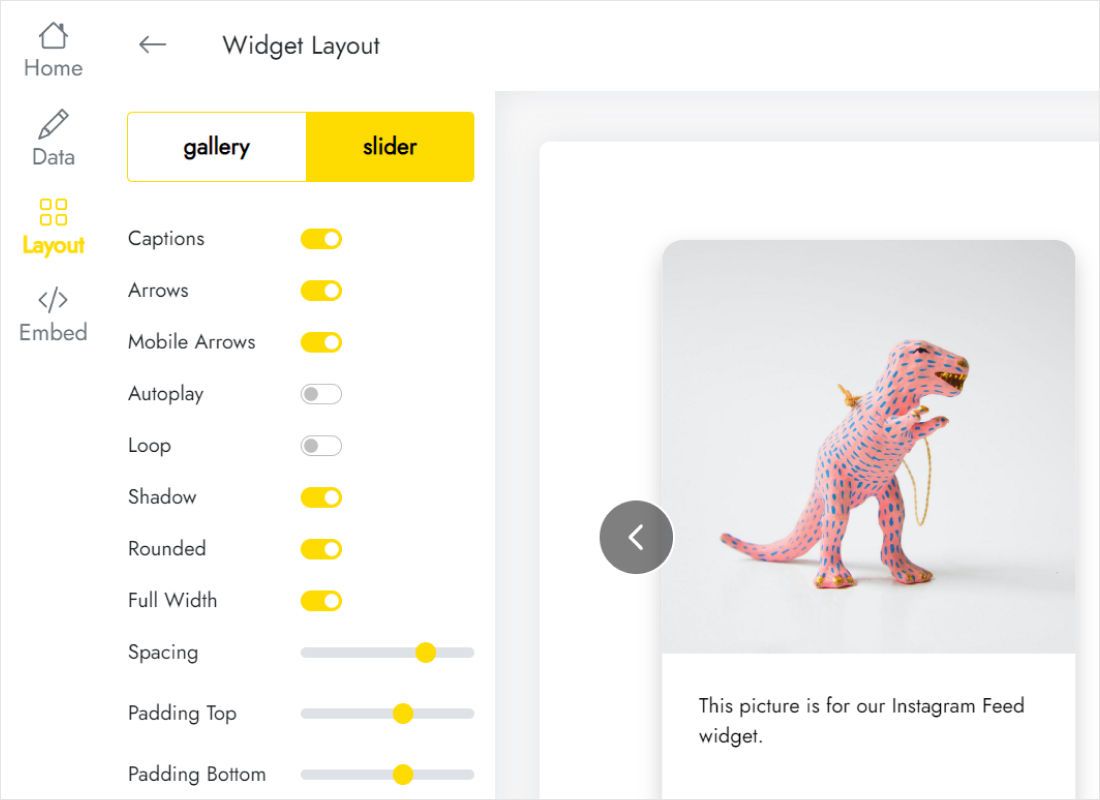
Layout decides the look: gallery or slider, plus a column count of one or two for a sidebar, three or four for a header strip or post.
-
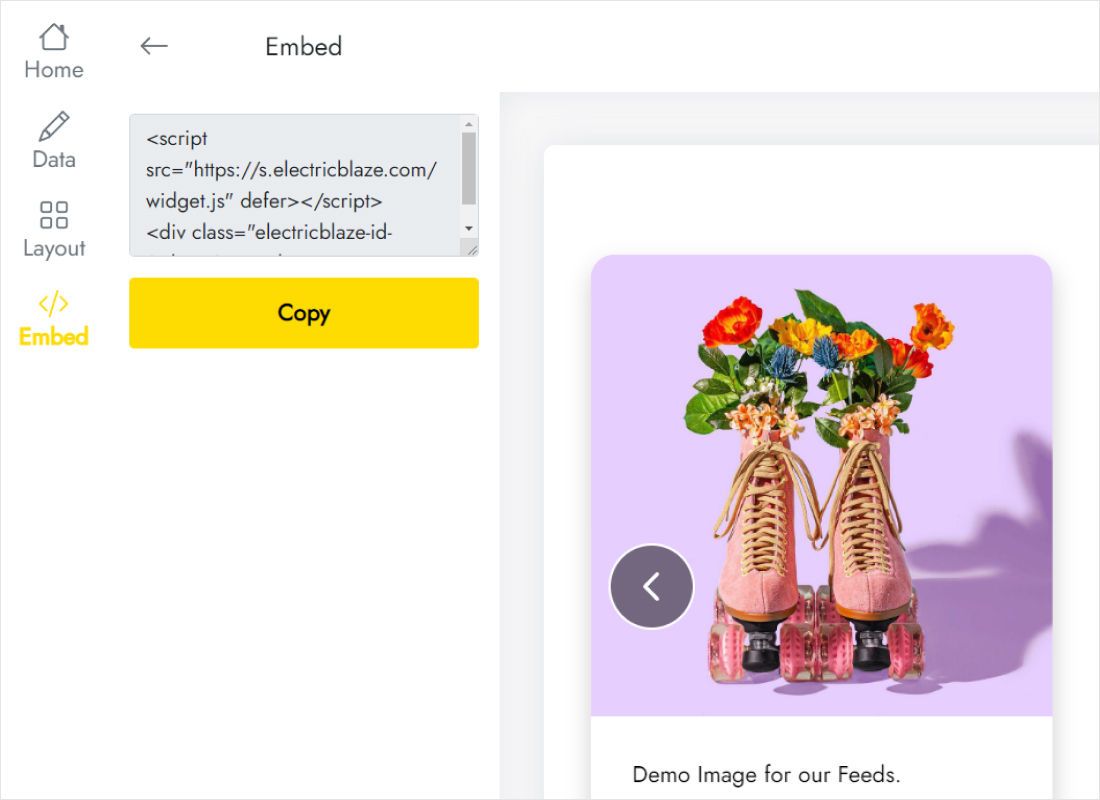
When you are happy, Add to website opens a box with the snippet; copy all of it.
Step 2: Place the photos in your layout
Gadgets are the fastest way in, and they repeat across all blog pages:
- From the Blogger dashboard, go to Layout.
- Decide where the photos go: the sidebar, the footer or, if your theme offers it, the area under the header.
- Use that area's Add a Gadget link and choose HTML/JavaScript from the pop-up.
- Drop the snippet into Content, optionally title it “On Instagram”, then press Save.
- Reload the blog and compare the gallery on a laptop and on your phone.
Prefer photos inside one article? Switch that article to HTML view, set the snippet between two paragraphs and hit Update.
Sizing an Instagram gallery for a blog
Start from the gadget width. In a sidebar, two columns and three rows show six square photos at a comfortable size, while four columns shrink each image to a stamp. A gadget instagram blogger themes place under the header has much more room.
- Under the header: a slider with several visible posts forms a neat strip without pushing articles far down.
- Inside posts: show captions when the photos belong to the story; hide them when the images are decoration.
- Colours: tint the widget background with your theme colour so the grid does not look like a pasted box.
- Phones: if gadgets vanish on mobile, the blog uses its separate mobile theme. Serving phones the desktop theme, or putting a copy inside a post, solves it.
An Instagram widget for Blogger free of charge is realistic: the Free plan refreshes photos once a day within a thousand views each month, and Start refreshes hourly with no view cap. Once you paste the Instagram widget, Blogger keeps it in place until you remove the gadget.
Instagram on Blogger: FAQ
Do I need to update the gadget each time I post a photo?
No. The snippet never changes; fresh photos turn up on the following refresh cycle.
Will my personal Instagram profile connect?
Not as it is. Convert it to Creator or Business in the app, then return to the Data tab.
Why is the gadget empty on the Layout screen?
Layout only draws placeholders. Open the published blog to see the photos.
Is a second Instagram account possible?
Yes: build a separate widget for it and give it its own gadget. Each one takes a slot among the five free widgets.
Related Blogger guides
Keep going with other blog widgets, the main Blogger walkthrough or the Instagram widget overview:
Start your Instagram gallery
Link your professional profile and let the sidebar fill with photos today.
Create a widget