
How to Add a Facebook Feed to Tilda
Announcements, events and offers often appear on a Facebook Page first. The steps below add Facebook feed to Tilda, so each of those updates is mirrored on your website without copying individual posts.
Prepare these three things
- Admin access to a public Facebook Page; timelines of individual people and groups are off limits for widgets.
- A paid Tilda subscription, since the HTML block executes nothing on free projects.
- An ElectricBlaze account (registration is free).
The builder has its own Feeds section for articles written inside the editor. The widget covers a different need: it mirrors what you already post on the social network, so nobody has to publish the same news twice.
Step 1: Create a Facebook widget
Layout choices are explained in depth in the Facebook post card settings. The minimum:
-

Open the app at a.electricblaze.com.
-

Pick the Facebook Feed tile after clicking Create New Widget.
-
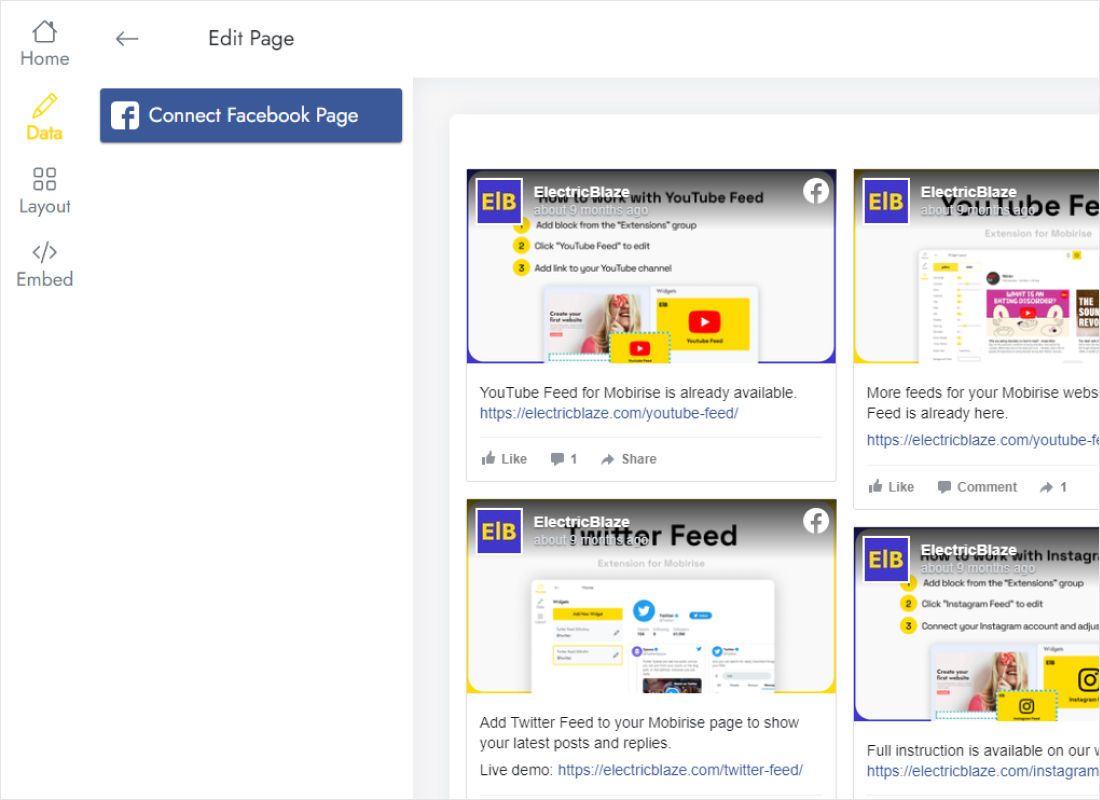
Connect Facebook Page on the Data tab asks Facebook for permission; allow it for your Page.
-
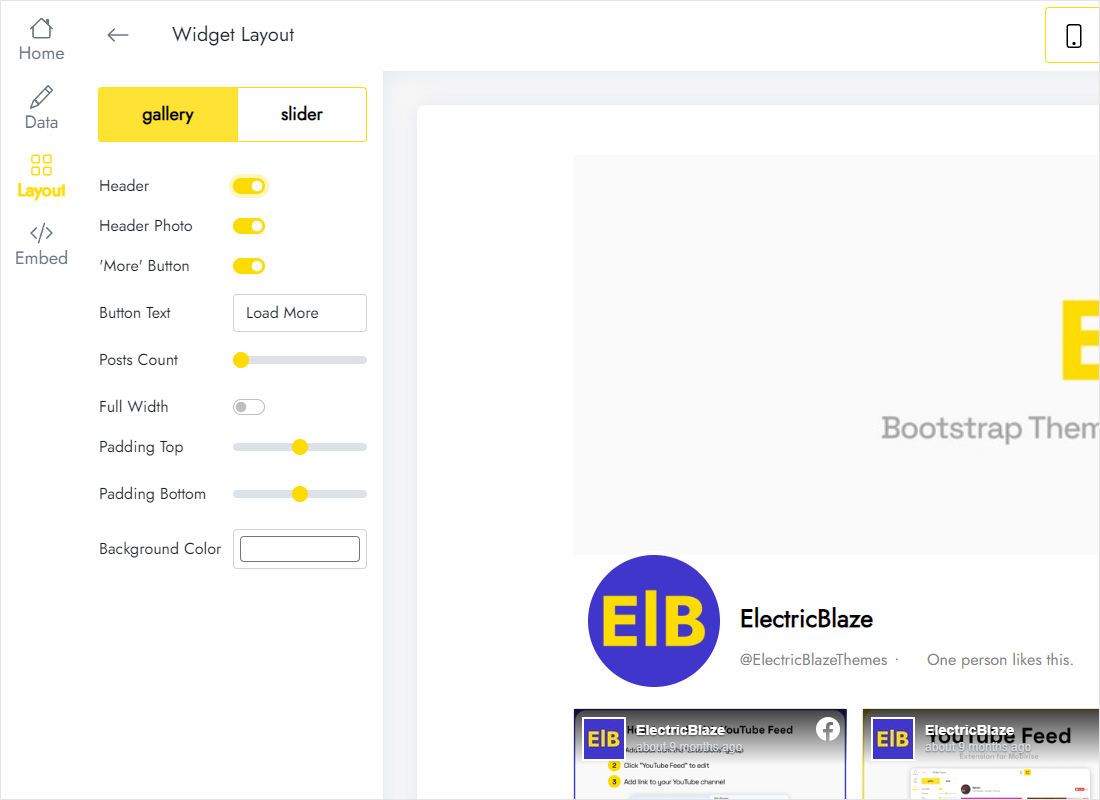
Styling lives on Layout: gallery versus slider, column and row counts, captions, background.
-
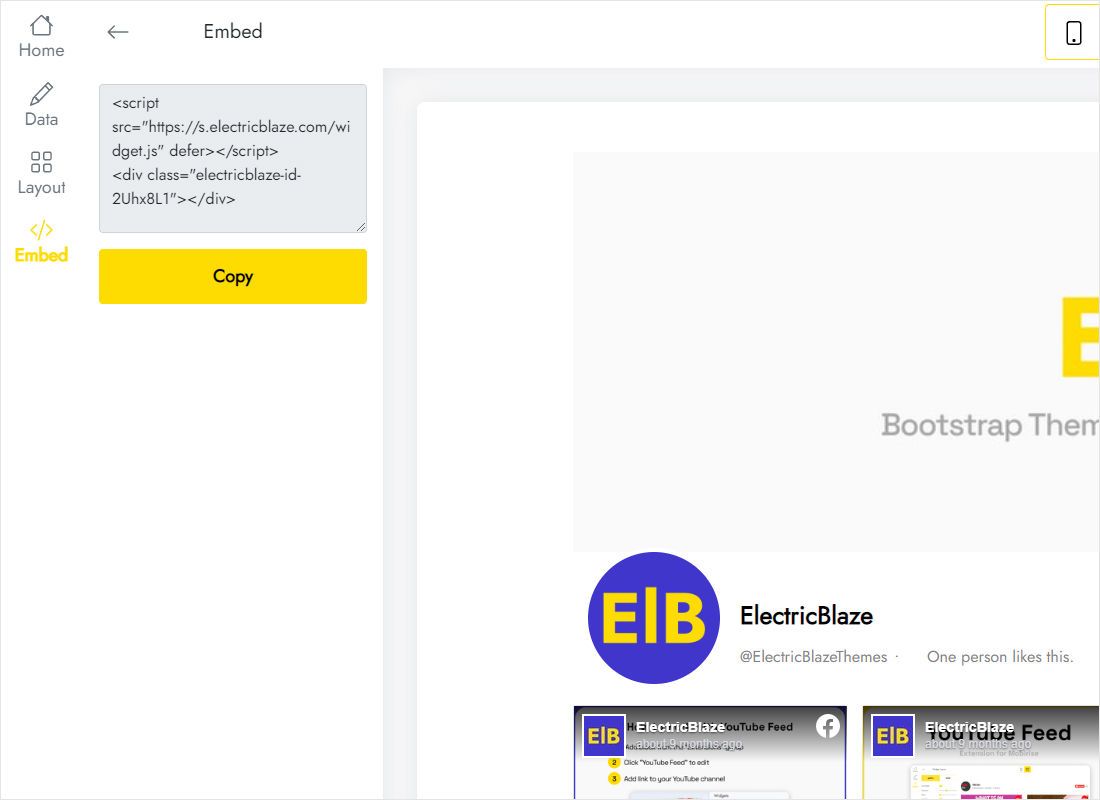
Finish with Add to website and copy the snippet shown.
Step 2: Insert the widget into a page
Inside the page editor the process takes about as long as adding a text block.
- Open the Block Library from the plus button where the news section should begin, or type T123 into the library search.
- Add the Embed HTML code block; it appears as an empty placeholder.
- Press Content, drop the Facebook snippet into the field, then click Save & Close.
- Hit Publish; posts render on the public URL, whereas the editor shows only the code itself.
To show the posts across the whole site, place the block on the page you assigned as the footer in Site Settings → Header and Footer, then republish every page.
Long posts and small screens
Page updates range from one sentence to several paragraphs with a photo album. A block of uneven cards can look messy, so shape the layout around the content you actually publish.
If you post mostly text
Hide captions or keep the slider layout. Cards then keep an even height, and the grid looks orderly even when one post is an essay.
If you post mostly photos
A gallery with three columns reads like a photo wall and fills a wide Tilda block nicely, though an Instagram photo wall may suit pure photography better.
Checking mobile
On a phone the columns stack. Scroll the published page to make sure the feed does not push the contact block too far down; if it does, reduce rows in the Layout tab.
Refreshes happen daily with Free or hourly with Start, so the block runs unattended once published.
Facebook on Tilda: questions
Does it work on a Tilda Free plan?
No. The builder disables code in T123 on its Free plan. The ElectricBlaze Free plan is not the issue; the site plan is.
Is it possible to display a Page someone else runs?
The Connect Facebook Page step lists only Pages your Facebook account can manage, so you need admin access to the Page.
Why is the block blank after I publish?
Check that the whole snippet was pasted, including the closing tags, and that the page was published after saving the block.
What is the cleanest way to take the feed down?
Delete the T123 block and publish the page again. You can also delete the widget in ElectricBlaze to free a slot on your plan.
Mirror your Facebook Page on Tilda
Connect the Page for free, style the cards and paste the code into an HTML block.
Create a widget