
How to Add Twitter Feed to Hostinger
Match results, service outages, launch countdowns: these often go out on X (Twitter) before anywhere else. Use this walkthrough to add Twitter feed to Hostinger builder pages and keep visitors informed without sending them off your site.
You will need
- The @handle you plan to feature from X (Twitter).
- An ElectricBlaze login (opening one is free).
- A Hostinger Website Builder project. Customers running WordPress on Hostinger hosting should pick the WordPress timeline guide from the full list of platform walkthroughs.
Timeline entries lean on words rather than pictures, from one-liners to long thread openers. Unlike a photo grid, the timeline height therefore changes from day to day, which matters when you size the element in step 2.
Step 1: Create a timeline from your handle
The post timeline feature list covers all extra options.
-

Start at a.electricblaze.com, signing in or registering.
-

Among the Create New Widget tiles, select X (Twitter) Feed.
-
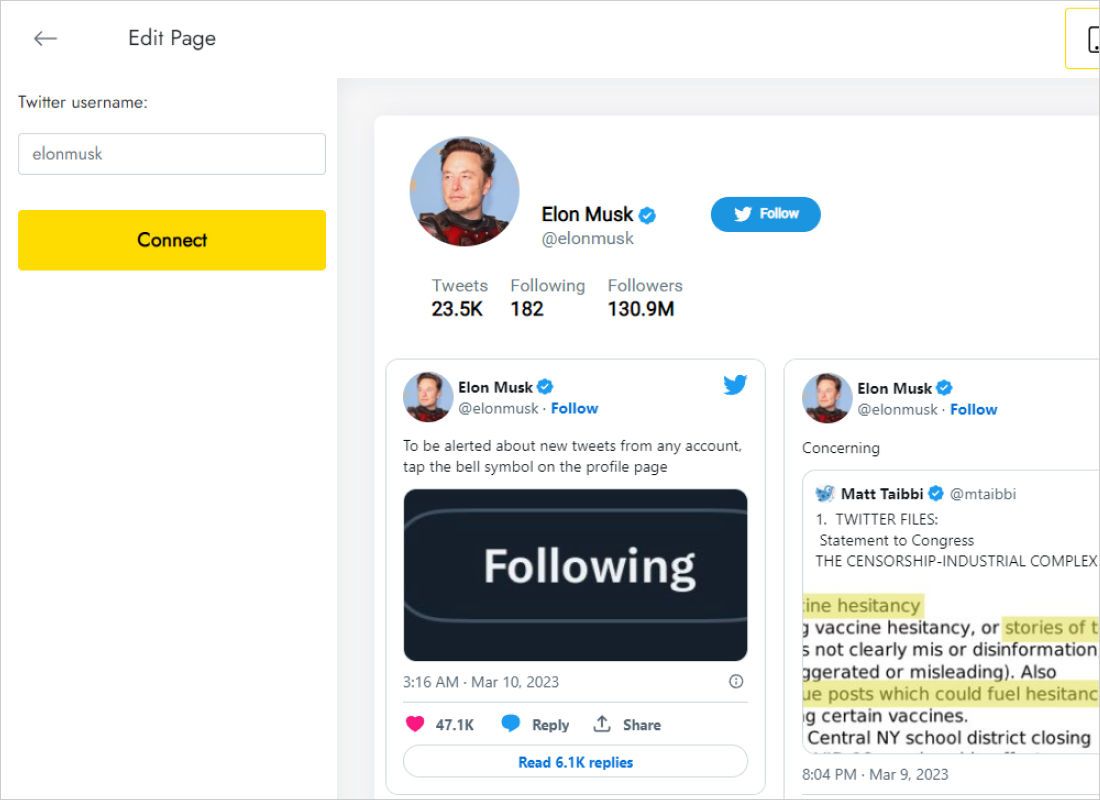
The Data tab has a Twitter username field; fill it and press Connect.
-
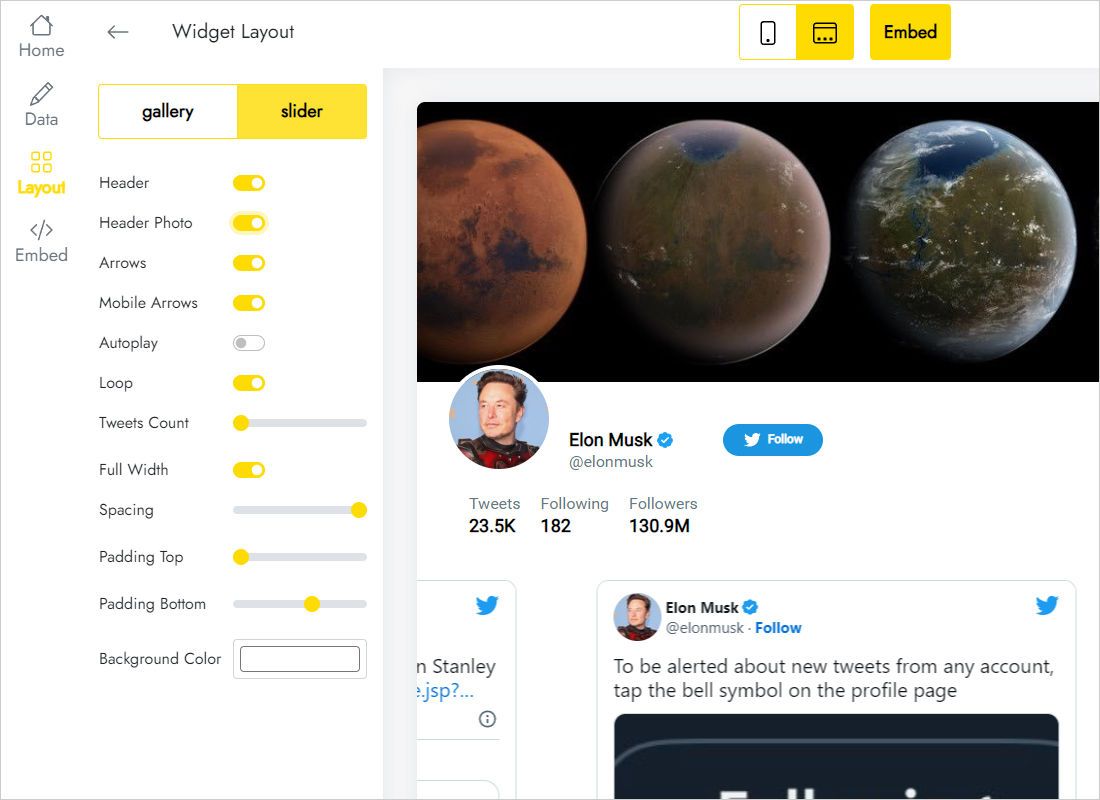
Tune gallery or slider, captions, spacing and background from the Layout tab.
-
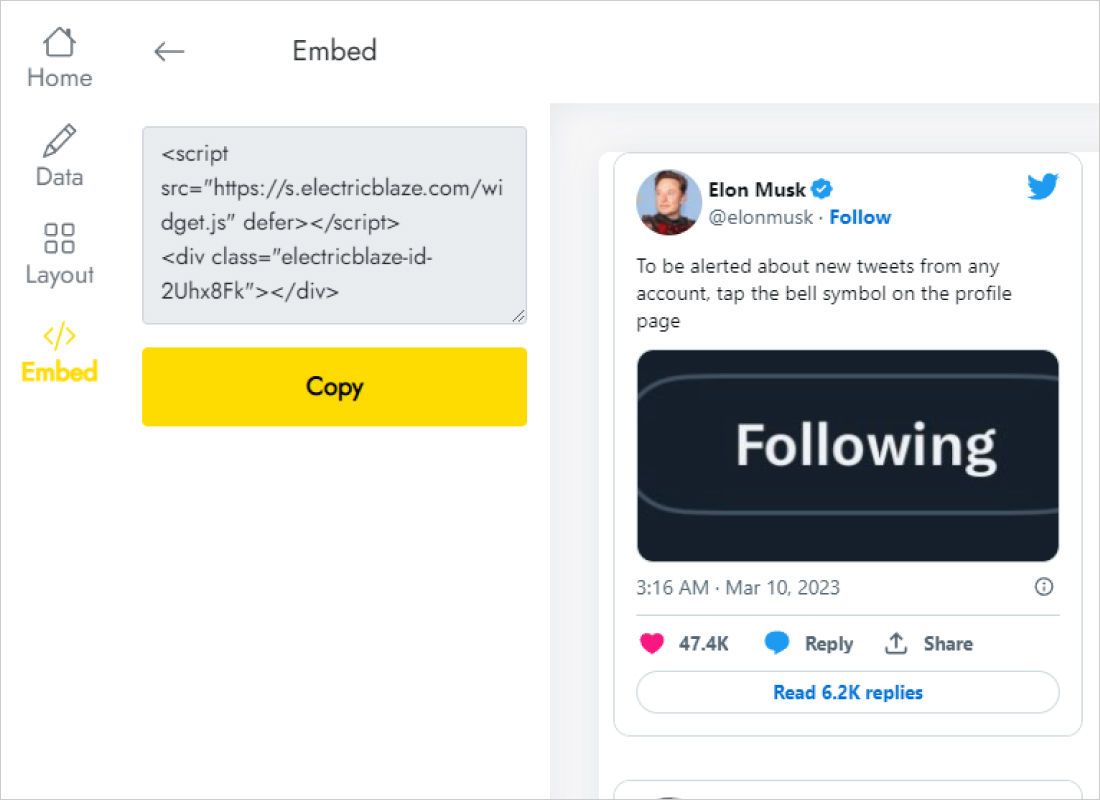
Copy what Add to website displays.
Step 2: Embed the posts in the builder
Now switch over to Hostinger.
- Choose the News, Updates or Home page from the page list.
- Open Add elements, grab Embed code and release it where the timeline should start.
- With it highlighted, Enter code opens a field; paste there and press Embed code.
- Stretch the width to the column and leave spare height, because tomorrow’s posts may be wordier.
- Hit Update website and scroll the public timeline on a computer and a smartphone.
Embedded scripts stay inactive inside the editor, which is why the element looks blank until you publish.
Readable timelines on desktop and mobile
- Narrow column beside text: a single column and a handful of rows reads like a press sidebar.
- Wide updates band: two or three columns with generous gaps between cards.
- Tight spot: the slider shows one sideways-scrolling row of posts and fits almost anywhere.
- Smartphones: preview the phone version in Hostinger; one-column stacking means a longer frame.
Spot the last row cropped on the live page? The frame is short. Lengthen it in the builder, or drop a row in ElectricBlaze.
Anything you post on X (Twitter) reaches this page at the next sync, 24 hours apart with Free and 60 minutes with Start.
X (Twitter) timeline on Hostinger: FAQ
Must I apply for X API access?
No. A username and the Connect button are enough.
Can the news page and the homepage both carry the timeline?
Yes. Each page gets its own Embed code element carrying the same two lines.
If I restyle the widget, must I paste the code again?
No. Colour or layout edits saved in ElectricBlaze reach the Hostinger page automatically.
Can the small ElectricBlaze credit be removed?
Yes, by moving to Start ($5 monthly, charged per year), which also ends view limits.
Hostinger widget guides
Embedding basics for Hostinger, the X (Twitter) widget page and the remaining walkthroughs:
Build your X (Twitter) timeline
Type a handle, copy two lines and keep your Hostinger visitors up to date.
Create a widget