
How to Add Instagram Feed to Google Sites
Snapshots from an art class, a café counter or a team’s season look better on the website than behind a profile link. Below you will add Instagram feed to Google Sites using an ElectricBlaze widget, then size its frame so every row of pictures stays in view.
Checklist for an Instagram widget for Google Sites
- A professional Instagram profile, meaning Business or Creator. Converting a personal one takes a minute in the app settings.
- Owner or editor status on the site.
- An ElectricBlaze account; its no-cost tier covers a first gallery.
Instagram does give each public post its own embed snippet, but relying on that means reopening the editor whenever you share something. A Google Sites Instagram feed built as a widget brings in new photos without that chore.
Step 1: Set up the photo gallery
All the settings are pictured in the visual guide to gallery options. The short route for a Sites project:
-

Browse to a.electricblaze.com and authenticate, or open an account first.
-

A new widget starts with a type choice; click Instagram Feed.
-
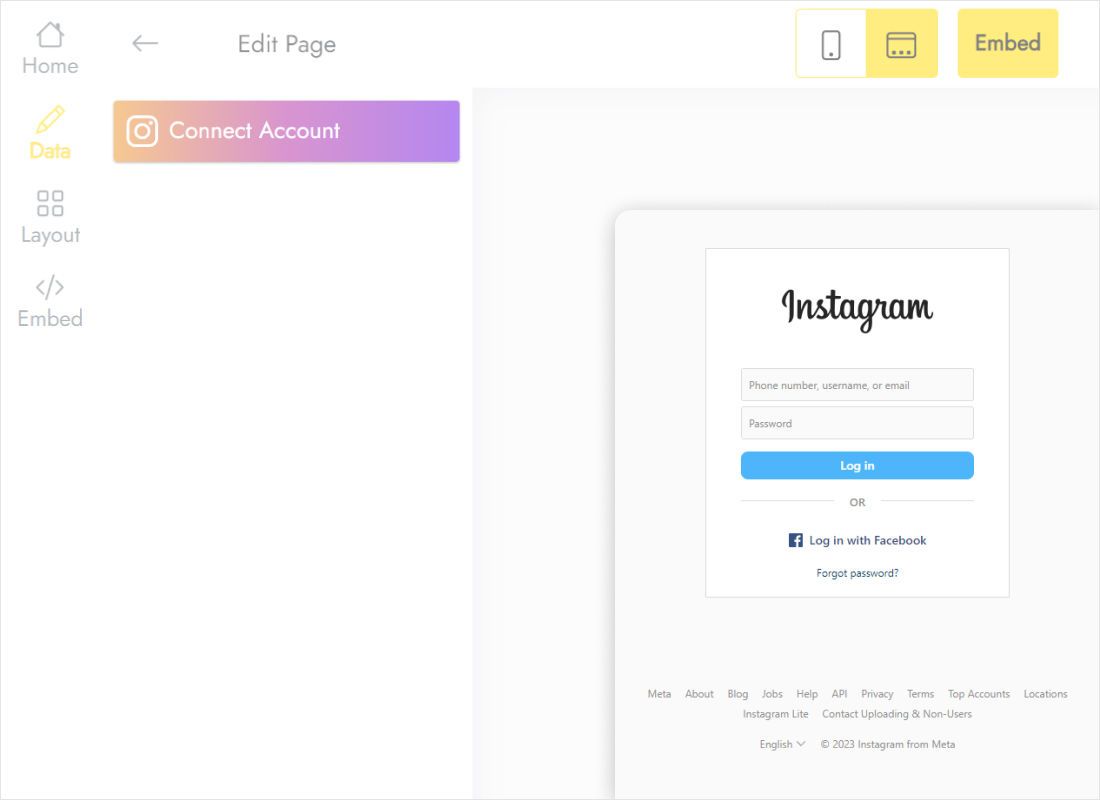
Data: tap Connect Account, then approve ElectricBlaze in the window Instagram opens.
-
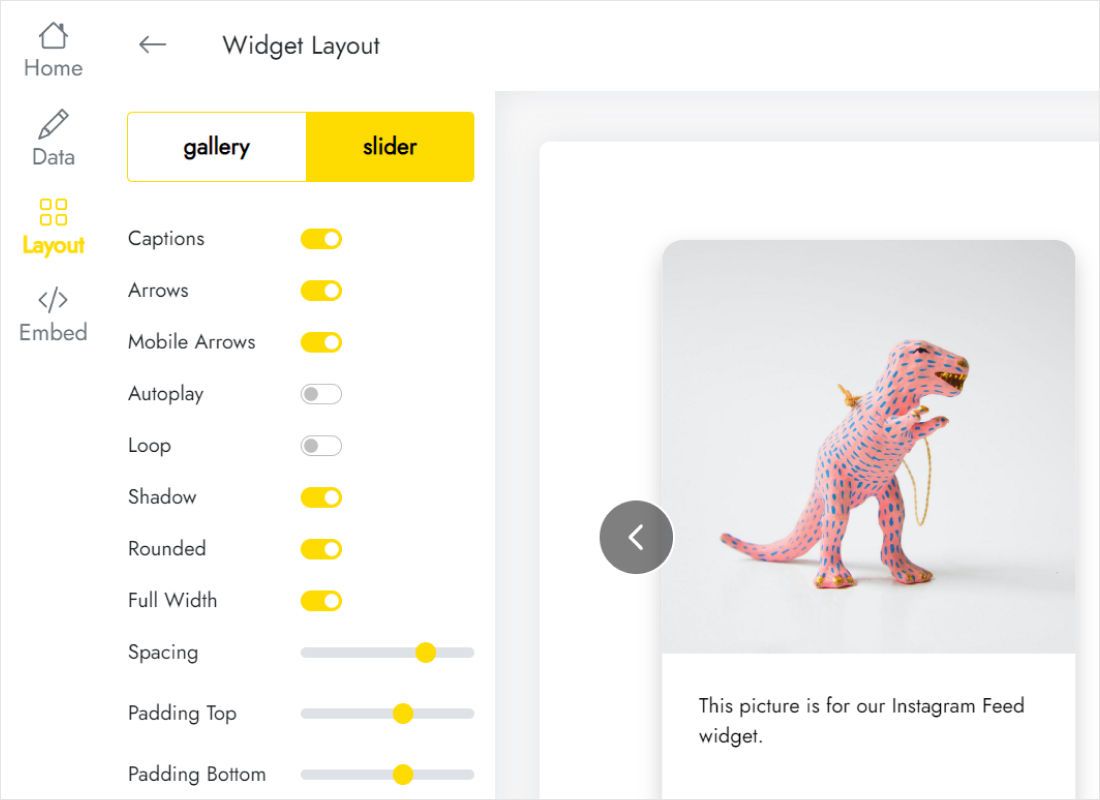
Layout: gallery or slider, how many columns and rows, captions visible or hidden.
-
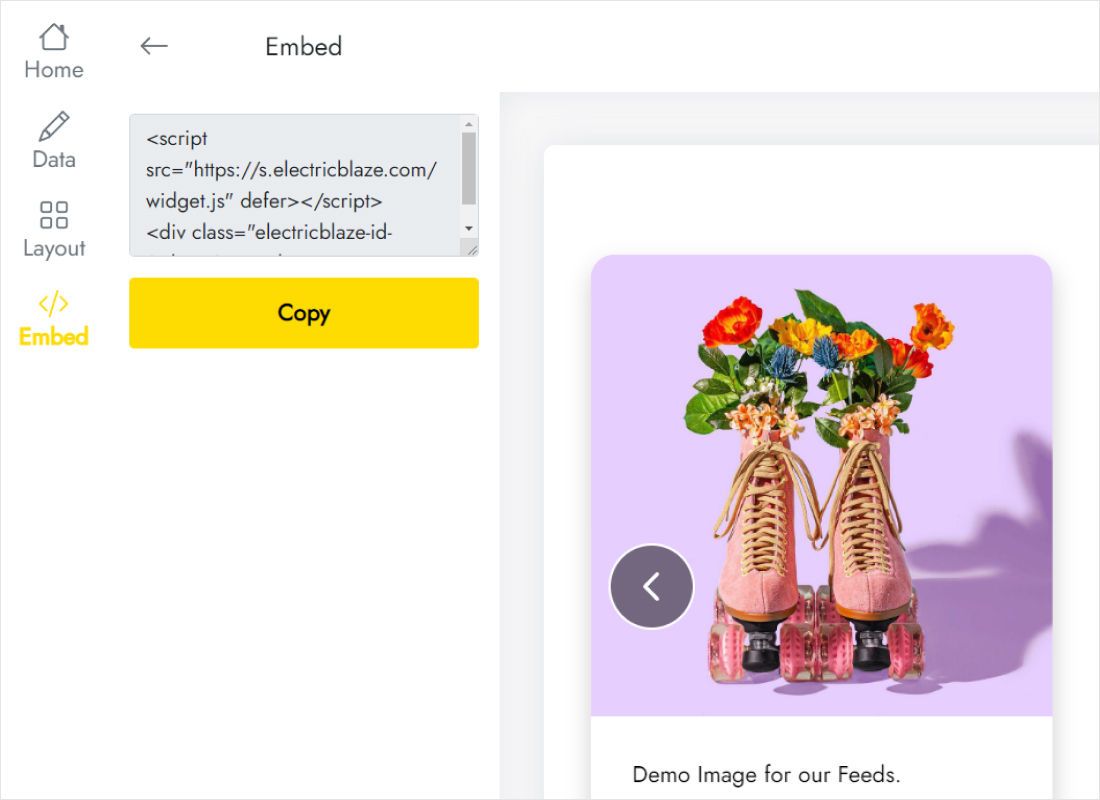
Pressing Add to website shows the code. Copy it.
Step 2: Embed Instagram feed on Google Sites
Snippet copied? Open the site in edit mode.
- Pick the page meant for pictures, perhaps Portfolio or Gallery, from the Pages list.
- Under Insert, Embed opens a dialog with two tabs; choose Embed code.
- Paste. After Next, thumbnails should appear in the preview, and Insert adds them.
- Stretch the frame out to the section edges, then drag its lower handle until the final row of photos is whole.
- Publish and look at the result on your phone as well as a computer.
Instagram shares media only from professional profiles, so switching the account back to personal stops the gallery.
Fitting the Instagram feed on Google Sites pages
Every extra row of pictures makes the widget taller, and captions add even more. Decide on rows first, publish, and then match the frame to what the public page displays, because the editor canvas is not a reliable ruler.
- Homepage teaser. A single-row slider keeps the page short and invites sideways browsing.
- Dedicated gallery page. Three or four columns spread edge to edge, with Full Width enabled in the widget.
- Phone screens. Fewer columns mean a taller block; if a scrollbar shows up inside the frame on mobile, drop a row.
Reuse the identical snippet on as many pages as you like. Photos are fetched again once a day for Free users and hourly for Start subscribers.
Instagram photos in Sites: FAQ
How to embed Instagram on Google Sites for free?
Combine the ElectricBlaze Free plan with the built-in Embed dialog, which also accepts the other ElectricBlaze social widgets. Neither charges anything, and the free widget handles 1,000 views monthly.
Can I embed Instagram in Google Sites from a personal profile?
Not as a gallery. Convert it to Creator or Business first; your posts and followers remain after the switch.
Why do only some rows of photos show?
Your frame is shorter than the gallery inside it. Lengthen it in the editor or set fewer rows on the Layout tab.
Do new pictures appear without editing the site?
Yes. The widget picks up new posts on its own schedule, so the published page never goes stale.
Keep building your site
Other feeds for Sites, the Instagram widget overview and the full embedding walkthrough:
Make your Instagram gallery
Link a professional profile, copy the snippet and your latest photos will greet every visitor.
Create a widget