
How to Add Facebook Feed to Google Sites
A sports club, parent association or corner bakery often keeps its news on a Facebook Page. Follow these steps to add Facebook feed to Google Sites, so those updates show up on your pages automatically, and pick frame sizes that keep longer posts readable.
Requirements before you start
- A public Facebook Page where you hold an admin role. Personal timelines and groups are out of scope.
- Permission to edit the site, whether it belongs to a Gmail address or a school domain.
- An ElectricBlaze account; registration is free.
The Sites editor offers no Facebook block, and a Page link dropped into By URL normally renders blank, since Facebook refuses to be framed by other websites. A widget gets around that and keeps pulling fresh announcements with zero maintenance.
Step 1: Build the Facebook widget
Every display option is described in the feature tour of the Facebook widget. For a Sites page, these five actions are enough:
-

Head to a.electricblaze.com and enter your credentials, or register with an email address.
-

Begin a fresh widget; among the offered types, Facebook Feed is the one you need.
-
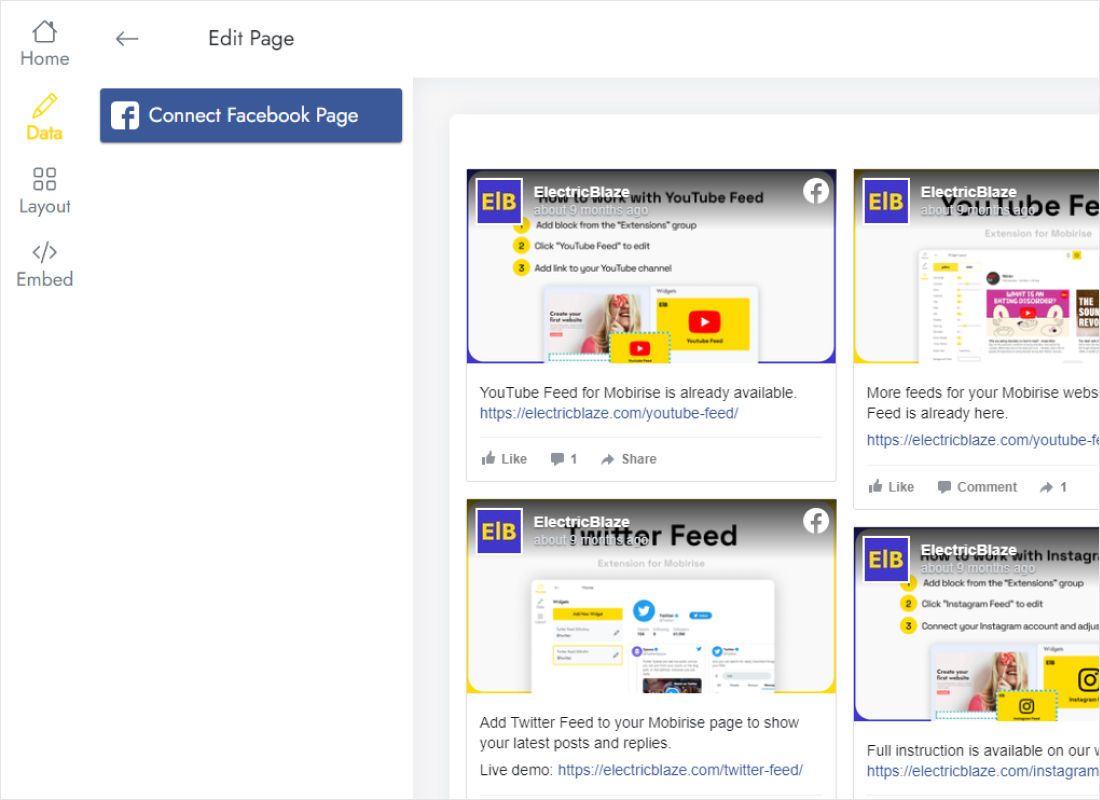
Data tab: press Connect Facebook Page, approve the Facebook login and tick the Page whose updates belong on the site.
-
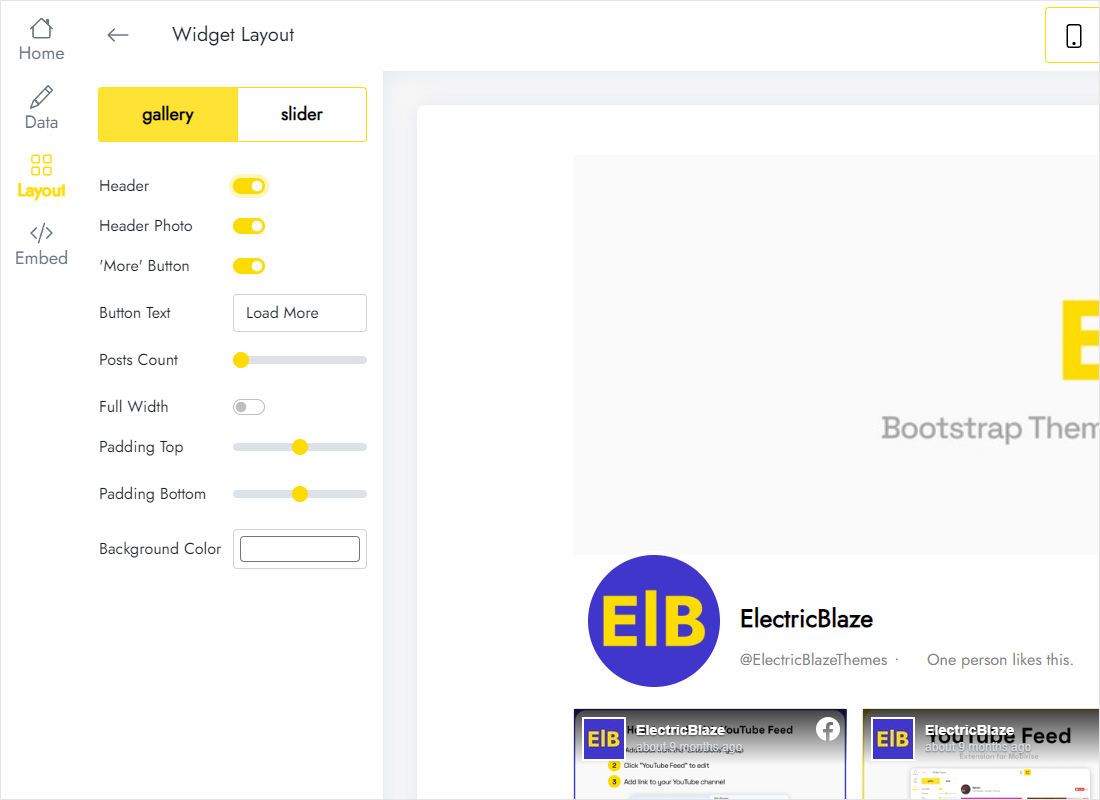
Layout tab: wordy Pages read better as a slider with captions than as a dense grid. Match spacing and background to your Sites theme.
-
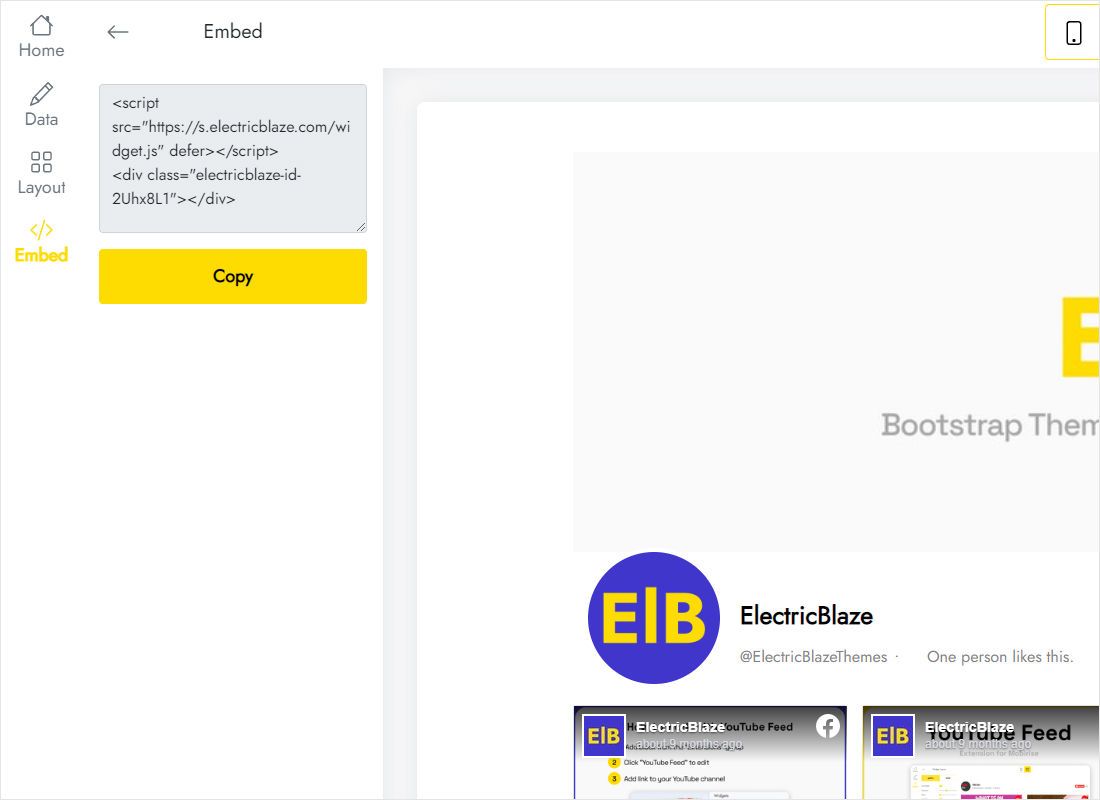
Clicking Add to website reveals a short snippet; copy all of it.
Step 2: Place the posts on a Sites page
Keep that snippet on your clipboard and return to the site you are building.
- Find News, Home or whichever page suits announcements in the Pages list and open it.
- On the right, Insert → Embed brings up a dialog; its Embed code tab is where widgets go.
- Paste, then Next. Once a couple of Page posts render in the preview, confirm with Insert.
- Pull the corner handles until the frame spans its section and no post in the first row is sliced off.
- Hit Publish, open the public URL and scroll through the feed once.
Preview empty? Make sure the Page is public and has at least one post. Age- or country-restricted Pages may not share content with apps.
Sizing tips for Facebook posts
Facebook updates carry more text than photo-first networks, so frame height matters more here. Begin with one row of three columns, publish, then nudge the lower edge until captions are not clipped.
- Narrow column beside text. One-column slider; visitors swipe through recent updates without leaving the paragraph.
- Announcements page. A two-row grid stretched across the page gives parents or members an overview of the week.
- Phones. Columns stack, so a frame that looks right on a laptop may chop posts on a phone. Test both before sharing the link.
Whatever you post on Facebook appears after the next widget refresh, which runs once per day for Free accounts and once per hour for Start. Nobody has to republish the site for that.
Facebook feed on Google Sites: questions
How to embed Facebook feed on Google Sites without coding?
Configure the feed in ElectricBlaze, copy its ready-made snippet and drop it into Insert → Embed → Embed code. You never write or alter a line yourself.
Can I show a Facebook group instead of a Page?
No. Only public Pages you administer can be linked; groups and private profiles stay unavailable.
Will the posts show on a school site?
The Embed dialog is identical on Workspace domains. Some campus networks filter social media, though, and students on those connections might see an empty frame.
Does the Facebook widget cost anything?
Not at first: Free allows five widgets across any social network and a thousand monthly views. Busier sites move to Start, priced at $5 monthly when paid annually.
More guides for Sites
Continue with the general embedding walkthrough, the Facebook widget details or another feed:
Connect your Facebook Page
Link the Page, grab the snippet and your announcements will be on the site before your coffee cools.
Create a widget