
How to Add Instagram Feed to Webflow
Designers usually want to add Instagram feed to Webflow without handing a client a plugin to maintain. An ElectricBlaze widget does it with one snippet, and the posts then behave like any other block in your flex or grid structure.
Checklist before you start
- Instagram set to a Creator or Business profile. Personal mode blocks outside apps from reading posts, so switch it in the app settings first.
- Login details for ElectricBlaze; registration costs nothing.
- Hosting that unlocks custom code: an active Site plan on this project, or a Core, Growth, Agency or Freelancer Workspace.
Think of this Webflow Instagram feed integration as a portable block rather than an app. No keys to paste, no tokens to renew by hand, nothing installed in the project.
Build the Instagram gallery
Every option is explained in the rundown of Instagram widget capabilities. The short route:
-

Head to a.electricblaze.com; returning users log in, newcomers register with an email.
-

Hit Create New Widget, then pick the Instagram Feed tile.
-
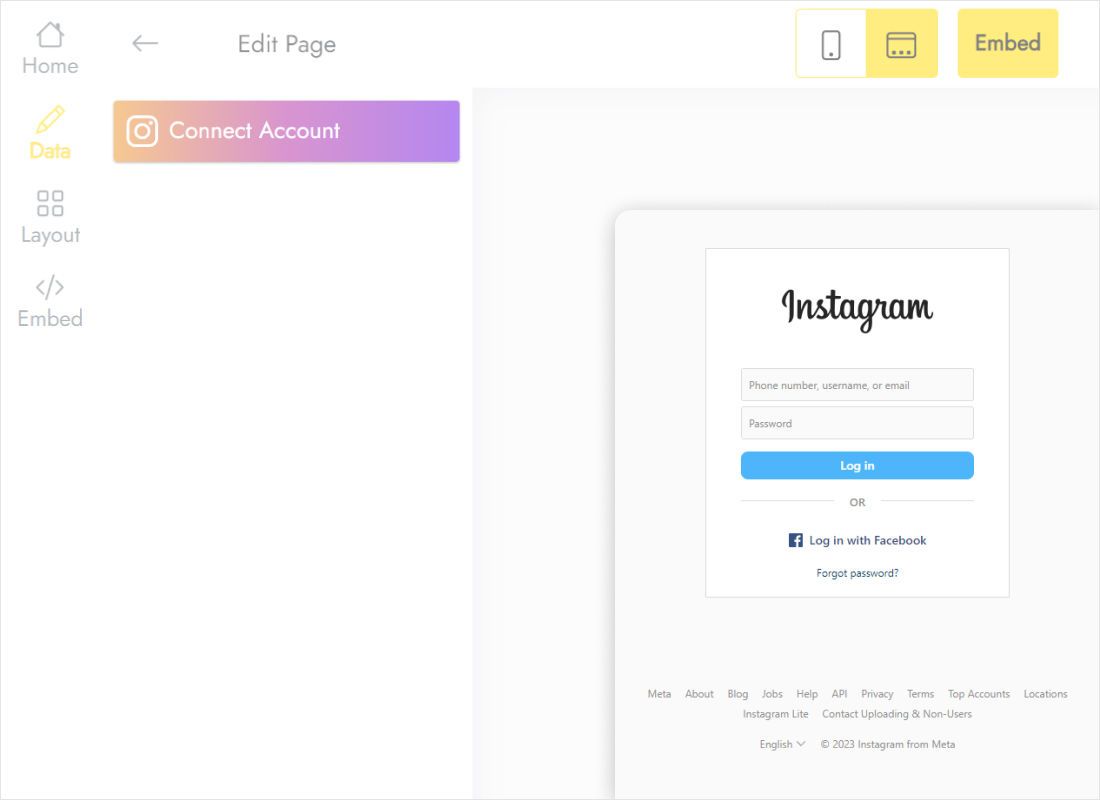
Under Data, press Connect Account and confirm permissions in the pop-up from Instagram.
-
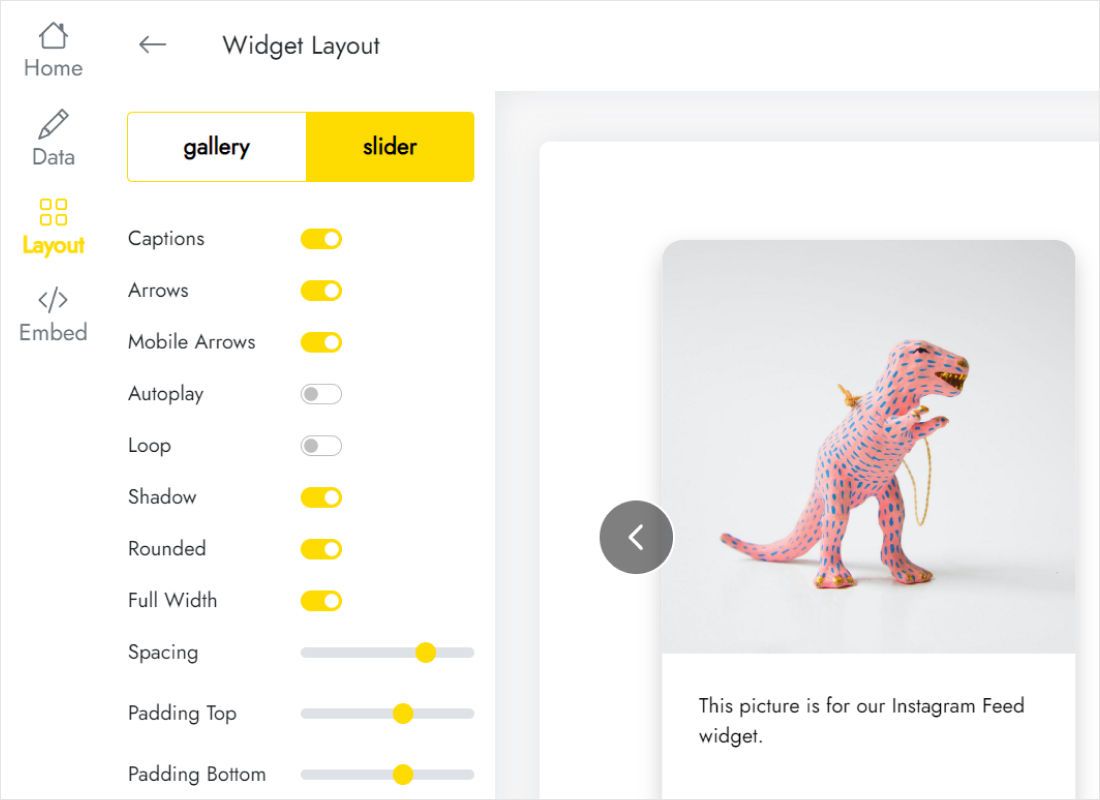
Under Layout, match the gallery to your design system: column count, rows, caption visibility and gap size.
-
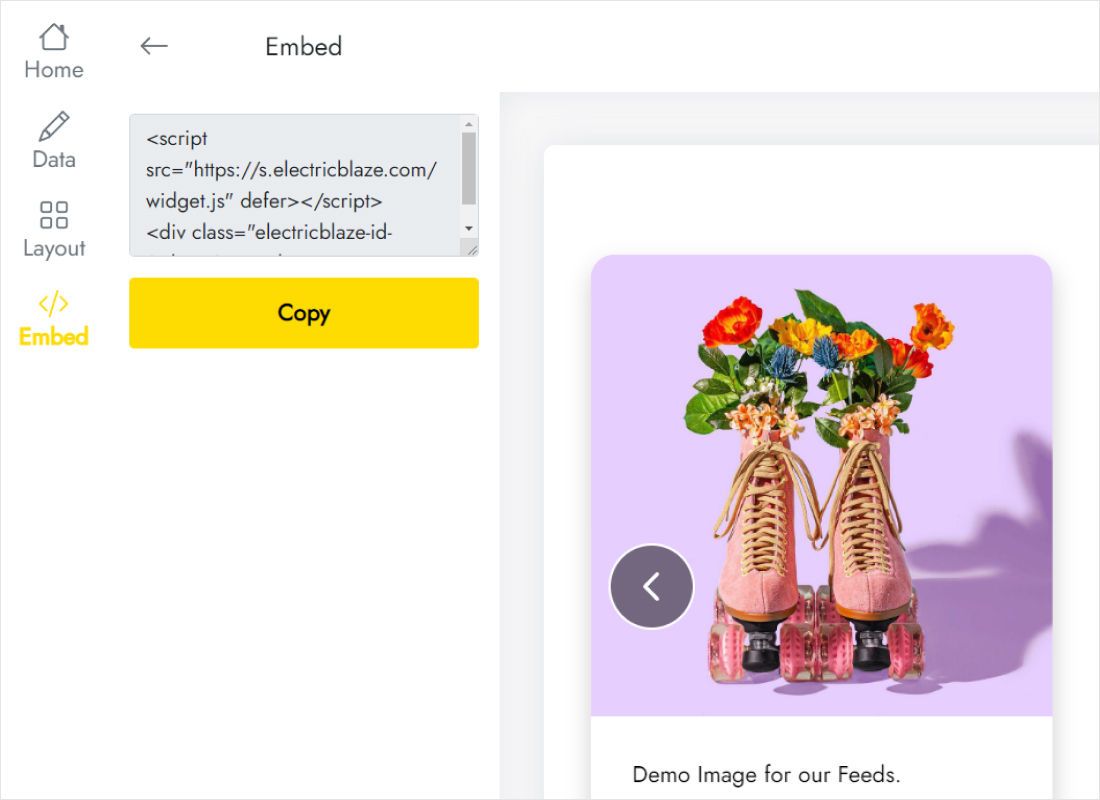
Press Add to website in the top bar; the dialog holds the embed code.
Place the snippet in the Designer
With the code on your clipboard, open the project.
- Navigate to the page and select an empty div block that will wrap the photos.
- In the Add panel find the Advanced group and pull Code Embed inside that div.
- The editor opens straight away: paste, then Save & Close.
- Give the embed 100% width in the Style panel so it inherits the wrapper size.
- Publish and load the live URL.
A grey script placeholder on the canvas is normal. Photos render in preview mode and after publishing.
Fitting the Instagram grid into Webflow layouts
- Flex rows. Beside a text column, set flex-basis to around 50% or add a min-width. A flex child without either shrinks to its content and the gallery ends up as a sliver.
- CSS grid. Make the embed span all tracks, or assign a named area, instead of parking it in one narrow cell.
- Breakpoints. Styles cascade from desktop down. On Mobile Portrait four columns shrink to stamp-sized thumbnails, so a slider usually reads better there.
- Reuse. Wrap the embed in a component when the same Instagram strip, or a Pinterest moodboard strip, should sit in every footer.
Webflow Instagram feed free setups work on the widget side: our Free plan gives 1,000 monthly views and daily post updates. Start adds hourly updates and unlimited views.
Instagram on Webflow: common questions
Is there a built-in Instagram widget Webflow offers?
No element in the Add panel lists posts. An Instagram widget Webflow hosts through Code Embed is the common workaround.
Why does the Designer show a grey box?
Scripts stay inactive on the canvas. Switch to preview or visit the published page.
Must I republish after every new post?
No. Posts arrive on the widget refresh schedule and the page picks them up on its own.
Can the gallery go into a CMS blog post?
Yes. In the rich text field use the plus icon, choose the custom code option and paste the same code.
More guides
Continue with the general Webflow instructions, the widget overview or another feed:
Create your Instagram gallery
Link a profile, grab the code, drop it into a Code Embed. Zero cost to begin.
Create a widget