
Webflow Vimeo Embeds: Single Clips and Full Galleries
Webflow Vimeo work comes in two sizes. The native Video element covers a single film; an ElectricBlaze feed turns your entire library into a grid or slider that grows with each upload. Both are explained here.
Choosing the right approach
One film: the Video element
Wondering how to add Vimeo video to Webflow for a lone showreel? Drag Video from the Add panel and paste the link into its settings. That element accepts YouTube and Vimeo URLs only.
A muted hero loop
Background Video does not accept hosted links; it expects an uploaded file. For a silent loop behind a headline, upload the clip itself.
Whole library: a feed widget
Portfolio, course and agency pages tend to need dozens of films kept current. That calls for an embedded feed, which needs an account to connect and custom code rights on the project (a Site plan or a Core, Growth, Agency or Freelancer Workspace).
Create the video gallery
Features are listed in the portfolio grid feature overview. Building one:
-

Log in at a.electricblaze.com; newcomers register on that page.
-

Create New Widget → the video feed tile.
-
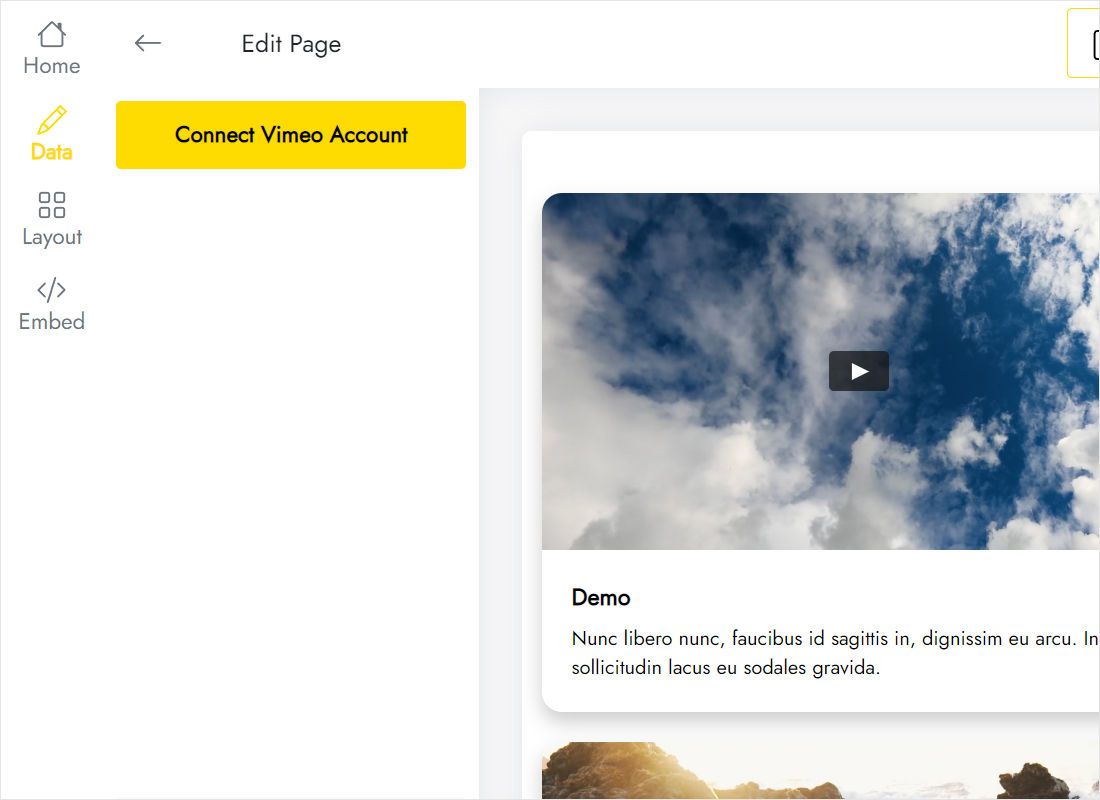
Data tab: Connect Vimeo Account, then authorise.
-
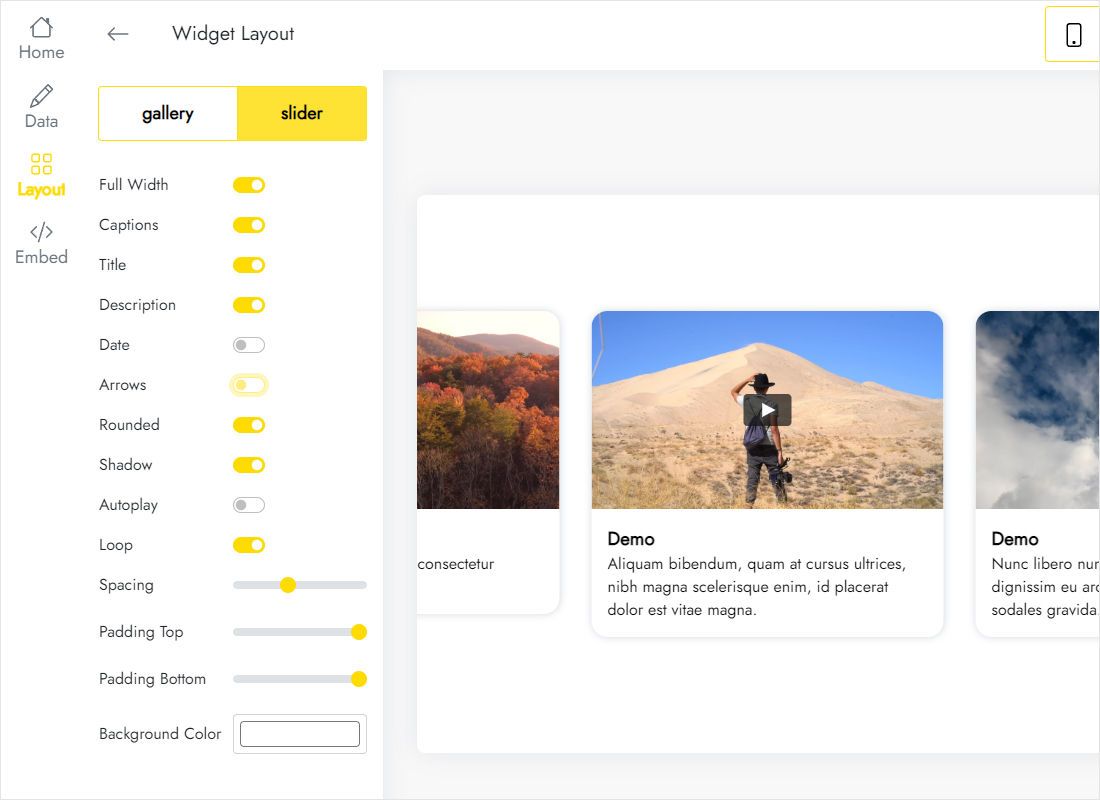
Layout tab: gallery against slider, column and row counts, full-width toggle.
-
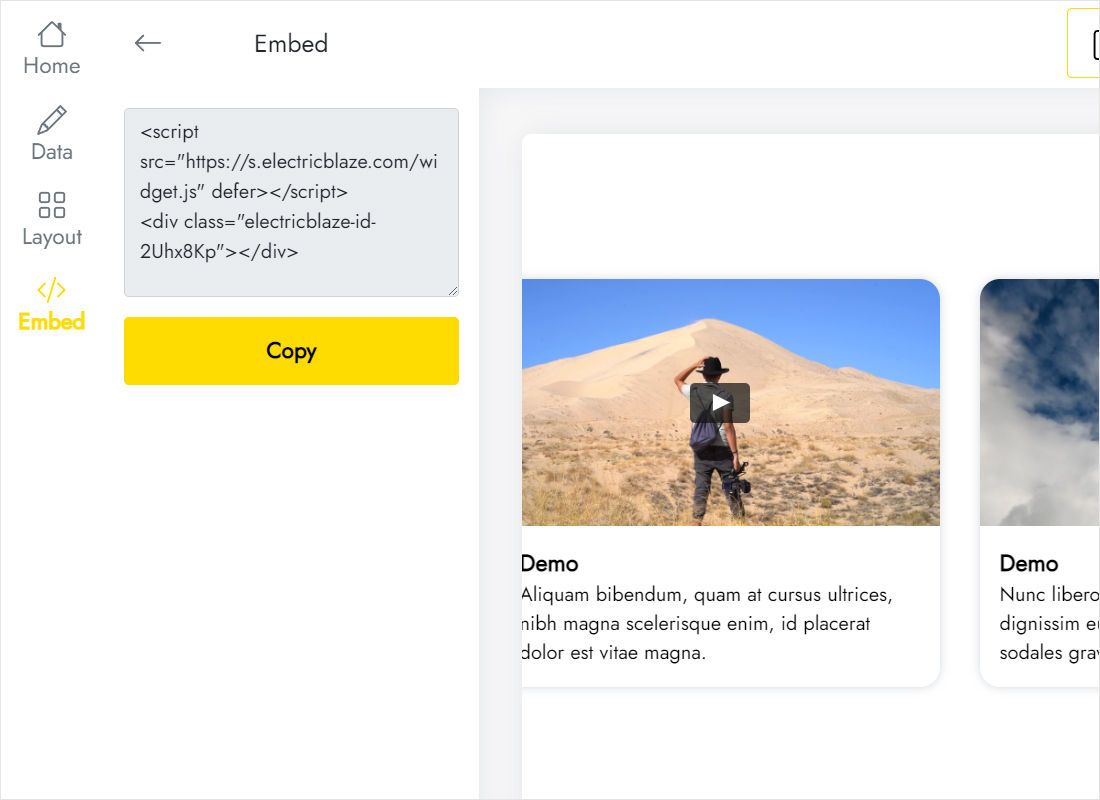
Add to website opens the code window.
How to embed Vimeo video in Webflow as a gallery
Open the Designer on the videos page.
- Insert a Section plus Container, or pick an empty div.
- Bring in Code Embed from the Advanced group.
- Insert the code; save and close the window.
- Width 100%; for an edge-to-edge band, place the embed outside the container and switch on full width in the widget.
- Publish and try playback on the live page.
On the canvas the script stays a placeholder. Films load in preview mode and on the published site.
Playback and layout notes
- Autoplay. Browsers permit autoplay only when the video is muted. On the Video element that means muted loop settings; a gallery is best kept click-to-play.
- 16:9 thumbnails. Landscape frames fit three or four columns on desktop. On Mobile Portrait one or two columns keep titles legible.
- Grid parents. Inside a CSS grid, make the embed span every track; a single cell shrinks thumbnails.
- Privacy. Films restricted from playing on other domains fail inside any embed. Relax the embed permissions in your hosting account first.
New uploads appear after the widget refresh: daily on Free, hourly on Start.
Vimeo video webflow FAQ
Fastest way to show one clip?
The native Video element with the link pasted. To embed Vimeo Webflow galleries with many films, use Code Embed and a feed widget; YouTube channel uploads work the same way.
Can the player controls be hidden?
Control options depend on your hosting plan and the player settings on the video platform, not on the site builder.
Do I have to re-embed each new upload?
No. The gallery pulls clips from the connected account, so a new film joins the grid at the next refresh.
Further guides
Other instructions for this builder and the video widget overview:
Build a video gallery
Connect your library, grab the code, publish. The Free plan is enough to start.
Create a widget