
WordPress WhatsApp Chat Button on Every Page
Visitors who have a quick question would rather tap WhatsApp than fill in a form. Here you install a WordPress WhatsApp chat button based on ElectricBlaze Popup Chat; the same bubble may also offer Messenger, Telegram, Viber, Signal or Discord.
What makes chat different from other widgets
Feeds such as an Instagram photo grid live inside a page. A chat bubble is a floating button pinned to the viewport corner, useful only when it greets people on every URL. So the code belongs in a site-wide spot such as the footer, not in the body of one post.
Before starting, note your WhatsApp number with its country code, usernames or invite links for other messengers, and an Administrator login. A snippet also means one fewer plugin to update and no settings page competing with your theme options.
Step 1: Add your contacts
The bubble’s field-by-field explainer covers each setting in depth.
-

Head into the ElectricBlaze app, a.electricblaze.com, with an existing or new login.
-

The Popup Chat tile waits under Create New Widget.
-
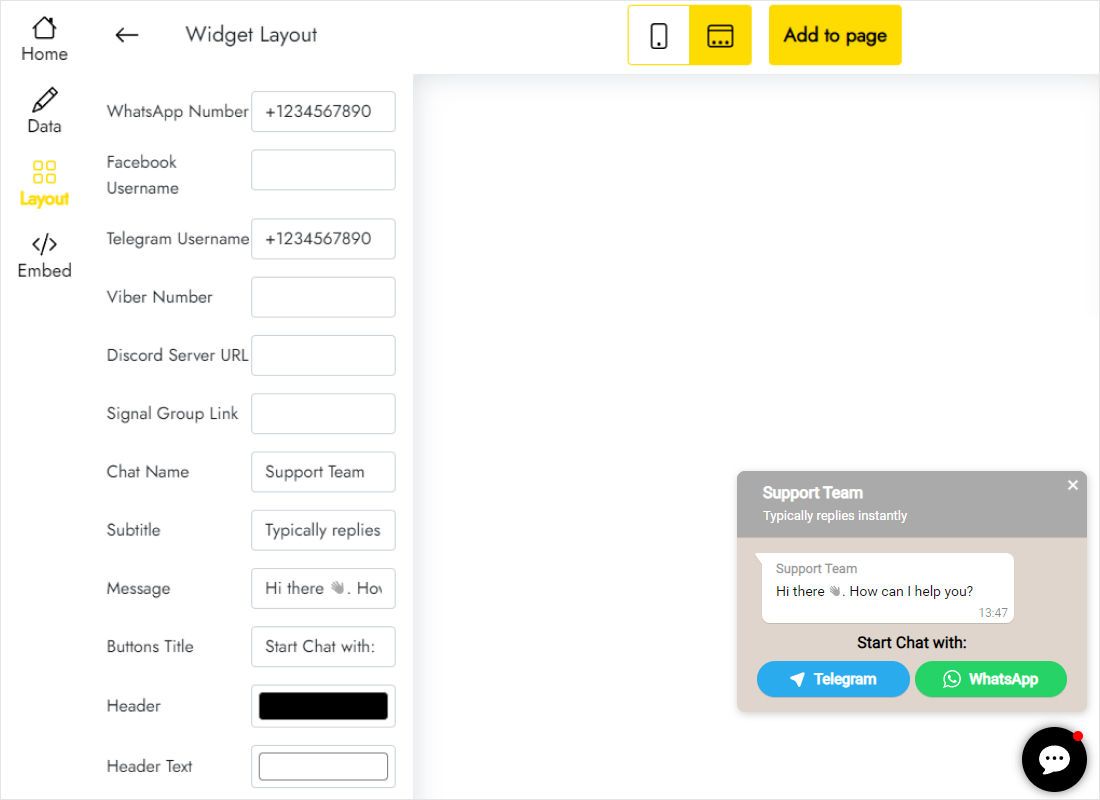
Type your WhatsApp digits into the Layout tab; Telegram, Viber, Signal, Discord and Facebook fields are optional extras.
-
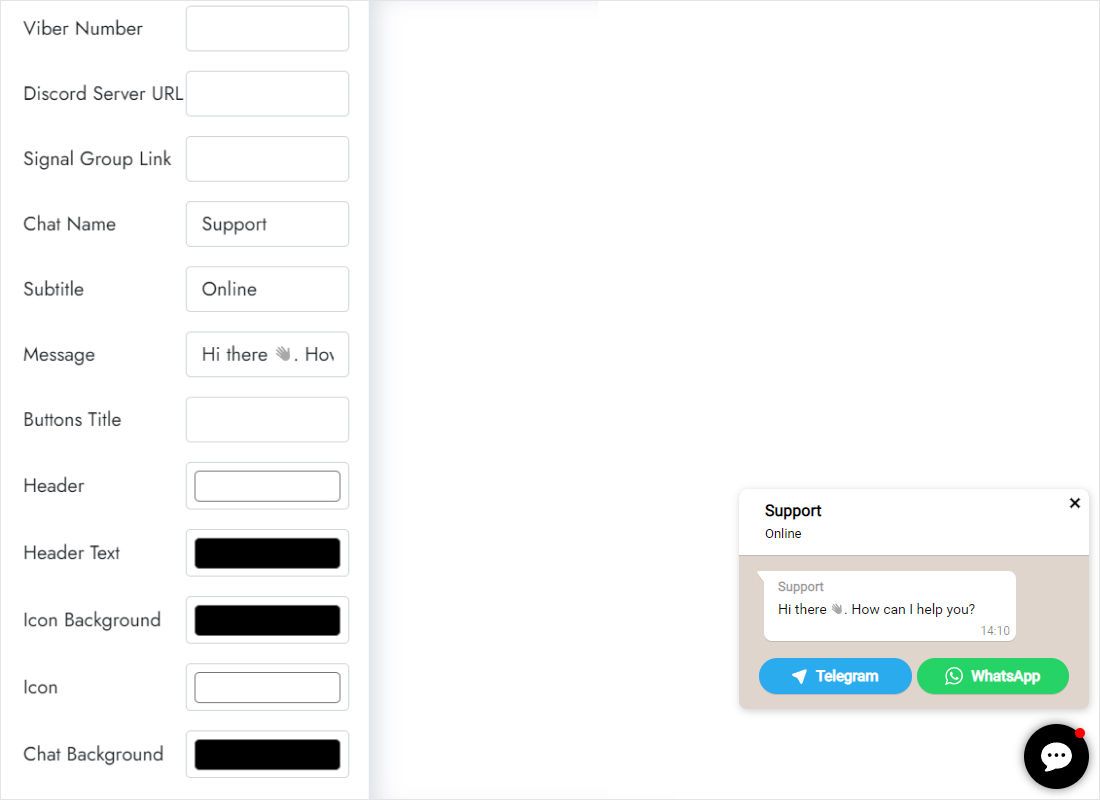
Lower on that tab, name the chat, add a subtitle and a greeting, and tint the header to suit your brand.
-
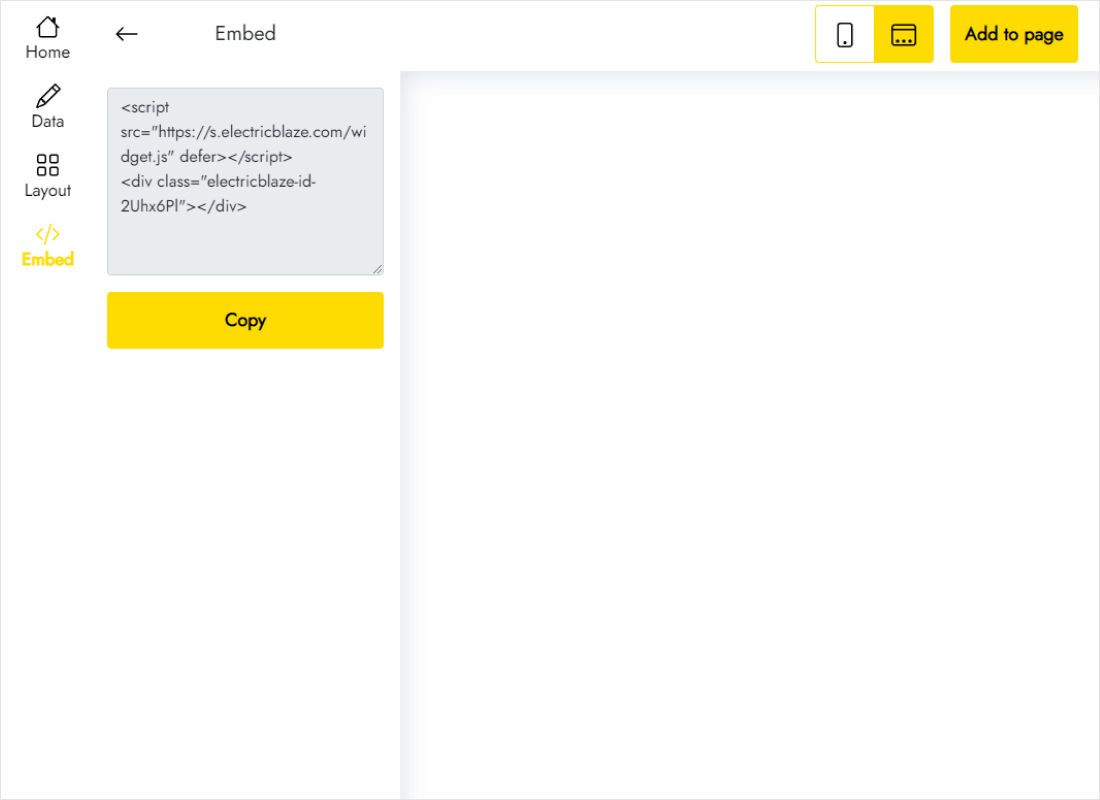
Grab both code lines from Add to website.
Step 2: Site-wide install, or how to add WhatsApp chat button in WordPress
Choose the option that matches your setup:
- Block theme (Twenty Twenty-Four, Twenty Twenty-Five): Appearance → Editor, open the Footer template part, insert a Custom HTML block, paste and save.
- Classic theme: Appearance → Widgets, then a Custom HTML widget inside the footer column holds the code.
- Header and footer plugin such as WPCode, if already installed: paste into the footer field.
- Elementor Pro: Elementor → Custom Code, choose Body End and apply to the entire site.
- Purge the page cache and click through a few URLs, including a blog post, to see the bubble everywhere.
If the footer is hidden on landing page templates, the button disappears there too. A code plugin or Elementor Pro Custom Code avoids that gap.
Keeping the bubble out of the way
WhatsApp chat button WordPress plugin conflicts
Two chat tools at once, for example a live-chat plugin next to this bubble, fight over the bottom-right corner. Keep one of them, or move the other tool to the opposite corner in its own settings.
- Cookie banners. Consent bars usually cover the bottom edge on phones. Check that the button remains tappable once the banner shows.
- Back-to-top arrows. Many themes add one in the same corner; move or disable it in the theme options.
- WooCommerce. Some shop themes pin a buy bar to the bottom of product pages on mobile. Open a product on your phone to check.
Changing a number or greeting later is done in ElectricBlaze. The WordPress footer code stays as it is.
Chat on WordPress: FAQ
How to add chat widget in WordPress with core tools only?
Use a Custom HTML block in the Footer template part, or a Custom HTML widget in a footer area. Neither requires an extra plugin.
Can the bubble show only on some pages?
Yes: put the code in a Custom HTML block on just those pages. Visitors reading other URLs then get no bubble.
Does it work on WordPress.com?
On paid WordPress.com plans, once hosting features are switched on. Free sites strip scripts.
Do chats go through ElectricBlaze?
No. Each button opens the messenger app or web version directly; conversations happen there.
WordPress guide index
Continue with the main WordPress embedding page, the Popup Chat overview or another widget:
Build your chat button
One number, two lines of code in the footer, and your visitors can message you from any page.
Create a widget