
How to Add WhatsApp Chat Button to Jimdo
A small icon in the corner lets visitors ask about prices, bookings or delivery from whatever page they are on. This tutorial shows the way to add WhatsApp chat button to Jimdo Creator using ElectricBlaze Popup Chat, which can also list Telegram, Messenger and other apps behind that one WhatsApp icon.
Requirements
- The phone number tied to your WhatsApp or WhatsApp Business account.
- Optionally, handles for Telegram or Messenger, a Viber number, an invite to a Signal group or a link to your Discord community.
- A website running on Jimdo Creator, since code widgets are unsupported in the newer Website Builder.
Creator’s add-on list includes a partner Live Chat element. Popup Chat works differently: nobody has to watch a chat dashboard, because each conversation opens in WhatsApp or another messenger you already check on your phone.
Step 1: Configure Popup Chat
For a field-by-field tour, see the popup’s channel and colour options. The quick route:
-

Browse to a.electricblaze.com; sign in, or register with a Google, Facebook or email login.
-

Start a fresh widget from the dashboard and select the Popup Chat type.
-
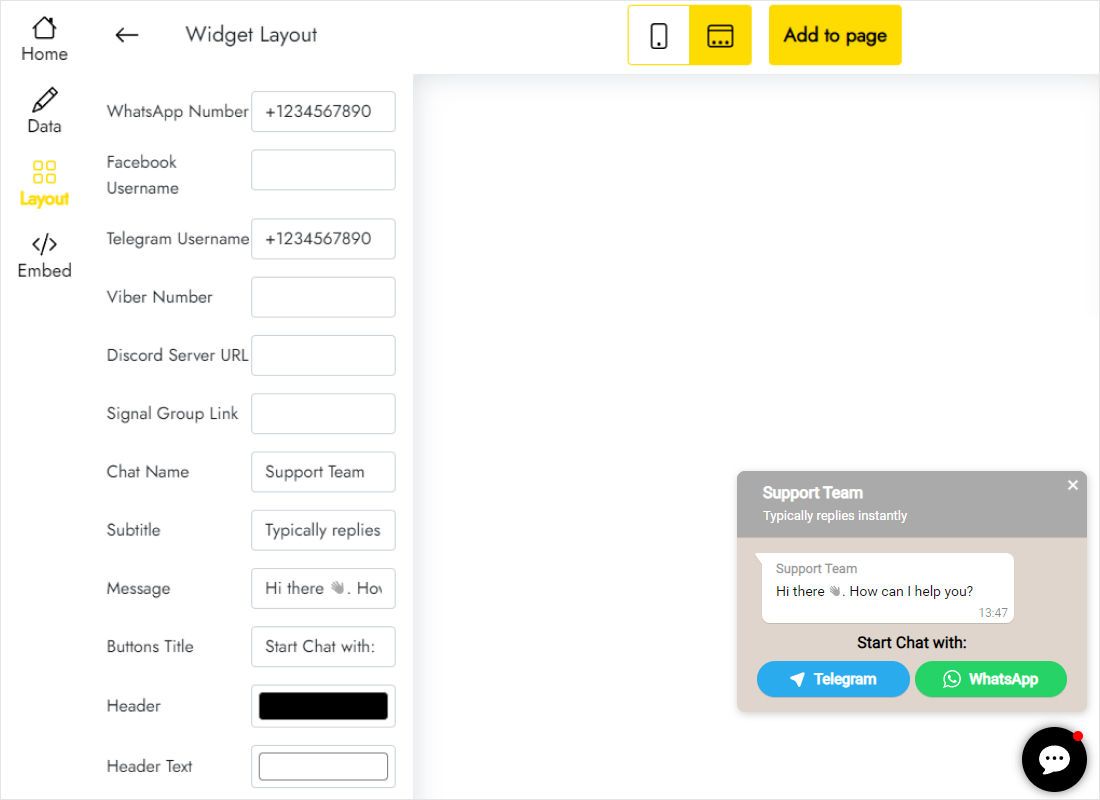
Fill in Layout: the WhatsApp number, optional Telegram, Viber, Signal or Discord contacts, a chat name, subtitle and the greeting visitors see first.
-
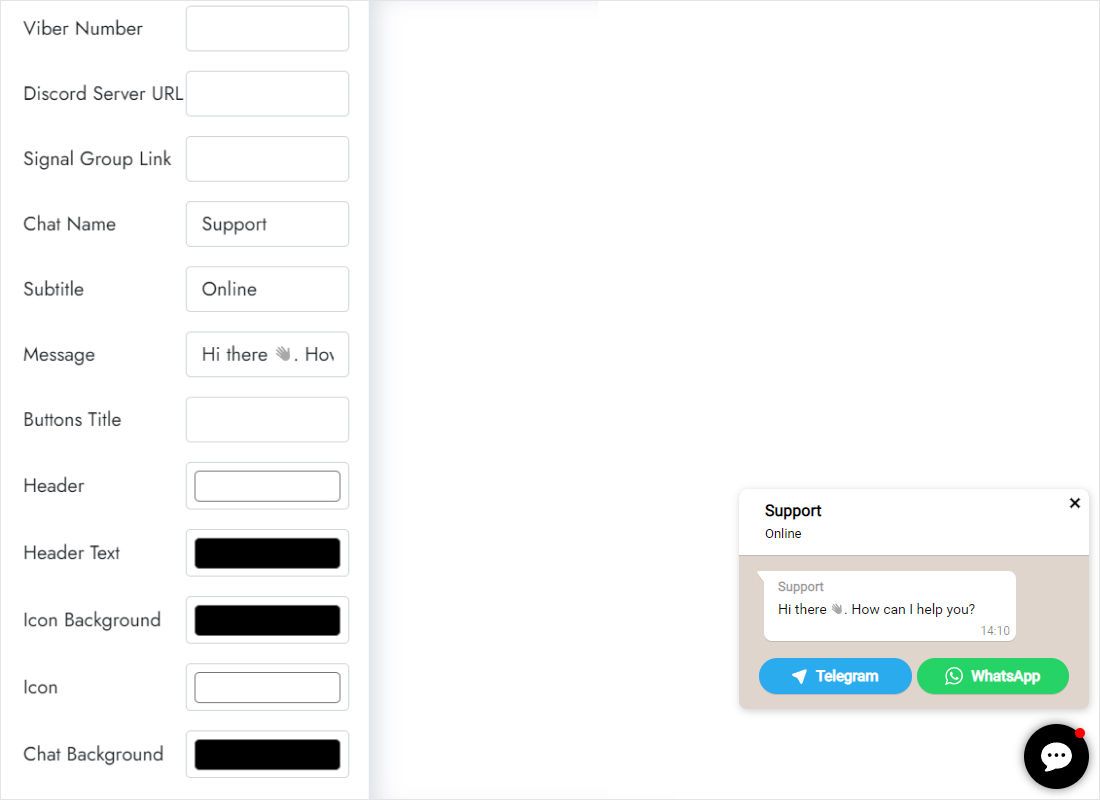
Scroll down the tab to set header, header text, icon and chat background colours that fit the Jimdo design.
-
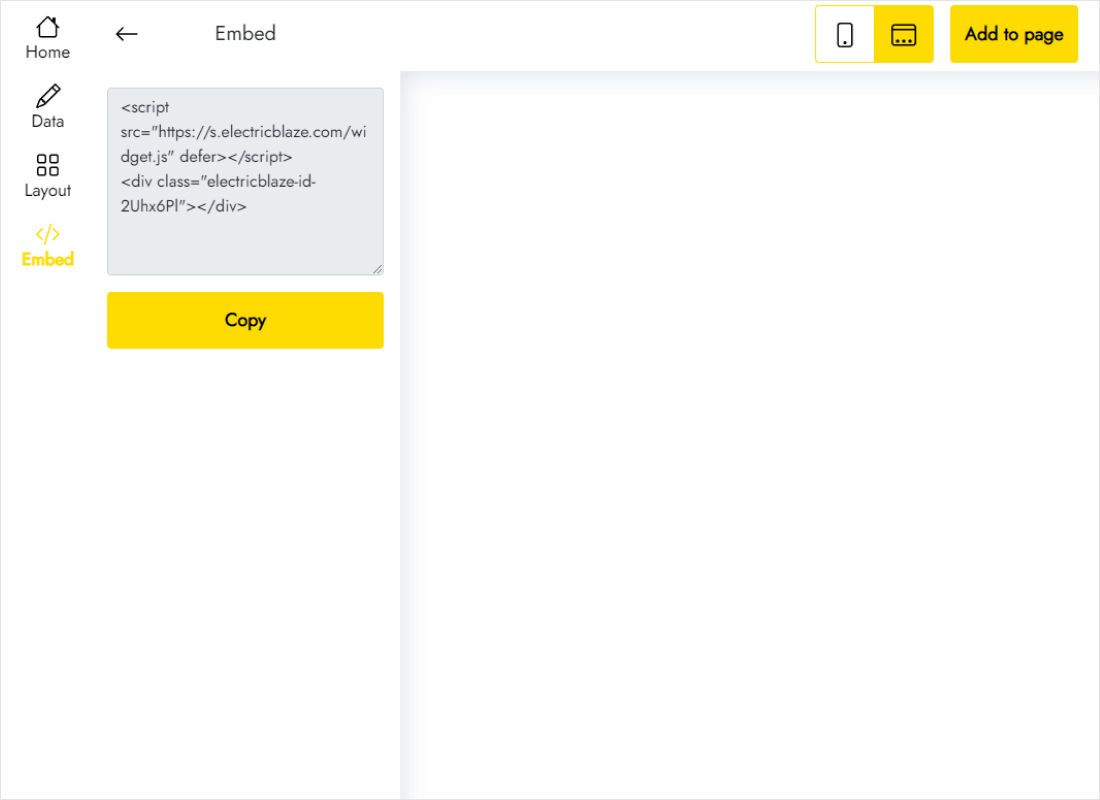
Hit Add to website at the top of the editor and copy what it shows.
Step 2: Show the button on every Jimdo page
A chat icon should follow visitors through the whole site, so the Creator sidebar, repeated on each page, is the natural spot.
- Enter edit mode and scroll to your template’s sidebar; depending on the design it appears beside the content or underneath it.
- Inside that sidebar, choose Add Element followed by Widget/HTML.
- Insert the copied Popup Chat snippet and click Save.
- Exit the editor and click through a handful of pages, checking that the WhatsApp icon waits in the corner of each.
The sidebar element may look like an empty gap. That is expected: the icon attaches to the browser window, not to the element.
Placement tips for the WhatsApp icon
- Cookie banner. When your consent notice spans the lower edge of the screen, confirm the icon leaves its Accept and Decline buttons clickable. If they collide, move the banner in your consent tool’s settings.
- Phone corner. Try it on an actual handset. Some templates park a scroll-up arrow or basket icon low on the screen, and the chat bubble must not hide it.
- One copy only. Pasting the snippet on individual pages in addition to the sidebar can produce twin icons.
- Greeting. State your usual reply hours in the welcome line so people know when WhatsApp messages get answered.
Conversations open directly in WhatsApp or whichever messenger the visitor chooses, so you answer from your phone like any other chat.
WhatsApp on Jimdo: questions
Can the popup show WhatsApp alone, without other messengers?
Yes. Leave the remaining contact fields blank and only WhatsApp is offered.
Why is the icon visible on some pages but not on others?
Either the snippet sits on one page instead of the sidebar, or certain pages use a layout without a sidebar. Relocate the element, or add a copy to those pages.
Will this work if my site was made with the Jimdo Website Builder?
No. That editor rejects third-party code, so a Creator site is needed.
Is Popup Chat free?
Five widgets of your choice and a thousand monthly views come at no charge. The Start plan, $5 per month on yearly billing, drops the view cap and the branding.
Related Jimdo help
More instructions for Creator sites and a full description of the chat widget:
Put WhatsApp on your Creator site
No cost to begin: type your number, copy the snippet and place it in the Jimdo sidebar.
Create a widget