How to Get a PayPal Client ID and a Stripe Account Key
This guide explains how to get PayPal client ID credentials for Smart Cart, where to find them later, why the Live ID matters, and how to connect a Stripe account instead. Allow about ten minutes if your PayPal Business account is already verified.
What is a PayPal client ID?
So, what is PayPal client ID in plain words? It is the public identifier of an application registered in the PayPal developer dashboard. When the checkout script on your page loads, it sends this ID to PayPal, and PayPal knows which merchant account should receive the money.
The ID is not a password. It is designed to appear in the source code of a web page, so it is safe to paste into Smart Cart. It works together with a secret key, but that second value stays on PayPal servers and is never needed for a Smart Cart link.
Every app has two sets of credentials: Sandbox for test payments with fake accounts and Live for real money. Only the Live one lets real customers complete a purchase.
Before you start: a PayPal Business account
Live API credentials are issued to business accounts. If you sell with a personal PayPal account, upgrade it for free in the PayPal account settings or open a new Business account with your company details. Older Premier accounts can also create apps.
Make sure the email address is confirmed and the account is allowed to receive payments. Unverified accounts can create an app, but payments may be held until PayPal finishes its checks; meanwhile you can collect orders without online payment through a product list linked to WhatsApp.
How to get PayPal client ID step by step
- Go to developer.paypal.com and log in with the same email and password you use for your PayPal Business account.
- Open Apps & Credentials in the dashboard menu.
- Switch the toggle at the top of the page from Sandbox to Live. Apps created in Sandbox mode cannot accept real payments.
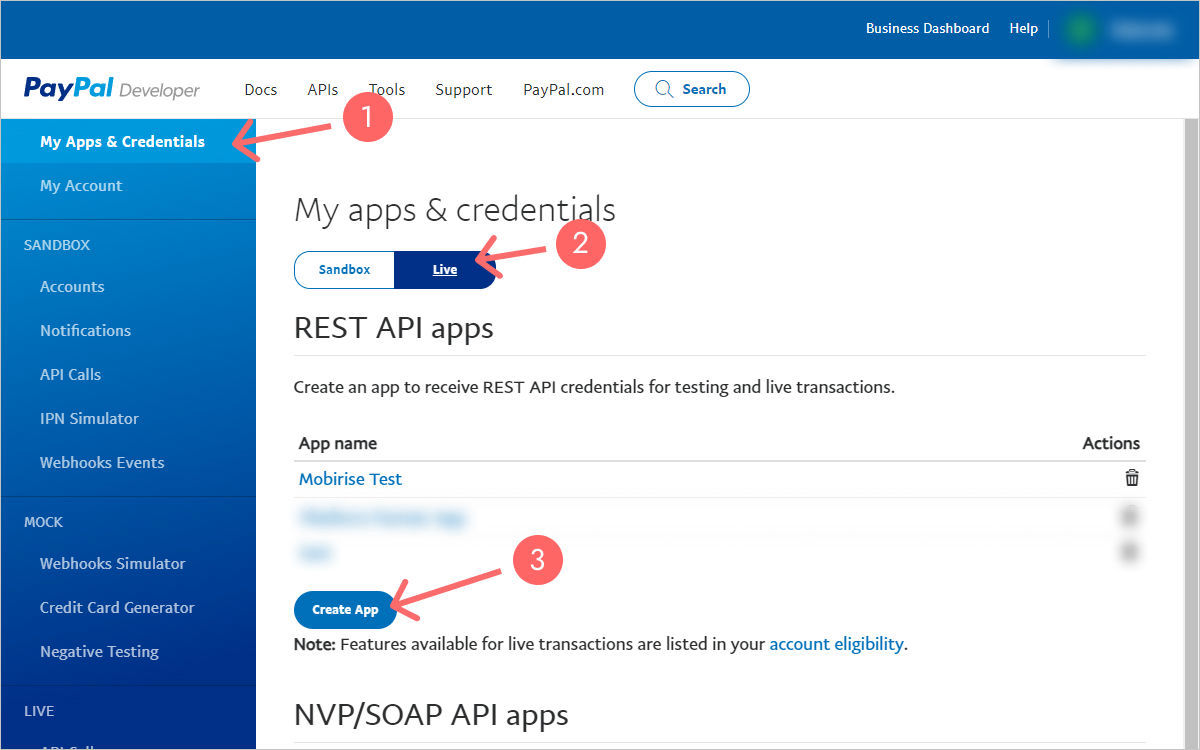
- Press Create App, give it a name you will recognise, for example “My store checkout”, and confirm.
- Open the new app. The Client ID is shown at the top of its credentials; copy it with the copy icon.
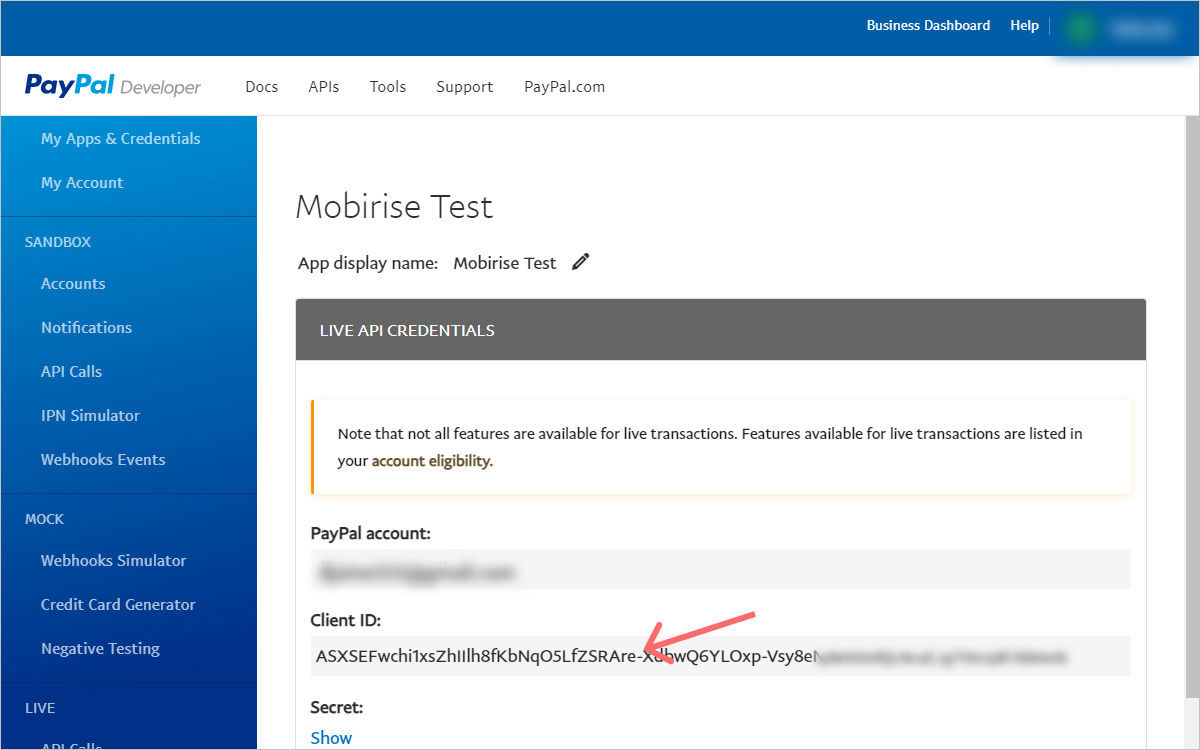
- In Mobirise, select your product button, open the Smart Cart tab of the link settings, choose PayPal and paste the ID into the Client ID field.
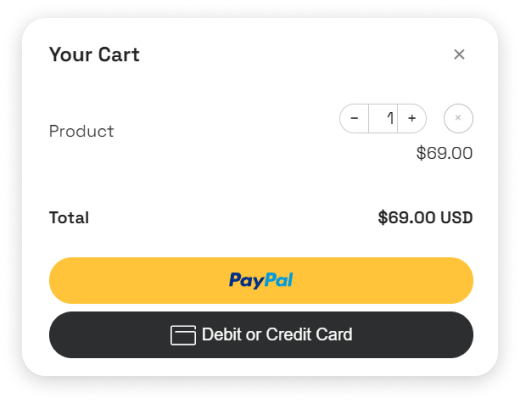
- Publish the site and open the page in a browser. The PayPal buttons should appear in the cart window.
How to find PayPal client ID for an app you already have
Credentials do not expire, so you can reuse an existing app. Log in to the developer dashboard, open Apps & Credentials, check that the Live toggle is on and click the app name. If the list is empty in Live mode, the app was created in Sandbox and you need to create a new Live app.
Several apps can exist side by side. Use a separate one for each store if you want to track payments or revoke access independently.
PayPal live client ID vs sandbox ID
- Sandbox ID: works only with test buyer accounts from the developer dashboard. No real money moves. Useful to try the checkout flow.
- Live ID: charges real cards and PayPal balances and sends funds to your Business account. This is the one a published store needs.
The two IDs look alike, long strings of letters and digits, so the most common mistake is copying the Sandbox value. If buyers see an error or no buttons at all, compare the ID in Smart Cart with the one shown in Live mode.
Client ID or secret: what goes into Smart Cart
Smart Cart needs only the client ID. Never paste the Secret into a website, a link or an email: it gives full API access to your account. If you ever exposed it, open the app in the dashboard and generate a new secret; the client ID stays the same.
How to get a Stripe account key for Smart Cart
Stripe works differently. Smart Cart does not ask for your publishable or secret API keys. Instead, your Stripe account is connected through ElectricBlaze, and you receive a special account key that tells the cart where to send the payments.
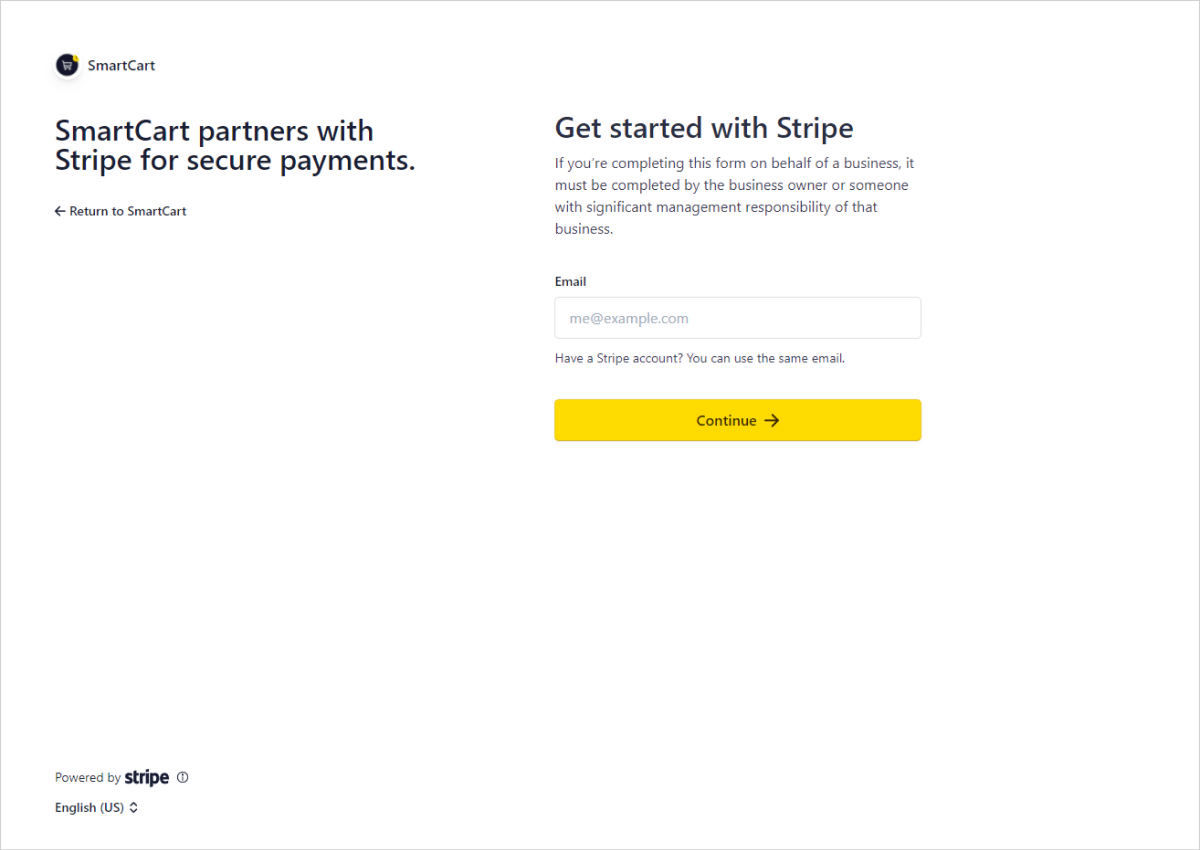
- Open p.electricblaze.com/stripe/connect, or click How to get Account Key? in the Smart Cart link settings.
- Enter the email you want to use with Stripe. Existing users sign in with their password; new users fill in the business details Stripe asks for.
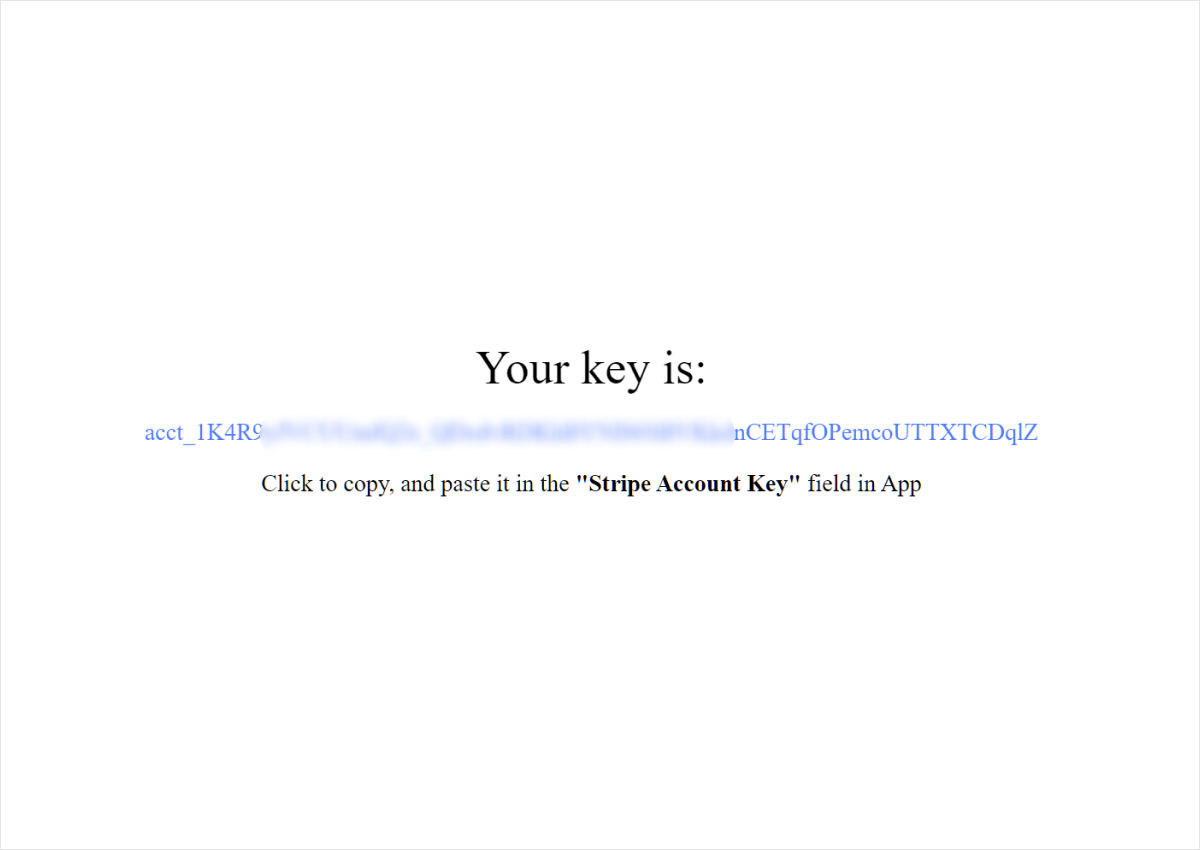
- When the connection is complete, the page shows your account key. Copy it into the Account Key field of the Smart Cart link.
Stripe supports many payment methods and currencies. Which ones your customers see depends on the country of your Stripe account and the settings in your Stripe dashboard.
Test the checkout before you announce the store
A five-minute test saves awkward messages from customers, and a messenger button on the store page gives buyers a quick way to report a problem. Before sharing the link, run through the purchase exactly as a buyer would:
- Open the published page on a phone and on a desktop browser.
- Add two different products, change the quantity and remove one item to see that totals update.
- Start the payment and check that the amount, currency and product names are correct in the payment window.
- Complete one real low-value order with your own card or a friend’s account, then refund it from your merchant dashboard.
- Confirm that the order notification reached the email address you expect.
If something looks wrong, fix the product price or name in the link settings, publish again and repeat the test. Test purchases made this way are regular transactions, so the usual processing fees apply to them and are returned only according to the provider’s refund rules.
Keep payment credentials safe and organised
- Store the Live ID and the Stripe account key in a password manager together with the name of the site that uses them.
- Use a separate app per store so a leaked or retired project can be switched off without touching the others.
- Enable two-step verification on both the payment account and the developer dashboard.
- When a developer or agency finishes work on your site, change the account password and review which apps exist.
Payment buttons not showing? Common fixes
- “invalid client_id” or an empty cart window: the ID is from Sandbox, has a missing character or contains a space at the start or end. Copy it again from Live mode.
- Buttons appear, but payments fail: the Business account is not verified or cannot accept payments in the chosen currency. Check notifications in your PayPal account.
- Works in preview, not on the published site: publish again after changing the ID, then clear the browser cache.
- Nothing loads in one browser only: privacy extensions and ad blockers sometimes block payment scripts. Test in a private window.
- Stripe checkout does not open: finish the Stripe onboarding; accounts with missing details cannot take payments yet.
PayPal client ID questions
Can I use a PayPal client ID from a personal account?
Personal accounts are not intended for receiving payments through apps. Upgrade to a Business account first; the upgrade is free and keeps your email address.
Is it safe to publish the client ID on my website?
Yes. The client ID is public by design and is visible in the page code of every site that uses PayPal buttons. Keep the secret private.
Do I need a separate client ID for every product?
No. One Live ID can be used in all Smart Cart links of a project. Remember that one payment system is used for the whole project.
Does PayPal charge for creating an app?
Creating an app and getting credentials is free. PayPal takes its standard transaction fees from each payment, the same as for other checkouts.
Where do I see payments made through Smart Cart?
In the dashboard of the payment provider you connected. Orders, refunds and payouts are managed there; Smart Cart itself does not store card data.
Do I need a Stripe account key if I only use PayPal?
No. Each project uses one payment system, so you need only the credential for the provider you selected: the client ID for PayPal or the account key for Stripe.
Can I switch from PayPal to Stripe later?
Yes. Connect Stripe to get an account key, then change the payment system in the Smart Cart settings and update the links of the project.
Smart Cart for Mobirise
Turn any button or link in a Mobirise project into Buy Now or Add to Cart, and accept payments through PayPal, Stripe or WhatsApp orders.
Buy Now