
How to Add HTML to Squarespace With a Code Block
Need to add HTML to Squarespace for a social feed, a player or a chat button? This walkthrough covers the Code block, site-wide Code Injection, the plan that unlocks scripts and the reason a fresh embed often looks blank while you are still logged in.
Can you use HTML on Squarespace?
Yes. So, can you use HTML on Squarespace with any subscription? Plain markup and inline CSS are accepted on every plan. JavaScript and iframes are a different story: Squarespace allows them in Code blocks only on Core, Plus, Advanced and the older Business and Commerce plans. Every ElectricBlaze snippet is HTML plus a short script, so on Basic or the legacy Personal plan the block saves but never runs.
There are two places to paste third-party code:
- Code block. Drops markup into one spot on one page. Right for galleries, sliders and anything that should sit between your text and images.
- Code Injection. Found under Settings → Website Tools. Its Footer field prints your snippet just before the closing body tag of every page, which suits buttons and bars that hover over the layout.
Copy the HTML snippet first from the Add to website button in the ElectricBlaze editor.
How to add custom HTML to Squarespace, step by step
Screenshots show the 7.1 editor; on 7.0 templates the HTML goes into the same Code block.
-
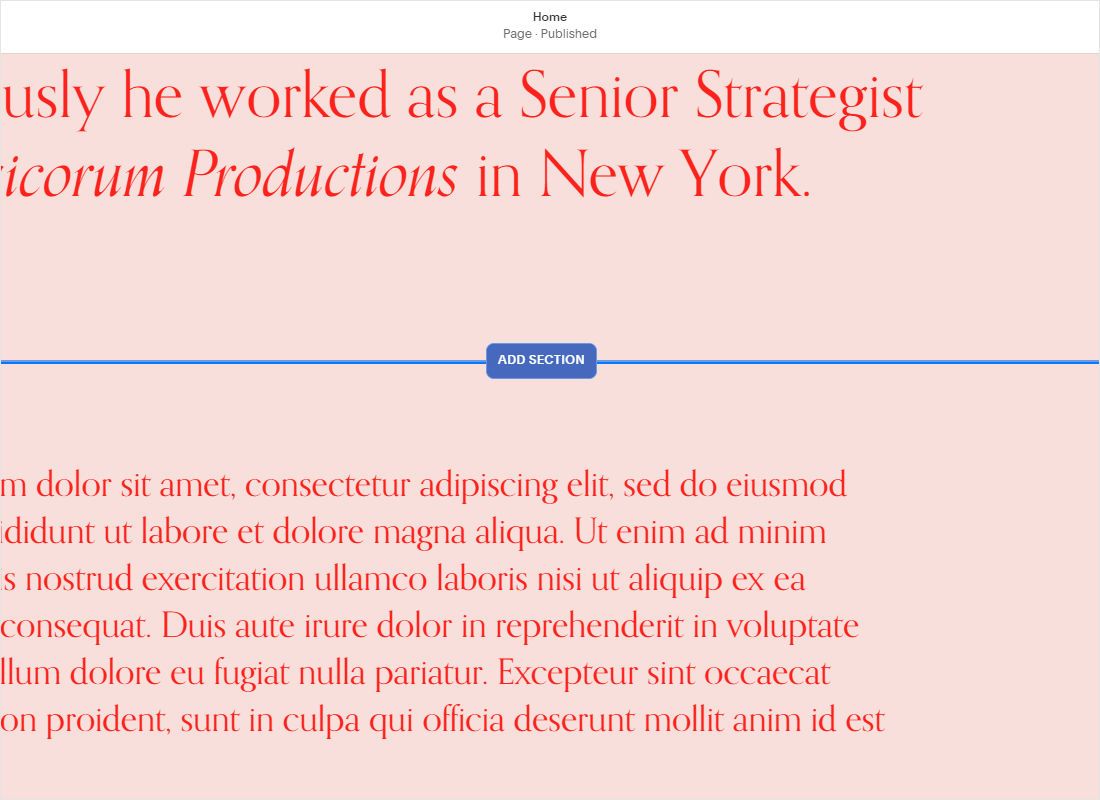
Open the page that should hold the widget and click Edit. Hover between two existing sections and press Add Section at the spot you want.
-
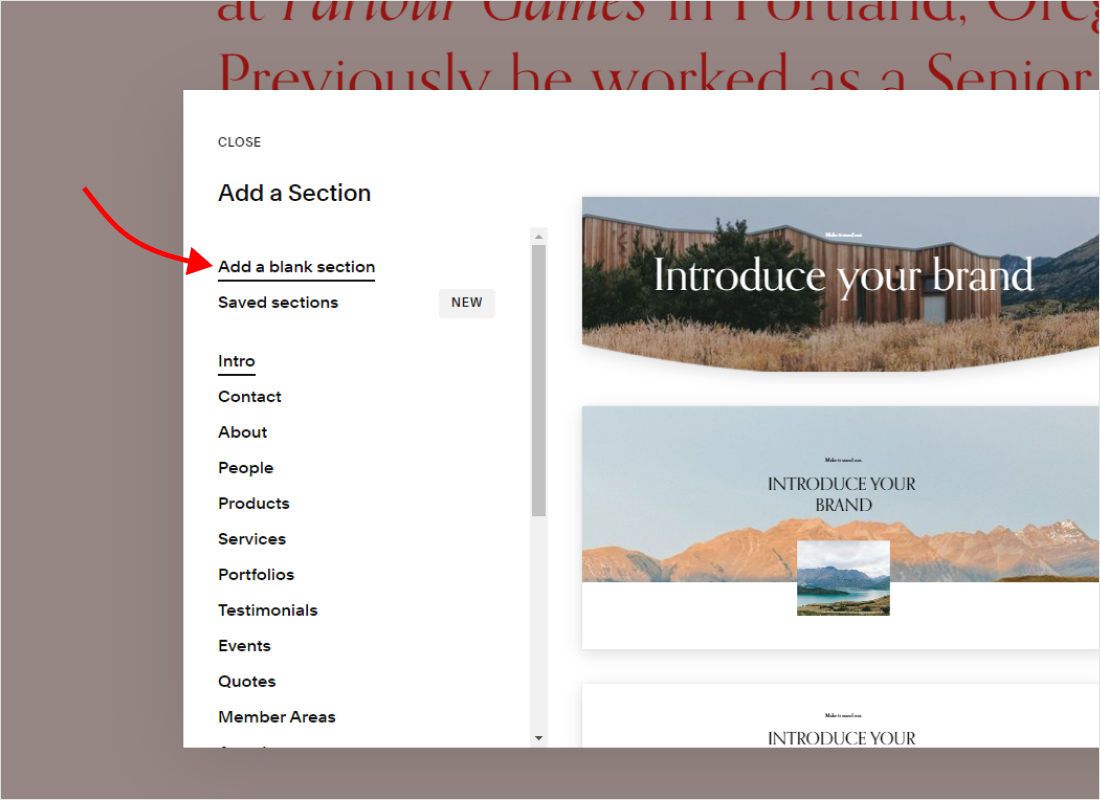
In the section picker choose Add blank section, so no template styling interferes with the embed.
-
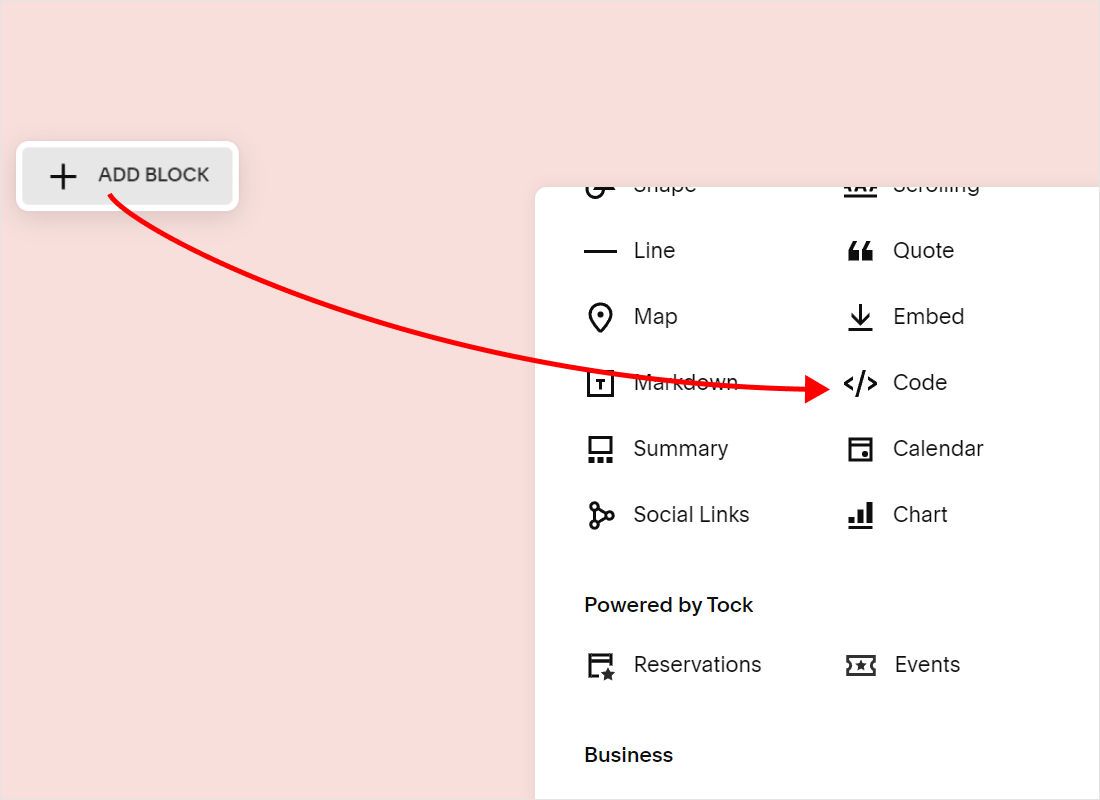
Click Add Block inside the empty section and pick Code from the block list.
-
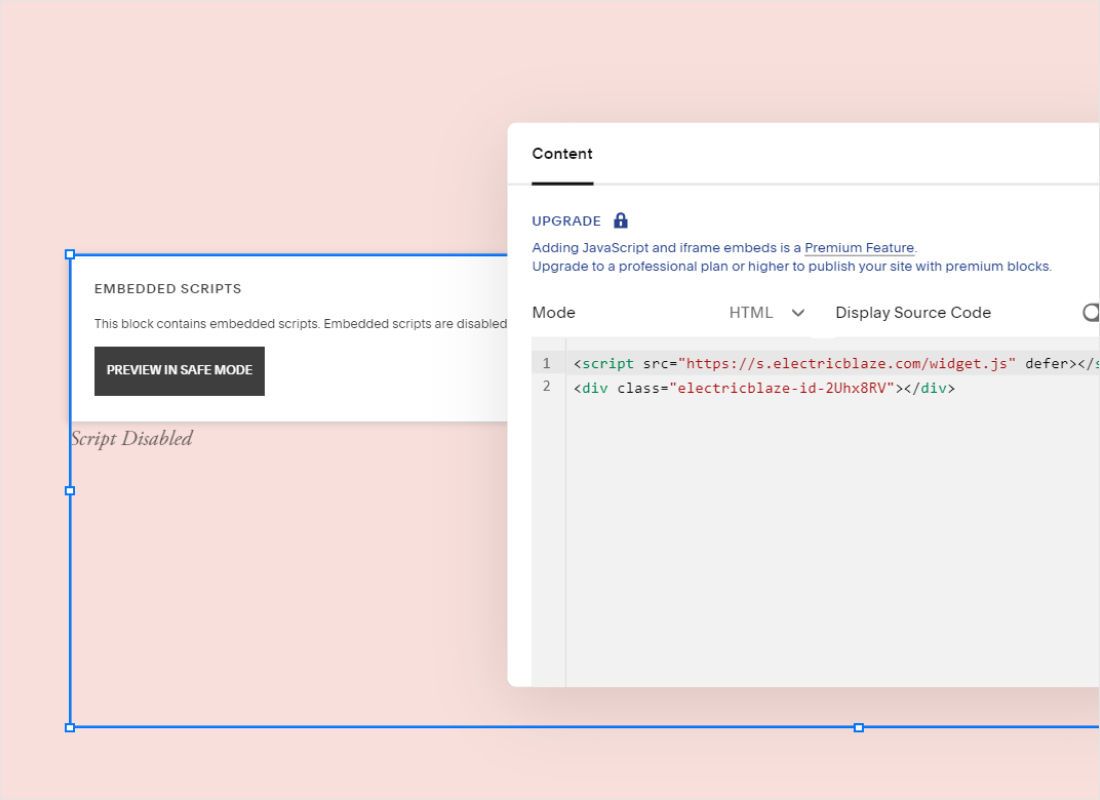
Paste the snippet into the block, keep Display Source switched off, and drag the block edges to the width you need. Save, then publish the page.
-
Log out or use Preview in Safe Mode to watch the script actually run, and adjust the block size if rows are cropped.
Squarespace deliberately stops custom scripts while you are signed in, as a security measure. An empty grey rectangle in the editor is expected, not an error.
Where each widget type belongs
Inline content: feeds and shop
Use a Code block. Stretch it across all grid columns for an edge-to-edge gallery, or keep it narrow beside text. A single strip of posts in slider mode takes little vertical room, while a four-row grid pushes the next section further down.
Floating content: chat button, sticky player
Open Settings → Website Tools → Code Injection, paste the code into Footer and save. The button then appears on all pages. Code Injection shares the plan requirement of scripts in blocks, and Squarespace does not run custom code on its checkout pages.
One page only
If a floating chat button belongs on a single landing page, open that page’s settings (gear icon → Advanced) and use its page-level header injection instead of the global field.
Embed shows nothing? Common causes
- Blank while editing. Scripts are paused for logged-in editors. Check a private browser window.
- Raw code printed on the page. Display Source is on. Toggle it off.
- Nothing on the live site either. The subscription is below Core, so JavaScript is stripped. Upgrade or ask the site owner.
- The editor itself freezes. Add
/safeto the editing URL, which loads the dashboard with custom scripts disabled, then fix the snippet. - Chat button duplicated. The snippet sits in both a block and Code Injection. Keep one copy.
Edits in the widget editor reach your pages without republishing the HTML. Squarespace support does not debug third-party scripts; write to [email protected] if the widget misbehaves.
Detailed guides by widget
Each guide explains how to add widget to Squarespace pages for that specific source, with sizing notes and FAQs.
-

How to add Instagram Feed to Squarespace
-

How to add TikTok Feed to Squarespace
-

How to add YouTube Feed to Squarespace
-

How to add Twitter Feed to Squarespace
-

How to add Twitch Feed to Squarespace
-

How to add Facebook Feed to Squarespace
-

How to add Popup Chat to Squarespace
-

How to add Music Player to Squarespace
-

How to add Pinterest Feed to Squarespace
-

How to add Vimeo Feed to Squarespace
-

How to add Simple Shop to Squarespace
HTML and code on Squarespace: FAQ
Which Squarespace plan do I need for embed scripts?
Core or higher on current pricing. Plain HTML works everywhere, but the ElectricBlaze snippet relies on JavaScript.
Can I add an HTML page to Squarespace from a file?
Not as an uploaded .html file. Create a normal page, add a blank section and place your markup in a Code block instead.
Is there a size limit for a Code block?
Squarespace allows roughly 400 KB of code per block. A widget snippet is a few lines, so the limit never comes into play.
Should I use the Embed block or the Code block?
The Embed block is built for links and oEmbed providers. For custom scripts, including our widgets, the Code block is the predictable choice.
Does custom code slow the site down?
The snippet loads asynchronously, so your text and images render first and the widget fills in afterwards.
How do I remove a widget later?
Delete the Code block or clear the Code Injection field and save. Removing the HTML is enough; the widget account stays untouched.
Build a widget for your Squarespace site
Start on the Free plan: five widgets, unlimited websites and a snippet ready to paste in a couple of clicks.
Create a widget