
How to Add Facebook Feed to Squarespace
Squarespace can link to your Page, but it will not list the posts themselves. This guide shows how to add Facebook feed to Squarespace pages so announcements, events and photos from your Page appear right on the site.
Requirements and alternatives
- A public Facebook Page you manage. Personal profiles and private groups cannot be displayed.
- Squarespace Core, Plus or Advanced, since Code blocks run scripts only on those plans.
- An ElectricBlaze account; testing on the Free plan is fine.
Meta’s own Page Plugin is another route. It is an iframe with Facebook’s styling and a width range fixed by Meta, which often leaves a narrow column on a wide Squarespace layout. The ElectricBlaze widget stretches to the block, follows your colours and can switch between a grid of cards and a slider.
Step 1: Build the Facebook widget
Every option is listed in the Facebook grid and slider reference; here is the short path:
-

Open a.electricblaze.com and log in; first-time visitors can create an account from the same screen.
-

Start a Create New Widget flow and click the Facebook Feed card.
-
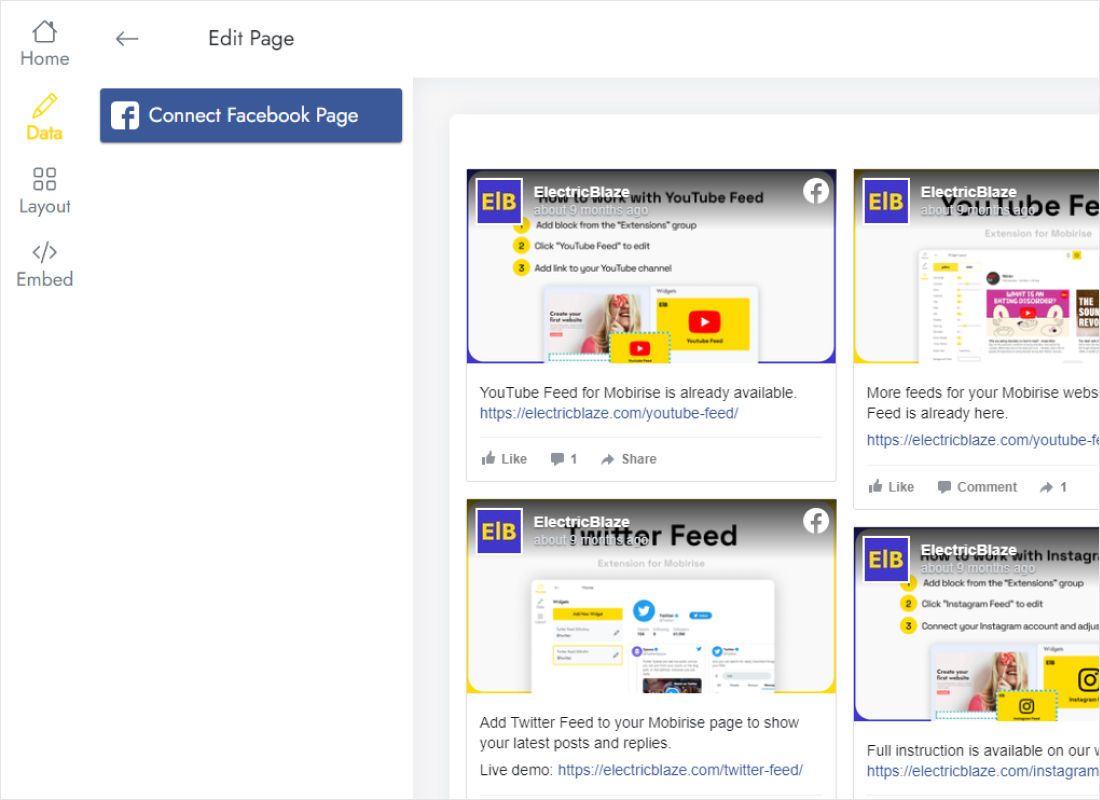
The Data tab shows Connect Facebook Page. Authorise with the login that manages your business Page and tick that Page in the list.
-
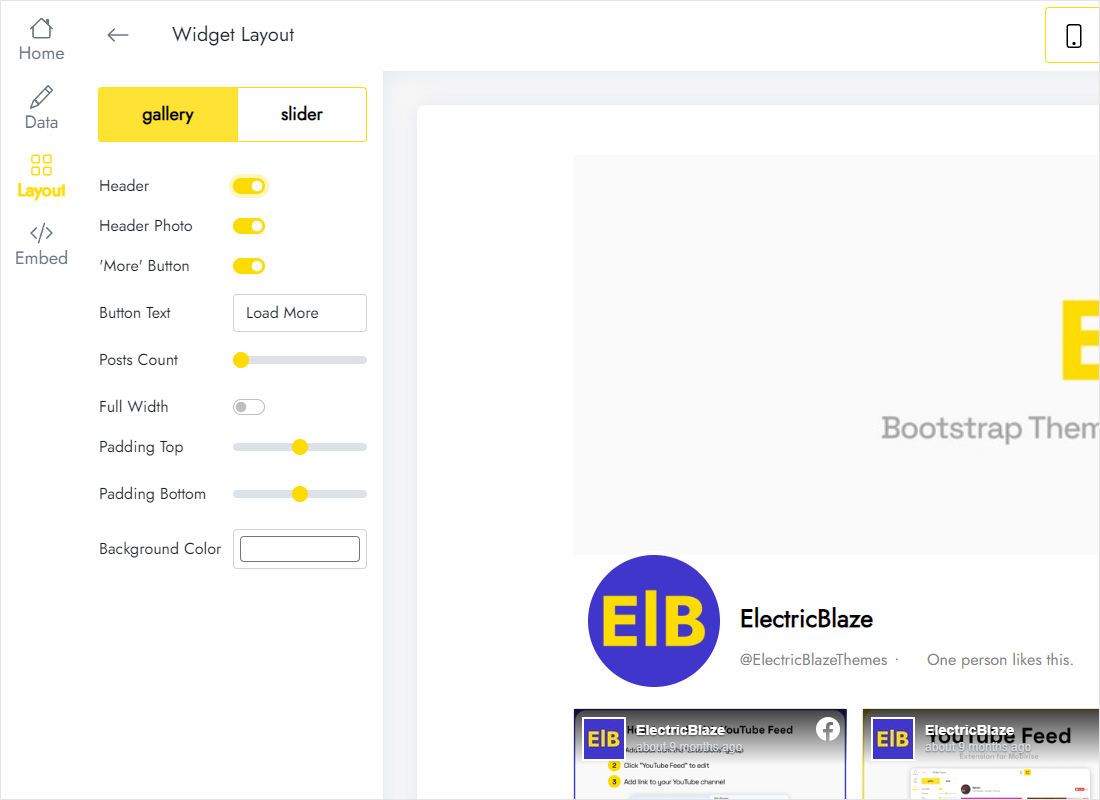
Move to Layout: cards in a gallery or a sliding row, the column and row count, gaps and a background tone matching your section.
-
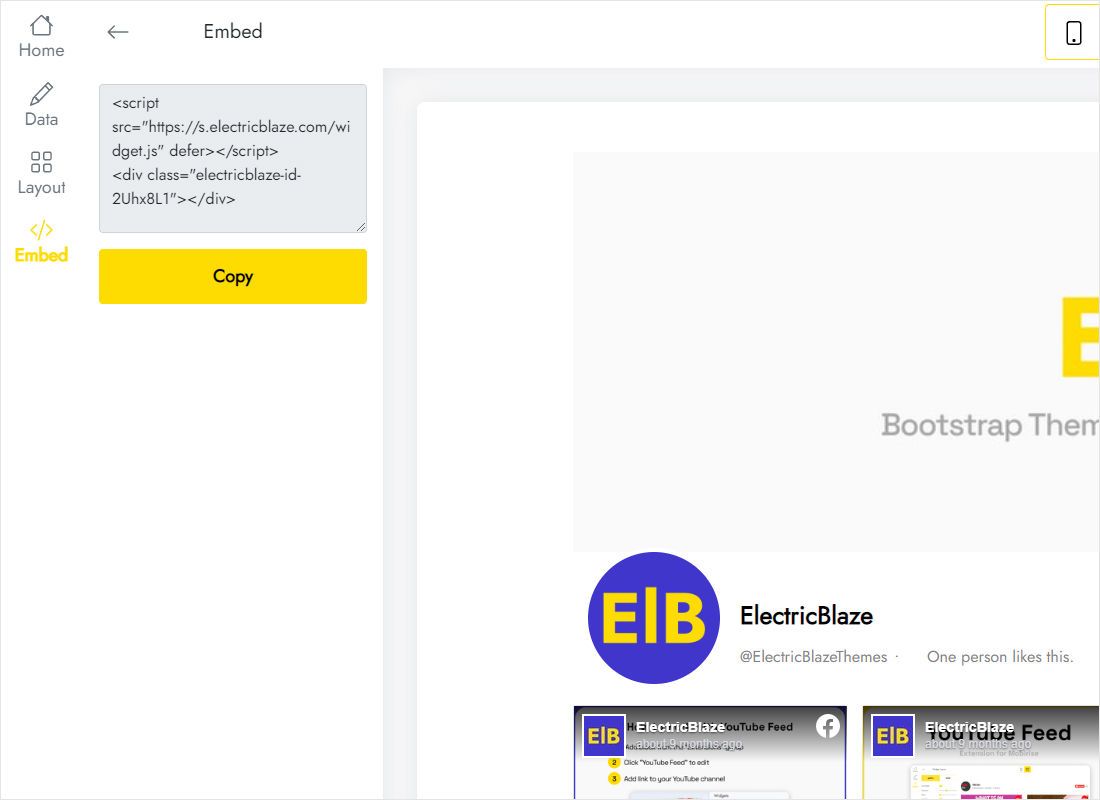
Once it looks right, Add to website opens the code. Copy the whole block.
Step 2: How to embed Facebook feed on Squarespace
Paste the snippet into the page editor, which takes about two minutes:
- Click Edit on the page, say News or About, and add a blank section below the introduction.
- Inside that section choose Add Block → Code.
- Paste the snippet, keep Display Source off and click outside the block to close it.
- Resize the block: wide for a card grid, or a shorter strip for a slider.
- Save, publish, and open the address in an incognito window where the cards render.
Custom scripts do not execute for signed-in editors, so the block looks empty while you work.
Layout ideas for Page posts
Page updates are text-heavy compared with photo feeds, so give each card room. On desktop two or three columns read well; four columns shrink long updates into cramped boxes.
- Events and offers. A slider with one row keeps the newest update visible near the top of the home page.
- Community page. A gallery with two rows works as a news wall.
- Phones. In the Fluid Engine mobile view, give the block the full width of the grid so cards do not become slivers.
Other ways to embed Facebook feed Squarespace owners try, like pasting a copied post URL into an Embed block, show one post at a time. The widget lists new Page posts automatically after each refresh.
Restaurants, venues and clubs often post weekly specials or event changes only on Facebook. Showing those posts beside the menu or calendar page saves updating two places by hand.
Facebook posts on Squarespace: FAQ
Does Squarespace embed Facebook feed content natively?
No. Squarespace embed Facebook feed support is limited to social icons and sharing buttons, so a third-party social snippet is needed for a post list.
Why does the Connect button not list my Page?
The Facebook account you sign in with needs full control of that Page, and the Page must be public. Check who has access in the Page settings.
Can I hide certain posts?
The widget shows what your Page publishes. Remove or hide a post there, and it drops off after the next refresh.
Do visitors need a Facebook account?
No. The posts are visible to anyone who opens the page, logged in or not.
More for this site
Squarespace setup basics, the Facebook widget overview and guides for other sources:
Show your Facebook Page on Squarespace
Connect the Page, style the cards and paste one snippet. Free to try.
Create a widget